Mapping Sites
By default, the OnDemand Migration for SharePoint service will migrate a site using the same relative url and name as the source site. This step is particularly helpful when the source and target sites have different names or are located at different places. You can also change the template of sites with unsupported templates. There are two ways to map sites:
A site cannot be mapped if it was previously migrated in the same project. See the Considerations topic for details about migration behavior if the target site or sub-site that is mapped, already exists before the migration is started.
Mapping a specific site from the user interface
To change the name of a specific migrated site, relocate the site with a different Url or change an unsupported template during migration, follow the steps described below.
- Log in to Quest On Demand and choose an organization if you have set up multiple organizations.
- From the navigation pane, click Migrate > Projects to open the My Projects list.
- Create a new project or open an existing project.
- Click theSharePointtile, or click Open from the SharePoint tile to open the SharePoint Migration Workspace.
- Go to the SharePoint Contents tab.
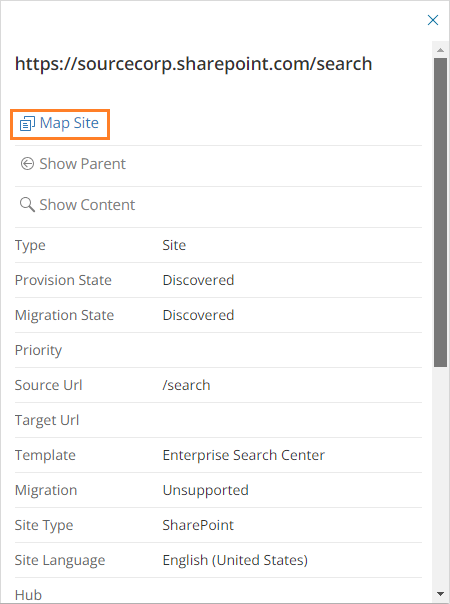
- Select a specific site and then click Map Site from the site detail pane.
- The New Site Mapping Task wizard starts. Each step is described below:
- Map Settings
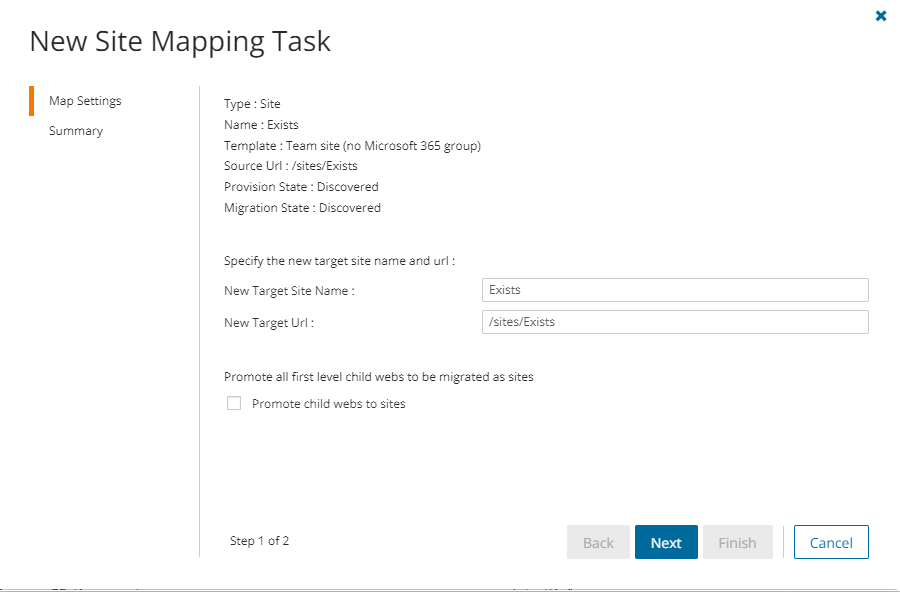
- Specify the new target site name and url :
- New Target Site Name - specify the new name of the target site (root website) if necessary, or retain the original name.
- New Target Url - specify the relative url in the target tenant or retain the original value. You can specify a different relative url in the target tenant to relocate the site if necessary.
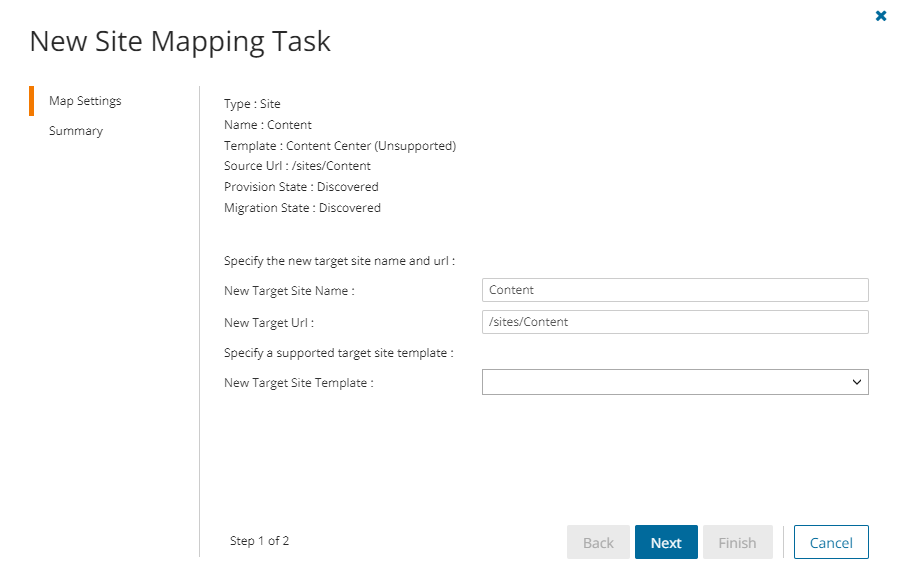
- Specify a supported target site template. This option is available if the selected site has an unsupported template.
|

|
NOTE:
To find sites with unsupported site templates, clear the filters in the search ribbon. Then set the following filters: Migration = Unsupported and Type = Sites
Template mapping is only available for unsupported templates. When you use a supported template, the original site features may not be provisioned. However, supported lists and list items can now be migrated to the target tenant.
Limitation: Sites with the "TeamsChanne#0" or "TeamsChanne#1" template cannot be mapped to a different template. These TeamsChannel based sites are provisioned with the ODM Teams provisioning task. |
- New Target Site Template - choose a supported template. The options are: Communication and Teams site (no Microsoft 365 group).
- Promote child webs to sites - select this option to promote all first level child webs in this site to a new site. Promoted site name and url will be based on the current name of the promoted child web. This option is available for supported sites only. Sites with unsupported templates cannot be promoted.
- Click Next.
- Summary
- Verify the task specifications as described below:
- Name - name of the task. The default name is Map Single SharePoint Object Task. You can specify a custom name.
- New Target Site Name - new name of the target site (root website)
- New Target Url - the relative url in the target tenant.
- New Target Site Template - option to match sub-sites and other descendant structures.
- Click Back to revise or review a previous step or click Finish to complete the task wizard and start the task as scheduled.
- You can track the progress in the Tasks tab, monitor alerts and notifications in the Events tab and view the summary on the Dashboard.
- When the task completes, the SharePoint Contents list is updated. Compare the Source Urlcolumn with the Target Url column for the selected site. The Provision state of the selected site is set to Mapped.
Mapping one or more sites with a CSV file
To change the name of a migrated site or relocate the site with a different Url, use a CSV file to set up a custom map. URLs in a mapping file are case sensitive and must be relative URLs. This is a two-step process:
|
|
NOTE: If your sites are geo-enabled, we recommend that you run the Map Geo Location task before you run the Mapping from File task. The Mapping from File task sets the geo locations using the default settings, and once the target location is set it can't be reset by the Map Geo Location task.
Workaround: Delete site from the SharePoint Contents list and rerun the Discover Site Collections task. |
Preparing the CSV file
|
|
NOTE:
- Sites cannot be merged or reorganized with a mapping file.
- Site templates cannot be changed with a CSV file.
- If the target site name is set in the CSV file, then this mapped name is used for the target site instead of migrating the site name from the source.
|
There are three ways to prepare a CSV site mapping file.
- Download the CSV file from the SharePoint Admin Center
- Log in to the SharePoint Admin Center of the source tenant.
- From the navigation pane, click Active sites.
- From the Active sites page menu, click Export to download the CSV file.
- In the CSV file, delete all columns before the URL column. Rename the URL column header to either SourceURL. This must be the first column.
- In the SourceURL column keep only the sites that you want to map. Ensure that only relative URLs are used.
- Insert a blank column as the second column and specify the header as either TargetURL This must be the second column.
- Specify the corresponding target URLs. Ensure that only relative URLs are used.
- Download the CSV file from the SharePoint Contents page
- Choose one or more sites by selecting the respective check box for the site. You can select the check box in the column header to select all sites.
- Click Export from the Actions ribbon.
- Extract the CSV file from the downloaded ZIP file.
- In the CSV file, delete all columns before the SourceURL column. This must be the first column.
- Insert a blank column as the second column and specify the header as either TargetURL. This must be the second column.
- Specify the corresponding target URLs. Ensure that only relative URLs are used.
- Create a new CSV file and specify the column header in the first row and then enter the URLs in the subsequent rows manually. Since URLs in a mapping file are case sensitive, this method must be used with caution.
|
|
NOTE:
- You need to map only the URLs that will change in the target Tenant.
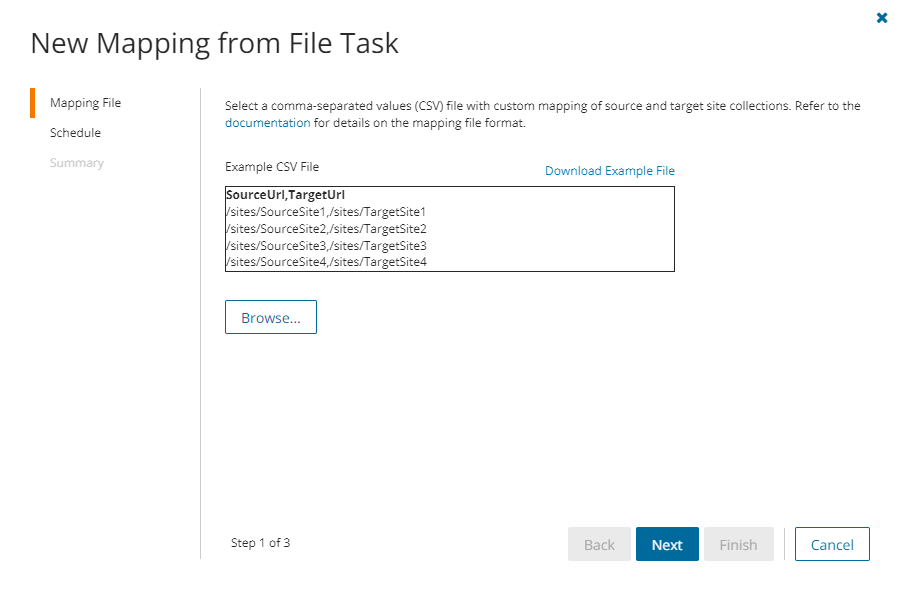
- You can download a CSV template when you start the New Mapping from File Task wizard and click Download Example File from the Mapping File step.
- CSV file names with non-ASCII characters are not supported.
|
- In the first column, specify the header as either SourceURL.
- In the second column, specify the header as either TargetURL.
- Enter the source and target URLs manually in the subsequent rows . Ensure that only relative URLs are used.
- Save the CSV file. You may rename the file if needed.
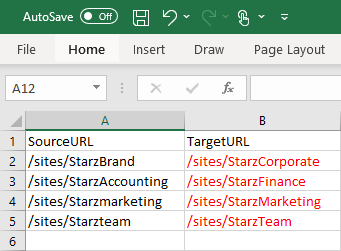
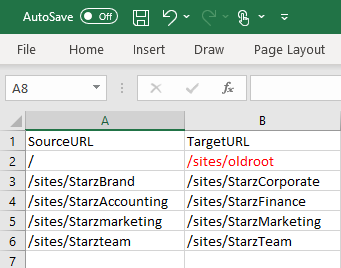
Example 1 - The Target URL is used to rename a site from the source tenant.
- The URL /sites/StarzBrand has been renamed to /sites/StarzCorporate.
- The URL /sites/StarzAccounting has been renamed to /sites/StarzFinance.
- The URL /sites/Starzmarketing has been renamed to /sites/StarzMarketing.
- The URL /sites/Starzteam has been renamed to /sites/StarzTeam.
Example 2 - The target URL is used to relocate the root site.
The root URL is relocated to a managed site in the target tenant called /sites/oldroot.
Start the Mapping from File Task
- Log in to Quest On Demand and choose an organization if you have set up multiple organizations.
- From the navigation pane, click Migrate > Projects to open the My Projects list.
- Create a new project or open an existing project.
- Click theSharePointtile, or click Open from the SharePoint tile to open the SharePoint Migration Workspace.
- Go to the SharePoint Contents tab.
- From the Actions toolbar, click More > Map from File. The New Mapping from File Task wizard starts. Each step is described below:
- Mapping File
- Click Browse and locate the CSV mapping file.
- Click Open in the File Explorer window to load the file into the wizard
- Click Next.
- Schedule
- Choose from one of three options to schedule the task. The scheduler will be activated after you complete the task wizard.
- Run now - task runs immediately.
- Run later - task must be started manually.
- Schedule - task will be started at a future date and time entered in the corresponding calendar field.
- Click Next.
- Summary
- Verify the task specifications as described below:
- Name - name of the task. The default name is Mapping from File Task. You can specify a custom name.
- Source tenant - name of the tenant where the source URLs exist.
- Target tenant - name of the tenant where the target URLs may or may not exist.
- Scheduled start - date and time when the task will start. Now indicates that the task will start immediately.
- Click Back to revise or review a previous step or click Finish to complete the task wizard and start the task as scheduled.
- You can track the progress in the Tasks tab, monitor alerts and notifications in the Events tab and view the summary on the Dashboard.
- When the task completes, the SharePoint Contents list is updated. Compare the Source Urlcolumn with the Target Url column for the selected sites. The Provision state of each matched site is set to Mapped.
Matching Sites
To check if the site already exists on the target or it is correctly mapped, match the source sites with the corresponding target sites using a Matching Task. If a match is found the site state is set to Matched and the target Url is updated. Discovered content for the selected sites can also be matched using the Include child site structure setting in the New Matching Task wizard.
This step is optional. The SharePoint migration service will match and migrate the source site to the existing target site (the target site and content will be replaced), or create the site as needed base on the default or site mapping.
To match sites:
- Log in to Quest On Demand and choose an organization if you have set up multiple organizations.
- From the navigation pane, click Migrate > Projects to open the My Projects list.
- Create a new project or open an existing project.
- Click the SharePoint tile, or click Open from the SharePoint tile to open the SharePoint Migration Workspace.
- Click the SharePoint Contents tab from to open the SharePoint Contents list view.
- Choose one or more sites by selecting the respective check box for the sites. You can select the check box in the column header to select all sites.
- Click More > Match from the Actions ribbon. The New Matching Task wizard starts. Each step is described below:
- Matching Option
- SharePoint objects selected - indicates the number of sites selected for matching.
- Include child site structure - select this option to include matching discovered site content (webs and other descendant objects) with the matching task. This will increase the task run time significantly.
- Schedule
- Choose from one of three options to schedule the task. The scheduler will be activated after you complete the task wizard.
- Run now - task runs immediately.
- Run later - task must be started manually.
- Schedule - task will be started at a future date and time entered in the corresponding calendar field.
- Click Next.
- Summary
- Verify the task specifications as described below:
- Name - name of the task. The default name is Matching Task. You can specify a custom name.
- Source tenant - name of the tenant where the source URLs exist.
- Target tenant - name of the tenant where the source URLs may or may not exist.
- Scheduled start - date and time when the task will start. Now indicates that the task will start immediately.
- Include site structure - option to match webs and other descendant objects.
- Click Back to revise or review a previous step or click Finish to complete the task wizard and start the task as scheduled.
- You can track the progress in the Tasks tab, monitor alerts and notifications in the Events tab and view the summary on the Dashboard.
- When the task completes, the SharePoint Contents list is updated. Compare the Source Urlcolumn with the Target Url column for the selected sites. The Provision state of each matched site is set to Matched.
Collecting Statistics
A Collect SharePoint Statistics Task conducts an assessment of selected SharePoint sites, webs and lists in the source tenant and matching sites in the target tenant.
In this topic:
Create a Collect SharePoint Statistics Task
- Log in to Quest On Demand and choose an organization if you have multiple organizations.
- From the navigation pane, click Migrate > Projects to open the My Projects list.
- Create a new project or open an existing project.
- Click the SharePoint tile, or click Open from the Mail tile to open the sites and User Data dashboard.
- Select the Sites tab and then select List View if not already selected. Then select one or more SharePoint sites from the list to activate the menu options.
- From the Actions menu, click Collect Statistics. The New Collect SharePoint Statistics Task wizard starts. Each step is described below:
- Description
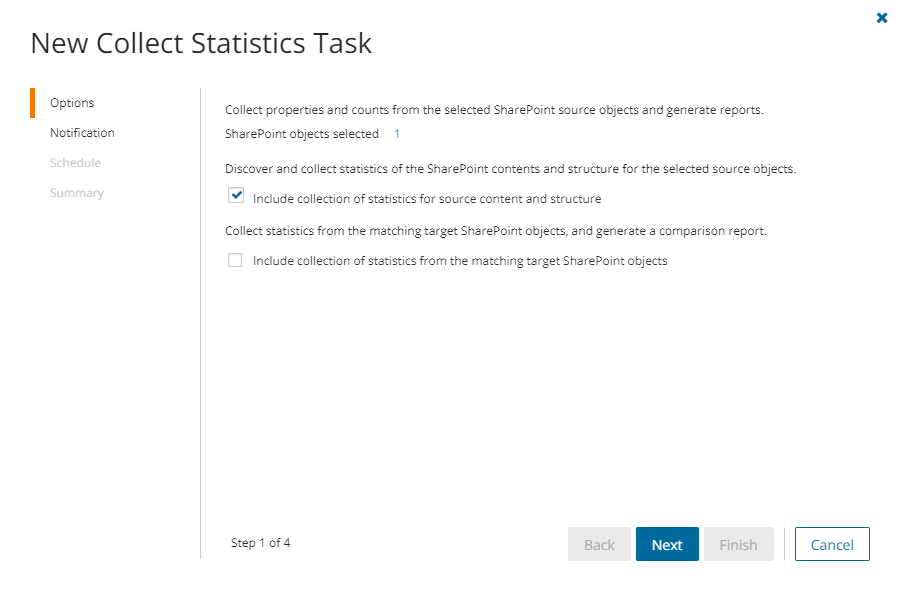
- Include collection of statistics for source content and structure - select this option to discover and collect statistics of the SharePoint contents and structure for the selected source objects.
- Include collection of statistics from the matching target SharePoint objects - select this option to collect statistics from the matching SharePoint objects in the target tenant and generate the Comparison Report.
- Click Next.
- Notification
- Send notification email once the task is completed - select this option to send a notification email when a discovery task completes.
- Only in a case of failure - Select this option to send the email if the discovery task fails to complete successfully.
- Recipients - enter the email address of the recipients of this email. You can specify multiple recipient email addresses separated by semicolon.
- Click Next.
- Schedule
- Choose from one of three options to schedule the task. The scheduler will be activated only after you complete the task wizard.
- Run now - task runs immediately.
- Run later - task must be started manually.
- Schedule - task will be started at a future date and time entered in the corresponding calendar field.
- Click Next.
- Summary
- Verify the task specifications as described below:
- Name - name of the task. You can specify a custom name. The default name is Collect SharePoint Content Statistics Task
- Source tenant - name of the tenant where the statistics will be collected.
- Scheduled start - date and time when the task will start. Now indicates that the task will start immediately.
- Click Back to revise or review a previous step or click Finish to complete the task wizard and start the task as scheduled.
Review the Collect SharePoint Statistics Task
- Open the Tasks tab.
- Select the Collect SharePoint Statistics Task that you want to review.
- In the task detail pane that opens, the information presented is as described below:
- Type - type of the task. The type is SharePoint.
- Created - date and time when the task was created.
- Modified - date and time when the task was last updated.
- State - state of the task.
- Last Operation - action that was most recently performed in this task.
- Schedule - date and time when the task started. Now indicates that the task started immediately after the task was created.
- Contents (number) - number of objects processed and their task status.
- Events (number) - number of events that the task encountered.
Review the statistics collected
- Open the Tasks tab.
- Select the Collect SharePoint Statistics Task that you want to review.
- From the task detail pane, click Download Premigration Report. If comparison reports were generated, click Download comparison report.
- Download and save the ZIP file to a suitable folder, and extract the report.
Review the Collect SharePoint Statistics Task Events
- Open the Tasks tab.
- Select a task named Collect SharePoint Statistics Task that you want to review.
- In the task detail pane that opens, click Events (number). The Events tab opens with a filtered list of events for the selected task.
- Select an event that you want to review. In the task detail pane that opens, the information presented is as described below:
- Object - name of the SharePoint object if applicable.
- Task - name of the task.
- Time - date and time when the event occurred.
- Category - type of task. the value is Application.
Managing Sites with Collections
SharePoint site collections, sites and lists can be grouped in collections.
Migrating large numbers of SharePoint site collections requires careful planing. The site collections could belong to different offices and geographical locations or sensitive departments. Organize the SharePoint site collections into logical groups called collections to make large SharePoint site collections more manageable. SharePoint sites, webs and lists can be grouped in collections.
In this topic:
Adding SharePoint site collections to Collections
You can add SharePoint site collections to collections in three ways:
To add selected SharePoint site collections to a new collection:
- From the project dashboard, click Open in the SharePoint tile to open the SharePoint workspace.
- Select the SharePoint Contents tab.
- Select the SharePoint site collections you want to combine into a collection.
- From the actions toolbar, click Collections > Create New Collection. The New Collection dialog opens.
- Enter a collection name in the Collection name field and click Save to add the selected SharePoint site collections to the collection.
To add selected SharePoint site collections to an existing collection:
- From the project dashboard, click Open in the SharePoint tile to open the SharePoint workspace.
- If you need to create a new collection:
- From the top-right corner of the workspace, click Select Collection > + New Collection
- Enter a collection name and click Save to add this collection to the project.
- From the actions toolbar, click the SharePoint Contents tab and select the site collections that you want to add to the collection.
- Click Collections > Add to Collection. The Add to existing collection dialog opens.
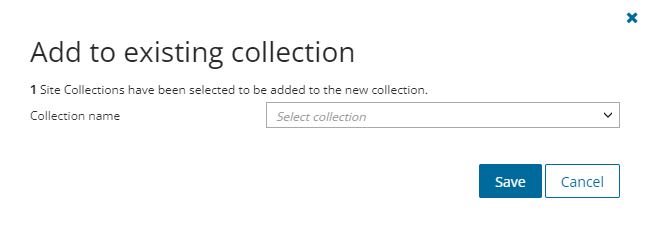
- Select a collection from the Collection name dropdown and click Save to add the selected SharePoint sites to the collection.
To add sites to one or more collections with a CSV file:
Using a CSV file provides the following additional benefits:
- Multiple collections can be created with the same CSV file.
- Existing collections can be specified in the CSV file to add additional sites.
- SharePoint sites can be listed in multiple collections.
This is a two-step process as described below:
Step 1: Prepare the CSV file
- From the actions toolbar, click Collections > Import Collections. The New Import Collections from File Task wizard starts.
- From the Mapping File step, click Download Example File. A ZIP file is downloaded.
- Extract the CSV file and use it to prepare your import file in one of three formats described below:
|
|
NOTE: CSV file names with non-ASCII characters are not supported. SharePoint sites in the CSV that have not been discovered cannot be added to a collection. |
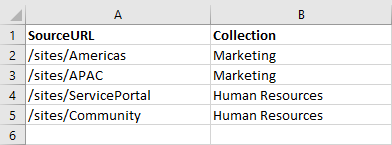
- SourceURL - site collection URL.
- Collection - collection name.
Step 2: Import the CSV file
- Open the SharePoint Contents tab.
- From the actions toolbar, click Collections > Import Collections. The New Import Collections from File Task wizard starts.
- Mapping File
- Click Browse and select the CSV file. The selected CSV file name appears.
- Schedule
- Choose from one of three options to schedule the task. The scheduler will be activated after you complete the task wizard.
- Run now - task runs immediately.
- Run later - task must be started manually.
- Schedule - task will be started at a future date and time entered in the corresponding calendar field.
- Click Next.
- Summary
- Verify the task specifications as described below:
- Name - name of the task. The default name is Import Collections From File. You can specify a custom name.
- Scheduled start - date and time when the task will start. Now indicates that the task will start immediately.
- Click Back to revise or review a previous step or click Finish to complete the task wizard and start the task as scheduled.
- Click Finish.
To gather a site and all its children into a collection
- From the top-right corner of the workspace, click Select Collection and then select the collection to view.
- If needed, add one or more SharePoint sites to the collection
- Select one or more sites.
- Run the Discover SharePoint Contents task.
|
|
NOTE: SharePoint content discovered during a migration will be added to the collection as well if the parent site collection is present . |
To verify the addition of the SharePoint objects to a collection:
- Check the Collections column in the SharePoint Contents List View that indicates the most recent collection where the object has been added and the number of additional collections that also contain the object.
- Select an object from the List View to open the SharePoint Detail pane. Check the Collections property that lists all the collections where the object has been added.
Working with the Collection Dashboard
The Collection Dashboard shows the collection-specific summary, allows you to see SharePoint site collections added to it, create tasks for them, and monitor the progress of tasks.
To view the collection dashboard for an existing collection:
- Log in to Quest On Demand and choose an organization if you have multiple organizations.
- From the navigation pane, click Migrate > Projects to open the My Projects list.
- Create a new project or open an existing project.
- From the project dashboard, click Open in the SharePoint tile to open the SharePoint workspace.
- From the top-right corner of the workspace, click Select Collection and then select the collection to view. The collection Dashboard is displayed.
- Click the SharePoint Contents tab. You will see the list of SharePoint site collections that belong to the collection.
To remove items from a collection:
- From the actions toolbar, click Collections > Remove from Collection.
- In the confirmation dialog click Remove to remove the selected objects from the collection.
To rename the collection:
- Click Collections > Rename Collection in the Actions toolbar of the collections dashboard.
To delete the collection:
- Click Collections > Delete Collection in the Actions toolbar of the collections dashboard.
To see the tasks for collection-specific SharePoint objects:
- Open the Tasks tab.
To see the events related to the collection:
- Open the Events tab.
To return to the SharePoint migration workspace:
- Click the collection dropdown at the top-right corner of the page, and select Show All.

