

The ability for On Demand service principals to access and operate with tenant assets requires explicit permissions. The Tenant Administrator grants these permissions through consents. Multi-factor authentication (MFA) is supported for tenant administrators when granting consents.
When a tenant is added, the initial Core - Basic permission set is granted consent to the On Demand service principal. Additional consents are required to work with different features of On Demand Migration
While consents allow Quest On Demand Migration to access tenant assets that are exposed to the application, you can selectively restrict access to specific assets in your tenant and allow access to the other assets in the environment. Granting selective access requires additional configuration in your tenant as described below.
In this topic:
- Restricting access scope
- Granting Consents
- Consents for initial tenant setup
- Consents for Sensitivity Labels
- Consents for Account Migration
- Consents for Mailbox Migration
- Consents for Public Folder Migration
- Consents for OneDrive Migration
- Consents for Teams and M365 groups Migration
- Consents for SharePoint Migration
- Consents for Power BI Migration
- Consents for Power Platform Migration
- Verifying Service Principals
Restricting access scope
You can use the following resource-scoped access control methods in your tenant:
Role Based Access Control for Exchange Online
RBAC for Applications in Exchange Online allows admins to grant permissions to Quest On Demand Migration for Mailboxes which migrates data in Exchange Online. Exchange Online RBAC permissions must be set up in the tenant for Exchange Web Services (EWS) to ensure that Quest On Demand Migration for Mailboxes can migrate mailbox data for users within the scope of the RBAC configuration. See the Knowledge Base for more details or contact Quest Technical Support for assistance.
Sites.Selected permission for specific SharePoint Online site collections
You can enhance the security of SharePoint Online (SPO), by ensuring that On Demand Migration for SharePoint has access only to specific SharePoint sites, preventing unnecessary exposure to other sites in the environment. To achieve selected access, you must configure the Sites.Selected permission which is part of the permissions model for controlling access to specific SharePoint sites or site collections.
This permission can also be used to restrict On Demand Migration for Teams for migrating Teams and M365 Groups within the scope of the specific SharePoint sites that are exposed to the application.
Here’s a breakdown of what Sites.Selected means:
Purpose: The Sites.Selected permission is used primarily in the context of Microsoft Graph API or Azure AD permissions, where you want to restrict access to only specific SharePoint sites. It is part of the delegated or application permissions model, which allows a service or app to interact with SharePoint on behalf of the user (in delegated permissions) or as itself (in application permissions).
What it does: This permission gives an application or user the ability to access only selected SharePoint sites, instead of granting broader access to all sites in the tenant. This is more granular compared to other permissions like Sites.FullControl.All, Sites.Read.All, or Sites.Manage.All, which grant broader access.
Key Permissions in Comparison:
- Sites.FullControl.All: This allows full control of all SharePoint sites across the tenant.
- Sites.Read.All: This provides read access to all sites in the tenant.
- Sites.Selected: Access is restricted to a specific set of sites (only the ones specified).
|
|
NOTE: When implemented, Site.Selected replaces the Sites.FullControl.All and Sites.Read.All permissions. |

Example Scenarios:
- Admin-level control: An administrator can use Sites.Selected to configure apps that need specific access to particular sites for functions like document management, workflow integration, or customized solutions.
- Granular control: You could use it for limiting access to a few department-specific sites or a small set of collaborative sites, instead of granting Quest On Demand access to the entire SharePoint Online environment.
How it's implemented: The Sites.Selected permission, is typically granted during the registration of an Azure AD app, or when configuring API permissions to interact with SharePoint via Graph API. It requires specifying the sites the app will have access to, and this can be done by defining a list of URLs or site identifiers. This permission requires implementation through the Azure portal, PowerShell scripts and Graph explorer. See the Knowledge Base for more details or contact Quest Technical Support for assistance with this implementation.
Granting Consents
- Click Tenants from the navigation pane.
- Select a tenant and click Edit Consents from the tenant tile.
- Click Grant Consent or Regrant Consent for the permissions type.
- Log in as the tenant administrator of the source or target tenant. Then click Accept in the Microsoft consents dialog.
This section lists the minimum consents and roles required by the various On Demand Migration service principals for managing tenants, Microsoft 365 objects and other migration services.
|
|
NOTE: The following permission sets are legacy and not available for new Quest® On Demand Migration subscribers. If you already use them, they should be replaced with either the corresponding Minimal or Full permission sets.
|
|
|
IMPORTANT: When you run a discovery task on tenants for certain assets like Accounts and Mailboxes, the Exchange Administrator role is assigned to the corresponding Enterprise Application (service principal). This role assignment occurs automatically to retrieve mail attributes via Exchange Online PowerShell. |
For more details about the permissions granted through consents for each service principal, see the On Demand Migration Permissions Reference Guide.
Consents for initial tenant setup
| Task | Minimum consents and permissions |
|---|---|
|
Add and configure tenants, and grant consent |
Core-Basic consent from both Source and Target tenant administrator accounts. Global Administrator role for both Source and Target tenant administrator accounts. |
Each tenant that is added is granted consent to the initial Core - Basic permission set to the On Demand Migration service principal. Additional consents are required to work with different features of On Demand Migration.
Consents for Sensitivity Label migration
| Task | Minimum consents and permissions |
|---|---|
|
All tasks |
AIP protected content migration - Read consent from Source tenant administrator accounts. AIP protected content migration - Write consent from Target tenant administrator accounts. |
Consents for Account migration
| Task | Minimum consents and permissions |
|---|---|
|
Admin tasks |
Migration - Basic - Minimal consent from Source tenant administrator accounts. Migration - Basic - Full consent from Target tenant administrator accounts. |
| Migrate hybrid accounts | Global Administrator role for both Source and Target tenant administrator accounts. |
|
Migrate Guest Users |
Guest Inviter role for both Source and Target tenant administrator accounts. |
Consents for Mailbox migration
| Task | Minimum consents and permissions |
|---|---|
|
Admin tasks |
Migration - Basic - Minimal consent from Source tenant administrator accounts. Migration - Basic - Full consent from Target tenant administrator accounts. |
| Migrate mailboxes |
Migration - Mailbox Migration - Minimal consent from Source tenant administrator accounts or Migration - Mailbox Migration - Custom RBAC with additional consents from Source tenant administrator accounts. Migration - Mailbox Migration - Full consent from Target tenant administrator accounts or Migration - Mailbox Migration - Custom RBAC with additional consents from Target tenant administrator accounts. |
Consents for Public Folder migration
| Task | Minimum consents and permissions | ||
|---|---|---|---|
|
Admin tasks |
Migration - Basic - Minimal consent from Source tenant administrator accounts. Migration - Basic - Full consent from Target tenant administrator accounts. | ||
|
Migrate Public Folders |
Migration - Mailbox Migration - Minimal consent from Source tenant administrator accounts. Migration - Mailbox Migration - Full consent from Target tenant administrator accounts. Owner permission for the root Public Folder of the target tenant must also be granted to the target tenant administrator account.
|
Consents for OneDrive migration
| Task | Minimum consents and permissions | ||
|---|---|---|---|
|
Admin tasks |
Migration - Basic - Minimal consent from Source tenant administrator accounts. Migration - Basic - Full consent from Target tenant administrator accounts. | ||
| Provision OneDrive | SharePoint Administrator role for Target tenant administrator accounts to provision OneDrive accounts on the target tenant.
| ||
|
Migrate OneDrive |
Migration - OneDrive - Minimal consent from Source tenant administrator accounts. Migration - OneDrive - Full consent from Target tenant administrator accounts. |
Consents for SharePoint migration
| Task | Minimum consents and permissions |
|---|---|
|
Admin tasks |
Migration - Basic - Minimal consent from Source tenant administrator accounts. Migration - Basic - Full consent from Target tenant administrator accounts. |
|
Migrate SharePoint |
Migration - SharePoint - Minimal consent from Source tenant administrator accounts. Migration - SharePoint - Full consent from Target tenant administrator accounts. |
Consents for Teams and M365 Groups migration
|
|
IMPORTANT: The temporary Migration Service account is highly recommended for Teams migration. You must login to the tenant as the Migration Service account and grant the consents and permissions to the On Demand Migration service principal. See Migration Service account in the Roles topic for more details. |
|
|
Caution: If you do not use the Migration Service account and use a person account like the Tenant Administrator or a personal user account, the account name appears as the author of all migrated channel messages and chat messages. |

| Task | Minimum consents and permissions |
|---|---|
|
Admin tasks |
Migration - Basic - Minimal consent from Source tenant administrator accounts. Migration - Basic - Full consent from Target tenant administrator accounts. |
|
Migrate Teams |
For Source tenant Migration - Teams - Minimal consent from Source Migration Service account. After consent is granted, the Global Administratorrole can be replaced with the Teams Administrator role. In addition to these roles, the Migration Service account that grants the consents also requires the following:
-or- Migration - Teams - App Only Permissions consent from Source tenant administrator account without additional roles. No Migration Service account is required. This consent grants a restrictive permission set that allows access to the source tenant using application permissions only. It avoids all delegated permissions and does not add a migration service account to Teams on the source. Use this application to meet strict compliance requirements. Use of this application denies access to the following features:
The Global Administrator role can be revoked after consent is granted. For Target tenant Migration - Teams - Full consent from Target Migration Service account. After consent is granted, the Global Administratorrole can be replaced with the Teams Administrator role. In addition to these roles, the Migration Service account that grants the consents to the Migration -Teams service also requires the following:
|
|
Migrate related O365 assets |
Migration - Mailbox Migration - Minimal consent from Source tenant administrator accounts. Migration – Mailbox Migration – Custom RBAC consent from source and/or target tenant administrator accounts. Migration - Mailbox Migration - Full consent from Target tenant administrator accounts. Migration - SharePoint - Minimal consent from Source tenant administrator accounts. Migration – SharePoint – Selected Sites consent from source and/or target tenant administrator accounts. Migration - SharePoint - Full consent from Target tenant administrator accounts. |
|
|
NOTE: When the Migration Service account is used, this account will always be added to source teams as a member and target teams as an owner, during migration. The Migration Service account name appears as the author of all migrated channel messages and chat messages. The original author and timestamp are preserved in the message body. After migration is complete, the Remove Migration Service Account task can be used to remove the migration service account from source and target teams. |
Consents for Power BI migration
| Task | Minimum consents and permissions |
|---|---|
|
Admin tasks |
Migration - Basic - Minimal consent from Source tenant administrator accounts. Migration - Basic - Full consent from Target tenant administrator accounts. |
|
View Power BI |
Migration - Power BI consent from Source and Target tenant administrator accounts. Global Administrator role from both source and target tenant administrator accounts. |
| Migrate Power BI | Additional manual setup is required for both source and target tenants through the Azure portal. The steps required to grant additional permissions are described below. |
Granting additional permissions for the source and target tenants
This is a two-part process as described below:
Part 1: Azure Portal Security Group Setup
In this part, a new security group is created in Microsoft Entra ID for each source and target tenant, to associate the service principal of the Quest On Demand - Migration - Power BI enterprise application. Additional permissions can be then be granted to the service principal to access and operate on Power BI objects.
- Login to https://portal.azure.com with your tenant credentials.
- Open the Microsoft Entra ID service page.
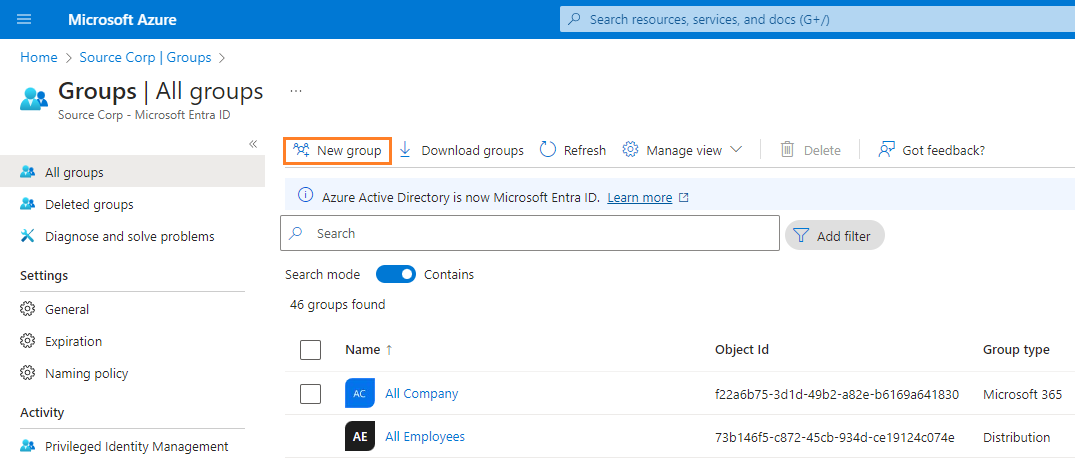
- Click Manage > Groups from the navigation panel. Then click New Group.
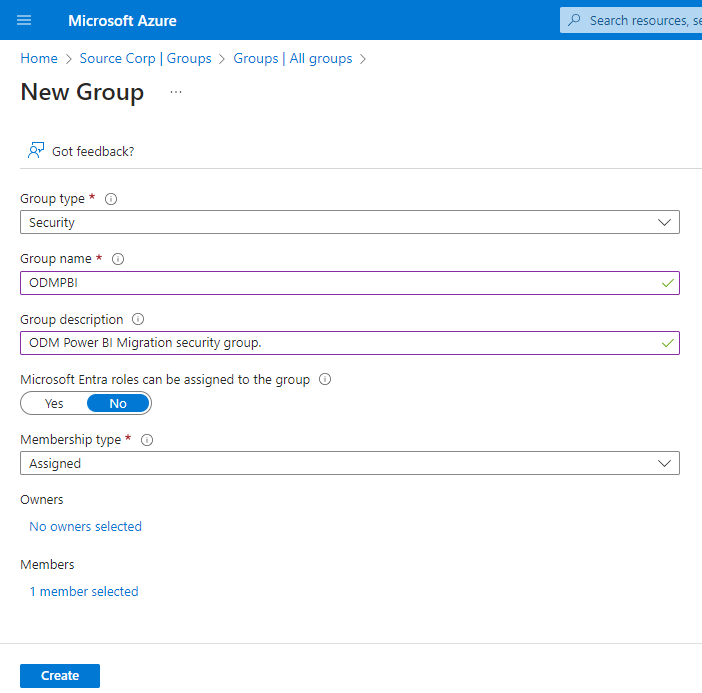
- In the New Group page, setup the group as described below:
- Group type = Security
- Group name = name of the group. For example, ODMPBI
- Group description = short description about the group. For example, ODM Power BI Migration.
- Under Members, click No members selected
- In the Add members list that opens, search and select Quest On Demand - Migration - Power BI. Then click Select at the bottom of the page.
- Click Create. The group is created with the Quest On Demand - Migration - Power BI service principal as a member.
- Follow all the above steps to create a security group in both source and target tenants.
In this part, the security group created in each tenant is configured to allow the service principals to use Power BI APIs and create and use Power BI profiles.
- Log into the Power BI service portal at https://app.powerbi.com with your tenant credentials.
- Click the Settings icon in the top bar and then click Admin portal.
- From the navigation panel, click Tenant settings.
- Scroll down to the Developer Settings section.
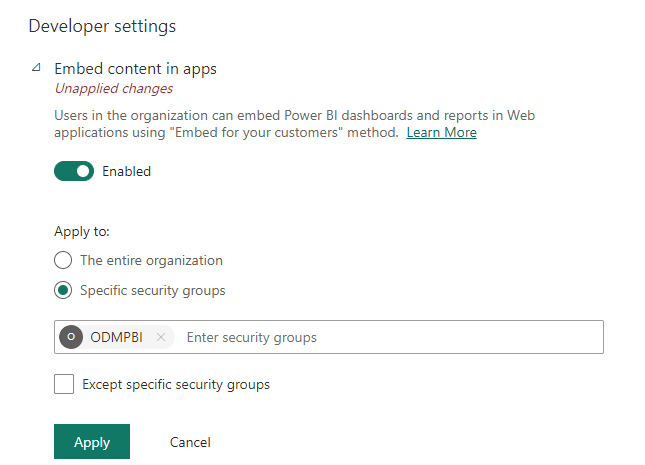
- Expand the Embed content in apps option.
- Set the slider to Enabled.
- For the Apply to option, select Specific security groups, and specify the group name created in Part 1 above. For example, enter ODMPBI.
- Click Apply to save the changes.
- Under Developer Settings, expand following options. Then enable each option and repeat the above steps to associate the security group:
- Service principals can create workspaces, connections, and deployment pipelines
- Service principals can call Fabric public APIs
- Allow service principals to create and use profiles
- Expand the Embed content in apps option.
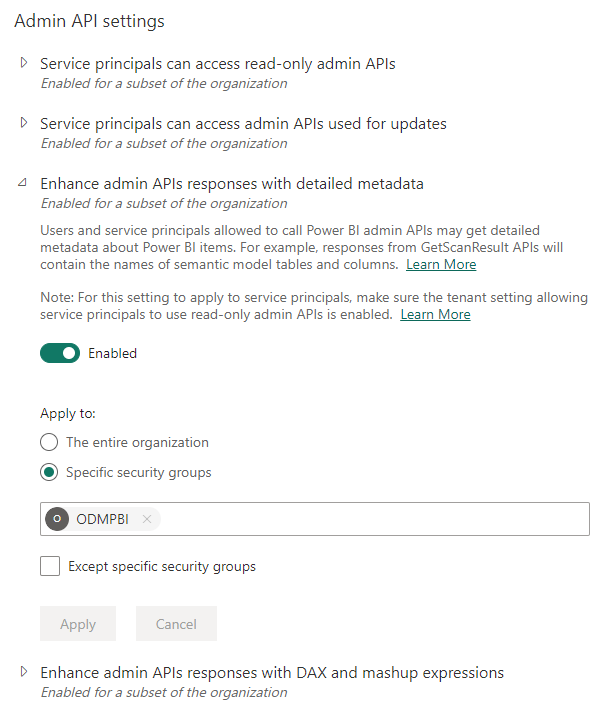
- Scroll down to the Admin API settings section.
- Expand following options. Then enable each option and repeat the above steps to associate the security group:
- Service principals can access read-only admin APIs
- Enhance admin APIs responses with detailed metadata
- Enhance admin APIs responses with DAX and mashup expressions
- For the source tenant, expand Export and sharing settings and verify the Download reports option is Enabled and the option is either set to The entire organization or Specific security groups with the group name created in Part 1 above.
- For the target tenant expand Workspace settings and verify the Create workspaces option is Enabled and the option is either set to The entire organization or Specific security groups with the group name created in Part 1 above.


To migrate Power BI data, the security group must also be granted explicit rights in all tenant Power BI objects like Connections, Gateways and Workspaces.
For Connections and Standard Gateways
- Click the Settings icon in the top bar and then click Manage connections and gateways.
- Under Manage connections and gateways, select each On-premises gateway and give Admin rights to the group, created in Part 1.
- Repeat the above steps for source and target tenant.
|
|
NOTE: The Service Principal in the source tenant must be assigned the Admin permission. |
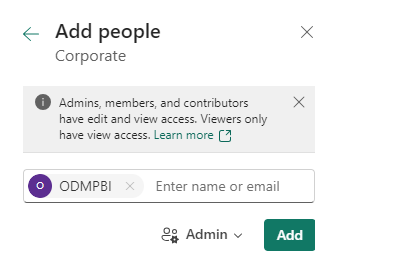
- Open the Workspace and click Manage Access.
- In the Add people page that opens, add the security group created in part 1 and assign the Admin role to the group.
|
|
NOTE: The Service Principal in the source tenant must be assigned the Owner/Admin permission. |
Consents for Power Platform migration
Normally, the tenant administrator or a user with either Global Administrator, Application Administrator or Cloud Application Administrator role can work with Power Platform. However some organizations prefer to work with credentials that are more restrictive than a tenant administrator. In such cases, you must set up and use the credentials of a delegated user to grant consents only for the Migration - Power Platform application. The Power Platform service principal is restricted to the permissions of the delegated user to work with Power Platform.
| Task | Minimum consents and permissions |
|---|---|
|
Admin tasks |
Migration - Basic - Minimal consent from Source tenant administrator accounts. Migration - Basic - Full consent from Target tenant administrator accounts. |
|
View and discover Power Platform |
Migration - Power Platform consent from Source and Target tenant administrator accounts. Global Administrator role for tenant administrator, or any user with delegated roles Privileged Role Administrator and Power Platform Administrator. Additional manual setup is required for the initial Power Platform setup for the source and target tenants through PowerShell. See Adding Power Platform API to your tenant (source and target) If you choose to use a delegated user without the Global Administrator role, see Setting up a delegated user. If the delegated user is deleted, modified or the password for this delegated user is changed, you will need to re-grant consents to get a new token. |
Power Platform Setup
Before Power Platform consents can be granted to the On Demand Migration service principal, you must add the Microsoft Power Platform API Service Principal to your tenant. If you want to delegate Power Platform migration to delegated users, you must grant elevated roles to the delegate users. This is a multi-part process as described below:
Part 1: Adding Power Platform API service principal to your source and target tenants
The Microsoft Power Platform API Service Principal must be added to your tenant because this service principal is not automatically present in every tenant, and you need to explicitly provision its service principals so your Azure AD / Entra tenant recognizes it. For additional information on this service principal please contact Microsoft support.
- Download and install the Power Platform Administration PowerShell module on your computer.
Install-Module Microsoft.PowerApps.Administration.PowerShell -Scope CurrentUser -Repository PSGallery -Force - Install the Microsoft Graph PowerShell SDK.
Install-Module Microsoft.Graph -Scope CurrentUser -Repository PSGallery -Force - Log out of any existing Microsoft Graph session. Then sign in to Microsoft Graph with the delegated permission Application.ReadWrite.All. This allows you (or the signed-in user) to create and manage app registrations, create service principals, assign permissions to apps, and modify app settings.
Disconnect-MgGraphConnect-MgGraph -Scopes "Application.ReadWrite.All"
- The Microsoft sign-in prompt appears. To grant the consent, you must sign-in to your tenant with the credentials of a user who has any of the following roles: Global Administrator, Application Administrator or Cloud Application Administrator. This account and consent is not used by On Demand.
- Click Accept.
- Create an instance of the Microsoft Power Platform API service principal in the tenant. When prompted for a user, select the same account that you used to grant the Microsoft Graph consent.
New-MgServicePrincipal -AppId 8578e004-a5c6-46e7-913e-12f58912df43 -DisplayName "Power Platform API"
NOTE: If you get the error: The service principal cannot be created, updated, or restored because the service principal name https://api.gov.powerplatform.microsoft.us is already in use, ignore it and continue because the instance of the Microsoft Power Platform API service principal already exists.

Part 2: Setting up a delegated user
The steps below describe the process of setting up a delegated user to grant tenant consent to the Power Platform application in On Demand.
- Sign in to https://portal.azure.com with your tenant administrator credentials.
- Open the Microsoft Entra ID service page.
- Create a new or use existing Microsoft Entra ID user.
- Go to Users. Select the user and click Assigned roles.
- Click Add assignments and add the following roles Privileged Role Administrator and Power Platform Administrator.
- Log out of the Azure portal.
|
|
IMPORTANT: The delegated user must sign in to Microsoft 365 to activate the account. You may also need to activate Multi Factor Authentication for the new delegate user if necessary. |
Part 3: Granting Consents in Quest On Demand
- Sign in to Quest On Demand as the tenant administrator or a user with any one of these roles: Global Administrator, Application Administrator or Cloud Application Administrator.
- Click Tenants from the navigation pane.
- Select a tenant and click Edit Consents from the tenant tile.
- For Migration - Basic - Minimal (for source tenants) and Migration-Basic-Full (for target tenants), grant consents with your logged in credentials.
- For Migration - Power Platform grant consents either with your logged in credentials, or if you prefer to use the delegated permissions, then you must sign-in with the credentials of the delegated user. Then click Accept in the Microsoft consents dialog. The account used to grant the consent in the Microsoft sign-in dialog will be used by the Migration - Power Platform application to access the Environments and run other processes.
NOTE: The password for the account used for the consent is not stored by On Demand.
- You must grant the PowerApps.Apps.Update permission in the source tenant to support remediation tasks, only if you intend to allow users to use this function in On Demand Migration. The permission allows the application to add a missing component directly to solutions and complete the remediation successfully. This permission is optional and not required if you plan to perform remediation manually in Microsoft Power Platform. Run the following PowerShell code in the source tenant with the delegate account to grant the permission.
# For SOURCE TENANT# This script opens the URL in the default browser to grant the PowerApps.Apps.Update permission.# Replace <TenantId> with the target tenant GUID.Start-Process "https://login.microsoftonline.com/<TenantID>/oauth2/v2.0/authorize?client_id=4078503c-d803-4056-8ee8-bf93f1b66fc6&prompt=consent&response_type=code&scope=https%3A%2f%2fapi.powerplatform.com%2fPowerApps.Apps.Update"
- (Optional) Grant the user_impersonation (Access Azure Storage) permission in the source tenant to support Azure Blob Storage access, only if you intend to use this function in On Demand Migration. The permission allows the application to access blob storage as the delegated user for storage container that the user has been granted access to. This permission is optional and not required if you do not plan to provide Managed Solution packages using the Set Solution Package Location From File function. Run the following PowerShell code in the source tenant with the delegate account to grant the permission.
Start-Process "https://login.microsoftonline.com/<TenantID>/oauth2/v2.0/authorize?client_id=4078503c-d803-4056-8ee8-bf93f1b66fc6&prompt=consent&response_type=code&scope=https://storage.azure.com/user_impersonation"
Part 4: Granting the delegate account access to the target Environment.
- User permissions are migrated only when the user exists in the target environment Dataverse. If a user does not exist in the target Dataverse, permissions cannot be set. Users can be created in a Dataverse when the special consent UserManagement.Users.Apply is granted. Run the following PowerShell code in the target tenant after consent is granted.
# For TARGET TENANT# This script opens the URL in the default browser to grant the UserManagement.Users.Apply permission.# Replace <TenantId> with the target tenant GUID.Start-Process "https://login.microsoftonline.com/<TenantId>/oauth2/v2.0/authorize?client_id=4078503c-d803-4056-8ee8-bf93f1b66fc6&prompt=consent&response_type=code&scope=https%3A%2f%2fapi.powerplatform.com%2fUserManagement.Users.Apply"
- You are now ready to work with Power Platform.
Verifying Service Principals
When you have granted the consents, you can verify that the service principals were successfully created in the tenant. You must verify both source and target tenants.
- Sign in to Microsoft Entra Admin Center with the credential of a tenant administrator.
- Go to Entra ID > Enterprise Apps from the navigation panel. Then click All applications. Filter the list if necessary and verify the list of On Demand Migration service principals. Your list depends on the subscriptions and consents that you have granted, and may differ from the image below.
