On Demand Migration for Teams securely migrates Microsoft Teams and associated Microsoft 365 Groups across Microsoft 365 tenants. You can also use this dashboard for migration of content for Microsoft 365 Groups without Teams functionality. (Content Migration for Microsoft 365 Groups). Microsoft Teams migration requires additional licensing.
Basic Microsoft Teams migration workflow consists of the following steps:
| 1 |
Create a migration project (created automatically with New Migration UI) |
| 2 |
Grant necessary permissions in case these permissions are not already granted. See Prerequisites.
IMPORTANT: It is not recommended to use existing user accounts as source and target temporary Migration Service accounts, because it is recommended to remove them for safety reasons after the migration will be completed. These accounts can be removed from teams as described in Finalizing the Migration. |
| 3 |
Discover teams/groups on the source tenant
On this step you can see names, suggested for target teams. In case you need some changes use manual mapping as described below. There are no provision on the target on this step.
TIP: Organize teams in collections to streamline the provision and migration process |
| 4 |
Export teams mapping to CSV file |
| 5 |
Map teams manually using exported CSV file
You can use manual mapping to migrate source team to the target team with another name. If the channel do not exist, it will be provisioned. Also you can use manual mapping to merge several source teams to one target team. |
| 6 |
Create Microsoft 365 Groups and Provision teams on the target tenant. Target teams will be owned by the target temporary Migration Service account that is used to perform the provisioning.
- The temporary Migration Service account in the source tenant will be added to all source teams as a member, and source private channels as an owner.
- The temporary Migration Service account in the target tenant will be added to all target teams and Microsoft 365 Groups as a member and an owner, and target private channels as an owner
These accounts can be removed from teams as described in Finalizing the Migration. |
| 7 |
Migrate teams
Migrate or merge all conversations (including inline content) from the source to target channels. The target temporary Migration Service account will own all private channels migrated to the target. |
| 8 |
Remigrate teams to incorporate supported changes made after the migration task (step 7) was started. |
| 9 |
Monitor the progress and track issues |
Migration limitations indicated below may not be an exhaustive list of limitations as some may appear in unique customer migration scenarios, or arise due to platform or legacy support restrictions. In some cases, a solution to a limitation may already be on the product roadmap.
In this topic:
Objects and content types
| Adaptive Cards |
✖ |
|
| Announcements |
✔ |
|
| Applications |
partial |
Only Word, Excel, PowerPoint, PDF tab applications linked to files in the same channel are supported. If you rename a tab in the source team and then re-migrate, the renamed tab will be migrated. The target will then have two tabs, one with the old name and one with the new name.
Whiteboard tabs are migrated if the Whiteboard files, in the OneDrive of the Whiteboard creator, is pre-migrated to the target tenant. At least one team owner must have permission to the whiteboard file in source tenant. Whiteboard tabs will be migrated as Weblink tabs in target. |
| Applications including Shifts for schedule management |
✖ |
|
| Archived team |
✔ |
Archived teams will first be migrated to the target tenant as active teams. Then they will be archived in the target tenant. Archived team can only be migrated once and remigrating archived teams is not supported. |
| Attached images, media files, documents |
partial |
Preview icons cannot be migrated. |
| Authorship |
partial |
Authorship in messages is migrated as a string with author name and creation date. File authorship is supported. |
| Bots |
✔ |
|
| Calls and devices |
✖ |
Contacts, contact groups, call history, voicemail, and custom setup cannot be migrated. Devices and device setup cannot be migrated. |
| Channels |
partial |
See Channel Settings subsection below. Channel names must not contain the characters or words specified in Limits and specifications for Microsoft Teams. |
| Chats |
✔ |
Images, media files and documents referenced in one-on-one or group chats are stored in your OneDrive for Business folder. They must be migrated using the On Demand Migration for OneDrive service, before you migrate the chats. File links in team chats will not work after chat migration if the files are moved to another folder in the source tenant.
Files that are linked to the private chats and meetings are migrated but do no display in the Files tab of private chats and meetings. In the source tenant a member removed from a chat can still see the history of the chat in the source. In the target tenant, members cannot see the history of chats they have been removed from.
Users deleted on the tenant cannot be migrated, so do not appear as members of a chat on the target. Deleted users remain visible as members of a chat on the source. One-to-one chats, where one of the users is deleted, are migrated for the user that is still a member of the tenant.
If external users are added to target chats during migration, the external users cannot access the Archived chat file since no permissions are granted to the external users.
If a domain move is done after a chat migration, the Conversation History links in migrated chats will not work because the URL of those tabs remain mapped to the original target domain.
Private one-to-one chats are migrated as group chats. All the messages in the migrated chats are posted by the temporary Migration Service.
Private one-to-one chats with a Skype user cannot be migrated. The Microsoft Graph API List chat messages do not support querying messages of that type.
Private one-to-one chats initiated by an external user (user from another tenant) cannot be migrated. Private one-to-one chats not initiated by an external user are migrated, and in the title the external user’s real name is replaced with the text "External user".
Bot messages will not be migrated.
Loop components in chats cannot be migrated.
Emoji is not supported when archiving chats.
Errors in chat migration will not be linked to a particular user since chat always happens among multiple users. As a result, those errors will not be visible in Exported Error Logs since the logs are exported per user.
Chat application tabs cannot be migrated. |
| Code snippets |
✔ |
|
| Conversations |
✔ |
The target tenant's temporary Migration Service account is displayed as the owner of all migrated messages on the target: The original owner and creation time of a message are displayed in the first line of the message starting with "Originally posted by...".
Individual messages larger than 4 MB will not migrate. Messages containing several inline messages can exceed 4MB. The chat will migrate without the large messages. An error will display in the On Demand Migration for Teams Events tab of the form: Request failed with RequestEntityTooLarge status code (Request Entity Too Large). |
| Custom tags for teams |
✔ |
|
| Custom website tab |
✔ |
|
| E-mail attachments |
✖ |
|
| Emoji, GIF, Sticker, Praise, memes |
✔ |
Emoji in messages are supported but reaction emojis are not supported. |
| File preview |
partial |
Preview icons of files attached to a post cannot be migrated. The file is migrated as a link. |
| Formatted text |
✔ |
|
| Guest accounts and conversations |
✔ |
|
| Images posted inline from buffer |
✔ |
|
| Inbox folder and Calendar from the group mailbox associated with a team |
✔ |
|
| Link preview of public images |
✔ |
Preview icons cannot be migrated. Only the link is migrated. |
| Link preview of public sites |
partial |
Preview icons cannot be migrated. Only the link is migrated. |
| Lists |
partial |
Lists must be created in the same SharePoint site used by the team or Private Channel. You must select the Standard and Customized (All SharePoint Content) option in the Migration Options step of the New Teams Migration Task to allow the migration of Lists and their content. |
| Meeting conversations |
✔ |
Conversations are migrated as private chats, but cannot be inserted into the original Teams meeting. Conversations in a channel stay in the channel rather than a private chat, and are migrated to the target channel with a Teams migration task. |
| Meeting Notes in private meetings |
✖ |
|
|
Meeting recordings |
partial |
Recordings of scheduled meetings in a team channel, stored in SharePoint or OneDrive, are migrated.
- Meeting recordings stored in Microsoft Stream (Classic) cannot be migrated; the link to the recording on the source team channel is retained.
- On Demand does not support meeting recordings in a group chat. Recordings in group chats and one-to-one chats cannot be migrated with the On Demand Migration for Teams service. Since the recording file is stored in the chat organizer's OneDrive account, you can use the On Demand Migration for OneDrive service to migrate recordings.
- On Demand does not support meeting recordings for "Meet now" meetings.
|
@mentions:
- Users (includes @Everyone)
- Channels
- Teams
|
✔ |
All @mentions from the source will be created as plain text with blue color in the target tenant to avoid notification to end users during migration. |
| OneNote |
partial |
OneNote files will be migrated during file migration but the OneNote tabs will not be created in the target channels due a limitation of the Microsoft API. When migrating to a new team, default notebook tabs in target channels will be linked to the migrated OneNote files since the tabs are created automatically during teams creation in the target tenant.
If teams are renamed during migration or source and target teams have different default language, the default notebook in the source tenant will be migrated as source team name instead of the renamed target team name. As a result, the Note content will not show up in the target team channel and the notebook link in the SharePoint quick launch does not open the Note content. |
| OneDrive Shared Library |
partial |
OneDrive Shared Library must be created and associated with a team in the same SharePoint site. You must select the Standard and Customized (All SharePoint Content) option in the Migration Options step of the New Teams Migration Task to allow the migration of OneDrive Shared Library and its content. |
| OneDrive Sharing Links |
partial |
Only shared links that were activated by the users or group members (the user or group member clicked on the link to access the file or folder) in the source tenant will be migrated and converted to direct permissions. Users or group members who did not activate a shared link in the source tenant will not get the direct permissions in the target tenant and must re-request permissions from the owner when they access the file or folder in the target tenant. Use the Convert Sharing Links permissions to direct permissions option in the Attribute Options step of the New OneDrive Migration Task to migrate sharing links. |
| Planner |
partial |
Premium Planner and Planner Tab are not migrated. Buckets, Planner Tasks and Comments are migrated. When migrating Planner Tasks, assignees in target tasks will receive a notification after migration.
The author of auto-generated comments like 'New task ... created' in migrated tasks will always show as the login user. This is a limitation of Microsoft Graph API when creating tasks in the target tenant with application permission.
Premium Planner plans are not supported due to a limitation of Microsoft Graph API. |
| Reaction Emoji |
✖ |
|
| Rich card attachments |
✖ |
|
| Self-Chat |
✖ |
|
| SharePoint document libraries (Files) |
✔ |
Sensitivity labels applied to SharePoint files can be migrated. |
| Team owners and team members |
✔ |
Only for Microsoft 365 Groups that are migrated or matched. Teams and groups with dynamic membership can be migrated but cannot be merged.
The memberships is not updated in Teams immediately after membership migration. It takes a while before Microsoft synchronizes memberships between groups and Teams. Workaround: Wait for membership synchronization.
If there is a memberOf attribute in the membership rule in the source tenant, then the migration service account is not added as a member to the rule because it breaks the rule in the source team or group. During a provision task a warning is displayed in the UI with the message: "Dynamic group rules using the memberOf attribute are not supported during provisioning. Please recreate these rules manually in the target environment after Teams provisioning is complete."
Workaround: Modify the rule manually in the target tenant after provisioning is completed by adding the migration service account. Membership migration will work as expected.
If this workaround is not completed or some member is missing in the target there will be errors in the migration task: "Failed to add user 'displayName' to the private channel. Reason user not found in Skype team." |
| Team picture |
✔ |
|
| Team settings |
partial |
Target team settings cannot be updated if you re-run the provisioning task.
Allow members to upload custom apps and Team code settings cannot be migrated. |
| Timestamps |
✔ |
|
| Wiki sections and pages |
✖ |
|
| Files uploaded from mobile application |
| Media files |
✔ |
|
| Voice recordings |
✖ |
|
| Documents |
✔ |
|
| Channel Settings |
| Primary Standard Channel |
partial |
Display name and description only for the Primary Standard Channel (General). |
| Regular Standard Channels |
partial |
Display name, description and moderation settings: Channel moderation (on/off), Allow members to reply to channel messages, and Allow bots to submit channel messages. |
| Private Channels |
partial |
Display name and description only. The Teams client will not display the updates immediately. It may take up to 24 hours before the changes are reflected due to Microsoft limitations. Private channel members not visible in the Teams application unless you explicitly search for a member. |
| Shared Channels |
partial |
Display name and description only. Channel sharing relationships with other teams (shared-with teams) are not migrated and must be re-established manually after migration. |
| Group Settings |
| Allow external senders to email this group |
✔ |
General |
| Send copies of group conversations and events to group members |
✔ |
General |
| Hide from my organization's global address list |
✔ |
General |
| Others |
| Microsoft public preview |
✖ |
In general, Microsoft public preview features cannot be migrated. These features may also take additional time to be fully developed and tested before being released to production. |
|
M365 security and compliance features for Teams
- Legal Hold
- Retention Labels
- Microsoft Information Protection policies and labels
- M365 Compliance Customer Lockbox
|
✖ |
|
|
Power Platform features for Teams
- Power Platform
- Power Pages
- Power Automate (Flow)
- Power Virtual Agents
|
✖ |
|
Migration from an Education tenant to an Education tenant
Teams migration from one education tenant (Microsoft 365 for Education) to another is partially supported. The following team types and supported content can be migrated:
- Standard Team
- Class Team
- PLC Team
- Staff Team
Limitations
- When provisioning Public Education teams, the visibility of the teams will change due to limitations of the Microsoft Teams for Education Templates:
- Class Team: changes from Public to HiddenMembership.
- PLC and Staff: changes from Public to Private.
- Provisioned teams based on the Education/Class Team template must be manually activated by a team owner before students can access the team. The OneNote Class Notebook is not automatically set up during provisioning and must be manually configured using the migrated notebook content.
- Assignment app, personal OneNote notebook linked to a Teams channel and the OneNote tab linked to another team are currently not supported. Links to files in migrated messages cannot be migrated in case these links point to files located outside the default SharePoint URL. These links are missing in the target.
All other Education content is not supported for migration.
Migration from a Commercial or GCC tenant to a GCC High tenant
The table below lists the content types in Microsoft Teams that are available for migration from a Commercial or Government Community Cloud (GCC) tenant to a GCC High tenant with the On Demand Migration for Teams service.
| Announcements |
✔ |
✔ |
| Applications |
✔ |
✔ |
| Applications including shifts for schedule management |
✔ |
✖ |
| Associated SharePoint document libraries (files) |
✔ |
✔ |
| Attached images, media files, documents |
✔ |
✔ |
| Authorship |
✔ |
✔ |
| Bots |
✖ |
✖ |
| Calendars |
✔ |
✖ |
| Chats |
✔ |
✔ |
| Code snippets |
✔ |
✖ |
| Conversations |
✔ |
✔ |
| Custom tags for teams |
✖ |
✖ |
| Custom website tab |
✔ |
✔ |
| Email attachments |
✔ |
✖ |
| Emoji, Teams GIFs, memes |
✔ |
✔ |
| Formatted text |
✔ |
✔ |
| Group mailbox associated with team |
✔ |
✖ |
| Guest accounts and conversations |
✔ |
✔ |
| Images posted inline from buffer |
✔ |
✔ |
| Link preview of public images |
✔ |
Partial. Icon is not migrated. |
| Link preview of public sites |
✔ |
Partial. Icon is not migrated. |
| Meeting conversations |
✔ |
✔ |
| Mentions
|
✔ |
✔ |
| OneNote |
✔ |
✖ |
| Planner (Planner Tab, Buckets, Tasks and Comments) |
✔ |
✔ |
| Private channels |
✔ |
✔ |
| Public channels |
✔ |
✔ |
| Team owners and team members (Creation of Microsoft 365 Groups) |
✔ |
✔ |
| Team picture |
✔ |
✔ |
| Timestamps |
✔ |
✔ |
|
Wiki sections and pages
|
✔ |
✖ |
Verify the following requirements are met before migrating Microsoft Teams. If these actions are not performed, discovery, provision and migration tasks will fail or some data might be lost!
The following consents must be granted to the tenants before Teams migration can be started:
Source Tenant
- Migration - Basic - Minimal or Migration - Basic - Full
- Migration - Teams - Minimal or Migration - Teams - Full or Migration - Teams - App Only Permissions
- Migration - Mailbox Migration - Minimal or Migration - Mailbox Migration - Full or Migration - Mailbox Migration - Custom RBAC
- Migration - SharePoint - Minimal or Migration - SharePoint - Full or Migration - SharePoint - Selected Sites
Target Tenant
- Migration - Basic - Full
- Migration - Teams - Full
- Migration – Mailbox Migration - Full or Migration - Mailbox Migration - Custom RBAC
- Migration – SharePoint - Full or Migration - SharePoint - Selected Sites
See the Consents and Permissions topic for additional roles and permissions that may be required.
|

|
NOTE: If the consents are not granted or expired, Discover Teams action is deactivated and the following notification is displayed:
Grant admin consent to the following Migration sub modules on the Tenants page for both source and target tenants: Basic, SharePoint, and Teams.
Open the Tenants page and grant the necessary consents so that the product can access the source and target tenants. You will be redirected to the Microsoft web site for granting admin consent. Once admin consent is granted, you can start discovering Teams. |
- The Tenant Administrator must open the OneNote application just once in the target tenant. It does not have to be opened or run by every user. If OneNote is not initialized before granting consent for Teams migration, the following error occurs: Unexpected response while attempting to register the tenant: AADSTSxxxxxx: The app needs access to a service ("https://*.onenote.com/")
- Accounts must be matched or migrated before migrating teams.
- [Optional] Images, media files and documents referenced in one-on-one or group chats are stored in your OneDrive for Business folder. They should be migrated using the On Demand Migration for OneDrive service, before you migrate the chats. Otherwise migration will proceed and per-chat errors are logged if OneDrive content is unavailable.
Temporary Migration Service accounts
- It is recommended to create or use source and target temporary Migration Service accounts.
- The temporary Migration Service accounts should be granted the Global Administrator or Teams Administrator role on the tenants for which these account are used. The temporary Migration Service accounts in the source and target tenant should have Teams license from the Microsoft 365 admin center.
- Do not change your temporary Migration Service accounts before completing the migration project.
- You must remove the source and target temporary Migration Service accounts for safety reasons after the migration is completed. These accounts can be removed from teams as described in Finalizing the Migration.
The target temporary Migration Service account is used in (but not limited to) the following scenarios:
- It creates and owns the provisioned target teams.
- It is added to all target teams and Microsoft 365 Groups as a member and an owner, and to all target private channels as an owner.
- It is used to perform the Teams migration and is displayed as the owner of all migrated conversation and chat messages and planner tasks on the target.
- It is added to all the chats (both group chats and private chats) as a participant during chats migration, and then removed from the migrated chats as soon as the chat migration is complete. All migrated chats of the target temporary Migration Service account are hidden when the chat migration is complete.
In this topic:
|
|
NOTE: The Teams migration workspace is common for the Teams, M365 Groups and Chats migration services. See Migrating Groups for details about M365 Groups. |
Dashboard
|
|
NOTE: If the Teams license check fails, verify that the source and target tenants are valid. Then run the PowerShell commands in Quest KB article 337302 to confirm that the tenant administrator account used to grant consent has TeamspaceAPI activated. |

The components of the dashboard are as described below:
Notification panel - presents relevant information and shortcuts to migration activities. The notification panel is displayed across all tabs.
Dashboard Menu - contains the following links to common activities in the migration process.
- Discover - starts the New Teams & Groups Discovery Task wizard to collect information about accounts in the source tenant. For more information see Discovering Teams and Groups.
- Configure Project - starts the Edit Project wizard for Teams. specify default settings as described in the Configuring the project section.
Dashboard Tiles
- Getting Started - displays a summary of the various actions for preparing and migrating teams. Click Quick Help to open the Quick Help dialog. Then click the Teams tab to see help topics related to Teams, or click the Groups or Chats tab to see help topics related to Groups or Chats respectively.
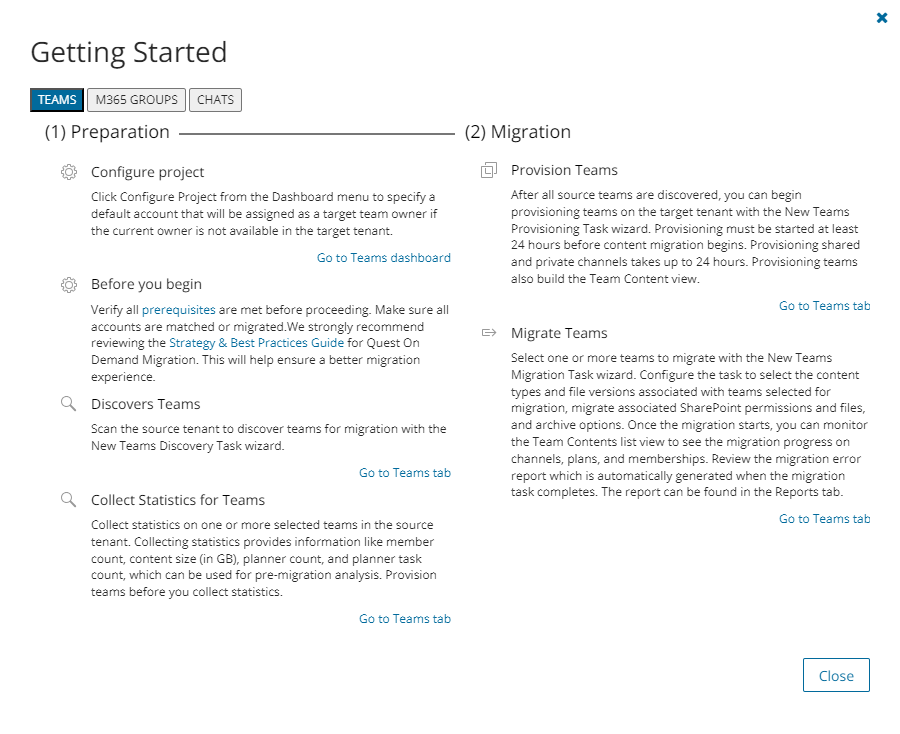
- Teams - displays a summary of the teams in various migration states. Click Show All to open the Teams List view to inspect the teams.
- M365 Groups - displays a summary of the M365 Groups in various migration states. Click Show All to open the Groups List view to inspect the groups.
- Chats - displays a summary of chats in various migration states.
- Tasks - displays the five most recent tasks that were completed in the Teams migration workspace. The title displays the total number of tasks. Click Show All to open the Tasks List view.
- Events - displays the five most recent events that were completed in the Teams migration workspace. The title displays the total number of events. Click Show All to open the Events List view.
Teams
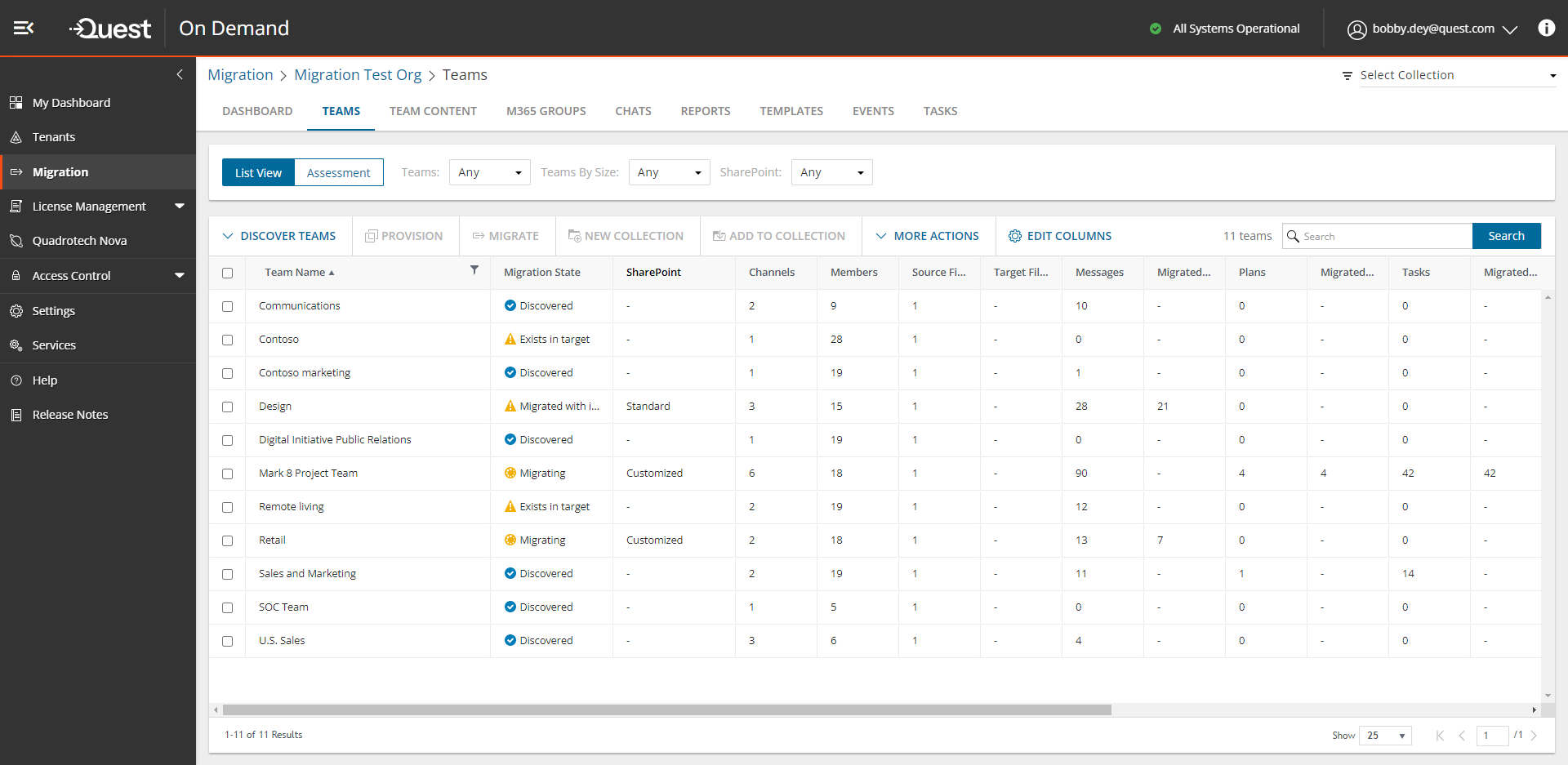
The Teams List View is comprised of the following components:
Notification panel - presents relevant information and shortcuts to migration activities.
Filter panel - consists of predefined filters for the Teams List view and tabs to switch between the Teams List view and the Assessment view. See Filtering for more information about working with filters. The predefined filters are:
- Teams - returns a list of teams based on the migration state of the team.
- Teams By Size - returns a list of teams based on the size of a team. Valid ranges are More than 1GB, 100MB - 1GB, 10MB - 100MB, Less than 10MB. The dropdown also shows the number of teams in the list for each range.
- SharePoint - returns a list of teams based on the nature of the SharePoint site linked to the team. Valid values are Customized and Standard.
List View Actions Menu - contains links to teams migration activities and the search box. Each action is explained in greater detail in subsequent topics. See Searching for more information about working with the search box.
List View - displays information about teams in the source and target tenants. Use the Edit Columns to show or hide columns in the list. The columns are as described below:
- Team Name - name of the team in the source tenant.
- Migration State - status of the task in the migration process. Values are as listed below:
- Discovered - team discovered in the source tenant.
- Exists in target - team in the source tenant exists in the target tenant.
- Provisioning - started provisioning team in the target tenant.
- Provisioned - team provisioned successfully in the target tenant.
- Provisioned with issues - Team provisioned in the target tenant but there were issues during provisioning.
- Provision failed - started provisioning team in the target tenant.
- Queued - team is waiting for migration service resources to be available. For more information, see How Queuing Works.
- Migrating - team migration in progress.
- Partially migrated - team migration completed but some components were not migrated.
- Partially migrated with issues - team migration completed some components were not migrated and due to issues during migration.
- Migrated - team migrated successfully to the target tenant.
- Migrated with issues - team migration completed but there were issues during migration.
- Migration failed - team could not be migrated.
- SharePoint - nature of the SharePoint site linked to the team. Values are as described below:
- <no-value> - SharePoint content has not be discovered yet.
- Standard - there is at most 1 SharePoint site and 4 Lists in the SharePoint site collection
- Customized - there are more than 1 site and 4 Lists in the SharePoint site collection
|
|
NOTE: The SharePoint status is available only after the New Teams Provisioning Task is run. |
- Channels - total number of channels in the source tenant team.
- Source Members - total number of members in the source tenant team.
- Target Members - total number of members in the target tenant team.
- Source Files (GB) - total size in GB of files across all public channels in the source tenant.
- Target Files (GB) - total size in GB of files across all public channels in the target tenant.
- Source Messages - total number of messages in the source tenant team.
- Migrated Messages - number of messages migrated to the target tenant team.
- Target Messages - total number of messages in the target tenant team.
- Source Plans - total number of plans in the source tenant team.
- Migrated Plans - number of plans migrated to the target tenant team.
- Target Plans - total number of plans in the target tenant team.
- Source Tasks - total number of tasks in the source tenant team.
- Migrated Tasks - number of tasks migrated to the target tenant team.
- Target Tasks - total number of tasks in the target tenant team.
- Source SharePoint site Url - SharePoint site URL of the source team. Available when the team is provisioned in the target tenant.
- Target SharePoint site Url - SharePoint site URL of the target team. Available when the team is provisioned in the target tenant.
- Mapped to Different SharePoint site Url - indicates whether the team's SharePoint site is mapped to a different url in the target tenant.
- Progress (%) - migration progress indicated as a percentage.
- Last Activity - date and time of the last action performed on the team record.
- Created - date and time the team record was created.
- Last Statistics Collected Date - date and time when the most recent statistics were collected.
- Target Team Name - name of the team in the target tenant.
- Source MailNickname - email alias of the associated Microsoft 365 Group in the source tenant.
- Target MailNickname - email alias of the associated Microsoft 365 Group in the target tenant. Available when the team is provisioned in the target tenant.
- IsArchived - indicates whether the team is archived. Archived teams can be migrated like any other team.
- Collections - indicates the most recent collection where the corresponding Team is added and the number of additional collections that also contain this object.
- Source Team URL - URL of the source team.
- Target Team URL - URL of the target team. Available when the team is provisioned in the target tenant.
- Source Group ID - unique identifier of the team or group in the source tenant.
- Target Group ID - unique identifier of the team or group in the target tenant. Available when the team is provisioned in the target tenant.
- Source SMTP Address - SMTP address of the Office 365 group of the source team.
- Target SMTP Address - SMTP address of the Office 365 group of the source team. Available when the team is provisioned in the target tenant.
- Source Team Owner UPNs - User Principal Names of the source team owners. Up to 5 names are listed.
- Target Teams Owner UPNs - User Principal Names of the target team owners. Up to 5 names are listed. Available when the team is provisioned in the target tenant.
Teams Assessment View
See the Premigration Assessment for Teams for the complete list of available reports.
Team Details
When you select a team from the List View, the Team Detail pane opens. The information in the pane is described below:
- View AI Summary - This link is available if you opted for the AI feature in the organization you created (see Organizations and Regions), and the task is a migration task that supports the AI migration assistant and you selected the Generate AI summary option in the Reporting step of the migration wizard. Click this link after the task has completed, to view the AI-generated migration summary.
|
|
NOTE: The View AI Summary link may take a while to appear depending on the volume of tasks and objects being migrated. If this is the first time you have selected this option, the Quest Policies prompt appears. Read the Quest AI Terms of use and click Accept to proceed. This s a one-time acceptance prompt and your acceptance covers all migration tasks that support the AI migration assistant. |
- Go to SharePoint Sites - link to the SharePoint Site Contents list view with all the sites associated to the team including sites for private and shared channel. Reprovision teams if you don't see this link.
- Description - name of the team in the source tenant.
- Visibility - indicates whether the source tenant team is Public or Private.
- Is Archived - indicates whether the source tenant team is archived.
- SharePoint Customized - status of the selected account. Valid values are New, In Progress, Failed and Completed.
- Source Location - geo location of the source team. The geo location could be blank if your source tenant team is not geo-located.
- Source Url - SharePoint site URL of the source team. Available when the team is provisioned in the target tenant.
- Target Location - geo location of the target team. This value appears when the team is provisioned and will reflect the preferred location specified in the New Teams Provisioning Task wizard. The geo location could be blank if your target tenant team is not geo-located.
- Target Url - SharePoint site URL of the target team. Available when the team is provisioned in the target tenant.
- Owner count - number of owners of the source team. A team can have up to 100 owners.
- Member count - number of members in the source tenant team.
- Migrated messages count - number of messages migrated to the target tenant team.
- Archive messages count - number of archived messages in the source tenant team.
- Last Operation - the most recent operation performed on the team. Valid values are Discovered, Provisioned, and Migrated.
- Events - count of the events that occurred during one or more tasks.
- Tasks - list of tasks invoked for the selected team.
Team Content
The Team Content tab presents a list of teams and its components along with the count of child items of the object type. When you open the Team Content tab, the list view initially displays all the teams and their migration state along with the total count of the team components of each team: Channel, Planner, Mailbox, Team membership, SharePoint Content* and SharePoint Site*. For each team component you can additionally view its components and their child item counts as well.

* Example: Consider a team with multiple private channels A and B.
If you select the SharePoint Standard option in the New Teams Migration Task wizard, then the following items are displayed in the Team Content view with type "SharePoint List" after migration.
| SharePoint List |
Documents - team site name |
| SharePoint List |
Documents - private channel A site name |
SharePoint List
|
Documents - private channel B site name |
If you select the SharePoint Standard and Customized option in the New Teams Migration Task wizard, then the following items are displayed in Team Content view with type "SharePoint Site" after migration.
| SharePoint Site |
Site - team site name |
| SharePoint Site |
Site - private channel A site name |
SharePoint Site
|
Site - private channel B site name |
To display the contents of a specific team:
- Select the team to open the detail pane on the right-hand side.
- Click Show Content. The components of the selected team are displayed in the list view along with the migration state and child item counts for each component. In the detail pane, the Show Parent link is activated and the Show Content link is deactivated.
|
|
NOTE: Components of a team can be displayed when teams are migrated through a new project created after the Jan 10, 2023 release. |

To display the parent of a specific team component:
- Select the team component to open the detail pane on the right had side.
- Click Show Parent. The parent team is displayed in the list view along with the migration state and the total count of the team components. In the detail pane, the Show Content link is activated and the Show Parent link is deactivated.
The components of teams are migrated when you start a migration task with the New Teams Migration Task wizard and select the team component types to migrate.
|
|
NOTE: The Events property value in the detail pane for a selected child component will be zero. |
Filter panel - consists of predefined filters for the Teams List view and tabs to switch between the Teams List view and the Assessment view. See Filtering for more information about working with filters. The predefined filters are:
- Status - migration state of the team.
- Type - object type: Team, Channel, Planner, Mailbox, team membership or SharePoint Content.
List View - displays information about teams in the source and target tenants. Use the Edit Columns List View Actions Menu to show or hide columns in the list. The columns are as described below:
- Type - object type: Team, Channel, Planner, Mailbox, membership or SharePoint Content.
- Name - name of the object
- Migration State - status of the task in the migration process. Values are as listed below:
- Discovered
- Exists in target - object in the source tenant exists in the target tenant
- Mapped
- Provisioning
- Provisioned
- Provision failed
- Migrating
- Partially migrated
- Partially migrated with issues
- Migrated
- Migrated with issues
- Migration failed
- Items to migrate - the count of child items of the object. For each team, the count indicates the total number of child components of the team. For each team components the item counts displayed are as described below:
- Planner: number of Planner tasks
- Channel: number of messages
- Mailbox: the team mailbox. The count is always 1
- Membership: number of team members
- SharePoint Content: number of sites
- Processed - the number of items considered for migration.
- Progress (%) - migration progress in percentage. If a team component is not selected for migration in the New Teams Migration Task wizard, this value does not exist for the component.
Chats
The Chats List View displays Chats between one or more matched users between a source and target tenant.

The Chats List View is comprised of the following components:
Notification panel - presents relevant information and shortcuts to migration activities.
Filter panel - consists of predefined filters for the Chats List view . See Filtering for more information about working with filters. The predefined filters are:
- Chats - returns a list of chats based on the migration state of the team.
- ODM Licensed - returns a list of user account with ODM license status. Values are Yes and No.
- Account Type - returns a list of user accounts based on their mailbox type. Values are Mailbox-Enabled User and Non-Mail-Enabled User.
List View Actions Menu - contains links to chat migration activities and the search box. Each action is explained in greater detail in subsequent topics. See Searching for more information about working with the search box.
List View - displays information about teams in the source and target tenants. Use the Edit Columns to show or hide columns in the list. The columns are described as below:
- User Name - name of the user account.
- Migration State - migration status of chats from discovery to successful migration. Values are Discovered, Migrating, Partially migrated, Partially migrated with Issues, Migrated, Migrated with Issues, Migration Failed.
- Account Type - indicates the mailbox type of the user account. Values are Mailbox-Enabled User and Non-Mail-Enabled User.
- ODM Licensed - indicates whether an On Demand Migration user account license has been consumed when the account migration task is started. Values are Yes, No, Not required.
- Account Matching -(deprecated)
- OneDrive Status - migration status of the OneDrive files for this user.
- Mailbox Status - migration status of a user's mailbox. It is a best practice to migrate a mailbox before chats are migrated for any user. Values are Discovered, Matched, Migrating, Migrated, Migrated with Issues, Migration Failed, Switched, and Migration Stopped.
- Migrated Chats - number of chats that have been migrated.
- Archived Chats - indicates whether the archive option is selected during a chat migration. If the value is Yes, chats belonging to this user cannot be archived again.
- Message Count (< 180 days) - number of chat messages generated by the user in the last 180 days. There is a latency of 24-48 hours from the time a message is created.
- Last Activity (< 180 days) - most recent activity in the last 180 days. This data is provided by Microsoft based on user activity in Microsoft Teams.
- Total Chats - total number of chats in the source tenant.
- Source UPN - User Principal Name (UPN) of the source account.
- Target UPN - User Principal Name (UPN) of the target account.
- Collections - indicates the most recent collection where the corresponding Chat is added and the number of additional collections that also contain this object.
Chat Details - when you select a chat from the List View, the Chat Detail pane opens. The information in the pane is described below:
- View AI Summary - This link is available if you opted for the AI feature in the organization you created (see Organizations and Regions), and the task is a migration task that supports the AI migration assistant and you selected the Generate AI summary option in the Reporting step of the migration wizard. Click this link after the task has completed, to view the AI-generated migration summary.
|
|
NOTE: The View AI Summary link may take a while to appear depending on the volume of tasks and objects being migrated. If this is the first time you have selected this option, the Quest Policies prompt appears. Read the Quest AI Terms of use and click Accept to proceed. This s a one-time acceptance prompt and your acceptance covers all migration tasks that support the AI migration assistant. |
- Source Email - source chat email
- Target Email - target chat email
- Total chats - total number of chats in the source tenant.
- Migrated Chats - number of chats that have been migrated.
- Tasks - list of tasks invoked for the selected team.
- Events - count of the events that occurred during one or more tasks.
Configuring the project
Before you begin, you must configure the teams migration project as described below:
- Sign in to Quest On Demand and choose an organization if you have multiple organizations.
- From the navigation pane, click Migrate > Projects to open the My Projects list.
- Create a new project or open an existing project.
- Click Teams from the project tiles, or click Open from the Teams tile to open the Teams migration workspace.
- Click Configure Project. The Edit Project wizard for Teams starts. specify default settings as described below:
- Project Settings
- Configure the settings as described below:
- Set Migration Defaults - specify a Default target user to use as the team owner when the existing owner has no match on the target tenant. Then click Finish to save the setting.
- Teams Migration Option - select Skip private channels during provisioning and migration to prevent the provisioning of and migration of private channels. However, if private channels are already provisioned, this setting will be ignored and private channel content will be migrated.
- Chat Archive Setting - specify a Folder name for archived files for archiving HTML chat files
- Click Next.
- Migration Service Accounts
- Displays the current source and target tenant names along with the username that has granted consents to the tenant. If consents are missing for one or both tenants, then a warning message is shown to check the consents.
- Click Back to revise or review a previous step or click Finish to save the configuration.