Monitoring agent accounts must be assigned the Log on as a service policy, otherwise the data collection is disabled and results in the following error:This error may be generated if the monitoring agent uses an account that does not have permissions granted to use this policy, or if the ..\Windows\RemoteCommandService.exe file or the Quest Remote Command Service are corrupted or missing.
1 Start the Group Policy Management Editor. In the Control Panel, click Administrative Tools > Group Policy Management.
2 In the Group Policy Management Editor window that appears, in the left pane, click Default Domain Policy > Computer Configuration > Windows Settings > Security Settings > Local Policies > User Rights Assignment.
3 In the right pane, locate the Log on as a service policy.
4 Double-click the Log on as a service policy.The Log on as a service Properties dialog box appears.
5 Click Add User or Group.The Select Users, Computers, Service Accounts, or Groups dialog box appears.
7
8 On the monitored server, delete the ..\Windows\RemoteCommandService.exe file.
• Agent Status dashboard (Dashboards > Administration > Agents > Agent Status)
• Agent Properties dashboard (Dashboards > Administration > Agents > Agent Properties)
• Exchange Metrics Management Dashboard (Dashboards > Exchange Environment > Administration tab > Metrics Management)
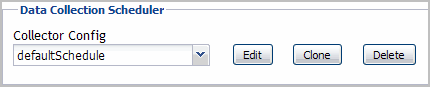
Figure 52. Data Collection Scheduler
Table 164. Data Collection Scheduler controls