Figure 36. Exchange Server Roles view
1 From the Foglight navigation panel, select Dashboards > Exchange > Exchange Explorer.
3 Select the Roles navigation tab.The embedded views in this view are dependant upon the Exchange role selected at the top of the Exchange Server Roles view. For detailed information about the embedded views, see Exchange Server Roles view (reference information).
Table 17. Exchange Server Roles view
• OWA1
• Hub Transport2
• UM Availability3
• OWA4
Figure 37. Exchange Server AD Health view
1 From the Foglight navigation panel, select Dashboards > Exchange > Exchange Explorer.
3 Select the AD Health navigation tab.
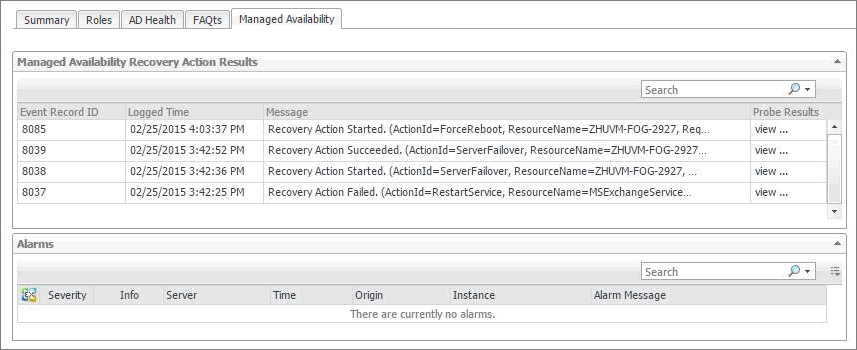
When an individual Exchange 2013 or 2016 server is selected in the Exchange Infrastructure view, the Managed Availability navigation tab appears. The Managed Availability process addresses availability and latency issues or errors by triggering applicable actions. These actions are displayed on the Managed Availability view.Figure 38. Exchange Server Managed Availability view
1 From the Foglight navigation panel, select Dashboards > Exchange > Exchange Explorer.
3 Select the Managed Availability navigation tab.The Exchange Server Managed Availability view appears in the Primary view on the Exchange Explorer dashboard.