For more information, see the following sections:
These procedures provide the steps necessary to record a thin client script.
|
1 |
Click the Start button from the Windows® task bar. |
|
3 |
Click New. |

|
7 |
In the Address toolbar, type http://www.software.quest.com. |
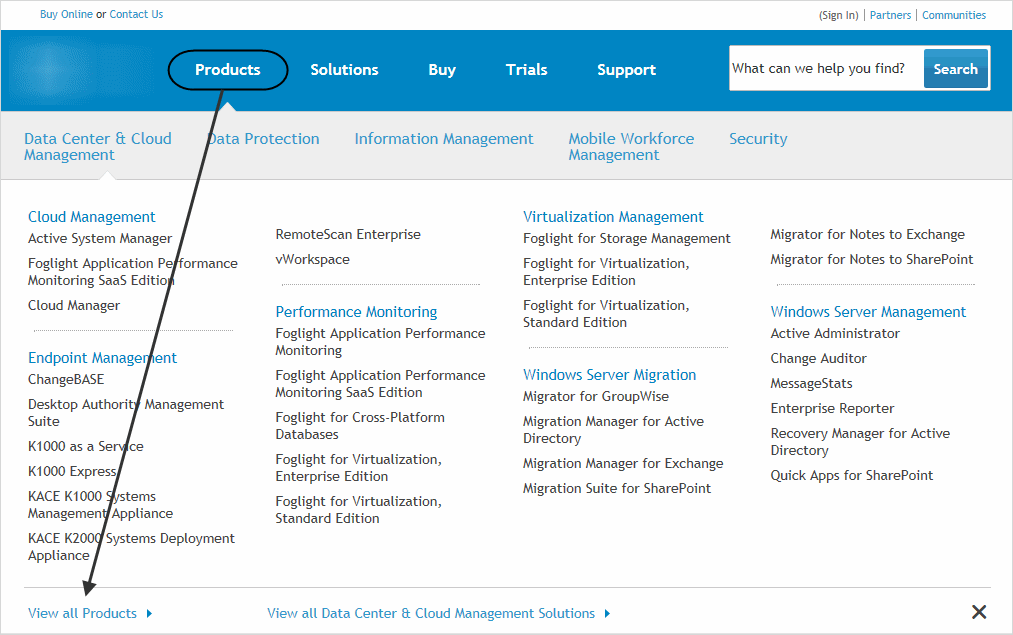
|
10 |
Scroll down and click Foglight Transaction Recorder. |


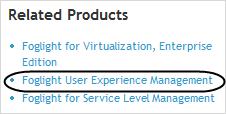
|
16 |

|
2 |
Holding down the Shift key, click the instruction titled Click: View all Products. |
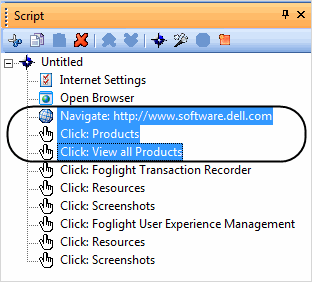

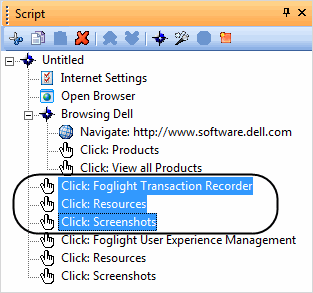
|
9 |
Type Foglight Transaction Recorder in the Name field. |
|
10 |
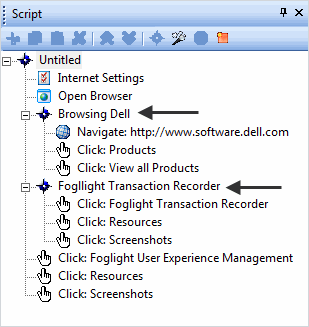
By default, Foglight Transaction Recorder scripts are saved to the My Documents folder.
|
1 |
|
2 |
Type a name in the File name field. |

|
3 |
Click Save. |



 .
.