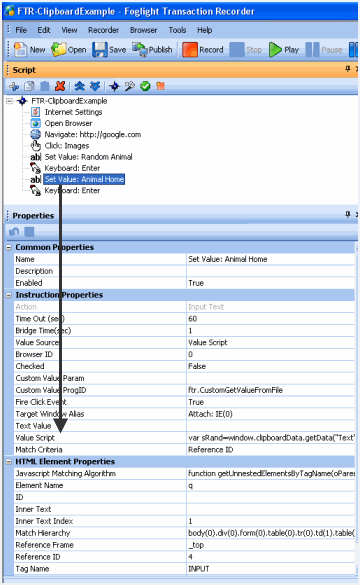
This script builds upon the FTR-Random Input example in the previous procedure. The first input is selected randomly from a list. A “Value Script”, viewed in Instruction Properties, saves the random number generated to the clipboard.


|
6 |
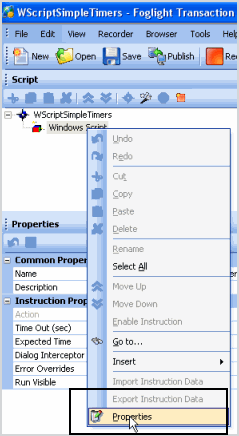
You must point the timer.js file used in the sample script to the Foglight Transaction Recorder. Right-click the Windows Script transaction and select Properties. |
|
7 |
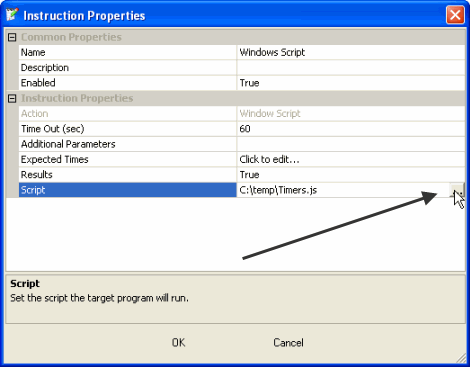
Click the Ellipse  button in the Script row. button in the Script row. |

|
10 |
|
11 |

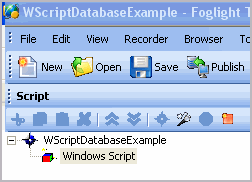
This script builds upon the WScript Simple Timers example by performing queries against a database. Within the called script are two timers which report the elapsed time of the two queries. The provided dbcmd.js script uses the Northwind database, but can be modified, then used with the required database by editing the dbcmd.js file in the Documents and Settings > My Documents > My Foglight Scripts > Samples directory.
|
5 |
You must point the dbcmd.js file used in the sample script to the Foglight Transaction Recorder. Right-click the Windows Script transaction, and select Properties. |


|
10 |

|
NOTE: To run this script, you must have Tevron® CitraTest® installed on the same machine where the Foglight Transaction Recorder is installed. |
This script is similar to the script created in the Working with thick client scripts section of this guide. The sample is a guide and may not run properly on different systems due to different display setting or operating systems. This script was created in Windows® XP at a resolution of 1024x768. Some of the images used by CitraTest may need to be recaptured if the user intends to actually run the script.

|
6 |
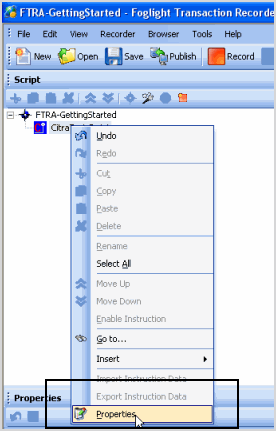
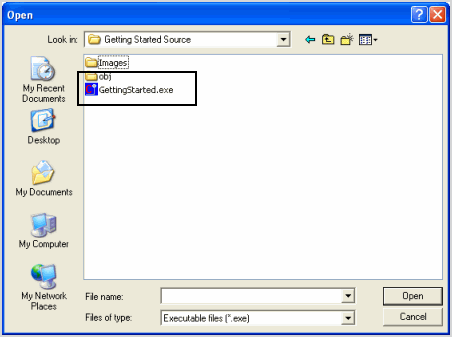
You must point the GettingStarted.exe file used in the sample script to the Foglight Transaction Recorder. Right-click the CitraTest Script transaction, and select Properties. |

|
10 |
|
11 |



 > Samples.
 Play.
Play.
