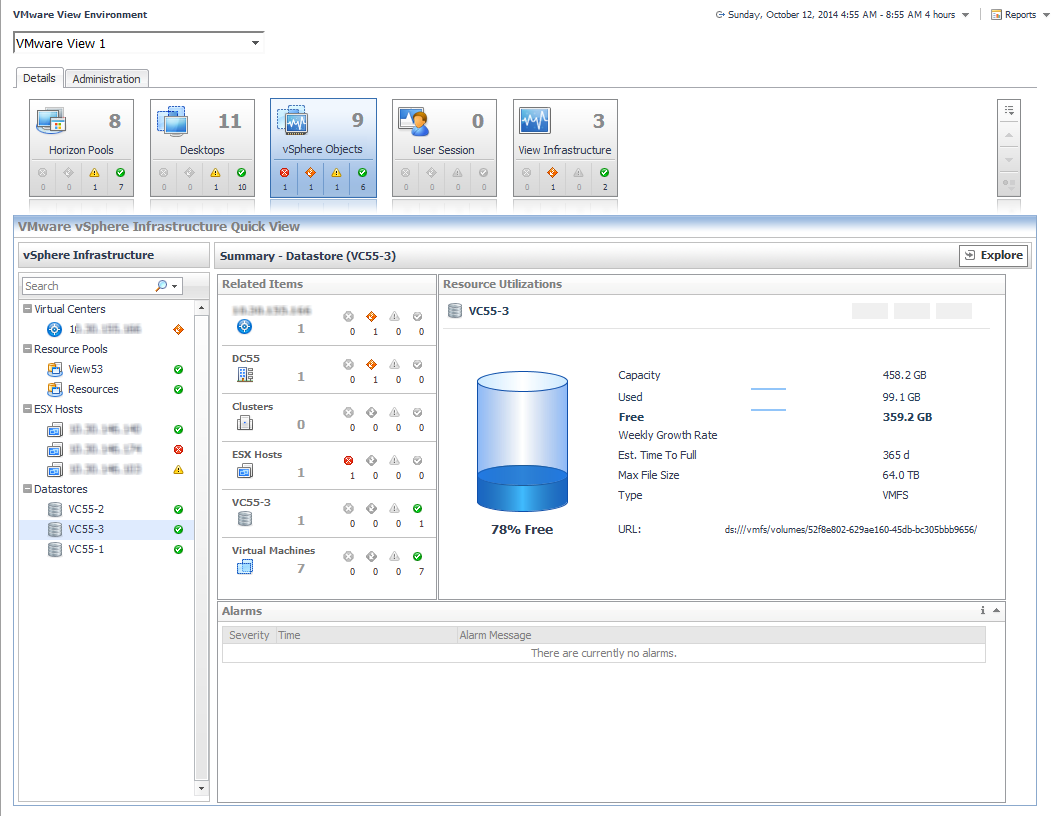
The VMware View Environment Details tab contains tiles that summarize status. Selecting a tile changes the content displayed in the Quick View area. This content varies depending on the tile that you select. For example, selecting the
View Infrastructure tile displays the connection server, terminal server, and security server details associated with a View Server instance.
Clicking the label in the tile, for example, vSphere Objects, displays summary and alarm information for all components of that type in the Quick View area.
Click the Explore link in the upper-right corner to drill down to the VMware Explorer view of the object, to see detailed information about the selected object and its components. If the selected object is a monitoring VM, the VMware Explorer page appears. For further information, see
Use the VMware Explorer. If the selected object is a host, the Host Monitor page appears.
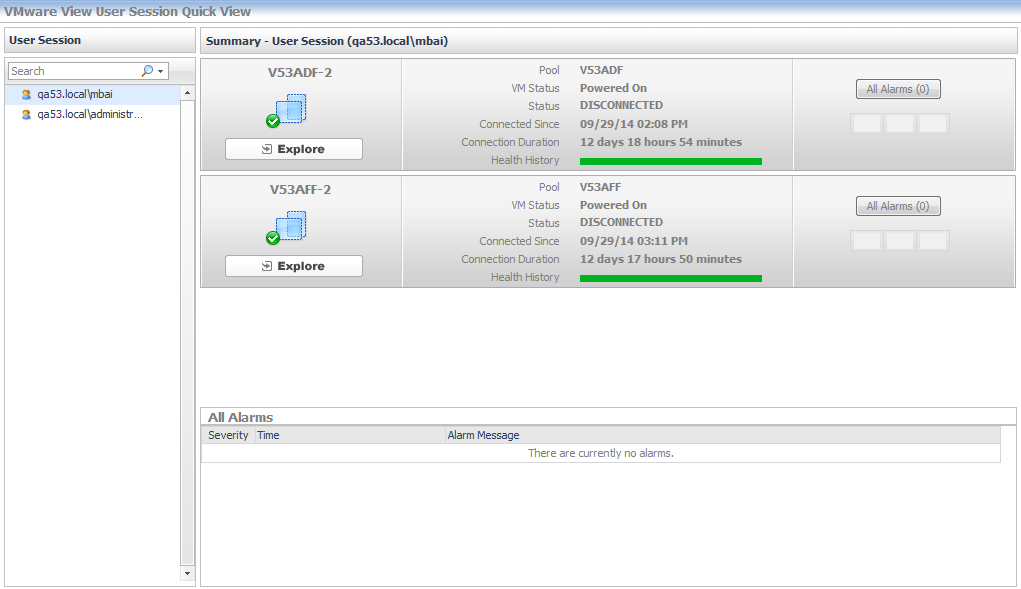
When you click the User Session tile, a list of the connected users is shown in the Quick View. Selecting a user from the Quick View displays the session types for the user, and a summary of the session details depending on the session type. Each user will have one or more sessions in a View instance.
An Explore link is located below the icon of the session type. Click the link to view detailed information about the session type.