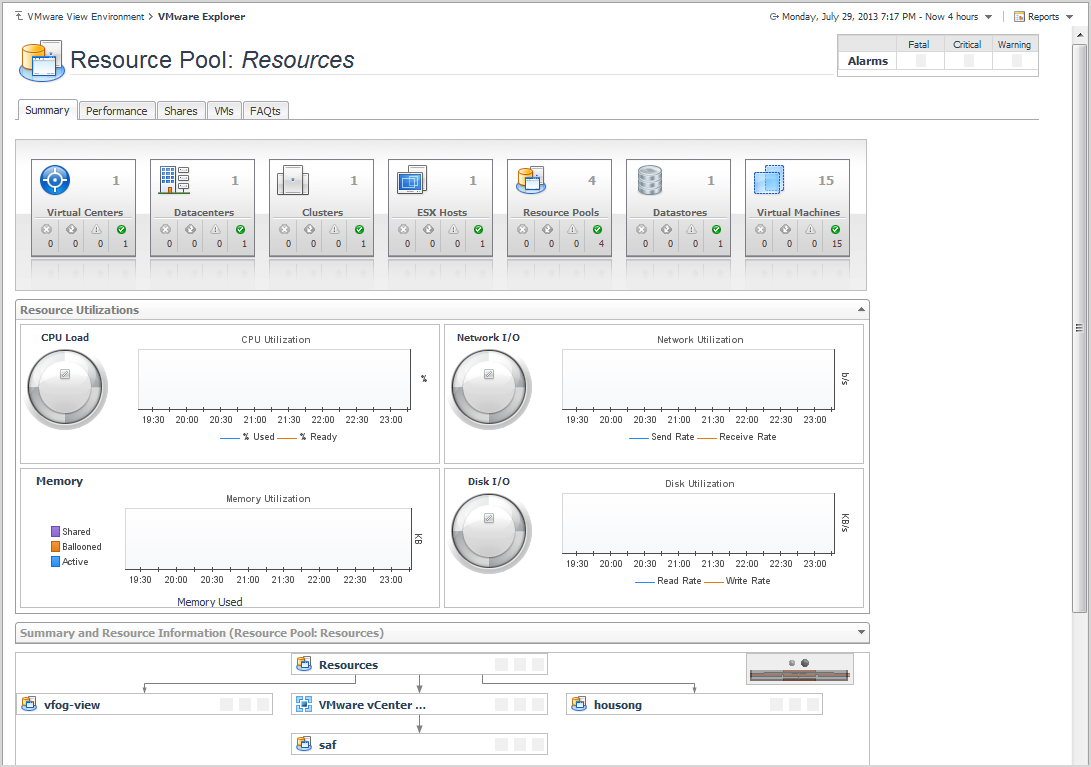
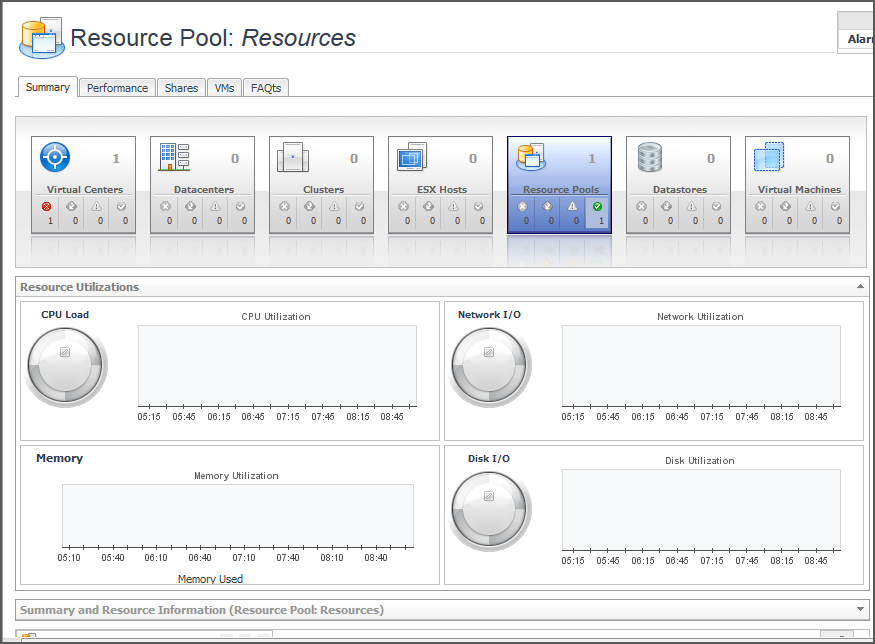
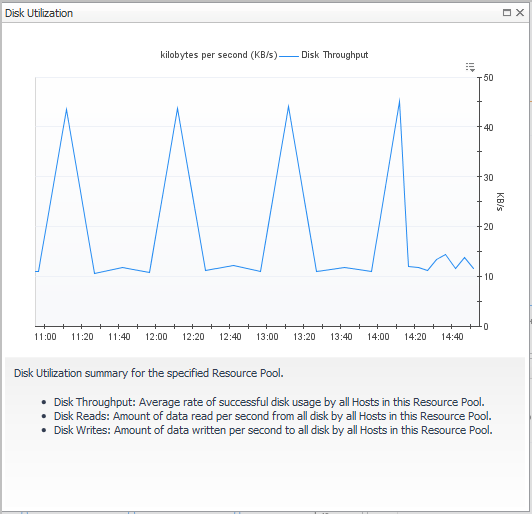
If, however, you select a collection of ESX® Hosts from the Virtual Infrastructure view and you open the Summary tab, an informative graph appears in place of a Utilizations view. Selecting a collection of objects in the
Virtual Infrastructure view always shows a composite view displaying information about all object instances contained in that collection.
However, when you select a cluster container, the Summary tab shows a Related Objects view that lists all of the clusters in that container and provides pertinent details about each one.
To narrow down the list of objects, type a relevant text string in the search field, and click Search. You can type things like a portion of the object type name (for example, server), a portion of the object name (for example, part of the IP address), or a portion of the object ID. To clear the
Search box, click
Clear.
For more advanced search options, click Advanced. To narrow down the list to objects of a particular type, type the object type name in the
Type box. To find the object by name, type the object name in the
Name box. To find the object by ID, type the object ID in the
Object ID box.