This tab is available in the VMware Explorer. To find it, open the VMware Explorer and on the Virtual Infrastructure view, that appears on the navigation panel, select a Virtual Center, Datacenter, Cluster, ESX® host, or virtual machine instance. In the VMware Explorer, open the
Storage tab.
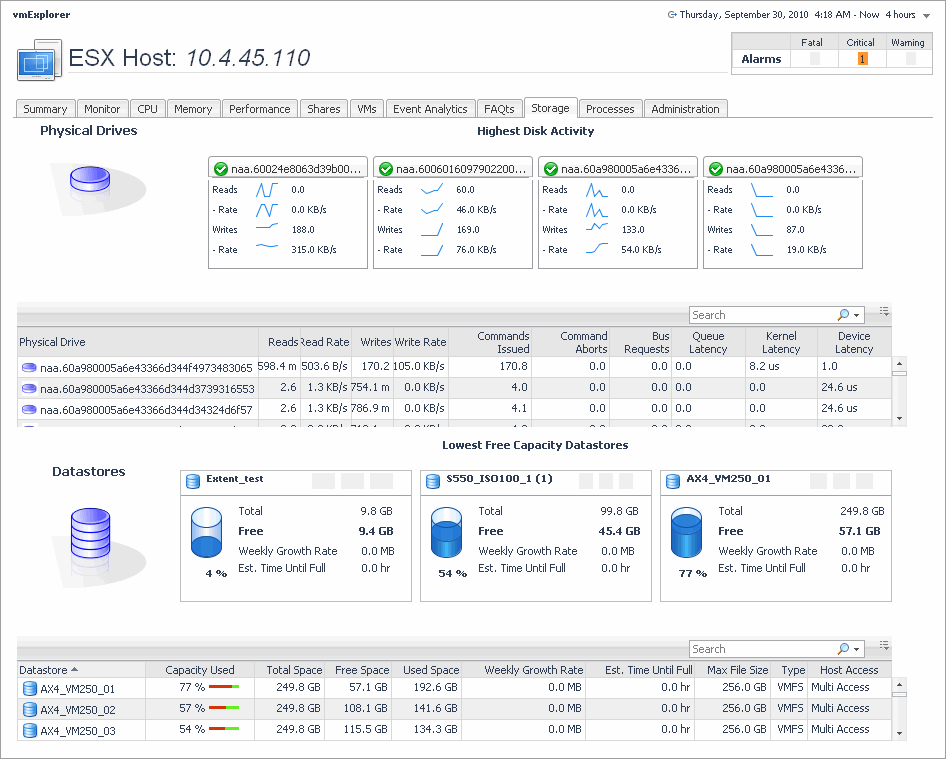
The VMware Explorer Storage tab displays combination of embedded views organized into physical drive and logical disk sections. It identifies the physical drives with the highest disk activity, and the logical drives with the lowest capacity. It also lists all physical drives for the selected server, their read and write rates, along with the logical drives, the space used on each and shows data growth patterns and the related estimates.