Chat now with support
Chat with Support

Foglight for Application Operations 5.9.8 - User Guide

Introducing Foglight APM Monitoring Transactions Examining Response Times Examining Error Breakdowns Viewing Real User Activity from a Geographical Perspective Using the SOC Transactions Tab Creating Custom Drag-and-Drop Dashboards APM Tile and View Reference Appendix: Enabling End User Transactions from FxM and FxV

Synthetic Result detail view

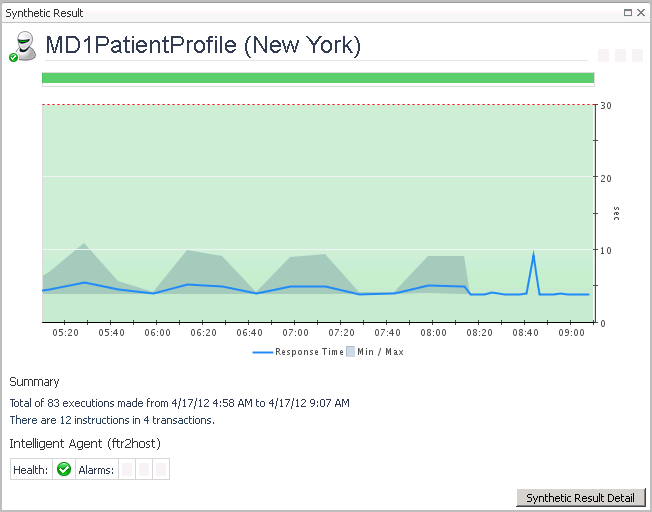
Health History Bar. The color-coded bar represents the alarm state of the monitored component over the time range selected in the SOC. The color of the bar changes depending on the alarm state. Red indicates a Fatal state, orange indicates Critical, yellow means Warning, and green is the Normal state.
Response Time. A chart of the response time for the transaction. The shaded background
Summary. Provides the total number of executions over the given time range, and the number of instructions for transaction.
Health. This icon indicates the transactions overall health status.
Alarms. Indicates how many of each type of alarm (Fatal, Critical, Warning) occurred in the selected time range.
Click Synthetic Result Detail to see the script execution statistics in the End User Explorer dashboard. For more information about this dashboard, see the Foglight Transaction Player User and Reference Guide.

Synthetic User Performance detail view

Virtual Machine detail view

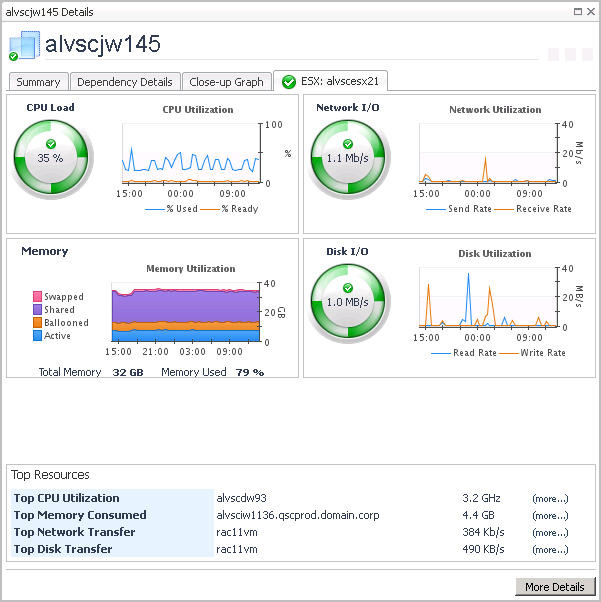
Click the ESX: <hostname> tab to access the ESX Server detail view.
Click More Details (not shown, located at the bottom right corner of the view) to drill down to a vmExplorer view.

ESX Server detail view

This tab displays the CPU, Memory, Network, and Disk utilization for the <hostname> from the perspective of the ESX® server. The lower part of the tab displays the top resource consumers for this host. From this tab you can navigate to the vmExplorer dashboard by clicking More Details. This dashboard allows you to further investigate the performance of the selected ESX® host.
Click More Details to drill down to a vmExplorer view.
Related Documents

The document was helpful.

Select Rating

I easily found the information I needed.

Select Rating