Backups require installing the SQL Server Management Studio Express.
If the database instance is stored in a SQL Server 2008 Express then the SQL Server 2008 Management Studio Express must be used. Newer versions use SQL Server Management Studio SMSS.
The following screenshots are from SQL Server Management Studio Express 2014, which is similar to earlier versions of SQL Server Express.
To automate the backup process the following phases are needed:
- To create the back up job run SQL Server
Management Studio Express.
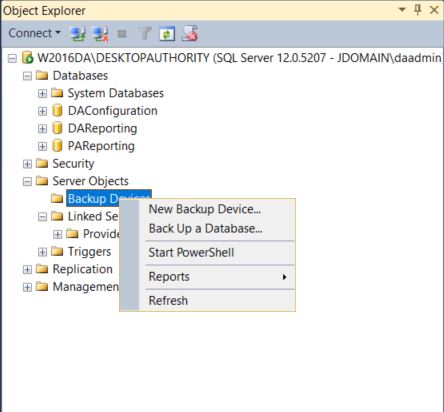
- In the tree view, expand
Server Objects | New Backup Device.
- The
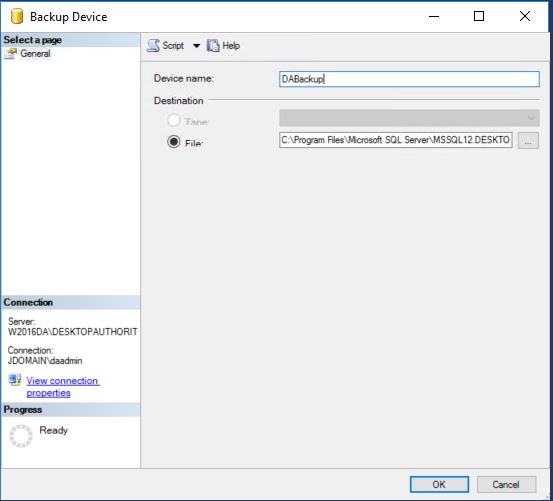
Backup Device dialog opens:
- For Device Name, type in a
name for the new backup job (DABackup in this case).
- For Destination path, select the
path to store the backups. It is best to use a location on
another device.
- Click OK.
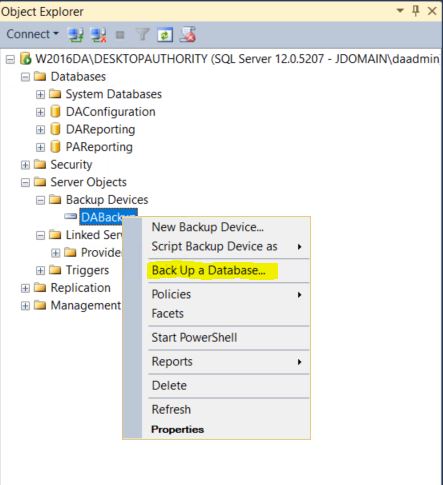
- Right click on the new backup device that created and select the option called "Backup Database".
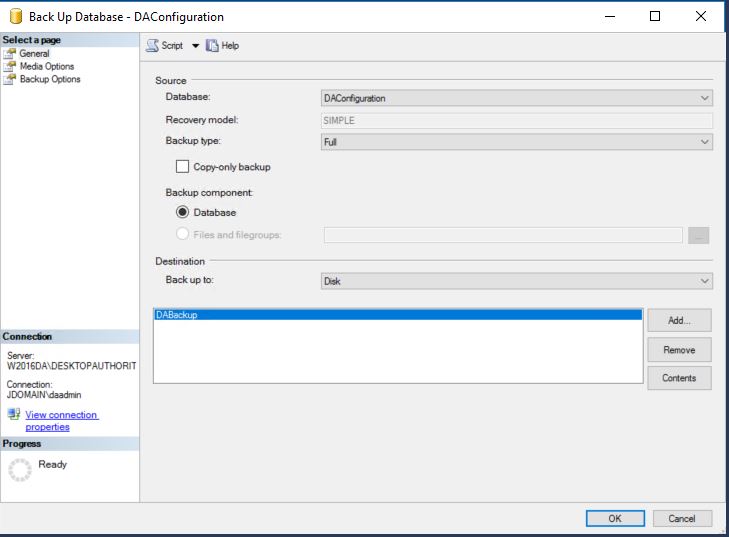
- Select the database (DAConfiguration) and backup type (Select "Full").
- On the left side, select Backup Options and set the following:
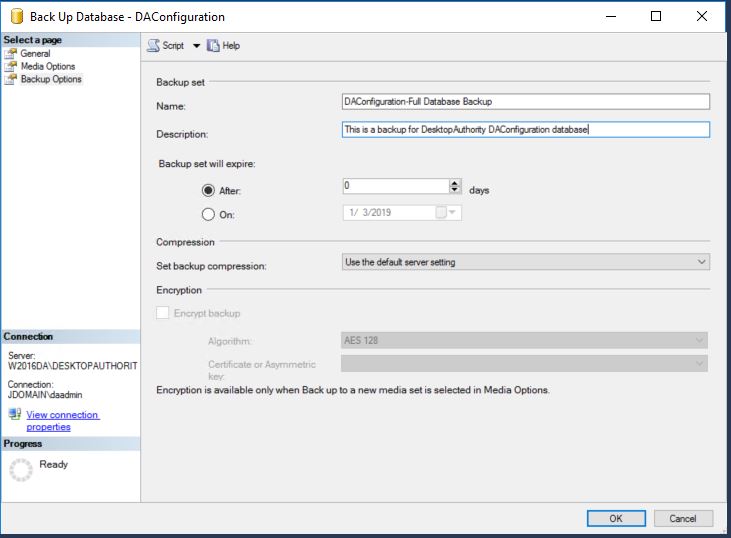
- Name: Create a name for the backup job.
- Description (optional).
- Press OK.
- SQL Server runs the backup job to test it. If successful, it confirms this with the following message:
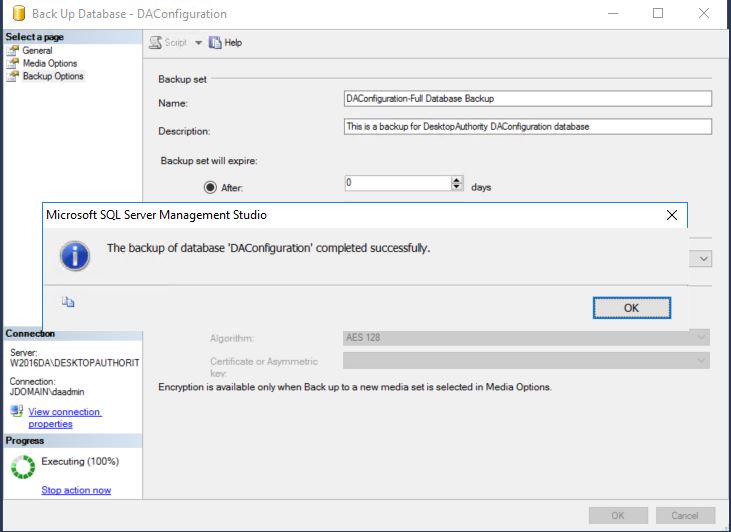
- To verify the backup output, check the destination folder to ensure that the backup file exists. The backup of the database is DABackup.bak file.
- The setup of the backup job is now complete. Repeat these steps for the DAReporting database.
- Create a batch program to run the job. A batch file must be used to run the SQL Server backup job created.
- Batch file will contain lines below and must have a .bat extension
sqlcmd -S DASERVER\DESKTHOPAUTHORITY -E -Q "BACKUP DATABASE DAConfiguration TO DABackup"
(To backup the DAReporting database a new line can be added and included). - Replace "DASERVER" with the SQL Server physical machine name.
Replace "DESKTOPAUTHORITY" with the instance name of the SQL Server where database are stored.
Replace "DABackup" with the name of the backup job.
Replace "DAConfiguration" with the name of the database. - These values may vary according to the SQL Server configuration, the values used in this case are valid for a default installation.
- Create a scheduled job.
- To create a scheduled job, the built in Microsoft Windows Scheduler may be used to assign the batch file created above to a scheduled event.
- Open the Task Scheduler in the SQL Server computer.
- Select Action | Create Basic Task.
- Enter a name for the new task | Click Next.
- Select when the task will start and click Next.
- Complete the timing configuration and click Next.
- Select Start a program and click Next.
- In Program/Script enter the path/name of the batch file created to run the backup and click Next.
- Check the summary information and then click Finish.
- The new job will be available in the Task Scheduler Library.

