Before Changing the URL manually we need to confirm what is the correct autodiscover url for outlook.
First you need to have a machine with outlook and an account that can access the Exchange server which you are trying to get the autodiscovery.
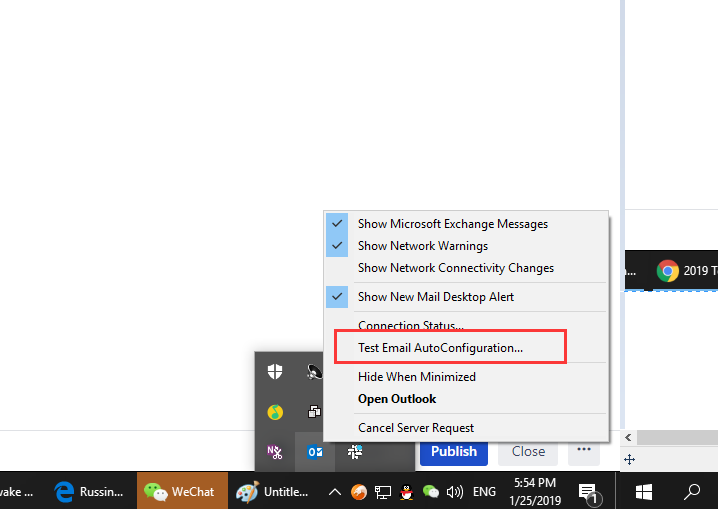
1. Press CTRL and right-click the icon of outlook which in the right bottom.
2. Click "Test Email AutoConfiguration"
3. Enter the email address and uncheck the 2 check boxes "Use Guessmart" and "Secure Guessmart Authentication", then click "Test" button.
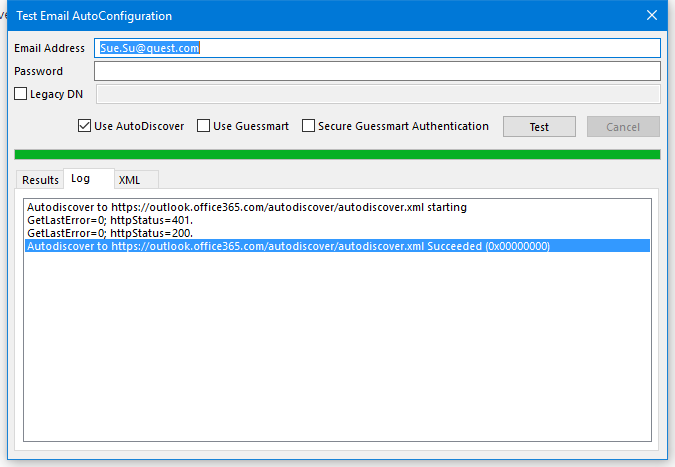
4. You will see outlook finding autodiscover URL one by one. After that you can see an entry which says "Successed", that means outlook found the correct autodiscover URL and this will be the correct autodiscover URL to manually set below:
HOW TO SET UP AUTODISCOVER URL MANUALLY
Open the registry with ESM account or Dataloader account, if the issue happens to ESM, use the ESM account. if the issue happens to MAPI Dataloader, use the Dataloader account;
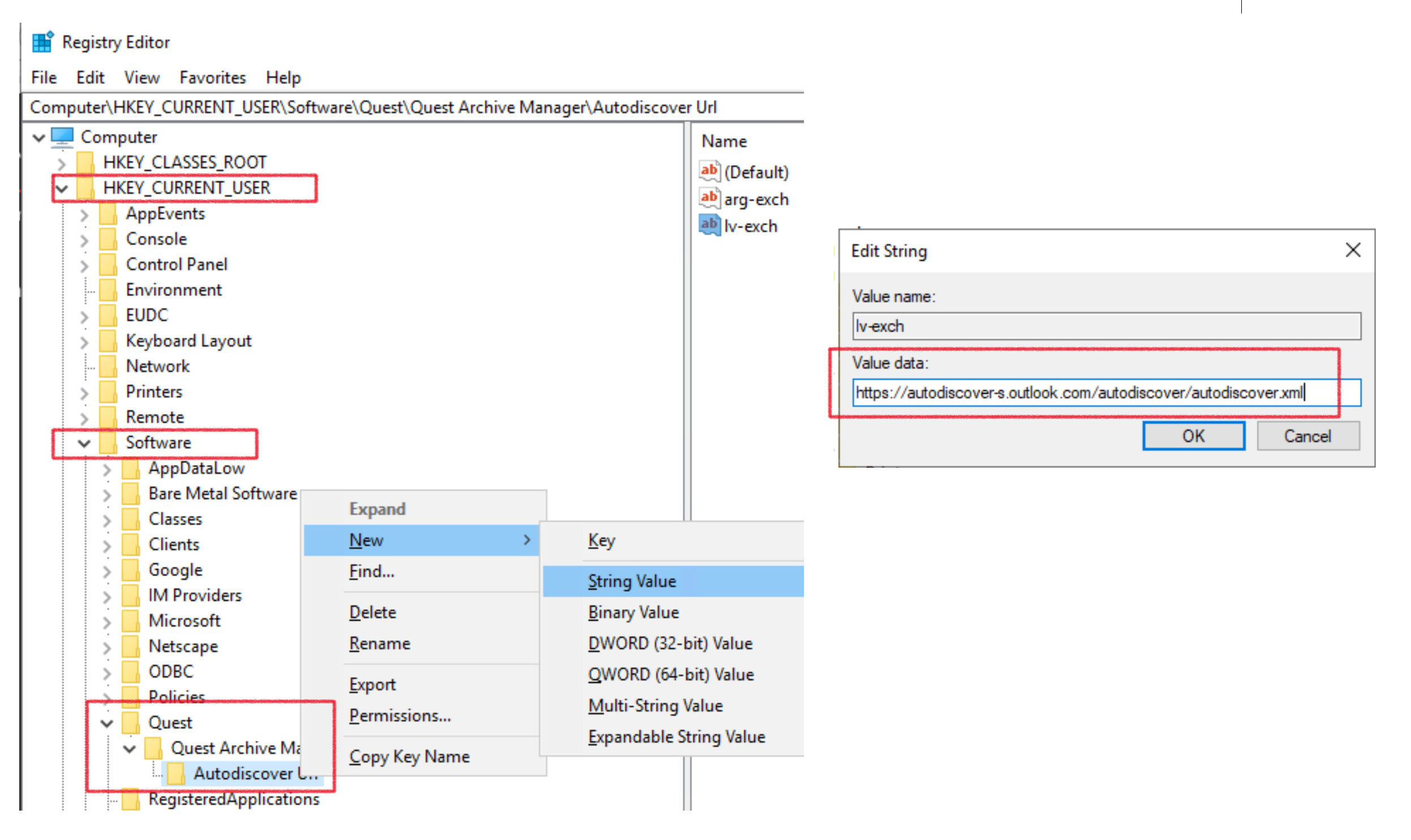
5. Restart ESM or Dataloader.
2. Windows Registry Disclaimer: Support does not provide support for problems that arise from improper modification of the registry. The Windows registry contains information critical to your computer and applications. Make sure you back up the registry before modifying it. For more information on the Windows Registry Editor and how to back up and restore it, refer to Microsoft Article ID 256986 “Description of the Microsoft Windows registry” at Microsoft Support.

