지금 지원 담당자와 채팅
지원 담당자와 채팅

Foglight for VMware 5.7.0 - User and Reference Guide

Using Foglight for VMware
Introducing the virtual infrastructure Navigation basics Interacting with Foglight for VMware VMware Performance Agent configuration
Reference
Views
VMware Alarms views VMware Explorer views VMware Modeler views VMware VirtualCenter views VMware Environment views Other views
Rules
Agent Rules Cluster Rules Datacenter Rules Datastore Rules Resource Pool Rules ESX Server Rules VirtualCenter Rules Virtual Machine Rules VMW Stale Data Management Rule Virtual Switch Rules
Appendix: Alarm Messages

Virtual Machines view

This view is a tree view. It lists the virtual machines that exist in your environment and shows their state.
Selecting the All Virtual Machines node displays overall resource utilization for all virtual machines in your integrated system, and the elements that consume the highest amount of system resources in the Summary - All Virtual Machines view on the right. Similarly, selecting a Virtual Machine node shows Virtual Machine-specific metrics in the Virtual Machine Summary view view on the right.
On the VMware Environment dashboard, on the Monitoring tab, in the Quick-View, select the Virtual Machines tile.
The Virtual Machines view appears in the Quick-View on the left.
Alarm severity. The state of the most recent alarm raised against the associated virtual machine.
All Virtual Machines. A parent node for the virtual machine object instances that appear in this view.
Virtual Machine. The virtual machine name.

Summary - Standard Virtual Switch view

The Summary - Standard Virtual Switch view illustrates the overall network utilization and the levels of overall network packet loss for a selected standard virtual switch.
1
On the VMware Environment dashboard, on the Monitoring tab, in the Virtual Environment Overview, select the Virtual Switches tile.
2
In the Quick-View, in the Virtual Switches view, under Standard Virtual Switches, select a virtual switch.
Table 180. Alarms
Alarm Message. An explanation about why the alarm occurred.
Severity. Indicates the alarm severity: Warning, Critical, or Fatal.
Time. The time when the alarm was generated.
Alarm Message, Severity, or Time. Displays the Alarm dialog box, showing additional information about the alarm. For more information about alarms in Foglight, see the Foglight User Help.
Table 181. Packet Loss
Utilization chart, Avg Utilization. The average percentage of the network resources available to the switch that are in use over the selected time period.
Utilization chart, Packet Loss. The average percentage of time the data packets sent to the monitored switch are not echoed back over the selected time period.
Utilization table, Average Utilization. The average percentage of the network resources available to the switch that are currently in use.
Utilization table, Packet Loss. The average percentage of time the data packets sent to the monitored switch are not echoed back.
Utilization table, Sum Throughput. The current rate of network throughput for the selected switch.
Packet Loss, Utilization chart. Displays the Utilization dialog box.
Figure 389. Utilization dialog box
Available Ports. The number of switch ports that are available for use out of the total number of ports.
Type. The type of the switch: VMware Standard Virtual Switch.
Product Information. Displays a dwell, providing additional configuration information about the selected standard virtual switch.
Figure 390. Product Information dwell
Table 183. Related Items
Cluster. Represents the cluster associated with the selected switch, followed by the counts of alarms generated against that cluster in each severity state.
Datacenter. Represents the datacenter associated with the selected switch, followed by the counts of alarms generated against that datacenter in each severity state.
Virtual Center. Represents the virtual center associated with the selected switch, followed by the counts of alarms generated against that virtual center in each severity state.
Virtual Machine. Represents the virtual machines associated with the selected switch, followed by the counts of alarms generated against those virtual machines in each severity state.
Alarm count. Displays the Alarms dialog box that shows a list of all related alarms. For each alarm entry, it shows its severity, the time at which it was triggered, the rule name that triggered the alarm, and the alarm message.
Cluster. Displays the Clusters Inventory dwell, showing the name and state of the cluster associated with the selected switch.
Figure 391. Clusters Inventory dwell
Datacenter. Displays the Datacenters Inventory dwell, showing the name and state of the datacenter associated with the selected switch.
Figure 392. Datacenters Inventory dwell
Virtual Center. Displays the Virtual Centers Inventory dwell, showing the name and state of the virtual center associated with the selected switch.
Figure 393. Virtual Centers Inventory dwell
Virtual Machines. Displays the Virtual Machines Inventory dwell, showing the name and state of each virtual machine associated with the selected switch.
Figure 394. Virtual Machines Inventory dwell
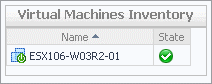
Table 184. Top VMs
Top VM chart, Average Receive Rate. The average inbound data transfer rate for the monitored switch over the selected time period.
Top VM chart, Average Send Rate. The average outbound data transfer rate for the monitored switch over the selected time period.
Top VM table, Key. The place of the virtual machine in the list of top consumers.
Top VM table, Receiving. The average inbound data transfer rate for a virtual machine whose network traffic is managed by the selected switch.
Top VM table, Sending. The average outbound data transfer rate for a virtual machine whose network traffic is managed by the selected switch.
Top VM table, Virtual Machine. The name of the virtual machine identified amongst top network consumers.
FT. The percentage of network traffic resulting from VMware Fault Tolerance (FT) operations, processed by the selected switch.
HBR. The percentage of network traffic resulting from host-based replication (HBR) operations, processed by the selected switch.
iScsi. The percentage of iSCSI (Internet Small Computer System Interface) network traffic processed by the selected switch.
NFS. The percentage of network traffic resulting from Network File System (NFS) operations, processed by the selected switch.
vMotion. The percentage of network traffic resulting from VMware vMotion operations, processed by the selected switch.
VM. The percentage of network traffic between virtual machines managed by the selected switch.
Traffic Type Utilization chart. Displays the Traffic Type Utilization dialog box.
Figure 395. Traffic Type Utilization dialog box

Summary - Distributed Virtual Switch view

The Summary - Distributed Virtual Switch view illustrates the overall network utilization and the levels of overall network packet loss for a selected distributed virtual switch.
1
On the VMware Environment dashboard, on the Monitoring tab, in the Virtual Environment Overview, select the Virtual Switches tile.
2
In the Quick-View, in the Virtual Switches view, under Distributed Virtual Switches, select a virtual switch.
The Netflow Setting dialog box appears.
Figure 397. Netflow Setting dialog box
2
In the Netflow Setting Dialog box, provide the following information:
IP Address and UDP: Type the IP address and port number of the NetFlow collector.
VDS IP Address: Type the IP address of the distributed virtual switch.
End Time: Select the time when you want the collector to stop obtaining NetFlow data.
Active flow export timeout: Type the number of seconds after which an active data flow times out.
Idle flow export timeout: Type the number of seconds after which an idle data flow times out.
Sampling rate: Type a number indicating how often you want to collect data packets. For example, a value of 2 instructs the collector to obtain data from every second packet.
Process Internal Flows: Select this check box if you want to collect data only during network activities between virtual machines on the same host.
3
Click Enable.
Available Ports. The number of switch ports that are available for use out of the total number of ports.
Load Balancing. One or more load balancing policies, indicating how the switch routes network traffic in case of an adapter failure. For example, an uplink may choose a route based on the originating virtual port, IP hash, source MAC hash, physical NIC load, or use a specified fail over order. For more information about these policies, see your VMware documentation.
Network I/O Control. Indicates if the selected switch can use network resource pools to prioritize network traffic.
Traffic Shaping. Indicates if the traffic shaping policy is enabled or disabled on the selected switch. A traffic shaping policy can restrict the network bandwidth to a port or if a port is configured to temporarily allow transmission of data at higher than normal speeds. For more information about these policies, see your VMware documentation.
Type. The type of the switch: VMware Distributed Virtual Switch.
Version. The version number of the distributed switch component in your virtual environment.
Product Information. Displays a dwell, providing additional configuration information about the selected distributed virtual switch.
Figure 398. Product Information dwell
Top ESX chart. For each identified ESX host, the bar chart displays the inbound and outbound transfer rates.
Top ESX table, ESX Host. The name of the ESX host identified amongst top network consumers.
Top ESX table, Key. The place of the ESX host in the list of top consumers.
Top ESX table, Receiving. The average inbound data transfer rate for an ESX host whose network traffic is managed by the selected switch.
Top ESX table, Transmitting. The average outbound data transfer rate for an ESX host whose network traffic is managed by the selected switch.
Traffic Type Utilization chart. Displays the Traffic Type Utilization dialog box.
Figure 401. Traffic Type Utilization dialog box
Packet Loss, Utilization chart. Displays the Utilization dialog box.
Figure 402. Utilization dialog box

Summary - Cisco Virtual Switch view

The Summary - Cisco Virtual Switch view illustrates the overall network utilization and the levels of overall network packet loss for a selected Cisco virtual switch.
1
On the VMware Environment dashboard, on the Monitoring tab, in the Virtual Environment Overview, select the Virtual Switches tile.
2
In the Quick-View, in the Virtual Switches view, under Cisco Virtual Switches, select a virtual switch.
The Netflow Setting Dialog box appears.
2
In the Netflow Setting Dialog box, provide the following information:
IP Address and UDP: Type the IP address and port number of the NetFlow collector.
VDS IP Address: Type the IP address of the distributed virtual switch.
Username and Password: Type the credentials needed to access the Cisco virtual switch.
TIP: Cisco virtual switch credentials can also be updated using the Configure Switch button on the Summary - Cisco Virtual Switch view.
End Time: Select the time when you want the collector to stop obtaining NetFlow data.
Active flow export timeout: Type the number of seconds after which an active data flow times out.
Idle flow export timeout: Type the number of seconds after which an idle data flow times out.
Sampling rate: Type a number indicating how often you want to collect data packets. For example, a value of 2 instructs the collector to obtain data from every second packet.
Process Internal Flows: Select this check box if you want to collect data only during network activities between virtual machines on the same host.
3
Click Enable.
관련 문서

The document was helpful.

평가 결과 선택

I easily found the information I needed.

평가 결과 선택
