|
1 |
Select a virtual machine object instance and open the VMware Explorer Administration tab. |
|
3 |
|
1 |
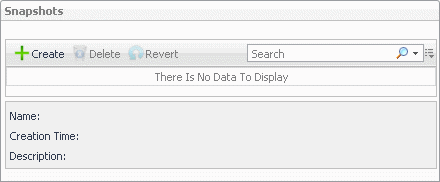
Select a virtual machine object instance and open the VMware Explorer Administration tab. |
|
2 |
|
3 |
|
4 |
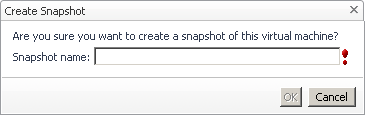
Click OK. |
|
1 |
Select a virtual machine object instance and open the VMware Explorer Administration tab. |
|
2 |
On the VMware Explorer Administration tab, in the Snapshots view, select the virtual machine snapshot that you want to delete. |
|
3 |
Click Delete. |
|
1 |
Select a virtual machine object instance and open the VMware Explorer Administration tab. |
|
2 |
On the VMware Explorer Administration tab, in the Snapshots view, select the virtual machine snapshot to which you want to revert. |
|
3 |
Click Revert. |

|
4 |
Click OK. |

|
1 |
|
2 |
|
1 |
|
2 |
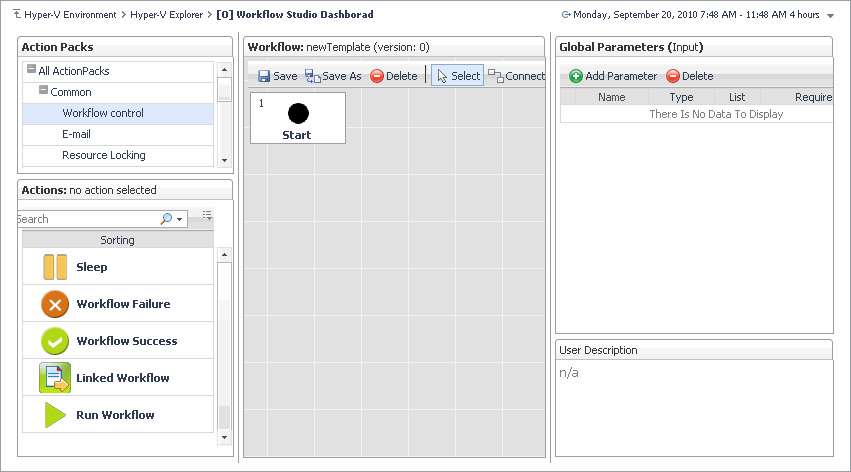
On the VMware Explorer Administration tab, in the Workflows view, select the workflow that you want to run. |
|
3 |
Click Run. |

|
5 |
In the Specify Task Details page that appears in the Run Workflow dialog box, specify the task name, description, and time options, then click Finish. |
|
1 |
|
2 |
On the VMware Explorer Administration tab, in the Workflows view, select the workflow that you want to delete. |
|
3 |
Click Delete. |
|
1 |
|
2 |
On the VMware Explorer Administration tab, in the Workflows view, select the workflow that you want to export to a file. |
|
3 |
Click Export. |
|
1 |
|
2 |
On the VMware Explorer Administration tab, in the Workflows view, select the workflow that you want to import from a file. |
|
3 |
Click Import. |

|
• |
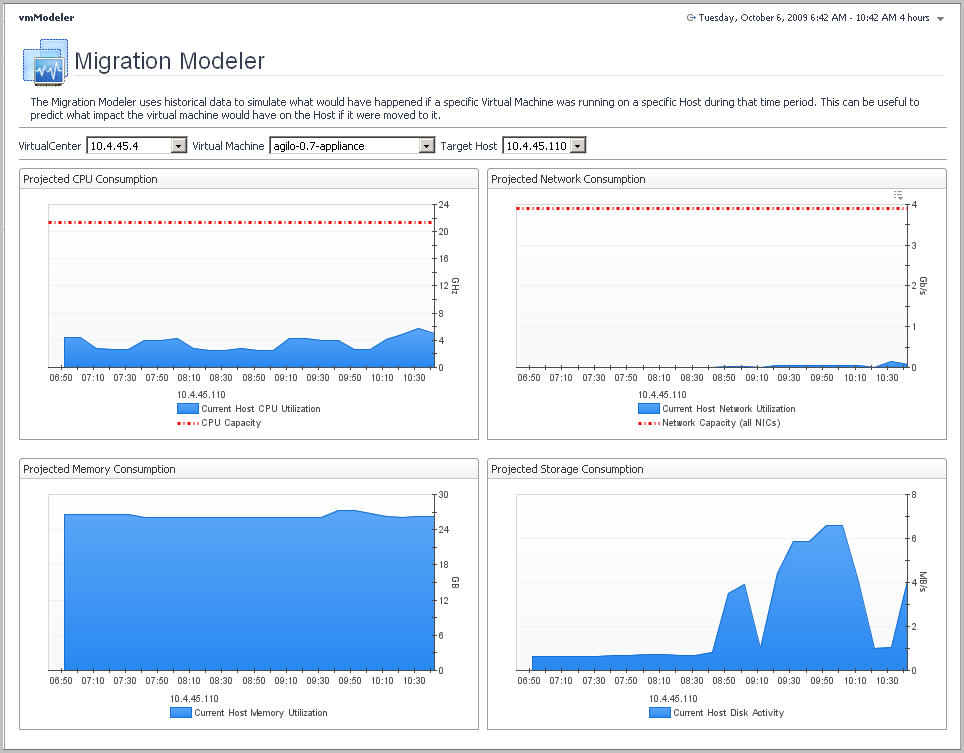
From within any dashboard, you can access the VMware Modeler dashboard by clicking the VMware Modeler link under Dashboards > Virtual > VMware in the navigation panel. |