Chatta subito con l'assistenza
Chat con il supporto

Foglight for OpenStack 5.6.15 - User Guide

Using Foglight for OpenStack Interacting with Foglight for OpenStack dashboards Reference

Foglight Lockboxes and Credentials

The appropriate lockboxes must be in place before you create credentials. The Manage Lockboxes dashboard displays a list of all lockboxes that are defined on the server, in addition to the System lockbox that is included with the Management Server.
1
Click Manage Credentials on the Credentials dashboard.
2
Click Add.
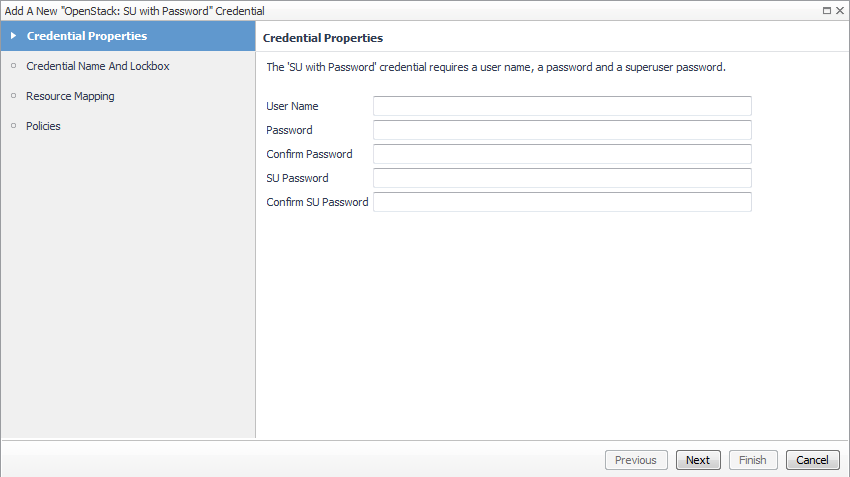
The Add a New Credential wizard opens displaying the Credential Properties page.
4
On the Credential Properties page, type the required properties, and click Next.
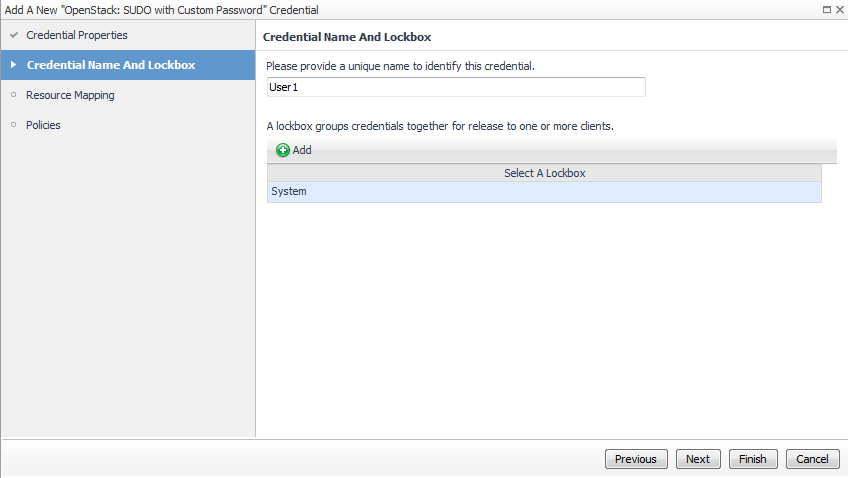
The Add a New Credential wizard refreshes displaying the Credential Name and Lockbox page.
5
On the Credential Name and Lockbox page, provide a name to identify the credential, and select a lockbox in which you want to keep the credential. A lockbox can be used to group credentials for access or security. In smaller Foglight installations, using the default System lockbox should be sufficient.
Click Next.
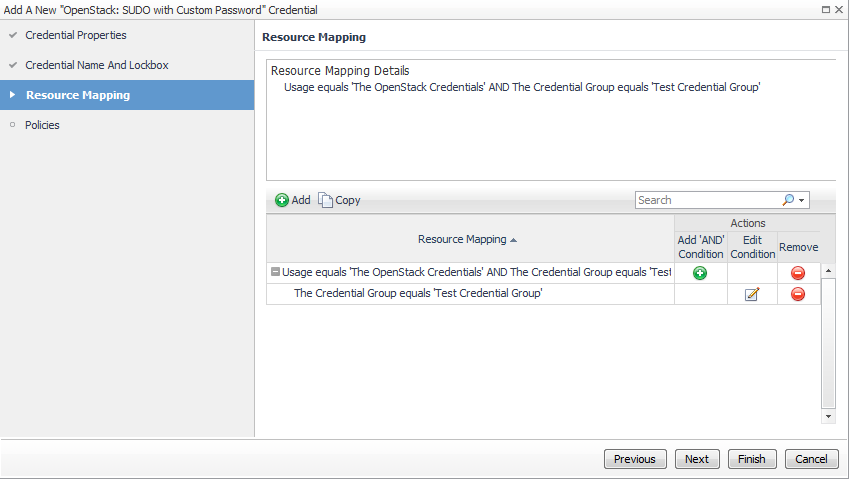
The Add a New Credential wizard refreshes displaying the Resource Mapping page.
6
On the Resource Mapping page, click Next.
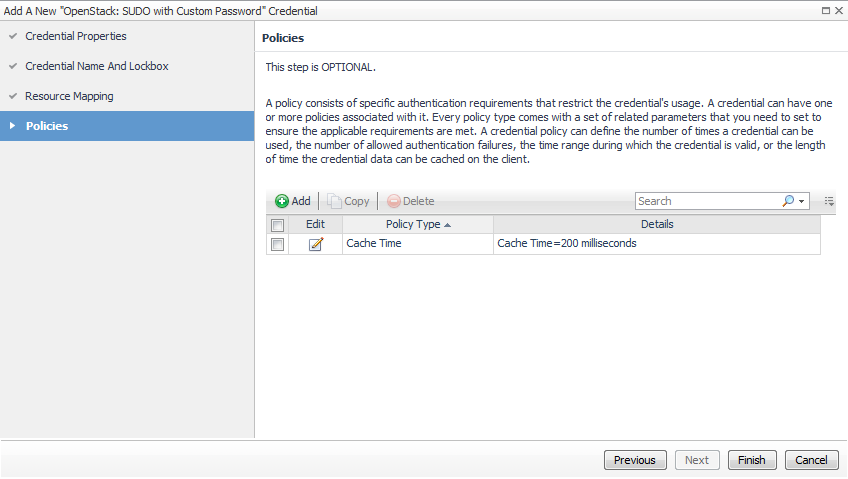
The Add a New Credential wizard refreshes displaying the Policies page.
Figure 23. Policies page
7
Optional-On the Policies page, define one or more policies for this credential.
Click Finish.
The new Credential appears on the Manage Credentials view.
For more information on the Credentials dashboard, see Foglight Administration and Configuration Guide.
1
On the navigation panel, under Dashboards, click Administration > Credentials > Manage Lockboxes.
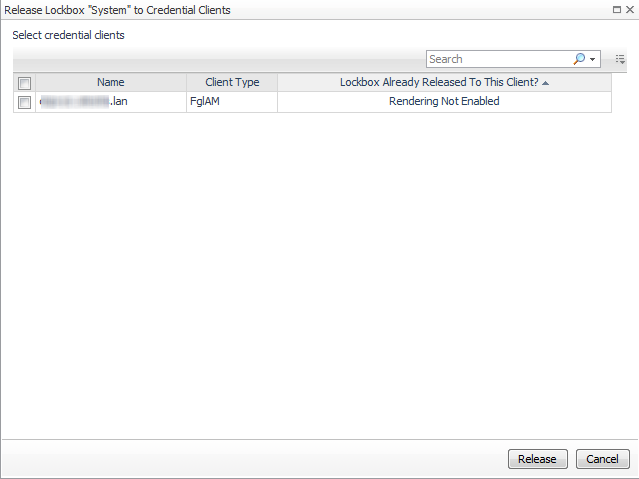
The Release Lockbox to Credential Clients dialog box appears.
The Release Lockbox to Credentials Clients dialog box closes, indicating success.

Exploring the OpenStack Environment Monitoring tab

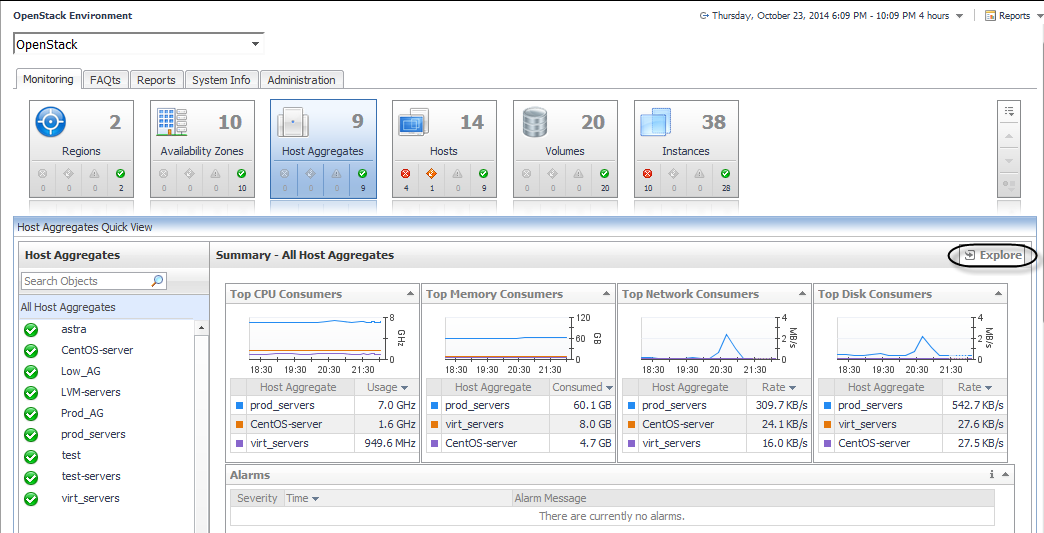
The OpenStack Environment Monitoring tab contains tiles which represent the various configured resource objects found in the OpenStack infrastructure.
For each resource object type (Regions, Availability Zones, Host Aggregates, Hosts, Volumes, and Instances) the default view when clicking a tile is all objects, such as All Hosts. This view can be seen in the object list view in the left frame of the Quick View with top resource consumers in the group in the right frame.
Top CPU Consumers — those members with the highest average CPU utilization.
Top Memory Consumers — those members with the highest memory utilization.
Top Network Consumers — those members consuming most network bandwidth.
Top Disk Consumers — those members with the highest average disk utilization.
1
Click the Tile Customizer icon.
3
Click Apply.

Quick View

Exploring Regions

When you click the Regions tile, a list of all configured regions and summary information for all the regions is shown in the Region Quick View. By default, All Regions is selected with charts showing the top CPU, memory, network, and storage consumers in the summary frame. A table of relevant alarms is also shown.
Click the Explore link in the upper right of the Quick View to go to the OpenStack Explorer Summary tab to see more detailed information about the selected region.
Clicking an object type in the Related Items view displays a list of related objects of that type along with their statuses.
Related Documents

The document was helpful.

Seleziona valutazione

I easily found the information I needed.

Seleziona valutazione