Chat now with support
Chat with Support

Foglight for Hyper-V 5.7.2 - User and Reference Guide

About Foglight for Hyper-V Agent administration Performance monitoring with the Hyper-V Environment dashboard Performance investigation with the Hyper-V Explorer Foglight for Hyper-V alarms Appendix: Hyper-V Agent error codes

Alarm table

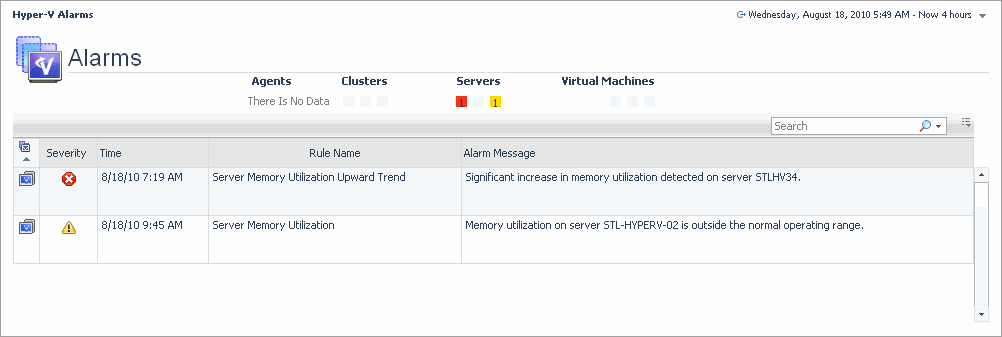
The Alarms List view shows all alarms fired in your Hyper-V® environment. For each alarm entry, it shows its severity, the time it was fired, the rule name that triggered the alarm, and the alarm message.
Figure 258. Alarms List view
Alarm Message. An explanation about why the alarm occurred.
Object indicator. Indicates if the alarm is related to a cluster , server , or virtual machine .
Rule Name. The name of the rule that triggered the alarm.
Severity. Indicates the alarm severity: Warning, Critical, or Fatal.
Time. The time at which the alarm was generated.
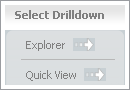
Alarm Message, Object indicator, Rule Name, or Time. For server and virtual machine objects, the Select Drilldown dwell appears.
Figure 259. Select Drilldown dwell
From here, selecting Explorer shows the selected server or virtual machine in the Hyper-V Explorer, with the Hyper-V Explorer Summary tab open. Selecting Quick View shows the selected server or virtual machine in the SOFS Server Summary view or Virtual Machine Summary view.
Severity. Displays the Alarm Created dialog box, showing additional information about the alarm. For more information about alarms in Foglight™, see the Foglight User Help.
Figure 260. Alarm Created dialog box

Setting the alarm sensitivity level

3
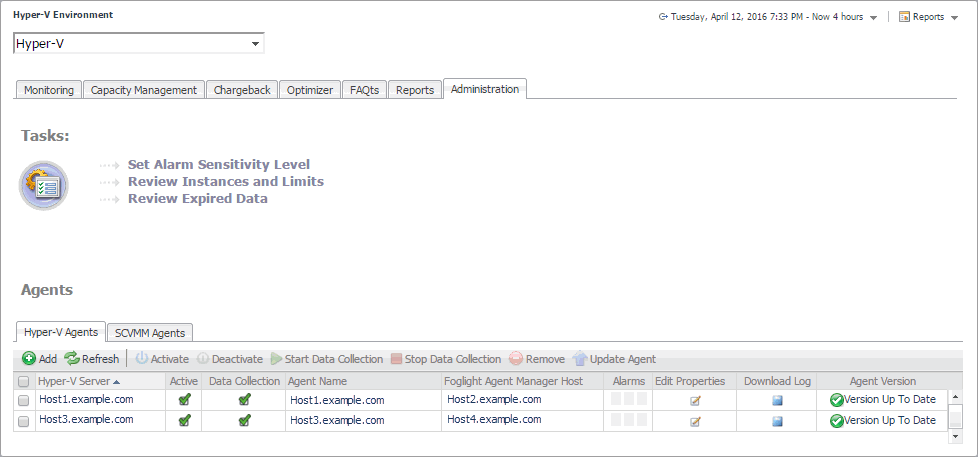
On the navigation panel, under Dashboards, choose Hyper-V > Hyper-V Environment.
Figure 261. Administration tab
5
On the Administration tab, click Set Alarm Sensitivity Level.
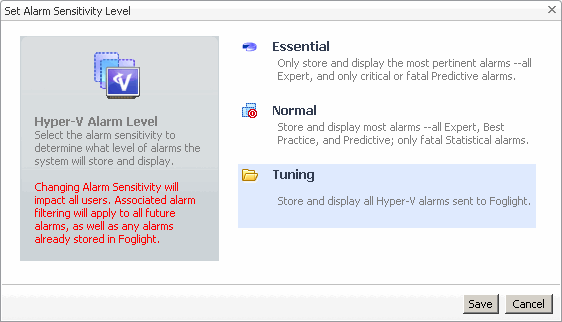
The Set Alarm Sensitivity Level dialog box appears.
Figure 262. Set Alarm Sensitivity Level dialog box
6
In the Set Alarm Sensitivity Level dialog box, select the desired sensitivity level: Essential, Normal, or Tuning.
7
Click Save.
The Set Alarm Sensitivity Level dialog box closes.

Finding alarms using the action panel

3
On the navigation panel, under Dashboards, choose Hyper-V > Hyper-V Explorer.
4
On the action panel, on the General tab, under Actions, click View Virtual Infrastructure Alarms.
The Hyper-V Alarms dashboard appears in the display area.

Appendix: Hyper-V Agent error codes

Related Documents

The document was helpful.

Select Rating

I easily found the information I needed.

Select Rating