Chat now with support
Chat with Support

Foglight for Hyper-V 5.7.2 - User and Reference Guide

About Foglight for Hyper-V Agent administration Performance monitoring with the Hyper-V Environment dashboard Performance investigation with the Hyper-V Explorer Foglight for Hyper-V alarms Appendix: Hyper-V Agent error codes

Hyper-V Explorer Event Analytics tab

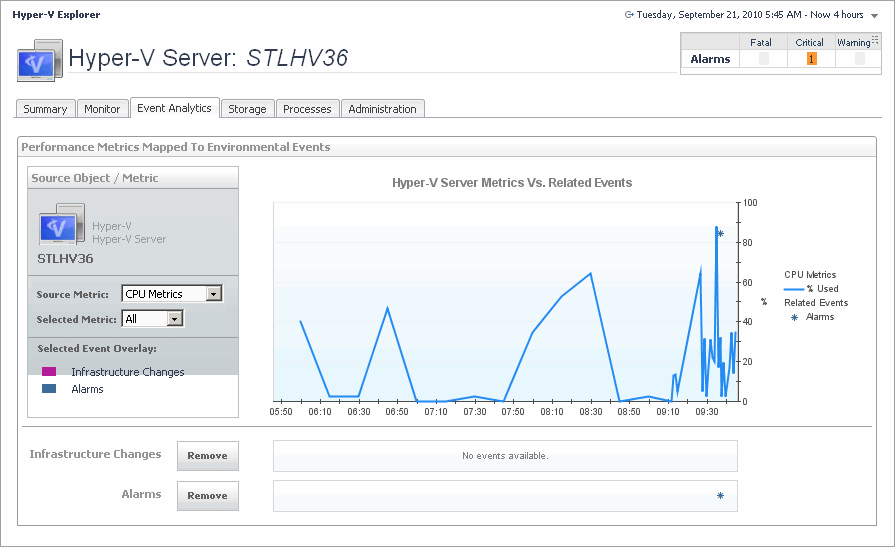
The Hyper-V Explorer Event Analytics tab contains details about the state of resource-related metrics for a server or virtual machine over a selected time period, and also shows any events that occur during that time frame.
Figure 217. Event Analytics tab
Alarms. If any alarms are generated against the selected server during the selected time period, and are added as an overlay to the chart using the Infrastructure Changes and Alarms view, they also appear in the chart.
CPU Metrics, % Used. The percentage of the server’s CPU utilization spent on executing system code and user programs during the selected time period.
Disk Metrics, Read Rate. The rate at which the server reads data from the disk during the selected time period.
Disk Metrics, Write Rate. The rate at which the server writes data to the disk during the selected time period.
Infrastructure changes. If any infrastructure changes occur for the selected server during the selected time period, and are added as an overlay to the chart using the Infrastructure Changes and Alarms view, they also appear in the chart. An infrastructure change is any configuration change that affects the properties of the selected server. This includes the server startup, shutdown, pause, changed shares, changes to memory settings, and similar types of changes.
Memory Metrics, % Used. The percentage of the available memory that the server uses during the selected time period.
Network Metrics, Receive Rate. The rate at which the server receives data from the network during the selected time period.
Network Metrics, Send Rate. The rate at which the server sends data to the network during the selected time period.
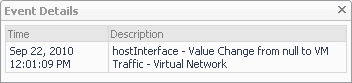
Alarm or infrastructure change. Displays the Event Details dialog box.
Figure 218. Event Details dialog box
Alarms. Allows you to add and review any alarms, that are generated against the selected server, during the selected time period, to the chart.
Infrastructure changes. Allows you to add and review any infrastructure changes, that occur for the selected server, during the selected time period, to the chart. An infrastructure change is any configuration change that affects the properties of the selected server or virtual machine object. This includes the object’s startup, shutdown, pause, changed shares, changes to memory settings, and similar types of changes.
Alarm or infrastructure change. Displays the Event Details dialog box.
Figure 219. Event Details dialog box
Selected Event Overlay. Indicates if the chart on the right shows any color-coded overlays that represent infrastructure and/or alarm events, in addition to the selected source metric.
Server/virtual machine name. The name of the selected object (server or virtual machine instance).
Source metric. Identifies the combination of the metrics whose values appear in the chart on the right. Possible metric types include: CPU Metrics, Disk Metrics, Memory Metrics, and Network Metrics. For each metric type, you can display the values of a selected metric, or all metric values associated with that type. For example, selecting Disk Metrics gives you an option of displaying Read Rate, Write Rate, or both metrics (All) in the chart.
Alarms. If any alarms are generated against the selected virtual machine during the selected time period, and are added as an overlay to the chart using the Infrastructure Changes and Alarms view, they also appear in the chart.
CPU Metrics, % Used. The percentage of the virtual machine’s CPU utilization spent on executing system code and user programs during the selected time period.
Disk Metrics, Read Rate. The rate at which the virtual machine reads data from disk during the selected time period.
Disk Metrics, Write Rate. The rate at which the virtual machine writes data to disk during the selected time period.
Infrastructure changes. If any infrastructure changes occur for the selected virtual machine during the selected time period, and are added as an overlay to the chart using the Infrastructure Changes and Alarms view, they also appear in the chart. An infrastructure change is any configuration change that affects the properties of the selected virtual machine. This includes the virtual machine startup, shutdown, pause, changed shares, changes to memory settings, and similar types of changes.
Memory Metrics, % Used. The percentage of the available memory that the virtual machine uses during the selected time period.
Network Metrics, Receive Rate. The rate at which the virtual machine receives data from the network during the selected time period.
Network Metrics, Send Rate. The rate at which the virtual machine sends data to the network during the selected time period.
Alarm or infrastructure change. Displays the Event Details dialog box.
Figure 220. Event Details dialog box

Hyper-V Explorer Storage

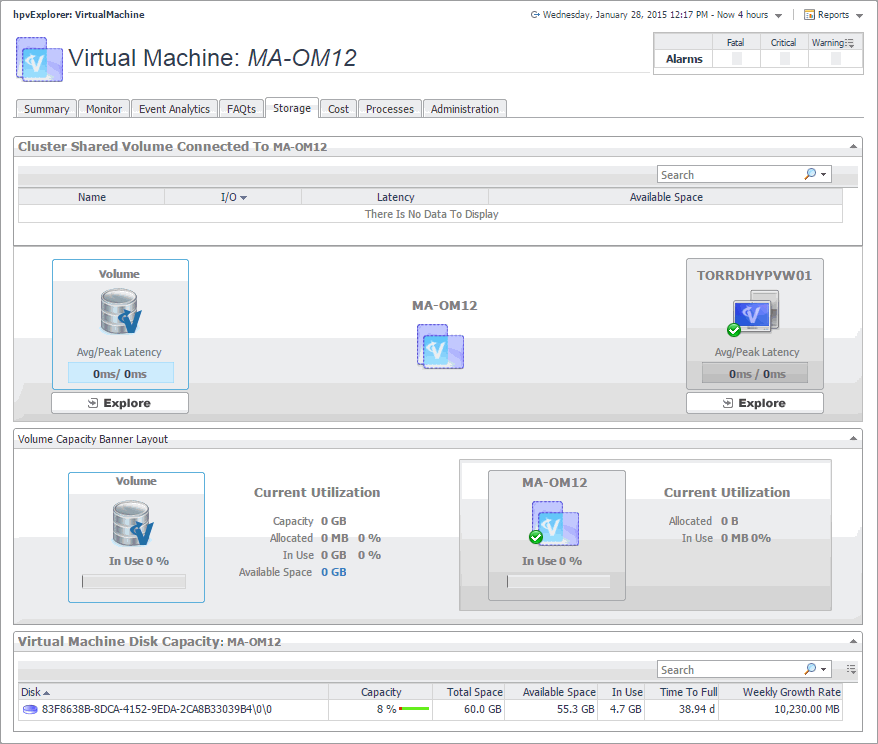
Figure 221. Storage tab

Hyper-V Explorer Storage tab (clusters)

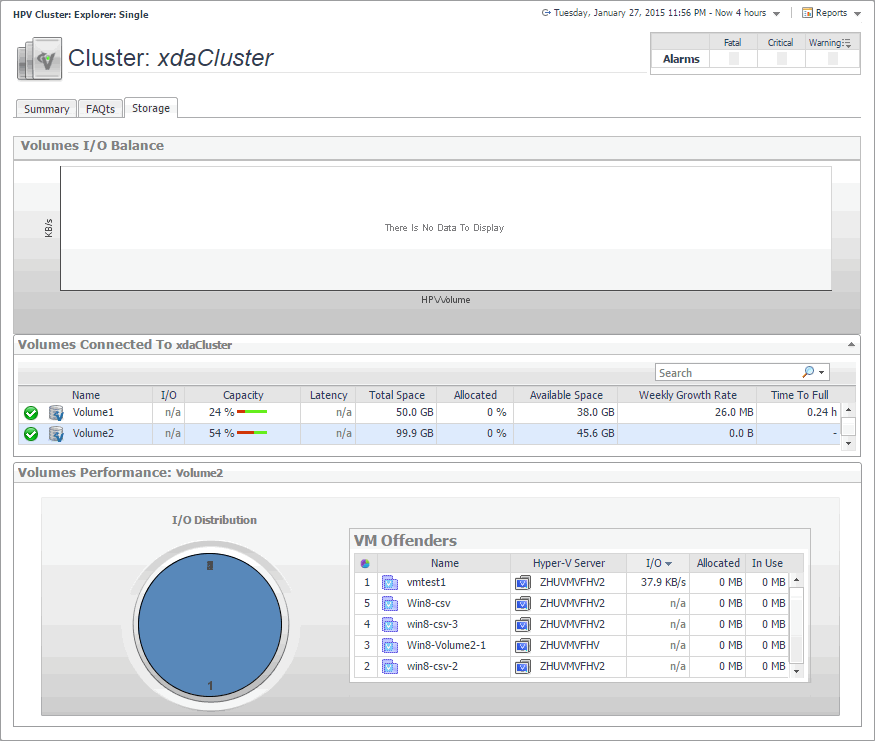
The Hyper-V Explorer Storage tab displays combination of embedded views displaying disk volumes associated with the selected cluster. It identifies the virtual machines that spend the highest amounts of disk resources. Use this tab to find out more about the overall consumption of disk resources for a given cluster. The information provided on this tab can help you prevent potential bottlenecks by reallocating disk resources where they are most needed.
Figure 222. Storage tab (clusters)
Table 115. Volumes Connected To Cluster
Allocated. The amount of space allocated to the selected cluster.
Available Space. The amount of space available on the disk volume.
Capacity. The percentage of the disk space that is currently in use.
I/O. The disk volume's current data transfer rate.
Latency. The current latency of the disk volume.
Name. The name of the disk volume. The indicator on the left shows the disk volume’s alarm state: Normal, Warning, Critical, or Fatal.
Time to Full. The estimated amount of time until which the disk volume will become full.
Total Space. The total amount of disk space.
Weekly Growth Rate. The average amount of space by which the amount of data stored on the disk volume grows every week.
Table 116. Volumes Performance: Volume
I/O Distribution. A pie chart indicating how much the individual virtual machines using the selected disk volume contribute to the use of I/O resources.
VM Offenders, Allocated. The amount of disk space allocated to the virtual machine.
VM Offenders, Hyper-V Server. The name of the Hyper-V server on which the virtual machine is running.
VM Offenders, I/O. The data transfer rate utilized by the virtual machine.
VM Offenders, In Use. The amount of disk space the virtual machine currently uses.
VM Offenders, Name. The name of the virtual machine.

Hyper-V Explorer Storage tab (Hyper-V servers)

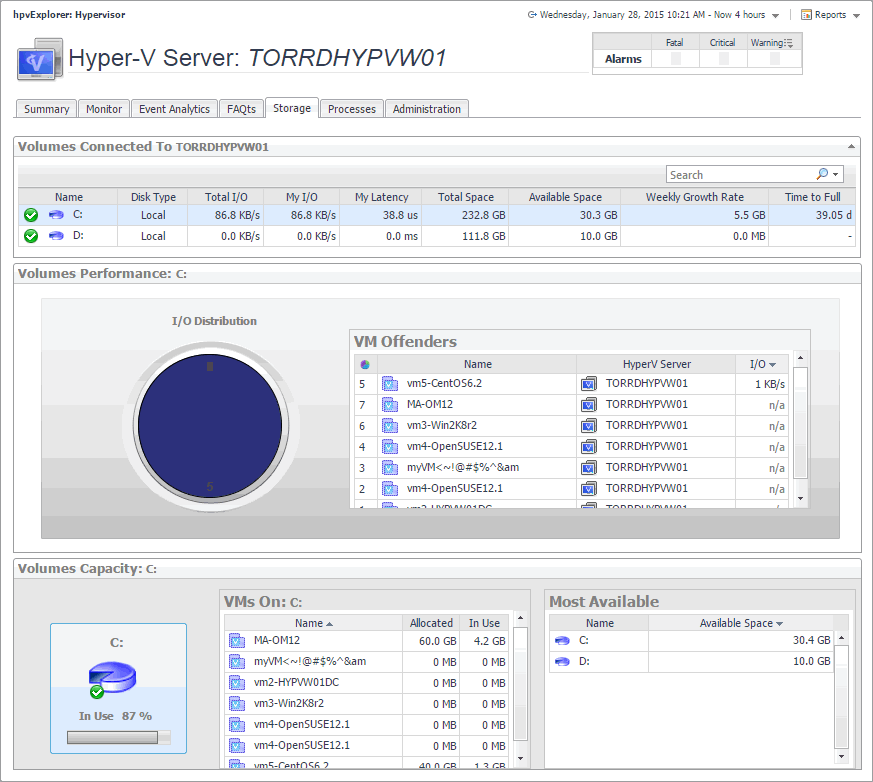
The Hyper-V Explorer Storage tab displays combination of embedded views displaying disk volumes associated with the selected Hyper-V server. It identifies the virtual machines that spend the highest amounts of disk resources. Use this tab to find out more about the overall consumption of disk resources for a given Hyper-V server. The information provided on this tab can help you prevent potential bottlenecks by reallocating disk resources where they are most needed.
Figure 223. Storage tab (Hyper-V servers)
Table 117. Volumes Connected To Hyper-V Server
Available Space. The amount of space available on the disk volume.
Disk Type. Indicates the disk type, for example, Local.
My I/O. The data transfer rate utilized on the disk volume by the selected Hyper-V server.
My Latency. The current latency of requests initiated by the Hyper-V server on the disk volume.
Name. The name of the disk volume. The indicator on the left shows the disk volume’s alarm state: Normal, Warning, Critical, or Fatal.
Time to Full. The estimated amount of time until which the disk volume will become full.
Total I/O. The data transfer rate utilized on the disk volume.
Total Space. The total amount of disk space.
Weekly Growth Rate. The average amount of space by which the amount of data stored on the disk volume grows every week.
Table 118. Volumes Performance: Volume
VM Offenders, Hyper-V Server. The name of the Hyper-V server on which the virtual machine is running.
VM Offenders, I/O. The data transfer rate utilized by the virtual machine.
VM Offenders, Name. The name of the virtual machine.
Table 119. Volumes Capacity: Volume
Disk volume, In Use. The percentage of disk space in use.
Most Available, Available Space. The amount of space available on the disk volume.
Most Available, Name. The disk volume.
VMs On disk volume, Allocated. The amount of memory allocated to the virtual machine.
VMs On disk volume, In Use. The amount of memory used by the virtual machine.
VMs On disk volume, Name. The name of the virtual machine associated with the disk volume.
Related Documents

The document was helpful.

Select Rating

I easily found the information I needed.

Select Rating