Chat now with support
Chat with Support

Foglight APM for Real User Experience 5.9.11 - User Guide

Getting started with Foglight APM Monitoring Transactions Viewing Real User Activity from a Geographical Perspective Assessing real user experiences during key sequences Monitoring the performance of web sites and endpoints Searching APM data Replaying sessions, hits, and sequences Visualizing search results Creating Custom Drag-and-Drop Dashboards APM Tile and View Reference

VMware tile

Use the VMware Tile to gather performance information about the state of a virtual machine monitored by the Foglight for VMware.

Topology Object Name: Host

NOTE: For hosts, always select the host object, regardless of whether or not the host is virtual (for example, Hyper-V® or VMware®). Foglight looks for the appropriate host extensions and displays the associated host dashboard (physical or virtual).

Click the title bar to drill down to the Virtual Machine detail view.

CPU Ready. The percentage of time that the virtual machine has spent waiting in the queue, ready to be scheduled on a CPU. An increase in this value indicates that the virtual machine is spending more time waiting and could be short on resources.
Health History Bar. The color-coded bar represents the alarm state of the monitored component over the time range selected in the SOC. The color of the bar changes depending on the alarm state. Red indicates a Fatal state, orange indicates Critical, yellow means Warning, and green is the Normal state.
CPU. The current amount of CPU resources used by the virtual machine, expressed as a percentage.
Memory. The current amount of memory used by the virtual machine, expressed as a percentage.
Network. The current network transfer rate for the virtual machine.
Storage. The current disk transfer rate for the virtual machine.
Operating System. The name of the operating system.
IP Address. The primary IP address for the virtual machine.

Overview of Detail views

Detail views are drill down views accessible from some tile views.

For more information about a specific view, see:

Application Server detail view

The Application Server detail view provides a list of Request Types, as well as server information for the selected application server.

The Request Types tab lists the following information for each request type: request name, response time, bottleneck location (based on the most time-consuming tier of a request), calls completed, calls incomplete, call exceptions, and number of traces.

The chart shows the tier breakdown for the selected request.

The information presented on the Server Info tab depends on the type of application server selected: JBoss®, OracleAS, Apache Tomcat, WebSphere®, or WebLogic®.

Next Steps:

Host detail view

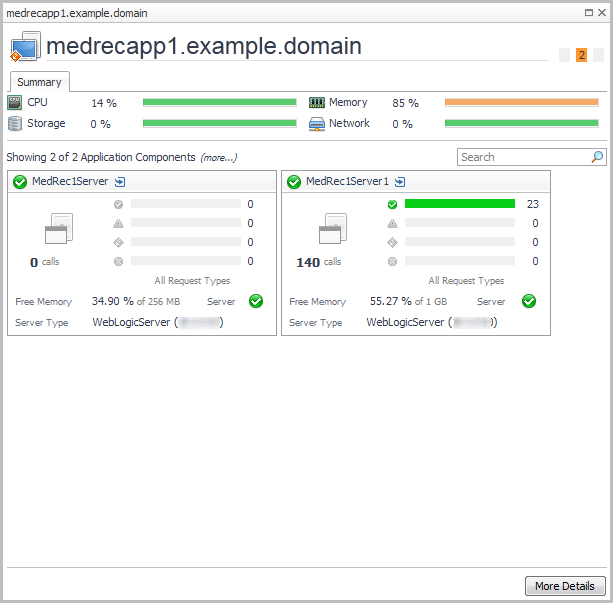
The Host detail view provides high-level host health, and tiles for any application components running on the selected host.

The banner shows host metrics if the host is monitored. Click More Details to see the performance details for the host.

If the host is not monitored, then:

Related Documents

The document was helpful.

Select Rating

I easily found the information I needed.

Select Rating