Chat now with support
Chat with Support

Foglight for Hyper-V 5.7.2 - User and Reference Guide

About Foglight for Hyper-V Agent administration Performance monitoring with the Hyper-V Environment dashboard Performance investigation with the Hyper-V Explorer Foglight for Hyper-V alarms Appendix: Hyper-V Agent error codes

Automating Hyper-V administration with workflows

Figure 252. Workflows view
2
To create a workflow, on the Hyper-V Explorer Administration tab, in the Workflows view, click New.
To edit a workflow, in the Workflows view, select the workflow that you want to edit, and click Edit.
2
On the Hyper-V Explorer Administration tab, in the Workflows view, select the workflow that you want to run.
3
Click Run.
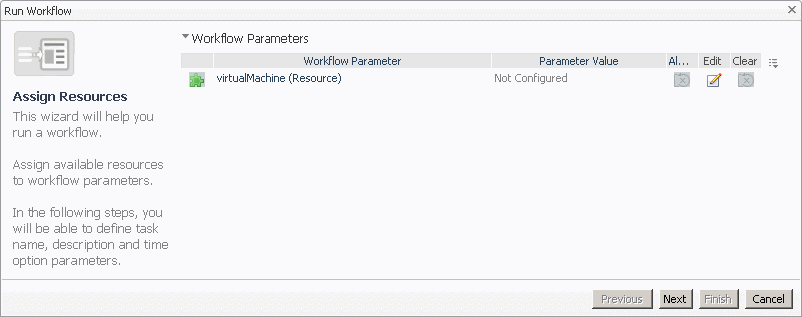
The Run Workflow dialog box appears.
Figure 253. Run Workflow dialog box
Click Next.
5
In the Specify Task Details page that appears in the Run Workflow dialog box, specify the task name, description, and time options, then click Finish.
2
On the Hyper-V Explorer Administration tab, in the Workflows view, select the workflow that you want to delete.
3
Click Delete.
2
On the Hyper-V Explorer Administration tab, in the Workflows view, select the workflow that you want to export to a file.
3
Click Export.
The Export a Workflow dialog box appears.
2
On the Hyper-V Explorer Administration tab, in the Workflows view, select the workflow that you want to import from a file.
3
Click Import.
The Import a Workflow dialog box appears.
Figure 254. Import a Workflow dialog box

Foglight for Hyper-V alarms

Accessing the Hyper-V Alarms dashboard

3
On the navigation panel, under Dashboards, choose Hyper-V > Hyper-V Alarms.

Alarm overview

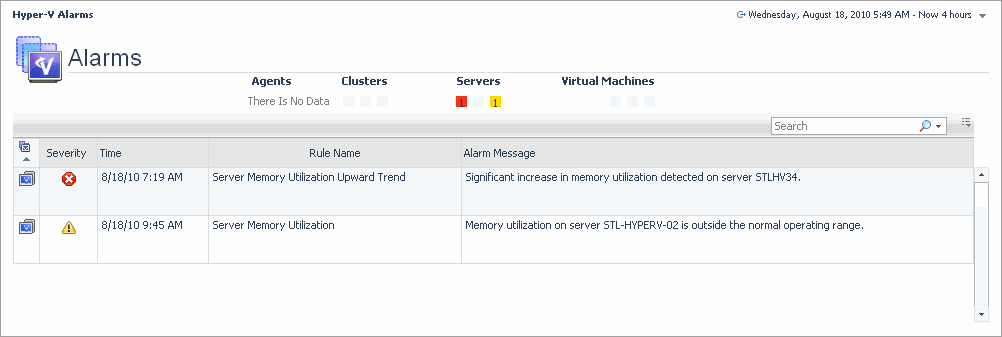
Figure 256. Alarms Overview
Alarm counts. The total counts of alarms associated with the physical servers, broken down by alarm types (Normal, Warning, Critical, Fatal).
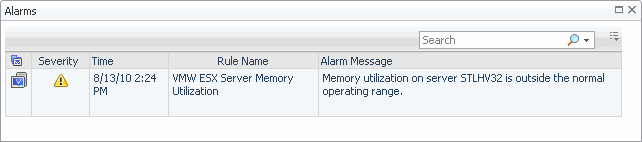
Drill down on any alarm count. Displays the Alarms dialog box that shows a list of all related alarms.
Figure 257. Alarms dialog box
Related Documents

The document was helpful.

Select Rating

I easily found the information I needed.

Select Rating