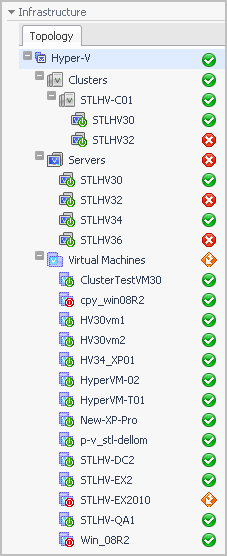
A Hyper-V® environment typically includes a collection of clusters, server, and virtual machines. A cluster can have one or more servers associated with it, one or more virtual machines can run on each server. Each virtual machine is allocated a portion of the server’s resources, including disk, CPU, memory, and network resources. A virtual machine has its own machine name and IP address, and it runs a guest OS (for example, Microsoft
® Windows
® XP), along with other applications.
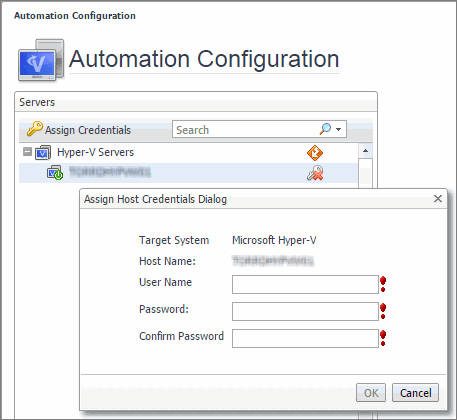
These actions require that you set up credentials for the virtual center on the Automation Configuration dashboard. To do that, on the navigation panel, under Dashboards, choose
Hyper-V > Automation Configuration. On the Automation Configuration dashboard that appears, in the
Servers view, select a Hyper-V server, click
Assign Credentials, and provide host credentials in the
Assign Host Credentials Dialog box. Failing to configure host credentials results prevents the automated tasks from being executed.
The Hyper-V Explorer Administration tab provides quick access to common administrative tasks that include server shutdown, virtual machine creation, resource allocation, and others. The range of available tasks depends on whether you are exploring server or virtual machine objects. For example, when exploring server details, use this tab to access server-related workflows, such as rebooting or shutting down servers, or adding virtual machines. Similarly, when you select a virtual machine in the Hyper-V Explorer, use this tab to power off, shut down, save, pause, delete, clone, move, or edit resource allocation for the selected virtual machine. For more information about the administrative tasks, see
Hyper-V server and virtual machine administration .
The Hyper-V Explorer Administration tab provides access to common administrative tasks. It also shows configuration details for a server or a virtual machine (depending on the selected object type), and some high-level information about the object’s resource consumption.
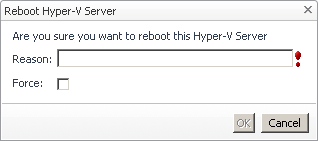
Use the Reboot and
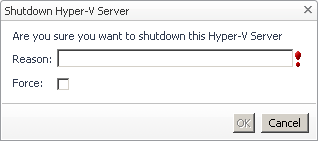
Shutdown buttons on the Hyper-V
Administration tab to reboot and shut down servers, as required.







 on the left.