Chat now with support
Chat with Support

Foglight for Hyper-V 5.7.2 - User and Reference Guide

About Foglight for Hyper-V Agent administration Performance monitoring with the Hyper-V Environment dashboard Performance investigation with the Hyper-V Explorer Foglight for Hyper-V alarms Appendix: Hyper-V Agent error codes

Hyper-V Explorer Storage tab (virtual machines)

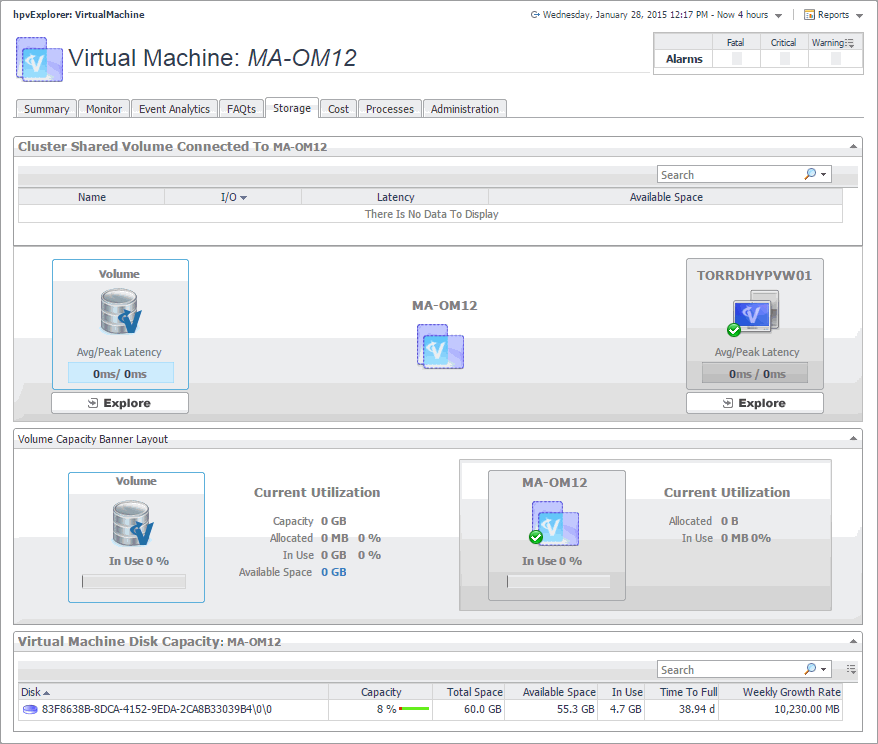
The Hyper-V Explorer Storage tab displays combination of embedded views displaying disk volumes associated with a selected virtual machine. It identifies the virtual machines that spend the highest amounts of disk resources. Use this tab to find out more about the overall consumption of disk resources for a given virtual machine. The information provided on this tab can help you prevent potential bottlenecks by reallocating disk resources where they are most needed.
Figure 224. Storage tab (virtual machines)
Available Space. The amount of space available on the disk volume.
I/O. The data transfer rate of the disk volume.
Latency. The disk volume latency.
Name. The disk volume.
Disk Volume, Avg/Peak Latency. The average and peak latency rates for the selected disk.
Hyper-V Server, Avg/Peak Latency. The average and peak latency rates for the Hyper-V server associated with the selected virtual machine.
Virtual Machine, Current Utilization, Allocated. The amount and percentage of disk space allocated to the virtual machine.
Virtual Machine, Current Utilization, In Use. The amount and percentage of disk space the virtual machine uses.
Virtual Machine, In Use. The percentage of disk space in use by the virtual machine.
Volume, Current Utilization, Allocated. The amount and percentage of disk space that is allocated for use.
Volume, Current Utilization, Available Space. The disk space available for allocation.
Volume, Current Utilization, Capacity. The total amount of disk space.
Volume, Current Utilization, In Use. The amount and percentage of disk space that is currently in use.
Volume, In Use. The percentage of disk space that is currently in use.
Table 122. Virtual Machine Disk Capacity: Virtual Machine
Available Space. The space currently available on the disk.
Capacity. The disk capacity.
In Use. The amount of space used on the disk.
Disk. The name of the disk.
Time To Full. The estimated time after which the disk will be full.
Total Space. The total space allocated to the disk.
Weekly Growth Rate. The estimated growth pattern of the used disk space.

Hyper-V Explorer Processes

Figure 225. Processes tab

Hyper-V Explorer Cost

Figure 226. Cost tab

Hyper-V Explorer Cost tab

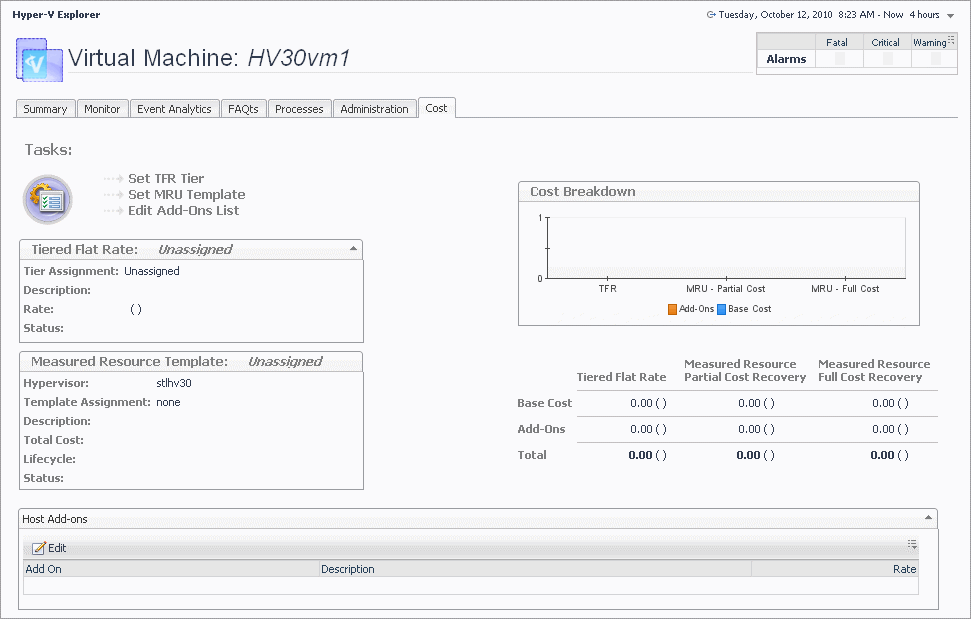
The Cost tab contains information about the costs associated with the selected virtual machine’s usage. The information about these costs is provided by the cost models and server assignments that are configured in Foglight for Chargeback. For more information about Foglight for Chargeback, see the Foglight for Chargeback User and Reference Guide.
Figure 227. Cost tab
Table 123. Cost Breakdown
Add-Ons. Shows the cost of upgrades to standard host configurations. These upgrades could include hardware, software, licensing, or even infrastructure items such as rack space or power backup units.
Base Cost. Shows the cost of a standard host configuration.
Table 124. Host Add-ons
Add-On. Contains the name of the add-on.
Edit. Allows you to edit a selected add-on.
Description. Contains the description of the add-on.
Description. The description of the template associated with the selected virtual machine.
Hypervisor. The name of the server in which the virtual machine is running.
Lifecycle. The length of time the selected virtual machine will be used.
Status. The template status.
Template Assignment. The name of the template associated with the selected virtual machine.
Total Cost. The total cost of the selected virtual machine for the duration of its life cycle.
Table 126. Tasks
Edit Add-Ons List. Starts a wizard that allows you to add add-on’s to the selected virtual machine.
Set MRU Template. Starts a wizard that allows you to create a measured resource template and associate it with the selected virtual machine.
Set TFR Tier. Starts a wizard that allows you to create tiers and associate them with the selected virtual machine. A tiered flat rate (TFR) is a pre-configured level of expense that is associated with a virtual machine.
Table 127. Tiered Flat Rate
Description. The description of the tiered flat rate associated with the selected virtual machine.
Rate. The rate of the tier cost over time.
Status. The tier status.
Tier Assignment. The name of the tiered flat rate associated with the selected virtual machine.
Related Documents

The document was helpful.

Select Rating

I easily found the information I needed.

Select Rating