

|
• |
|
• |
| |||
| |||
| |||
| |||
| |||
| |||
| |||
| |||
| |||
| |||
| |||
| |||
| |||
Figure 158. CPU Load dialog box
 | |||
Figure 159. CPU Utilization dialog box
 | |||
Figure 160. Disk I/O dialog box
 | |||
Figure 161. Disk Utilization dialog box
 | |||
Figure 162. Memory Usage dialog box
 | |||
Figure 163. Memory Utilization dialog box
 | |||
Figure 164. Network I/O dialog box
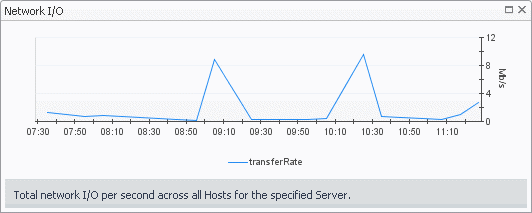 | |||
Figure 165. Network Utilization dialog box
 |
| |||
| |||
| |||
| |||
| |||
| |||
| |||
| |||
| |||
| |||
| |||
| |||
| |||
| |||
| |||
| |||
| |||
| |||
| |||
| |||
| |||
| |||
| |||
| |||
| |||
| |||
| |||
| |||
| |||
| |||
| |||
| |||
| |||
| |||
| |||
| |||
| |||
| |||
|
|
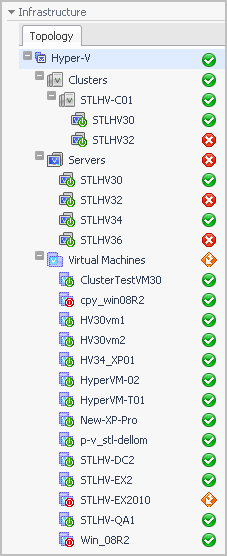
The Hyper-V Explorer’s Virtual Environment view displays a high-level overview of your virtual environment. The view has a tile for each object type: Clusters, Servers, and Virtual Machines. Each tile shows how many of the corresponding object instances there are in your virtual infrastructure, as well as the count of objects of that type in each of the alarm states (Normal, Warning, Critical, Fatal). | |||
| |||
| |||
| |||
| |||
Figure 166. Clusters dwell
 | |||
Figure 167. Clusters dwell
 | |||
Figure 168. Virtual Machines dwell
 |
| |||
| |||

