Chat now with support
Chat with Support

Foglight for Hyper-V 5.7.2 - User and Reference Guide

About Foglight for Hyper-V Agent administration Performance monitoring with the Hyper-V Environment dashboard Performance investigation with the Hyper-V Explorer Foglight for Hyper-V alarms Appendix: Hyper-V Agent error codes

Foglight Resource Optimizer for Hyper-V Environments

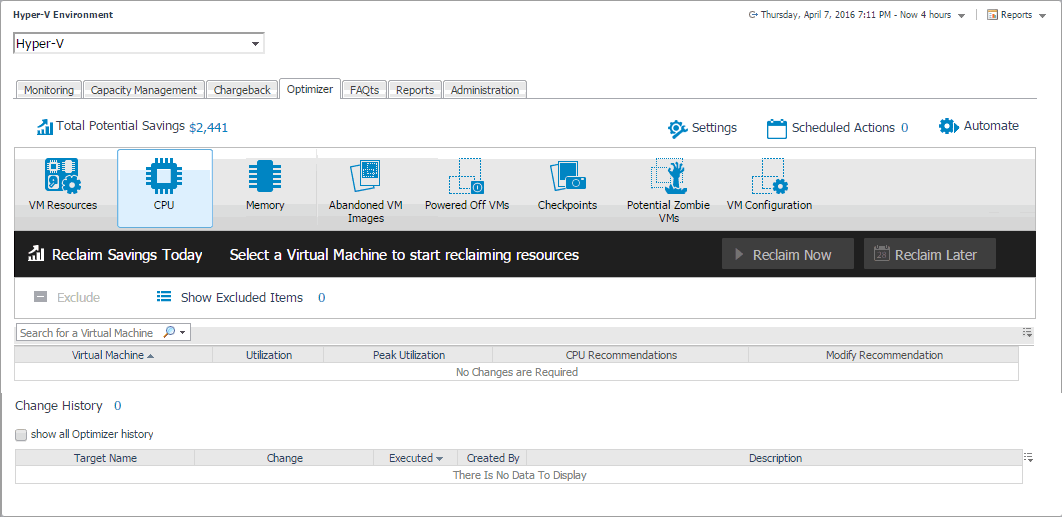
With virtual machines quickly becoming the industry standard in an IT infrastructures, making it necessary to plan for the addition of virtual machines to the physical hosts. This is often a challenge for administrators. Foglight™ Resource Optimizer simplifies the optimization process, providing waste-finding and right-sizing functionality for virtualized environments. The Optimizer tab available on the Hyper-V Environment dashboard allows you to get insight into capacity bottlenecks and management. Use this tab when you want to optimize the CPU, memory, network, and storage consumption, and to project and plan for additional requirements in your environment.
Figure 149. Optimizer tab
For complete information about this tab, see the Foglight™ Resource Optimizer for Hyper-V Environments User Guide.

Performance investigation with the Hyper-V Explorer

The Hyper-V Explorer provides a great deal of value to administrators who leverage Foglight for Hyper-V to monitor their virtual infrastructure. It has a hierarchical interface that displays various performance metrics and alarms within the virtual infrastructure. It provides several informative views through which you can quickly and easily access detailed information about any of the available components (physical or virtual) within the monitored environment.

About the Hyper-V Explorer

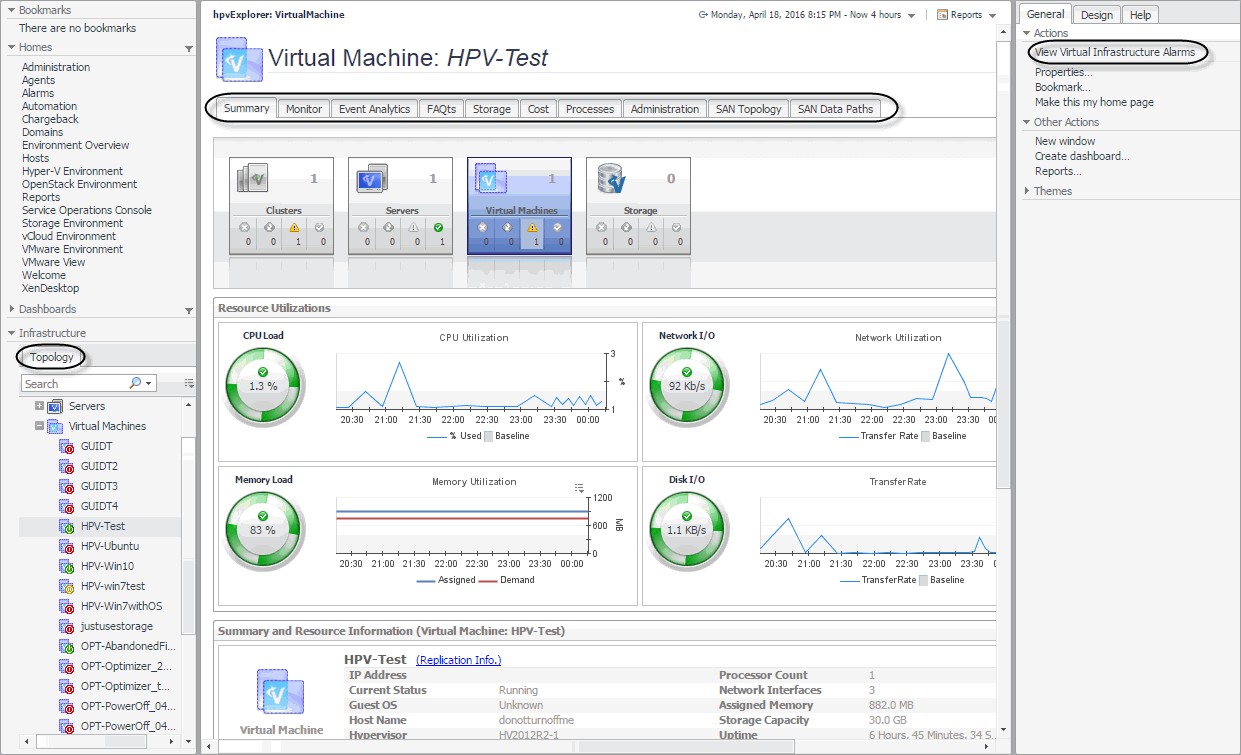
The Hyper-V Explorer provides detailed performance metrics about an object or a group of objects selected on the Hyper-V Explorer Topology tab.The upper part of the Hyper-V Explorer consists of three main components: a selected tile, an alarm summary for the selected object, and navigation tabs.
Figure 150. Hyper-V Explorer

Accessing the Hyper-V Explorer

Figure 151. Hyper-V Explorer
3
On the navigation panel, under Dashboards, click Hyper-V > Hyper-V Explorer.
Figure 152. Hyper-V Explorer
Related Documents

The document was helpful.

Select Rating

I easily found the information I needed.

Select Rating