Chat now with support
Chat with Support

Foglight for Hyper-V 5.7.2 - User and Reference Guide

About Foglight for Hyper-V Agent administration Performance monitoring with the Hyper-V Environment dashboard Performance investigation with the Hyper-V Explorer Foglight for Hyper-V alarms Appendix: Hyper-V Agent error codes

Summary - All Virtual Switches view

The Summary - All Virtual Switches view displays overall resource utilization information for a group of virtual switches and identifies the ones that consume the highest amounts of system resources, potentially causing performance bottlenecks.
This view appears in the Quick-View on the left when you select All Virtual Switches in the Virtual Environment view.
Table 81. Alarms
Alarm Message. An explanation about why the alarm occurred.
Severity. Indicates the alarm severity: Warning, Critical, or Fatal.
Time. The time at which the alarm was generated.
Alarm Message, Severity, or Time. Displays the Alarm dialog box, showing additional information about the alarm. For more information about alarms in Foglight, see the Foglight User Help.
Figure 134. Alarm dialog box
Top Bandwidth Consumers chart. For each identified virtual switch, the chart displays the percentage of network resources available to it that are in use over the selected time period.
Utilization. The percentage of network resources available to the virtual switch that is currently in use.
Virtual Switches. The name of the virtual switch identified amongst top bandwidth consumers.
Virtual Switch or Utilization. Shows the virtual switch details in the Summary - Virtual Switch view.
Ports. The number of ports available on the virtual switch.
The Highest Number of Ports chart. For each identified virtual switch, the chart displays the number of available ports.
Virtual Switches. The name of the virtual switch.
Virtual Switch or Ports. Shows the virtual switch details in the Summary - Virtual Switch view.
Throughput. The current rate of network throughput for the selected virtual switch.
Top Overall Utilization chart. For each identified virtual switch, the chart displays the network throughput rate over the selected time period.
Virtual Switches. The name of the virtual switch identified amongst top network consumers.
Virtual Switch or Throughput. Shows the virtual switch details in the Summary - Virtual Switch view.
Packets per Second. The average rate of the data packets that are sent to the virtual switch.
Top Packets per Second chart. Identifies the virtual switches with the highest rates of data packet traffic over the selected time period.
Virtual Switches. The name of the virtual switch identified as having a high rate of data packet traffic.
Virtual Switch or Packets per Second. Shows the virtual switch details in the Summary - Virtual Switch view.

Summary - Virtual Switch view

The Summary - Virtual Switch view illustrates the overall network utilization and the levels of overall network traffic for a selected virtual switch.
This view appears in the Quick-View on the left when you select a virtual switch in the Virtual Switches view.
Table 86. Alarms
Alarm Message. An explanation about why the alarm occurred.
Severity. Indicates the alarm severity: Warning, Critical, or Fatal.
Time. The time at which the alarm was generated.
Alarm Message, Severity, or Time. Displays the Alarm dialog box, showing additional information about the alarm. For more information about alarms in Foglight, see the Foglight User Help.
Utilization chart, Avg Utilization. The average percentage of the network resources available to the switch that are in use over the selected time period.
Utilization chart, Packets per Second. The average rate of the data packets that are sent to the virtual switch over the selected time period.
Utilization table, Average Utilization. The average percentage of the network resources available to the switch that are currently in use.
Utilization table, Packets per Second. The average rate of the data packets that are sent to the virtual switch.
Utilization table, Sum Throughput. The current rate of network throughput for the selected switch.
Utilization chart. Displays the Utilization dialog box.
Figure 135. Utilization dialog box
Ports. The number of ports that are available for use on the selected virtual switch.
Type. The type of the switch: Virtual Switch.
Table 89. Related Items
Clusters. The number of clusters associated with the selected virtual switch, followed by the related alarm counts.
Servers. The number of servers associated with the selected virtual switch, followed by the related alarm counts.
Virtual Machines. The number of virtual machines that are associated with the selected virtual switch, followed by the related alarm counts.
Virtual Switch. Represents the selected virtual switch. Shows the counts of alarm generated against the switch.
Clusters. Displays the Clusters dwell, showing the names and states of all clusters that are associated with the selected virtual switch.
Figure 136. Clusters dwell
Servers. Displays the Servers dwell, showing the names and state of the servers associated with the selected virtual switch.
Figure 137. Servers dwell
Virtual Machines. Displays the Virtual Machines dwell, showing the names and states of all virtual machines that are associated with the selected virtual switch.
Figure 138. Virtual Machines dwell
Virtual Switch. Displays the Other Items Inventory dwell, showing the state of the selected virtual switch.
Table 90. Top VMs
Key. An indicator of how virtual machine ranks in the list of top consumers.
Receiving. The average inbound data transfer rate for the virtual machine.
Sending. The average outbound data transfer rate for the virtual machine.
Top VM chart, Receive Rate. The average inbound data transfer rate for the monitored switch over the selected time period.
Top VM chart, Send Rate. The average outbound data transfer rate for the monitored switch over the selected time period.
Virtual Machine. The name of the virtual machine identified amongst top network consumers.

Virtual Switch Topology view

The Virtual Switch Topology View visualizes the relationships between the objects in your environment through an interactive map. The map illustrates how different components relate to each other, and the levels of the available resources available to them.
In a large multi-component environment, dependency maps are likely complex and may not fit your screen. The NAVIGATOR in the top-right corner allows you to easily set the zoom level by dragging the slider into the appropriate position.
Figure 141. Navigator view

About frequently asked questions

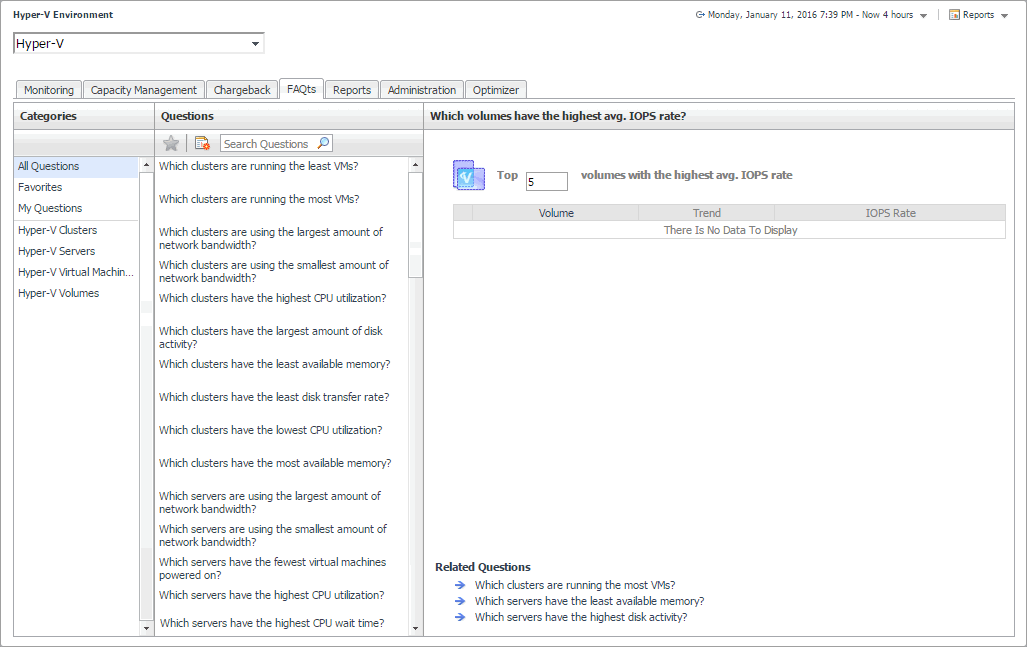
The Hyper-V Environment dashboard contains the FAQts tab that you can use to ask questions about your monitored systems and review the answers. In the Categories pane, the FAQts view shows several question categories. Clicking a category shows the questions belonging to that category in the Questions pane. From there, clicking a question shows the answer on the right.
Figure 145. FAQts tab
Related Documents

The document was helpful.

Select Rating

I easily found the information I needed.

Select Rating