Chat now with support
Chat with Support

Foglight for Hyper-V 5.7.2 - User and Reference Guide

About Foglight for Hyper-V Agent administration Performance monitoring with the Hyper-V Environment dashboard Performance investigation with the Hyper-V Explorer Foglight for Hyper-V alarms Appendix: Hyper-V Agent error codes

Storage monitoring

Storage view

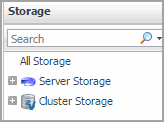
The Storage view is a tree view. It lists the server volumes and cluster volumes existing in your environment, and shows their severity state.
This view appears in the Quick-View on the left when you select the Storage tile in the Virtual Environment view.
Figure 119. Storage view
Selecting the All Storage node displays the overall resource utilization for all volumes in your integrated system and identifies the ones that consume the highest amount of system resources in the Summary - All Storage view on the right. Similarly, selecting a storage node shows storage-specific metrics in the Volume Summary view.
Alarm severity. The state of the most recent alarm raised against the volume.
All Storage. A parent node for the instances of all volumes that appear in this view.
Server Storage. The parent node for the instances of all server storage.
Cluster Storage. The parent node for the instances of all cluster storage.

Summary - All Storage view

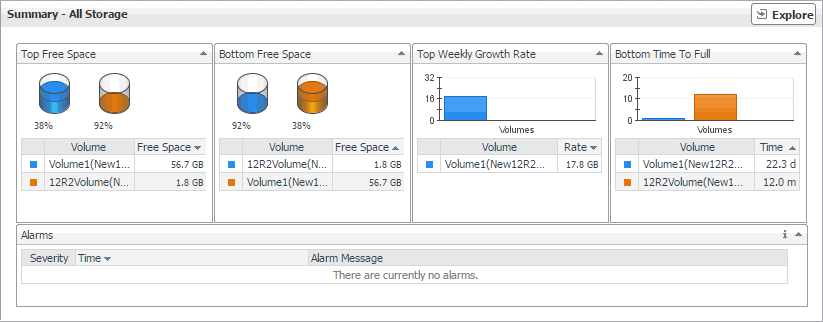
The Summary - All Storage view displays overall resource utilization information for all volumes in the selected service and identifies the elements that consume the highest amount of resources.
This view appears in the Quick-View on the left when you select All Storage in the Storage view.
Figure 120. Summary - All Storage view
Table 68. Alarms
Alarm Message. An explanation about why the alarm occurred.
Severity. Indicates the alarm severity: Warning, Critical, or Fatal.
Time. The time at which the alarm was generated.
Alarm Message, Severity, or Time. Displays the Alarm dialog box, showing additional information about the alarm. For more information about alarms in Foglight, see the Foglight User Help.
Figure 121. Alarm dialog box
Volume. The name of the volume identified amongst those with the lowest amount of free space.
Free space. The amount of available space on the volume.
Volume. Shows the Volume view.
Volume. The name of the volume identified as being likely to become full.
Rate. The projected amount of time after which the volume becomes full.
Volume. Shows the Volume view.
Table 71. Top Free Space
Volume. The name of the volume identified as having a high amount of free space.
Free space. The amount of space available on the volume.
Volume. Shows the Volume view.
Volume. The name of the volume identified sa having high weekly growth rate.
Rate. The rate at which the associated virtual machines use the disk space.
Volume. Shows the Volume view.

Volumes Summary view

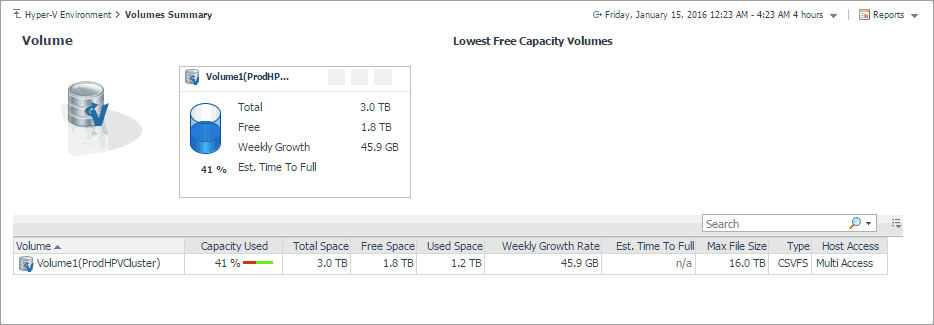
The Volumes Summary view displays complete details for all volumes in the selected service and identifies the ones that consume the lowest amounts of disk resources.
Figure 122. Volumes Summary view
Table 73. Volume table
Capacity Used. The percentage of the volume space that is currently in use.
Est. Time Until Full. The estimated amount of time after which the selected volume becomes full.
Free Space. The amount of volume space that is available for use.
Host Access. Indicates if multiple servers can access to this host.
Max File Size. The maximum file size on the selected volume.
Total Space. The total amount of volume space, including free and used space.
Type. The file system on the selected volume.
URL. The URL to the selected volume.
Used Space. The amount of volume space that is currently in use.
Volume. The name of the volume identified amongst those with the lowest amount of free space.
Weekly Growth Rate. The projected amount of the volume space that becomes in use on a weekly basis.
Any column. Shows the volume details in the Volume view.
Table 74. Volume tile
Free. The amount of volume space that is available for use.
Percent Free. The percentage of volume space that is available for use.
Total. The total amount of volume space, including free and used space.
Volume. The name of the volume, followed by the related alarm counts.
Weekly Growth Rate. The projected amount of the volume space that becomes in use on a weekly basis.
Related Documents

The document was helpful.

Select Rating

I easily found the information I needed.

Select Rating