
|
1 |
On the Hyper-V Environment dashboard, open the Administration tab. |
|
2 |
|
3 |
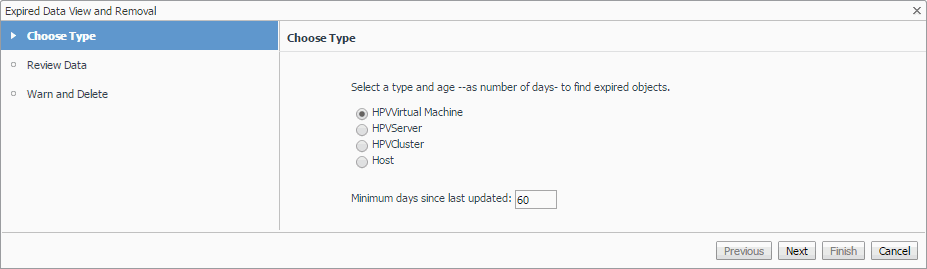
In the Expired Data View and Removal dialog box, select a category of object type that you want to review, and type the number of days during which the object instances were not updated. |
|
4 |
Click Next. |
|
• |
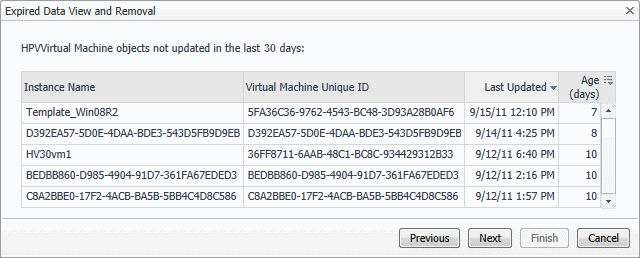
If you want to modify your search, click Previous, make your changes, and observe your results again. For example, to show fewer instances, click Previous, and increase the time period. When satisfied, click Next. |
|
7 |
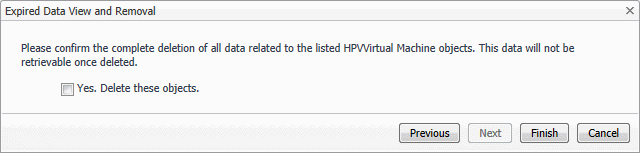
Click Finish. |
| |||
| |||
| |||
| |||
|
|
3 |
|
4 |
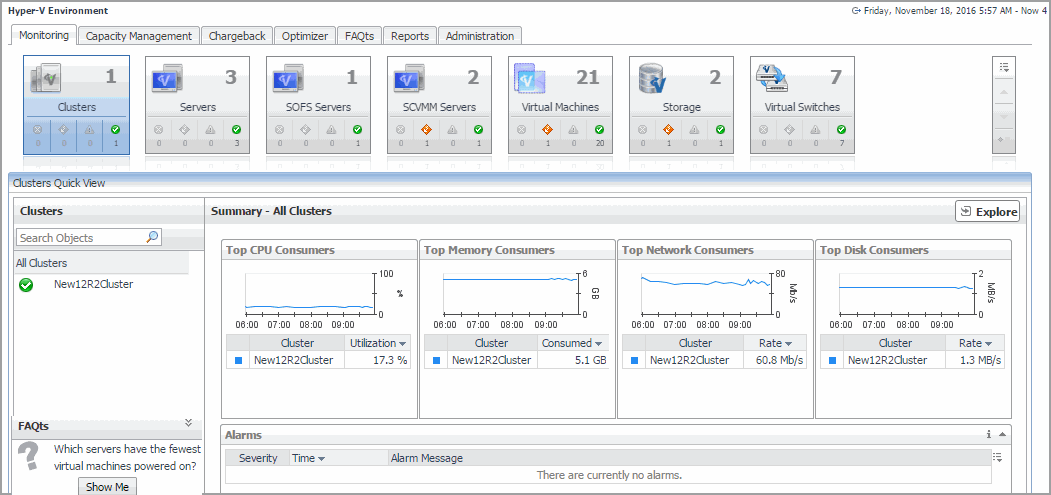
Select the Clusters, Servers, Virtual Machines, SOFS Servers, SCVMM Servers, Storage, or Virtual Switches tile from the top left. |


 on the left.