Chatta subito con l'assistenza
Chat con il supporto

Foglight for Java EE Technologies 5.9.7.5 - Application Servers User Guide

Monitoring Application Servers Monitoring Systems Monitoring Servers Monitoring Applications Monitoring Requests Managing Traces Using Object Tracking to Locate a Memory Leak Monitoring Methods Application Servers Monitor Views
JVM view Method Groups view Request Types view Entity EJBs view Message Driven EJBs view Stateful Session EJBs view Stateless Session EJBs view Deployed Applications view JSPs/Servlets components view Resource Adapters components view Web Applications components view Web Services components view .NET views JBoss Services views Oracle Services views Tomcat Services views WebLogic Services views WebSphere Services views JMX Administration dashboard JMX Explorer dashboard
Appendix: Regular Expressions

Monitoring Methods

Once your administrator has configured the named methods to monitor (see Collecting metrics on Java methods ), you can use the Methods view to investigate how often a named method is called and to monitor the results of those called methods. For example, you can use Named Methods to monitor specific methods that connect to external systems.
The Methods view shows you detailed information about the named methods being monitored in your environment.
1

Collecting metrics on Java methods

NOTE: You must restart your instrumented application servers after editing the instrumentation configuration (agent/instrumentation.config) in order for the changes to take effect.
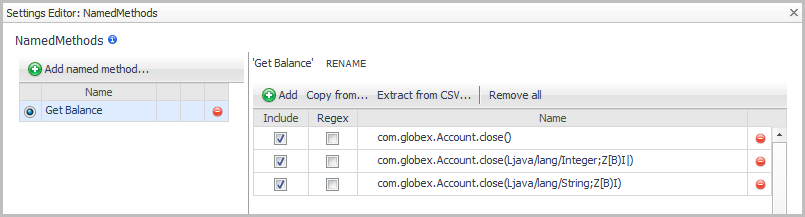
You can group overloaded methods together. In the example below, we are defining a method group which uses similar methods. Get Balance is displayed in the user interface and all the methods within that group are aggregated.
1
On the navigation panel, under Dashboards, click Application Servers > Administration > Application Servers Administration.
d
Click Copy.
6
Select Edit instrumentation settings.
7
Click the Named Methods tab.
9
11
Click OK.
12
Click Add. This adds a row to the method list table.
13
Click in the Name box and type the name of the method.
16
Click Save. The Configuration Category Editor closes.

Understanding the implications of using named methods

Although the NamedMethods MethodList accepts a broad package definition, it is not recommended that you define your NamedMethods this way. Excessive NamedMethod instrumentation may increase the load on the Foglight Management Server and overhead on the application server, so it is best to include only the methods that you are interested in. In order to guard against excessive instrumentation, there is a limit on the number of NamedMethods that can be instrumented. Once this limit has been reached, no more methods are instrumented to display in the Application Servers Monitor > Methods view. A warning is logged for each method that is configured to be instrumented but is not instrumented when exceeding the allowed number of NamedMethods.
If you have configured too many NamedMethods and you are getting this warning, the first course of action is to modify your NamedMethods MethodList to only include the methods you are interested in or to be more specific in your named method definitions. If you have done that and are still getting warnings, you may increase the limit by editing the MaxNumberOfMethodsTracked property in the agent instrumentation profile. The default value is 100.

Application Servers Monitor Views

1
On the Application Servers Monitor dashboard, click a tile (Systems, Servers, Applications, Requests, or Methods).
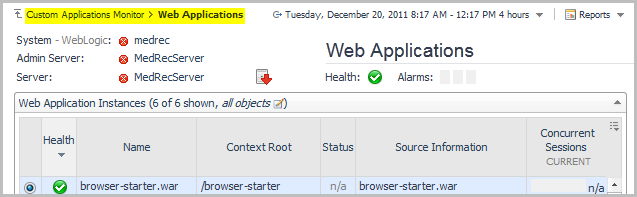
Figure 38. For example: click the Servers tile, select a WebLogic server, and click the Web Applications link under Applications Components. A popup appears, listing the health status of the selected component.
3
In the upper left corner of the popup, click Web Applications to open the drilldown view in the display area.
Related Documents

The document was helpful.

Seleziona valutazione

I easily found the information I needed.

Seleziona valutazione