Chatta subito con l'assistenza
Chat con il supporto

Foglight for Java EE Technologies 5.9.7.5 - Application Servers User Guide

Monitoring Application Servers Monitoring Systems Monitoring Servers Monitoring Applications Monitoring Requests Managing Traces Using Object Tracking to Locate a Memory Leak Monitoring Methods Application Servers Monitor Views
JVM view Method Groups view Request Types view Entity EJBs view Message Driven EJBs view Stateful Session EJBs view Stateless Session EJBs view Deployed Applications view JSPs/Servlets components view Resource Adapters components view Web Applications components view Web Services components view .NET views JBoss Services views Oracle Services views Tomcat Services views WebLogic Services views WebSphere Services views JMX Administration dashboard JMX Explorer dashboard
Appendix: Regular Expressions

Calculating the LiveObjectLifespanLimit value

An appropriate value for the LiveObjectLifespanLimit property can be derived from your observations of the time between the major garbage collections taking place. If the LiveObjectLifespanLimit is shorter than the time between major garbage collections, the agent may be prematurely marking objects as expired.
If you are able to have object tracking use additional memory, you may want to increase the LiveObjectLifespanLimit value to span the interval between major garbage collections. However, keep in mind that increasing this value does require additional memory within the application server heap.

Enabling Object Tracking

1
On the navigation panel, under Dashboards, click Application Servers > Monitor.
2
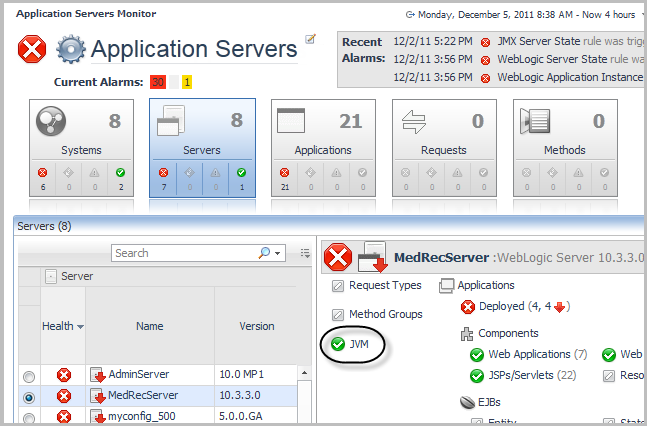
Click the Servers tile and select a server.
3
In the server details view, click JVM (not the status icon).
4
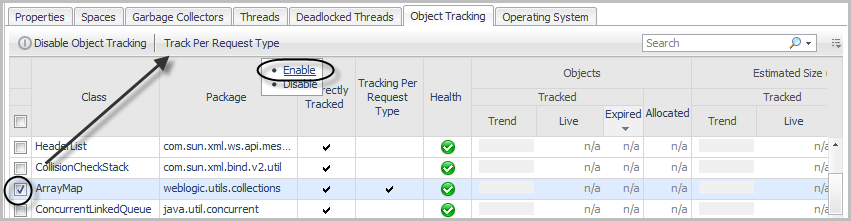
In the Java Virtual Machine (JVM) view, click the Object Tracking tab.
Click Enable Object Tracking.
Select Enable.

Examining Object Tracking data

Review the Live and Expired values. Classes with a large Expired value should be considered for investigation.
This column is checked if the class is directly tracked. Classes that are directly tracked are those specified in the ObjectTrackingClasses property in agent property file. Classes that are not directly tracked are allocated by directly tracked classes, but these classes are only tracked when allocated by a directly tracked class.

Reviewing track per request type data

1
On the Object Tracking tab of the Java Virtual Machine (JVM) view, select a class in the Object Tracking table.
2
Click Track Per Request Type.
3
Click Enable.
5
Click the name of the class (in the Class column) to review a list of request types that allocate the object of the class.
Related Documents

The document was helpful.

Seleziona valutazione

I easily found the information I needed.

Seleziona valutazione