Chat now with support
Chat mit Support

Foglight for Hyper-V 5.7.0 - User and Reference Guide

About Foglight for Hyper-V Agent administration Performance monitoring with the Hyper-V Environment dashboard Performance investigation with the Hyper-V Explorer Foglight for Hyper-V alarms Appendix: Hyper-V Agent error codes

SCVMM Servers view

The SCVMM Servers view is a tree view. It lists the SCVMM servers that exist in your environment and shows their state.
This view appears in the Quick-View on the left when you select the SCVMM Servers tile in the Virtual Environment view.
Selecting the All SCVMM Servers node displays overall resource utilization for all SVCVMM servers in your integrated system, and identifies the elements that consume the highest amount of system resources in the Summary - All SCVMM Servers view on the right. Selecting a server node shows server-specific metrics in the SCVMM Server Summary view.
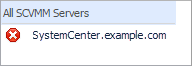
Alarm severity. The state of the most recent alarm raised against the associated SCVMM server.
All Servers. A parent node for the SCVMM server object instances that appear in this view.
SCVMM Server. The SCVMM server name.
All SCVMM Servers. Shows the Summary - All SCVMM Servers view in the Quick-View.

Summary - All SCVMM Servers view

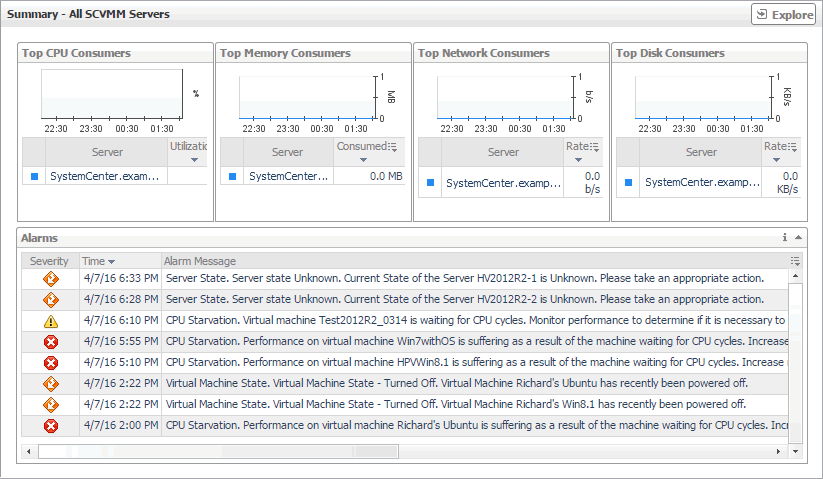
The Summary - All SCVMM Servers view displays overall resource utilization information for a group of SCVMM servers and identifies the elements that consume the highest amount of your system’s resources.
This view appears in the Quick-View on the left when you select All SCVMM Servers in the SCVMM Servers view.
Table 30. Alarms
Alarm Message. An explanation about why the alarm occurred.
Severity. Indicates the alarm severity: Warning, Critical, or Fatal.
Time. The time at which the alarm was generated.
Any column. Displays the Alarm dialog box, showing additional information about the alarm. For more information about alarms in Foglight, see the Foglight User Help.
Figure 87. Alarm dialog box
Server. The name of the machine on which the SCVMM is installed, identified among top CPU consumers.
Utilization.The total percentage of CPU utilization the highest CPU consumers spend on executing system code and user programs, during the selected time range.
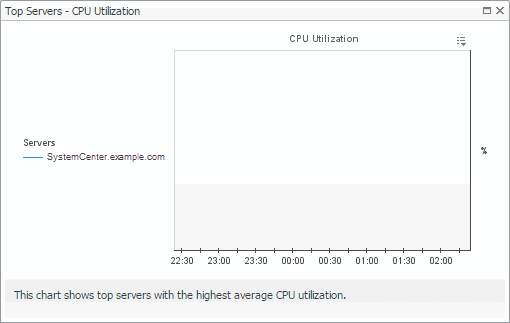
Utilization (in the graph). Displays the Top Servers - CPU Utilization dialog box.
Figure 88. Top Servers - CPU Utilization dialog box
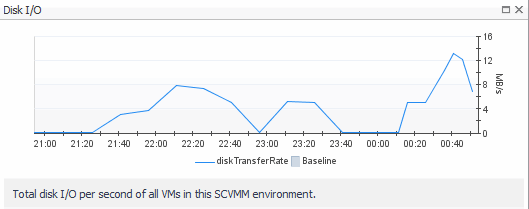
Rate. The rate at which the top disk consumers read or write data to the disk during the selected time range.
Server. The name of the machine on which the SCVMM is installed, identified among top disk consumers.
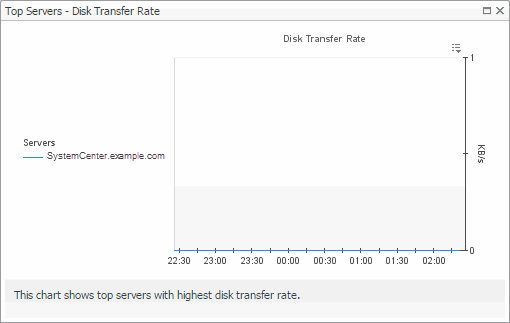
Rate (in the graph). Displays the Top Servers - Disk Transfer Rate dialog box.
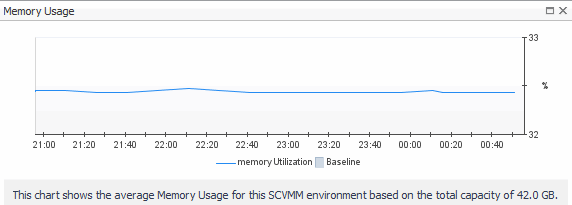
Consumed. The amount of memory the top consumers use during the selected time range.
Server. The name of the machine on which the SCVMM is installed, identified among top memory consumers.
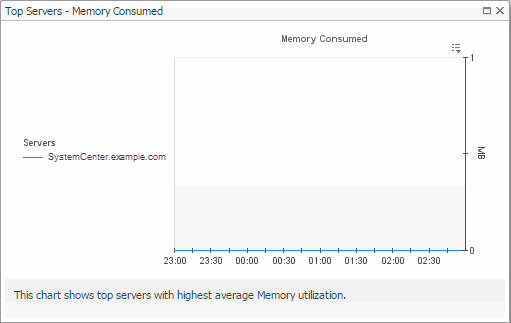
Consumed. Displays the Top Servers - Memory Consumed dialog box.
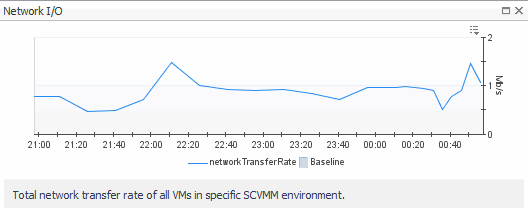
Rate. The rate at which the highest network consumers transfer data to or from the network during the selected time range.
Server. The name of the machine on which the SCVMM is installed, identified among top network consumers.
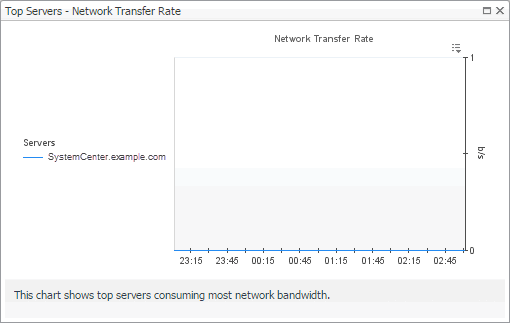
Rate. Displays the Top Servers - Network Transfer Rate dialog box.

SCVMM Server Summary view

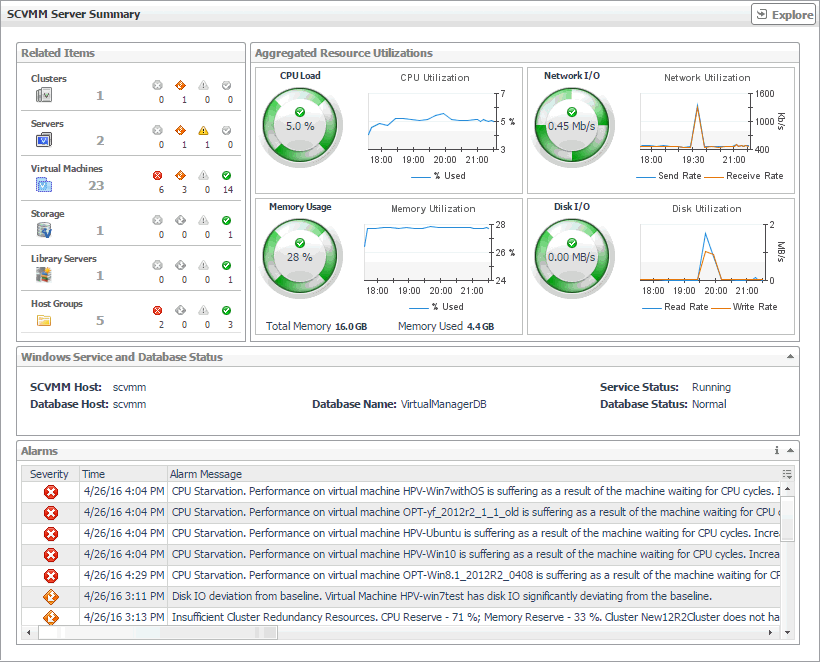
The SCVMM Server Summary view shows the overall resource utilization and the amounts of system resource consumption for a physical server.
This view appears in the Quick-View on the left when you select an SCVMM server in the SCVMM Servers view.
Figure 92. SCVMM Server Summary view
Table 35. Alarms
Alarm Message. An explanation about why the alarm occurred.
Severity. Indicates the alarm severity: Warning, Critical, or Fatal.
Time. The time at which the alarm was generated.
Any column. Displays the Alarm dialog box, showing additional information about the alarm. For more information about alarms in Foglight, see the Foglight User Help.
Figure 93. Alarm dialog box
Table 36. Related Items
Clusters. The name of the cluster to which the selected SCVMM server belongs, followed by the counts of all alarms associated with the cluster, broken down by the alarm state (Normal, Warning, Critical, Fatal).
Servers. The number of the Hyper-V servers associated with the selected SCVMM, followed by the counts of all alarms associated with those servers, broken down by the alarm state (Normal, Warning, Critical, Fatal).
Virtual Machines. The number of the virtual machines associated with the selected SCVMM, followed by the counts of all alarms associated with those virtual machines, broken down by the alarm state (Normal, Warning, Critical, Fatal).
Storage. The number of the disk volumes associated with the selected SCVMM, followed by the counts of all alarms associated with those volumes, broken down by the alarm state (Normal, Warning, Critical, Fatal).
Library Servers. The number of the library servers associated with the selected SCVMM, followed by the counts of all alarms associated with those library servers, broken down by the alarm state (Normal, Warning, Critical, Fatal).
Host Groups. The number of the host groups associated with the selected SCVMM, followed by the counts of all alarms associated with those groups, broken down by the alarm state (Normal, Warning, Critical, Fatal).
Alarm count. Displays a dwell that shows the objects against which alarms are generated.
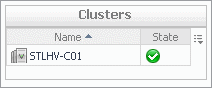
Cluster. Displays the Clusters dwell, showing the name and state of the cluster the selected SCVMM server belongs to.
Figure 95. Clusters dwell
Server. Displays the Servers dwell, showing the names and states of the Hyper-V servers associated with the selected SCVMM server.
Figure 96. Servers dwell
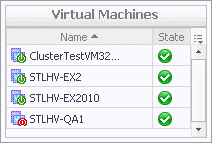
Virtual Machines. Displays the Virtual Machines dwell, showing the names and states of the virtual machines that are associated with the selected SCVMM server.
Figure 97. Virtual Machines dwell
Volumes. Displays the Other Items Inventory dwell, showing the names and states of the disk volumes that are associated with the selected SCVMM server.
Figure 98. Other Items Inventory dwell
Library Servers. Displays the Other Items Inventory dwell, showing the names and states of the library servers that are associated with the selected SCVMM server.
Figure 99. Other Items Inventory dwell
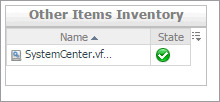
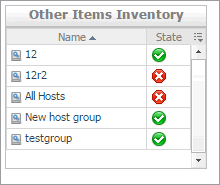
Host Groups. Displays the Other Items Inventory dwell, showing the names and states of the host groups that are associated with the selected SCVMM server.
Figure 100. Other Items Inventory dwell
CPU Load. The current percentage of the selected SCVMM server’s CPU load, used to execute system code and user programs, based on the total CPU capacity.
CPU Utilization, % Used. The percentage of the SCVMM server’s CPU utilization spent on executing system code and user programs during the selected time period.
Disk I/O. The current disk I/O rate for the selected SCVMM server.
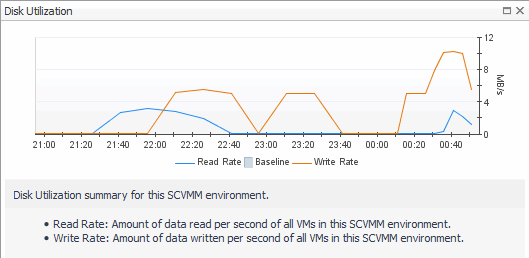
Disk Utilization, Read Rate. The rate at which the SCVMM server reads data from the disk during the selected time period.
Disk Utilization, Write Rate. The rate at which the SCVMM server writes data to the disk during the selected time period.
Memory Usage. The current percentage of the average memory usage by the selected SCVMM server, based on the total memory capacity.
Memory Usage, Total Memory. The total memory capacity allocated to the selected SCVMM server.
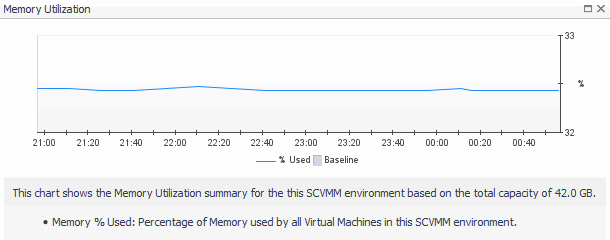
Memory Utilization, % Used. The percentage of the available memory that the SCVMM server uses during the selected time period.
Network I/O. The current rate at which the selected SCVMM server transfers data from and to the network.
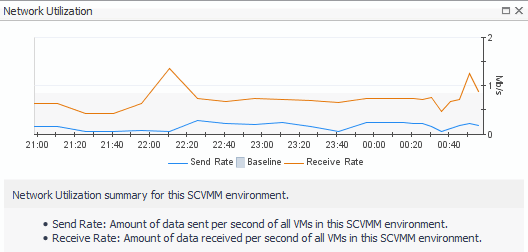
Network Utilization, Receive Rate. The rate at which the selected SCVMM server receives data from the network during the selected time period.
Network Utilization, Send Rate. The rate at which the selected SCVMM server sends data to the network during the selected time period.
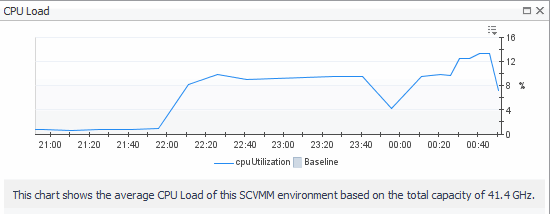
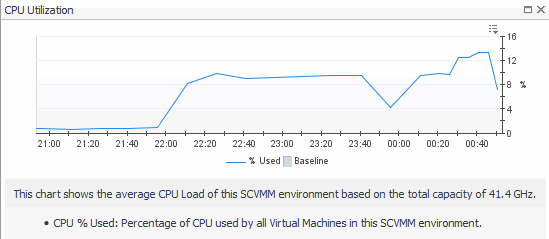
CPU Load spinner. Displays the CPU Load dialog box.
Figure 101. CPU Load dialog box
CPU Utilization graph. Displays the CPU Utilization dialog box.
Figure 102. CPU Utilization dialog box
Disk I/O spinner. Displays the Disk I/O dialog box.
Figure 103. Disk I/O dialog box
Disk Utilization graph. Displays the Disk Utilization dialog box.
Figure 104. Disk Utilization dialog box
Memory Usage spinner. Displays the Memory Usage dialog box.
Figure 105. Memory Usage dialog box
Memory Utilization graph. Displays the Memory Utilization dialog box.
Figure 106. Memory Utilization dialog box
Network I/O spinner. Displays the Network I/O dialog box.
Figure 107. Network I/O dialog box
Network Utilization graph. Displays the Network Utilization dialog box.
Figure 108. Network Utilization dialog box
Database Host. The name of the machine on which the database is running.
Database Name. The name of the SCVMM database.
Database Status. The alarm state of the SCVMM database.
SCVMM Host. The name of the machine on which the SCVMM is running.
Service Status. The state of the SCVMM Windows service.

Virtual machine monitoring

Verwandte Dokumente

The document was helpful.

Bewertung auswählen

I easily found the information I needed.

Bewertung auswählen