暂时无法在支持网站上提交享有定期维护的产品表单。 如果您需要我们立即提供帮助,请与技术支持部门联系。 对于由此给您带来的不便,我们深表歉意。
获得即时帮助
完成注册
登录
请求定价
联系销售人员
您已选择一个产品捆绑包。 您能否选择单个产品以便我们更好地满足您的请求。 *
技术支持工程师目前正忙,无法回应您的消息。 如果需要即时服务,请通过我们的服务请求表提交请求。
以下文章可根据您的描述解决您的问题。
Use Save Report Settings to retain the filter settings, sort and grouping options, and any other modifications that you have made to a report. You can then easily create subsequent reports with similar settings.
You can use the Set Filter Defaults to specify default filter parameters that apply to all MessageStats Reports. You can then modify a report to more closely meet your specific needs by setting additional filters, adding or removing report fields, and changing filter or grouping options.
When you have finished modifying a report, you can use the Save Report Settings option to save the report settings. Each time you run the report, the query uses the settings that you have identified for that report.
After a report is generated, you can change the grouping options for the report. Each column header provides the facility to change grouping options.
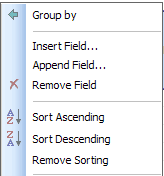
The following illustration shows the grouping options that appear when you right-click the column header. The options that appear depend on the current settings.
Initially, the same options appear regardless of which column header you select. After you change the grouping options, the list changes to reflect your current settings.
Option
Description
Group By
Groups the report by the selected field.
Ungroup
Removes the grouping of the report by the selected field.
Insert Field
Adds a new field to the left of the selected field.
When you select this option, a scrolling list appears for you to select the new field.
Append Field
Adds a new field to the right of the selected field.
Remove Field
Removes the selected field from the report.
Sort Ascending
Sorts the field in ascending order.
Sort Descending
Sorts the fields in descending order.
Remove Sorting
Removes the sorting that you have indicated from the report.
Grouping changes you make to the sorting options for column headers are automatically reflected in the Report Information dialog box.
MessageStats Reports includes a flexible solution for report security which allows you to assign certain permissions to users, and enable different views of the reporting tree depending on user needs and security requirements.
MessageStats Reports supports two types of security:
Role-based security provides an initial layer of security for your reports. Three local security groups, each with specific permissions, are created when MessageStats Reports is installed:
TAll three security groups have access to the report site and to all reports. The roles (Administrator, Author, User) provide different permissions that can restrict the ways reports can be manipulated.
The default membership to these security groups puts administrators in the Web Report Administrator role, and all other users in both the Web Report Authors and Web Report Users roles.
To customize the memberships, you can add or remove users from the default groups. You can specify which users belong to which roles by modifying their membership in these local groups. The role-based security scheme is easier to manage than the file-system permissions security scheme, as the changes to these security groups immediately affect all reports.
The following table shows the actions associated with each role:
Accessing the site
Exporting reports
Saving report settings in My Reports folder
Saving report settings in any folder
Creating Custom Reports
Saving Custom Reports in My Reports folder
Saving Custom Reports in any folder
Creating new folders in My Reports folder
Creating new folders in any folder
Copy folders or report within My Reports folder
Copy folders or reports to and within My Reports folder
Copy folders or reports to and within any folder
Move folders or reports within My Reports folder
Move folders or reports from any folder to My Reports folder
Move folder to and within any folder
Rename folders or reports in My Reports folder
Rename folders or report in any folder
Delete folders or reports in My Reports folder
Delete folders or reports in any folder
Edit folder descriptions in My Reports folder
Edit folder descriptions in any folder
Enable subscriptions for reports in My Reports folder
Enable subscriptions for reports in any folder
Set Filter Defaults
您可以在附属支持站点上查找适用于戴尔*产品*的在线支持帮助。单击“继续”,转至适用于*产品*的正确支持内容和帮助。
The document was helpful.
选择评级
I easily found the information I needed.
Quest Software门户不再支持IE 8、9和10,建议将您的浏览器升级到最新版本的Internet Explorer或Chrome。
要升级到IE 11,请单击此处
要升级到Chrome,请单击此处
如果继续使用IE 8、9和10,您将无法充分利用我们所有出色的自助服务功能。