On Demand Migration is a Microsoft 365 tenant-to-tenant migration service that allows you to simply and securely migrate Microsoft 365 information from Exchange, OneDrive, SharePoint, Teams and Power BI. It is a part of the Quest® On Demand cloud-based platform solution.
Desktop Update Agent (DUA) provides the ability to manage users' application reconfiguration activities from a single view within On Demand Migration. Migration administrators can configure which applications will be reconfigured, track each application's status, and send notices to remind users if required.
DUA can reconfigure any combination of Outlook, Teams, and OneDrive for Business, as well as resetting the Office application licensing so it can be configured to the target tenant. Pre and Post configuration PowerShell script options can be used to extend the agent's capabilities when required.
Desktop Update Agents are deployed by administrators to users' computers to complete an On Demand migration project. The Desktop update agent (DUA) reconfigures the end user's Microsoft apps to work with the target tenant.
During a migration project, On Demand project administrators create one or more Switch Applications tasks using the New Switch Applications Task wizard. They schedule these tasks for the time that they would like a defined group of users' desktop reconfiguration to begin. One that time has been reached, the Desktop update agents for those users receive instructions from On Demand Migration and guide the user through the application reconfiguration process. The status of each user's desktop migration is reported back to On Demand Migration for review by migration project administrators.
 |
NOTE: For security reasons, the user’s target credentials (specifically, their password) must be entered by the user themselves in their Microsoft application(s) once the corresponding DUA step has completed. As such, the reconfiguration process requires the user’s participation and cannot be fully automated. |
About this Guide
The purpose of this guide is to:
- provide the information administrators require to configure and deploy agents for a migration project.
- provide the steps users must perform to reconfigure their applications and complete the migration process.
- provide a high-level overview of a migration project from the administrators' configuration tasks to the users' application reconfiguration tasks.
For complete details on setting up a migration project, refer to the On Demand Migration User Guide.
Before you begin a migration project and agent deployment, ensure that your systems meet the following minimum requirements.
General Requirements
- Client has been licensed for On Demand Migration.
- Access to a Global Administrator account for each Microsoft 365 tenant.
- Disable policies that prevent Outlook Profile, OneDrive for Business, and Microsoft Teams application changes or creation.
- If applicable, users have been provided new or temporary password for the account in the new target destination Microsoft 365 tenant.
- Source and target users have matching attribute values to identify and pair objects together for mailbox and OneDrive content synchronization.
|
|
TIP: Try Password Sync for On Demand Migration Active Directory to keep your migrated hybrid users synchronized so when they are moved, they keep their existing password. |
License Requirements
Before starting a migration, each target user account must be licensed for each application that will be reconfigured using Desktop Update Agent. The following licenses are required:
- Exchange Online if configuring Outlook profiles.
- SharePoint Online if configuring OneDrive for Business application.
- Microsoft Teams if configuring Microsoft Teams application.
|
|
NOTE: On Demand Migration can automatically assign these licenses to target user accounts during the email and OneDrive migration process. |
Software Requirements
|
|
NOTE: If OneDrive for Business, Microsoft Teams, Outlook, or Office are not installed on the workstation, those applications will be skipped and not impact any other applications present during the reconfiguration. |
The minimum version requirements for software installed on user’s workstations:
- Outlook 2016 (32-bit or 64-bit) or higher. The Outlook client must also conform to the Microsoft version requirements for the applicable Exchange target version.
- OneDrive for Business (Most recent updates recommended)
- Microsoft Teams
- Windows 10 (32-bit or 64-bit) or Windows 11
- .NET 4.7.2 or higher
- Microsoft 365 Apps (Office Click-to-Run Version Only)
|
|
NOTE:
|
Network Requirements
The minimum network requirements to run Desktop Update Agent:
|
|
NOTE: During this process, the Outlook Profile will be copied to a new Profile directed to the target account. Due to this configuration, a new OST download will occur based on each user's current cache settings, if enabled. To avoid network congestion try disabling or curtailing the cache settings to a lower amount of data then slowly increase it as needed. This can be accomplished through policies. |
Supported Authentication
On Demand Migration Desktop Update Agent supports environments that use:
- Active Directory Federation Services (AD FS)
- Single Sign On (SSO) with mixed authentication modes, such as:
- Modern Authentication (ADAL)
- Forms Authentication
- Windows Integrated Authentication
Workflow
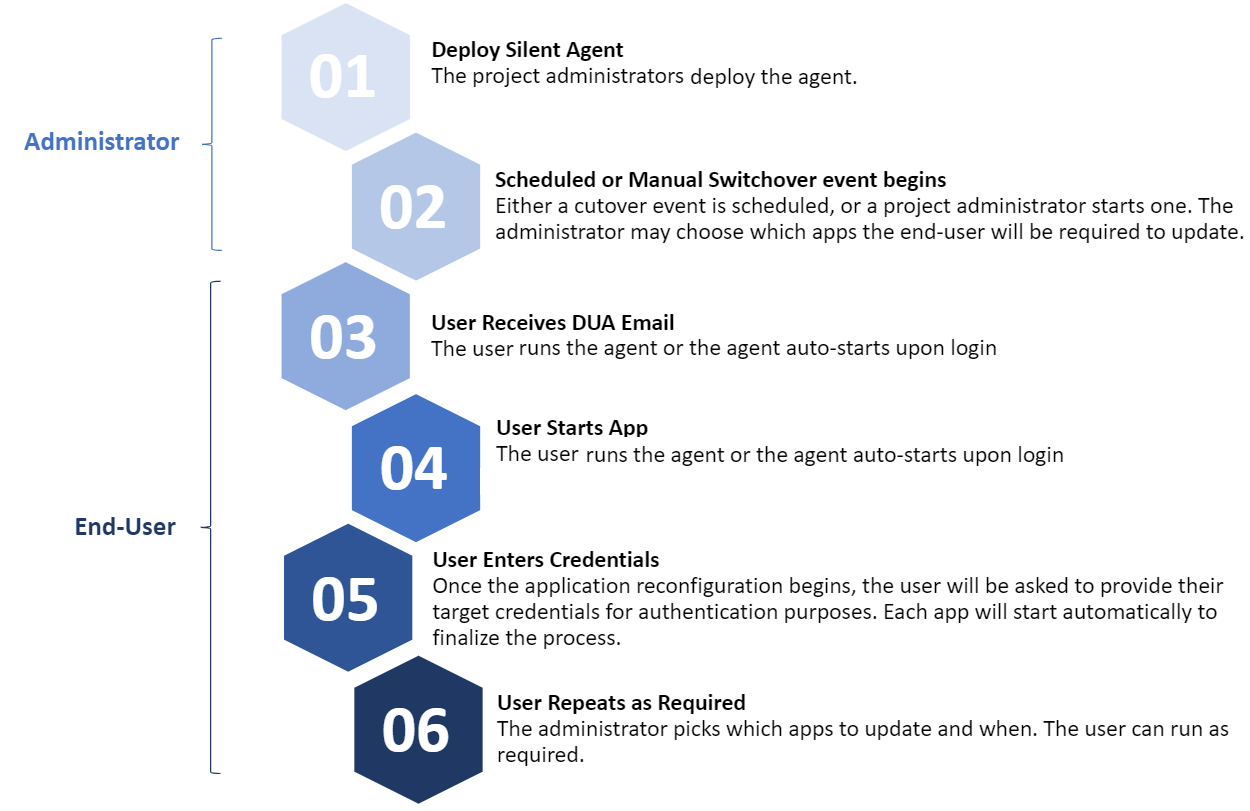
The workflow required to run a desktop application migration includes both administrators and users:
The diagram below describes each of the steps to complete the migration project and application reconfiguration: