Chat now with support
Chat with Support

Foglight for OpenStack 5.6.15 - User Guide

Using Foglight for OpenStack Interacting with Foglight for OpenStack dashboards Reference

OpenStack Explorer reports

There are several predefined report templates included with Foglight for OpenStack. When you choose an object type or particular object instance in the Topology view, the Reports button on the top-right of the Foglight browser is populated with predefined reports. Run the reports to record data for analysis and sharing outside of Foglight.
The reports available when clicking the Reports button varies by resource object chosen. For a list of available predefined OpenStack report templates, see Available report templates .

Using the OpenStack Alarms dashboard

3
On the navigation panel, under Dashboards, choose OpenStack > OpenStack Alarms.
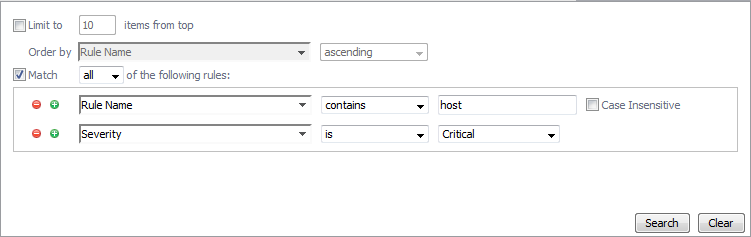
Figure 37. Advanced Search
Figure 38. Filtering rules
To remove a filter, click Clear. The list of alarms refreshes, showing all the generated alarms.

Using the OpenStack Dependency dashboard

The Infrastructure tab allows you to quickly and easily see which hosts are running a hypervisor and which hosts are not. A host icon without the H identifier is not running a hypervisor. The H indicator in a host icon identifies that host as running a hypervisor.
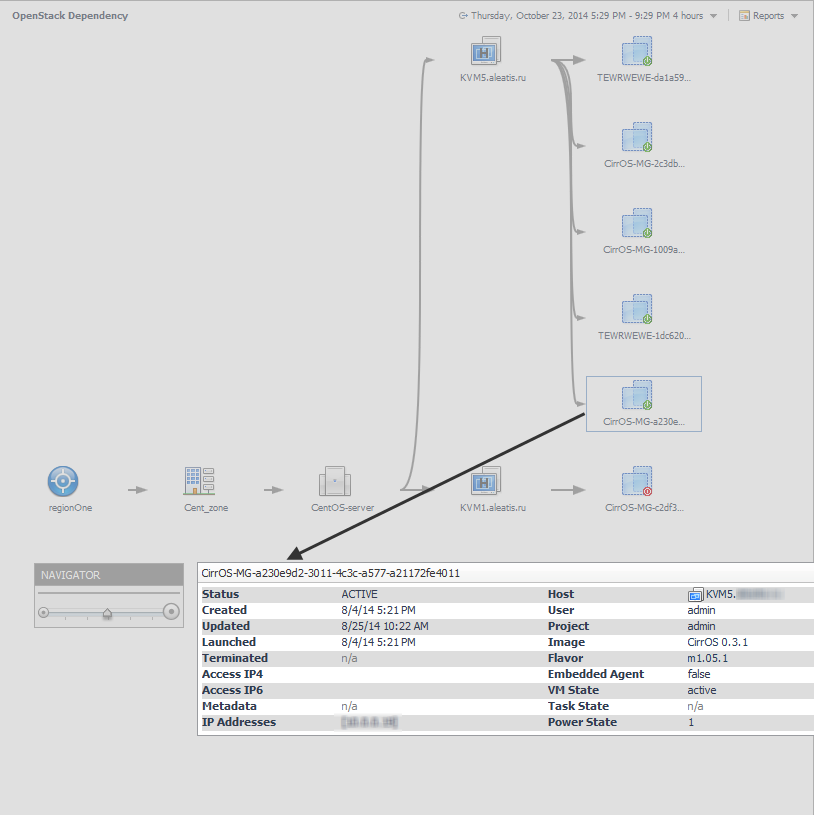
In the preceding dashboard, KVM1 and KVM2 are computer nodes running a hypervisor. cloud and Storage are controller nodes running scheduling and storage services respectively.
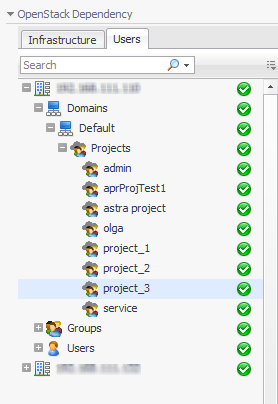
Like the Infrastructure tab, this tab also displays the monitored OpenStack environment as the root of the navigation tree, showing Domains, Projects, Groups, and Users.
Figure 40. Users tab

Reference

Related Documents

The document was helpful.

Select Rating

I easily found the information I needed.

Select Rating