|
1 |
Log in to the Foglight browser interface. On the navigation panel, click Dashboards > OpenStack Environment. |
|
2 |
|
3 |
|
4 |
In the Set Alarm Sensitivity Level dialog box, select the desired sensitivity level: Essential, Normal, or Tuning. |
|
5 |
Click Save. |
|
1 |
On the OpenStack Environment dashboard, open the Administration tab. |
|
2 |
|
3 |
In the Expired Data Removal Wizard dialog box, select the object type that you want to review, and type the number of days during which the object instances were not updated. |
|
4 |
Click Next. |
|
• |
If you want to modify your search, click Previous, make your changes, and observe your results again. For example, to show fewer instances, click Previous, and increase the time period. When satisfied, click Next. |
|
7 |
Click Finish. |
|
• |
Add — starts a workflow for creating agent instances. |
|
• |
Refresh — refreshes the list of agent instances and their states. |
|
• |
Activate—activates one or more selected agent instances. Activating an agent instance starts the agent process on the machine on which the agent is installed. |
|
• |
Deactivate — deactivates one or more selected agent instances. Deactivating an agent stops the agent process on the machine on which the agent is installed. |
|
• |
Start Data Collection — the active Foglight Agent begins to monitor your OpenStack environment and send data about it to the Foglight Management Server. |
|
• |
Stop Data Collection — stops the data collection for one or more selected agent instances. |
|
• |
Remove — deletes the selected agent instance. |
|
• |
Update Agent — upgrades the agent to a new version, after a new cartridge is installed. |
|
NOTE: When a newer Foglight for OpenStack version is installed on your system, the Agent Version column in the Agents table is updated to read Update Agent. To apply the new features, update the agents to the latest version. You can upgrade the agents one by one, by selecting from the table and clicking the corresponding Update Agent link in the Agent version column. You can upgrade all agents at once by selecting all the listed agents and clicking the Update Agent button at the top of the list. |
|
1 |
Click the Edit Properties icon associated with that agent. |
|
• |
User Name — user name, the agent uses to connect to the monitored OpenStack. This user should have administrative privileges to OpenStack. |
|
• |
Password — user password. |
|
• |
Project — the project on which the user has been granted a role. |
|
• |
User domain name — the domain to which the user is associated. |
|
• |
Project domain name — the domain to which the project is associated. |
|
3 |
Click Save. |
|
1 |
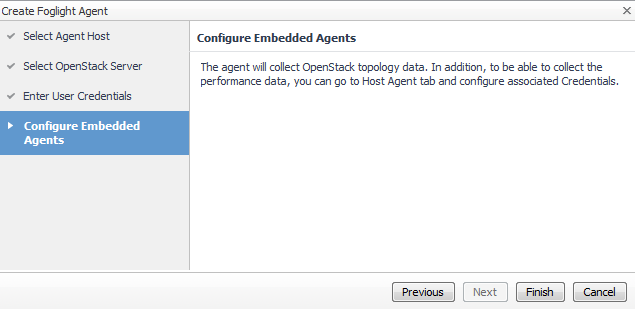
Click the Add button on the Foglight Agents tab. |


|
3 |
|
• |
Server Name — OpenStack (Keystone host) name or IP address. |
|
• |
Port — through which a remote host communicates with the system running the Identity service. |
|
• |
Use HTTPS — (optional) use secure communications with the OpenStack server. |

|
4 |
|
• |
User Name — user name. The user should have administrative privileges to OpenStack. |
|
• |
Password — user password. |
|
• |
Project — the project on which the user has been granted a role. |
|
• |
User domain name — the domain to which the user is associated. |
|
• |
Project domain name — the domain to which the project is associated. |
|
• |
Refresh — refreshes the list of host agents and their statuses. |
|
• |
Credentials — adds or removes the credentials of one or more host agents. |
|
• |
Activate — installs the host agent. |
|
• |
Deactivate — deletes the host agent. |
|
1 |

|
2 |
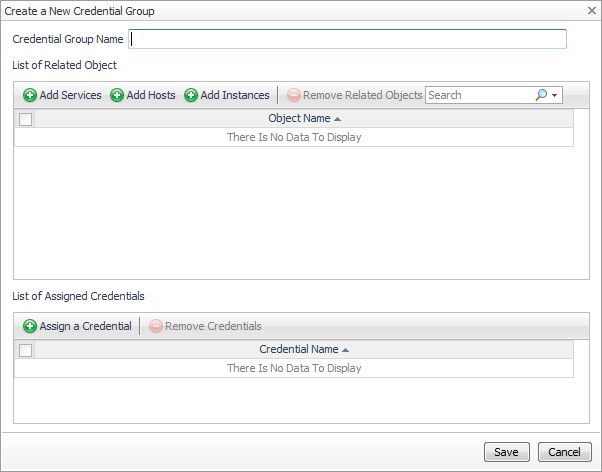
Click Add. |
|
4 |
Click Add Hosts. |
|
5 |
|
6 |
Click Assign a Credential. |
|
7 |
|
NOTE: To add more Credentials, go to the Administration dashboard and click Credentials > Manage Credentials > Add. |
|
8 |
Click Save. |
|
9 |
Click Close. |
|
• |
Refresh — refreshes the list of Instance Agents and their statuses. |
|
• |
Credentials — adds or removes the credentials of one or more Instance Agents. |


