Al momento non è possibile inviare moduli sul sito di supporto per pianificare la manutenzione. Se necessiti di assistenza immediata, contatta il supporto tecnico. Ci scusiamo per il disagio.
Questo articolo ti è servito per risolvere il problema?
Seleziona valutazione
Titolo
Opening archived messages on a Mac: .EML shortcuts for Outlook on OSX
Descrizione
Archived email will not properly retrieve using Outlook on MAC OSX based clients
Users on Mac systems with Outlook cannot open archive message attachments
Causa
OSX does not support VBScript natively, which is required for default retrieval of archived messages within Outlook.
Risoluzione
A. Create an archive group for OSX users
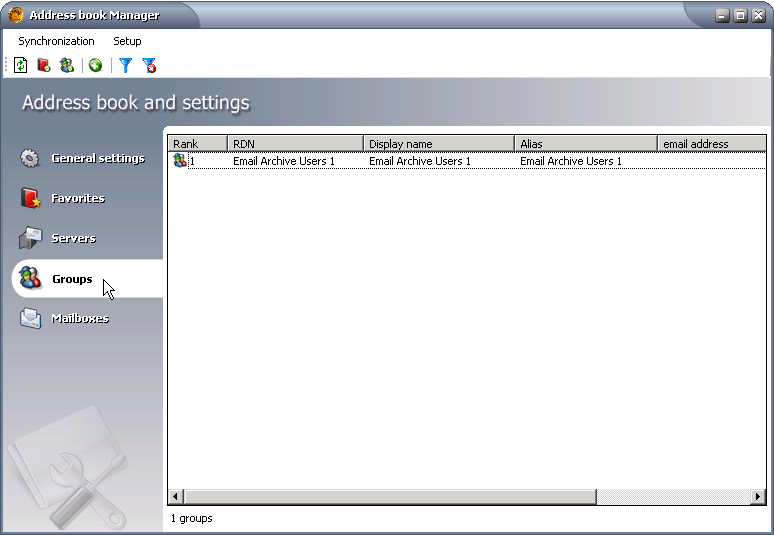
In Enterprise Manager, open Addressbook Manager and click on the Groups tab.
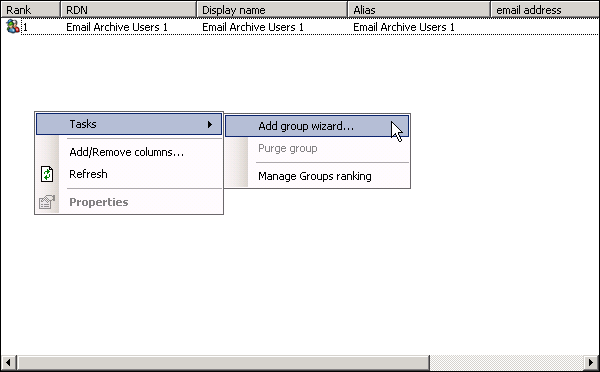
Right-click on the information window and click Tasks > Add group wizard.
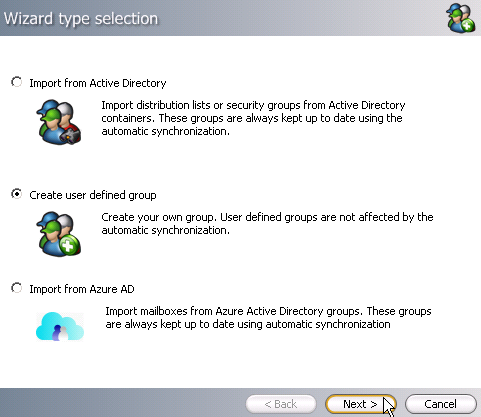
In the Import Group Wizard window, select Create User Defined Group and click Next.
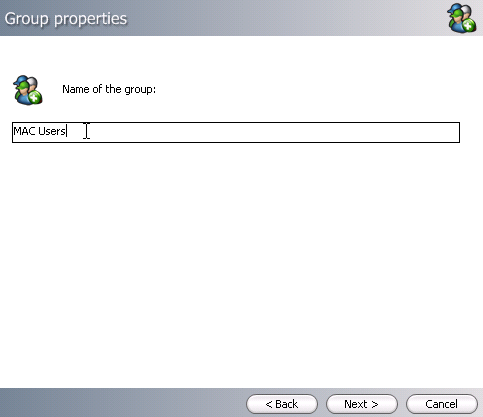
Add an appropriate name for the group that will contain users requiring this shortcut modification (typically, users viewing their mailboxes on a MAC computer client), then click Next.
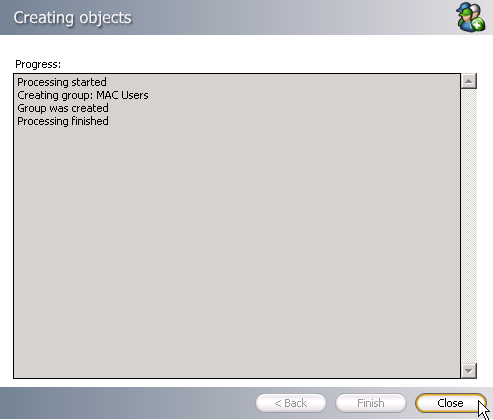
View the Summary, click Finish, and when the processing is finished, click Close.
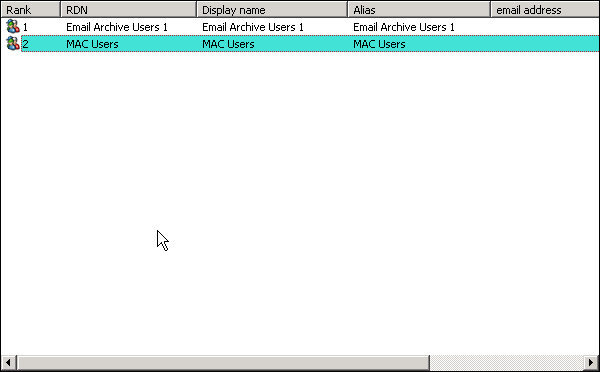
Your groups should now be listed as below:
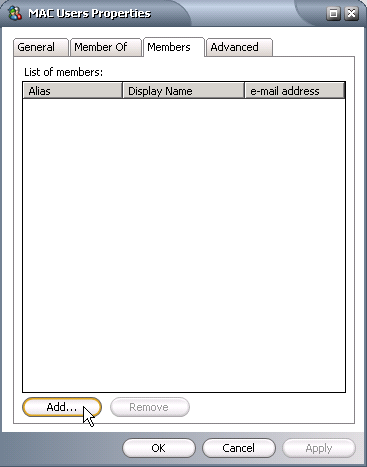
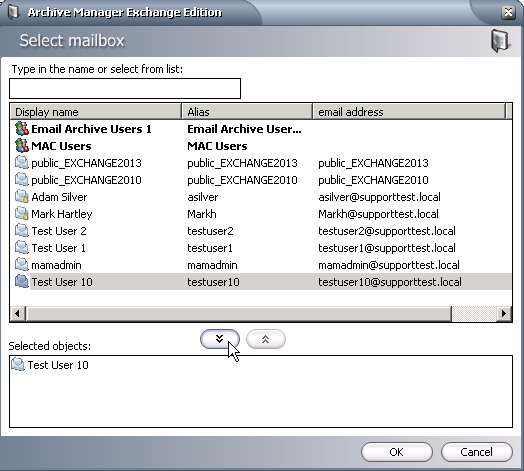
Right-click on the newly created user group, choose Properties, click Add and add all archive users requiring Office in OSX using the down arrow, then click OK.
The new group will appear in the Groups tab of the Enterprise Manager along with the other archive groups. Be sure to assign it the desired settings, job assignment and retention for those in that archive group.
B. Creating and assigning a shortcut template for .eml shortcuts
In Enterprise Manager, click on the Settings tab and select Shortcut templates in the left navigation window, then right-click on the main window and choose Create new shortcut template.
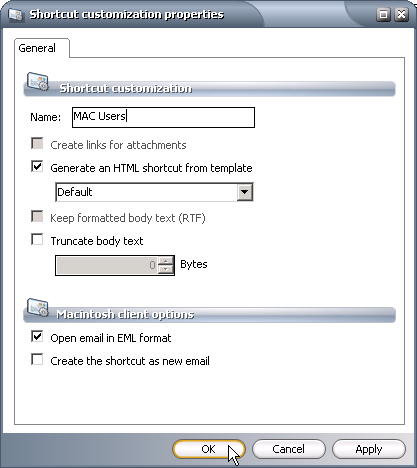
Give the new shortcut template an appropriate name referencing it's use, select Generate an HTML shortcut from template and leave the Default template in the dropdown. Select Open email in EML format, then click OK.
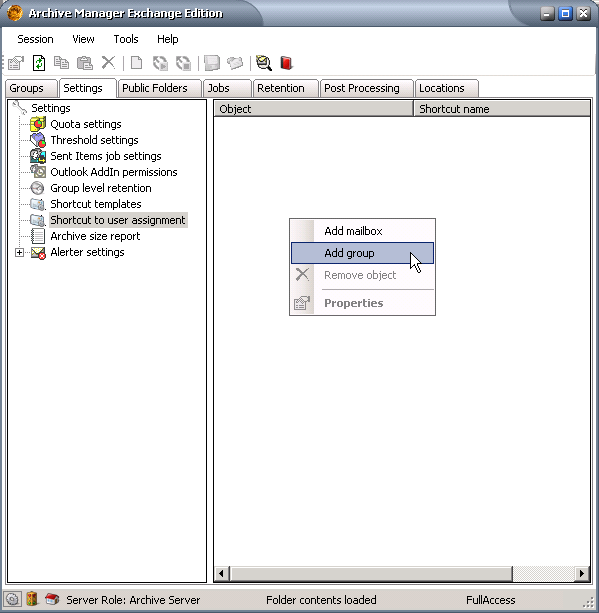
In the Settings tab, select Shortcut to user assignment from the left navigation window, right-click on the main window and select Add Group.
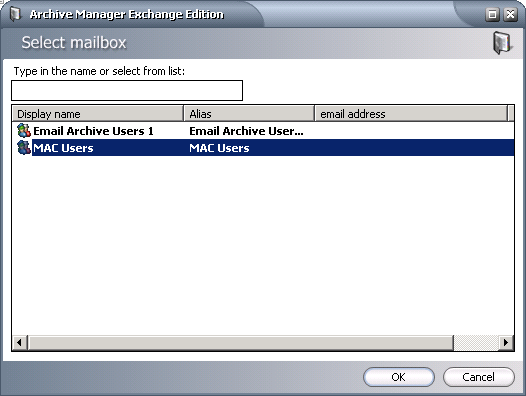
Select the archive group created in part A of this article and click OK.
Right-click on the group object, choose Properties, then select the newly created shortcut assignment from step 2 in the dropdown menu under Selected shortcut template, then click OK.
C. Repairing Shortcuts
In Enterprise Manager, click View > Archive.
On the left navigation window, open the navigation tree, right-click on the group created in part A, then select Repair Shortcuts.
The archive system will replace all current shortcuts in the assigned mailboxes with newly formatted .eml shortcuts from the appropriate shortcut template.
Note: .eml shortcuts are HTML based and will be retrieved via browser as opposed to directly retrieving via Outlook.
Feedback inviato
Questo articolo ti è servito per risolvere il problema?
Your Request will be reviewed by our technical reviewer team and, if approved, will be added as a Topic in our Knowledgebase.
Contenuti consigliati
Prodotto/i:
Archive Manager for Exchange
8.4
Argomento/i:
Best Practices
Cronologia articoli:
Data di creazione: 6/8/2017 Ultimo aggiornamento: 5/7/2023
Thank you for your feedback for Topic Request
Your Request will be reviewed by our technical reviewer team and, if approved, will be added as a Topic in our Knowledgebase.
Questo è il portale del supporto
Puoi trovare aiuto e supporto online per Quest *prodotto* sul sito di supporto di un affiliato. Fai clic su Continua per essere reindirizzato ai contenuti e all'assistenza corretti per *prodotto*.
Cerca in tutti gli articoli
Internet Explorer 8, 9 e 10 non sono più supportati
Il portale Quest Software non supporta più Internet Explorer 8, 9, e 10. Si consiglia di aggiornare il browser all'ultima versione di Internet Explorer o Chrome.

.png)


