Tchater maintenant avec le support
Tchattez avec un ingénieur du support

Foglight Integration for OpenManage Essentials 5.7.0 - User Guide

Introducing Foglight Integration for OpenManage Essentials

Dell Foglight™ Integration for OpenManage Essentials enables you to view the detailed hardware data that OpenManage Essentials collects about your ESX servers in the Foglight for Virtualization Enterprise Edition dashboards. This powerful combination provides you with a single-pane-of-glass to monitor your ESX servers within your entire monitored environment - so you can quickly diagnose issues from the symptom to the root cause and resolution. By offering this comprehensive visibility into your monitored environment, Foglight helps ensure that cross-functional teams collaborate on and prioritize issues that matter most to businesses.

Understanding the components

VMware®vCenter® is the only virtualization management tool that is supported for Foglight Integration for OpenManage Essentials. After the integration, you can discover the ESX servers from vCenter that are monitored in OpenManage Essentials and Foglight for Virtualization EE. If the ESX server is monitored by both products, it displays in the Foglight for Virtualization EE dashboards.

Integration Agent Installation

Installing the integration agent

2
On the navigation panel, under Homes, select Environment Overview.
4
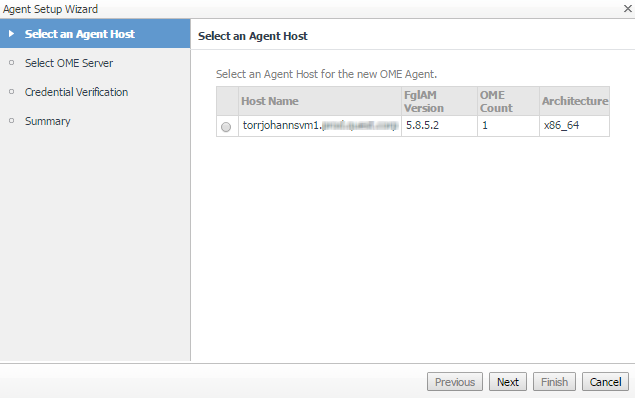
On the Select an Agent Host page, choose the host for the new OME Agent. This is a host where you have an existing Foglight Agent Manager installed.
5
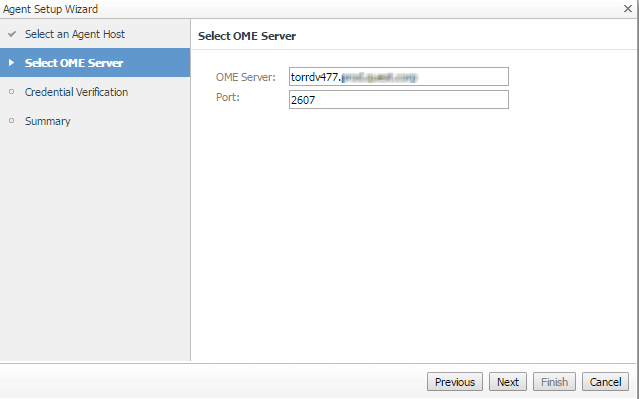
On the Select OME Server page, type the name of the OME Server. The default port number for the OME server is 2607.
6
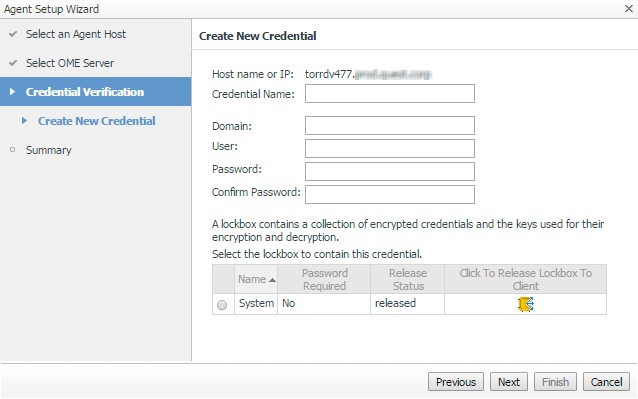
On the Credential Verification page, choose to add the host to a new or existing credential.
a
On the Create New Credential page, type the required information.
Credential Name: Any name that you want to call this credential.
Domain: Required only if it is configured for your host.
User: The user name for this credential.
Password: A password for the user.
a
On the Select Existing Credential page, chose the credential.
8
On the Summary page, review your settings.
9
Click Finish to complete the integration.
Outils libre-service
Base de connaissances
Notifications et alertes
Support produits
Téléchargements de logiciels
Documentation technique
Forums utilisateurs
Didacticiels vidéo
Flux RSS
Nous contacter
Obtenir une assistance en matière de licence
Support Technique
Afficher tout
Documents connexes

The document was helpful.

Sélectionner une évaluation

I easily found the information I needed.

Sélectionner une évaluation