Chat now with support
Chat mit Support

KACE Systems Management Appliance 15.0 - Administration Guide

About the KACE Systems Management Appliance Getting started
Configuring the appliance
Requirements and specifications Power-on the appliance and log in to the Administrator Console Access the Command Line Console Tracking configuration changes Configuring System-level and Admin-level General Settings Configure appliance date and time settings Managing user notifications Enable Two-Factor Authentication for all users Verifying port settings, NTP service, and website access Configuring network and security settings Configuring session timeout settings Configuring locale settings Configuring the default theme Configure data sharing preferences About DIACAP compliance requirements Enable API Access for the appliance Disable API Access for the appliance Configuring Mobile Device Access Enable fast switching for organizations and linked appliances Linking Quest KACE appliances Configuring history settings Configuring Content Security Policy
Setting up and using labels to manage groups of items Configuring user accounts, LDAP authentication, and SSO Deploying the KACE Agent to managed devices Using Replication Shares Managing credentials Configuring assets
About the Asset Management component Using the Asset Management Dashboard About managing assets Adding and customizing Asset Types and maintaining asset information Managing Software assets Managing physical and logical assets Maintaining and using manual asset information Managing locations Managing contracts Managing licenses Managing purchase records
Setting up License Compliance Managing License Compliance Setting up Service Desk Configure the Cache Lifetime for Service Desk widgets Creating and managing organizations Importing and exporting appliance resources
Managing inventory
Using the Inventory Dashboard Work with Inventory Dashboard Using Device Discovery Managing device inventory
About managing devices Features available for each device management method About inventory information Tracking changes to inventory settings Managing inventory information Finding and managing devices Registering KACE Agent with the appliance Provisioning the KACE Agent Manually deploying the KACE Agent Using Agentless management Adding devices manually in the Administrator Console or by using the API Forcing inventory updates About Remote Control Managing MIA devices Obtaining Dell warranty information
Managing applications on the Software page Managing Software Catalog inventory
About the Software Catalog Viewing Software Catalog information Adding applications to the Software Catalog Managing License assets for Software Catalog applications Associate Managed Installations with Cataloged Software Using software metering Using Application Control Update or reinstall the Software Catalog
Managing process, startup program, and service inventory Writing custom inventory rules
Deploying packages to managed devices
Distributing software and using Wake-on-LAN Broadcasting alerts to managed devices Running scripts on managed devices Using Task Chains
Patching devices and maintaining security
Using the Security Dashboard About patch management Subscribing to and downloading patches Creating and managing patch schedules Managing patch inventory Managing Windows Feature Updates Managing Dell devices and updates Managing Linux package upgrades Manage quarantined file attachments
Using reports and scheduling notifications Monitoring devices
Getting started with monitoring Working with monitoring profiles Managing monitoring for devices Working with alerts
Using the Service Desk
Configuring Service Desk Using the Service Desk Dashboard Managing Service Desk tickets, processes, and reports
Overview of Service Desk ticket lifecycle Creating tickets from the Administrator Console and User Console Creating and managing tickets by email Viewing tickets and managing comments, work, and attachments Merging tickets Using the ticket escalation process Using Service Desk processes Using Ticket Rules Run Service Desk reports Archiving, restoring, and deleting tickets Managing ticket deletion
Managing Service Desk ticket queues About User Downloads and Knowledge Base articles Customizing Service Desk ticket settings Configuring SMTP email servers
Maintenance and troubleshooting
Maintaining the appliance Troubleshooting the appliance
Appendixes Glossary About us Legal notices

Configuring Chart Types for a Report

Configuring Chart Types for a Report

Configuring the chart type is a key step in building a report widget. The KACE System Management Appliance offers a variety of chart types such as Bar, Line, Pie, Gauge and so on, each suited to different visualization needs. The application supports multiple chart types, and based on the selected chart type, the relevant fields in the Label and Axis Settings and Visualization Settings sections are dynamically populated. This topic helps you to understand how to configure chart types and customize their settings for optimal dashboard presentation.

The different chart types are as follows:

Chart Type

Description

Bar

Displays data as rectangular bars on an X-Y axis. Useful for comparing counts or values across categories such as department-wise device distribution.

Pie

Displays data as slices of a circle. Ideal for showing part-to-whole relationships, such as distribution of device types or ticket statuses.

Doughnut

Similar to Pie, but with a hollow center. Useful for comparing categorical data like operating systems or patch statuses.

Line

Shows trends over time using points connected by lines. Typically used for visualizing time-series data like patch deployment trends or ticket volume.

Combo

Combines Line and Bar charts in one. Helps compare multiple datasets, such as number of patches installed vs. number of failed installs.

Polar Area

Displays data in circular segments with varying radii. Effective for equal-category comparisons, such as application usage across endpoint groups.

Radar

Uses a radial grid to plot multiple metrics. Best suited for visualizing performance across several criteria, such as device compliance score metrics.

World Geography

Plots data across global regions. Useful for global endpoint location visualization or country-wise license usage.

US Geography

Similar to World Geography but focused on U.S. states. Useful for region-specific deployment or compliance tracking within the U.S.

Score

Displays a single metric or Key Performance Indicator (KPI), such as counts of updated devices. Offers a focused view on a single value.

Progress

Shows progress toward a target, such as number of encrypted devices vs. total devices. Typically used for goal tracking.

Table

Presents structured data in rows and columns. Ideal for viewing details like device inventory, patch statuses, or alert logs.

Gauge

Visualizes data on a scale with thresholds (for example, critical to optimal). Suitable for tracking health indicators or system readiness percentages.

Important Points:

Chart Type Details

The section below lists each supported chart type, the relevant fields and their description.

Bar Chart

This chart displays data as rectangular bars on an X and Y axis. It is useful for comparing counts or values across categories such as Tickets by Category. You should select Bar from the Please select the chart type you want to use drop-down.

Configure the fields for the Bar chart in the following sections:

Section

Fields

Description

Label and Axis Settings

This section allows you to define which report columns are used for chart elements such as axes, legends, and data point values across various chart types. Configure these settings to control how your data is organized and displayed.

X-Axis

This field specifies the categories or groups that represents the labels for the chart's X-Axis.

Select the entity from the drop-down list.

Y-Axis

This field is used to specify the data that will be represented as data points in the chart. Each data point corresponds to a specific value or measurement that will be plotted on the chart.

Select the entity from the drop-down list.

Clustered By

This field specifies the grouping or clustering criteria for the chart's data points. Set this to the field that defines how the data should be grouped or categorized for visualization.

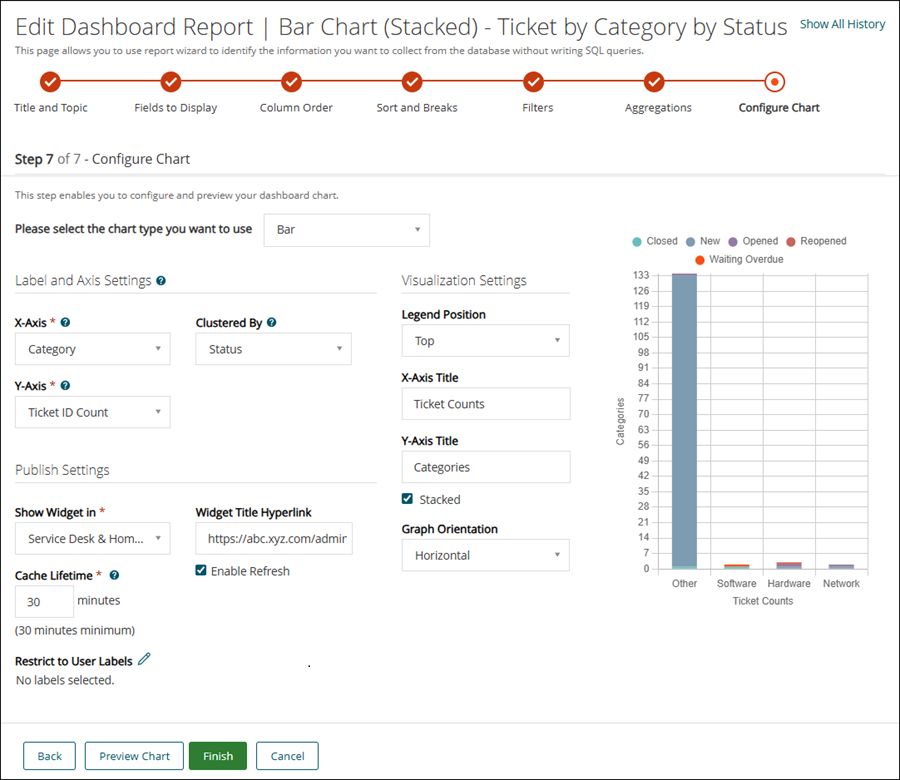
For Example: Refer the image for Bar chart.

X-Axis: Ticket Category(Other, Hardware, Network, Software),

Y-Axis: Ticket Count,

Cluster By: Status

Label

It defines the text shown on the chart to describe data point and helps to quickly understand what the value represents.

This field populates when the Clustered By field is set to None.

+ Add More Chart Data Point

Click to add more data points to the chart.

This field populates when the Cluster By field is set to None.

Section

Fields

Description

Visualization Settings

The settings define how the chart is visually presented. These settings help make the chart easier to read and interpret.

Legend Position

Select the position from the drop-down. It specifies where the chart legend is displayed, such as top, bottom, left, or right of the chart. Select None to hide the legend.

X-Axis Title

Enter the title to display on X-Axis.

Y-Axis Title

Enter the title to display on Y-Axis.

Stacked

Select this to displays multiple data series on top of each other in a single bar or column, showing the combined total for each category instead of separate segments.

Graph Orientation

Select an option from the drop-down to set the direction of the chart's base axis- horizontal or vertical. This changes how the chart layout is displayed.

3.

Section

Fields

Description

Publish Settings

Defines where and how the widget is displayed on dashboards.

Show Widget in

Select the dashboard category where you wish to make the widget available. All the widgets are available on the Home dashboard

Widget Title Hyperlink

Add a clickable link to the widget title. When users click the title, it opens the specified URL in a new tab.

Cache Lifetime

Set the duration the data will be cached for. The minimum duration is 30 minutes

Restrict to User Labels

Select the Labels to show the widget only to the users assigned to the selected label.

Enable Refresh

It allows the widget to automatically update its data at regular intervals or when manually refreshed. When enabled, a refresh icon appears on the widget, letting you to reload the latest data.

Admin Console Permission Reference

This field is available only to a non-wizard type of report. It specifies the permission category required to view the widget. This field ensures that only users with the appropriate access rights (defined in their role permissions) can view or interact with the widget on the dashboard.

NOTE: This field enforces permission control. If a user does not have access to the selected permission category (for example, Tickets, Devices), the widget will not appear in the Add Widget list. If the widget was previously added to a dashboard and the user's permission is later revoked, the widget will display an error message indicating that the user does not have permission to view it.

Preview Chart

Click it to view how the chart will appear using the selected configuration.

Finish

Click it after you finish the configuration.

The example below shows how to configure a dashboard report using a bar chart. In this chart, ticket counts are displayed by category, with bars stacked by status to show the breakdown within each category.

Bar Chart

Pie Chart

Pie charts displays data as slices of a circle with each slice showing a proportion of the total. It is useful for showing part-to-whole relationships.

You should select Pie from the Please select the chart type you want to use drop-down. Configure the fields for the Pie chart in the following sections:

Section

Fields

Description

Label and Axis Settings

This section allows you to define which report columns are used for chart elements such as axes, legends, and data point values across various chart types. Configure these settings to control how your data is organized and displayed.

Legend

Select a category or group from the drop-down list to represent each slice of the pie chart.

Value

It specifies the data that determines the size of each slice in the pie chart. Each value represents a measurable quantity that is visually proportioned to reflect its share of the total.

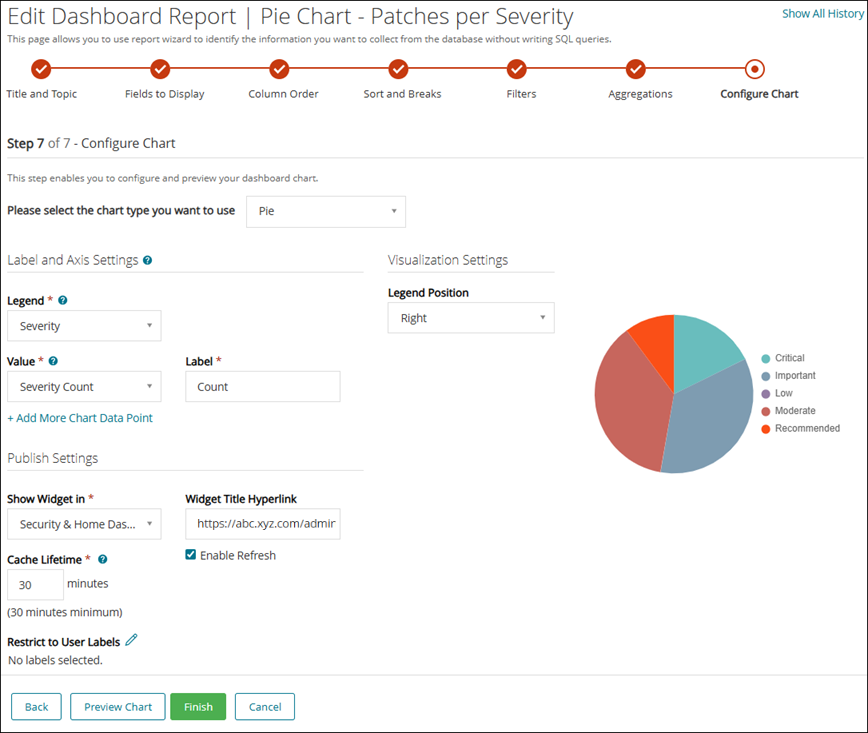
For example, refer the image for Pie Chart - it is a Pie chart for Patches per Severity.

Legend: Severity (Critcal, Important, Low, Moderate, Recommended)

Value: Severity Count

Label

Type the text shown on the chart to describe data point and helps to quickly understand what the value represents.

+ Add More Chart Data Point

Click to add more data points on X-Axis.

This field populates when the Cluster By field is set to None.

Section

Fields

Description

Visualization Settings

The settings define how the chart is visually presented. These settings help make the chart easier to read and interpret.

Legend Position

Specifies where the chart legend is displayed, such as top, bottom, left, or right of the chart. Select None to hide the legend

3.

Section

Fields

Description

Publish Settings

Defines where and how the widget is displayed on dashboards.

Show Widget in

Select the dashboard category where you wish to make the widget available. All the widgets are available on the Home dashboard

Widget Title Hyperlink

Add a clickable link to the widget title. When users click the title, it opens the specified URL in a new tab.

Cache Lifetime

Set the duration the data will be cached for. The minimum duration is 30 minutes

Restrict to User Labels

Select the Labels to show the widget only to the users assigned to the selected label.

Enable Refresh

It allows the widget to automatically update its data at regular intervals or when manually refreshed. When enabled, a refresh icon appears on the widget, letting you to reload the latest data.

Admin Console Permission Reference

This field is available only to a non-wizard type of report. It specifies the permission category required to view the widget. This field ensures that only users with the appropriate access rights (defined in their role permissions) can view or interact with the widget on the dashboard.

NOTE: This field enforces permission control. If a user does not have access to the selected permission category (for example, Tickets, Devices), the widget will not appear in the Add Widget list. If the widget was previously added to a dashboard and the user's permission is later revoked, the widget will display an error message indicating that the user does not have permission to view it.

Preview Chart

Click it to view how the chart will appear using the selected configuration.

Finish

Click it after you finish the configuration.

The example below shows how to configure a dashboard report using a pie chart. This chart illustrates the number of patches categorized by severity level.

Pie Chart

Radar Chart

The chart uses a radial grid to plot multiple metrics. This chart is best suited for visualizing performance across several criteria, such as device compliance score metrics. The Radar chart works best if we are evaluating multiple data points (three or more) on a two-dimensional plane.

You should select Radar from the Please select the chart type you want to use drop-down. Configure the fields for the Radar chart in the following sections:

Section

Fields

Description

Label and Axis Settings

This section allows you to define which report columns are used for chart elements such as axes, legends, and data point values across various chart types. Configure these settings to control how your data is organized and displayed.

Axis

Select a category or group from the drop-down list to represent segment of the chart.

This field specifies the categories that will be displayed along the radial axes of the chart.

Value

It specifies the data that will be represented as data points in the chart. Each data point corresponds to a specific value or measurement that will be plotted on the chart.

Clustered By

This field specifies the grouping or clustering criteria for the chart's data points. Set this to the field that defines how the data should be grouped or categorized for visualization.

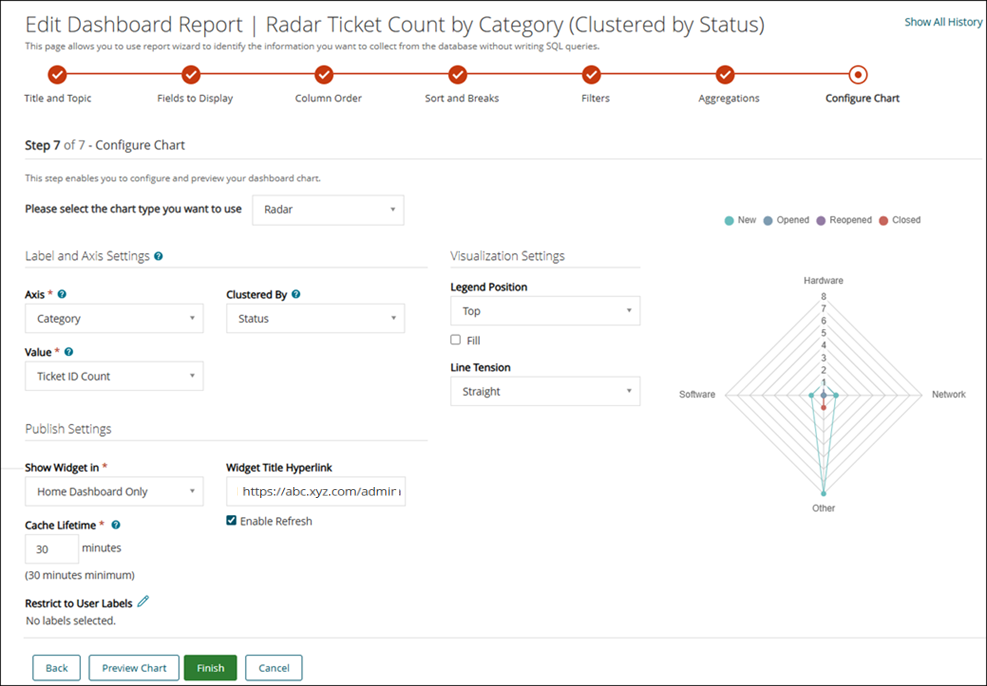
For Example: Refer the image for Radar chart.

Axis: Category, Value: Ticket ID Count, Cluster By: Status

If you select None from the drop-down list the Label field populates.

Label

Type the text shown on the chart to describe data point and helps to quickly understand what the value represents.

+ Add More Chart Data Point

Click to add more data points.

This field populates when the Cluster By field is set to None.

Section

Fields

Description

Visualization Settings

The settings define how the chart is visually presented. These settings help make the chart easier to read and interpret.

Legend Position

Select an option to specify where the chart legend should displayed, such as top, bottom, left, or right of the chart. Select None to hide the legend.

Fill

Select the field to fill the area under the line or within the radar shape with color.

Line Tension

Select the option from the drop-down to define the curvature of the lines connecting data points in a radar chart.

3.

Section

Fields

Description

Publish Settings

Defines where and how the widget is displayed on dashboards.

Show Widget in

Select the dashboard category where you wish to make the widget available. All the widgets are available on the Home dashboard

Widget Title Hyperlink

Add a clickable link to the widget title. When users click the title, it opens the specified URL in a new tab.

Cache Lifetime

Set the duration the data will be cached for. The minimum duration is 30 minutes

Restrict to User Labels

Select the Labels to show the widget only to the users assigned to the selected label.

Enable Refresh

It allows the widget to automatically update its data at regular intervals or when manually refreshed. When enabled, a refresh icon appears on the widget, letting you to reload the latest data.

Admin Console Permission Reference

This field is available only to a non-wizard type of report. It specifies the permission category required to view the widget. This field ensures that only users with the appropriate access rights (defined in their role permissions) can view or interact with the widget on the dashboard.

NOTE: This field enforces permission control. If a user does not have access to the selected permission category (for example, Tickets, Devices), the widget will not appear in the Add Widget list. If the widget was previously added to a dashboard and the user's permission is later revoked, the widget will display an error message indicating that the user does not have permission to view it.

Preview Chart

Click it to view how the chart will appear using the selected configuration.

Finish

Click it after you finish the configuration.

The example below shows how to configure a dashboard report using a Radar chart. This chart illustrates the Ticket Count by Category.

Radar Chart

Polar Area Chart

This chart displays data in circular segments with varying radii. This chart is effective for equal-category comparisons, such as application usage across endpoint groups.

You should select Polar Area from the Please select the chart type you want to use drop-down. Configure the fields for the Polar Area chart in the following sections:

Section

Fields

Description

Label and Axis Settings

This section allows you to define which report columns are used for chart elements such as axes, legends, and data point values across various chart types. Configure these settings to control how your data is organized and displayed.

Legend

Select a category or group from the drop-down list to represent segment of the chart.

Value

It specifies the data that will be represented as data points in the chart. Each data point corresponds to a specific value or measurement that will be plotted on the chart.

Clustered By

This field specifies the grouping or clustering criteria for the chart's data points. Set this to the field that defines how the data should be grouped or categorized for visualization.

If you select None from the drop-down list the Label field populates.

Label

Type the text shown on the chart to describe data point and helps to quickly understand what the value represents.

+ Add More Chart Data Point

Click to add more data points.

This field populates when the Cluster By field is set to None.

Section

Fields

Description

Visualization Settings

The settings define how the chart is visually presented. These settings help make the chart easier to read and interpret.

Legend Position

Select an option to specify where the chart legend should displayed, such as top, bottom, left, or right of the chart. Select None to hide the legend.

3.

Section

Fields

Description

Publish Settings

Defines where and how the widget is displayed on dashboards.

Show Widget in

Select the dashboard category where you wish to make the widget available. All the widgets are available on the Home dashboard

Widget Title Hyperlink

Add a clickable link to the widget title. When users click the title, it opens the specified URL in a new tab.

Cache Lifetime

Set the duration the data will be cached for. The minimum duration is 30 minutes

Restrict to User Labels

Select the Labels to show the widget only to the users assigned to the selected label.

Enable Refresh

It allows the widget to automatically update its data at regular intervals or when manually refreshed. When enabled, a refresh icon appears on the widget, letting you to reload the latest data.

Admin Console Permission Reference

This field is available only to a non-wizard type of report. It specifies the permission category required to view the widget. This field ensures that only users with the appropriate access rights (defined in their role permissions) can view or interact with the widget on the dashboard.

NOTE: This field enforces permission control. If a user does not have access to the selected permission category (for example, Tickets, Devices), the widget will not appear in the Add Widget list. If the widget was previously added to a dashboard and the user's permission is later revoked, the widget will display an error message indicating that the user does not have permission to view it.

Preview Chart

Click it to view how the chart will appear using the selected configuration.

Finish

Click it after you finish the configuration.

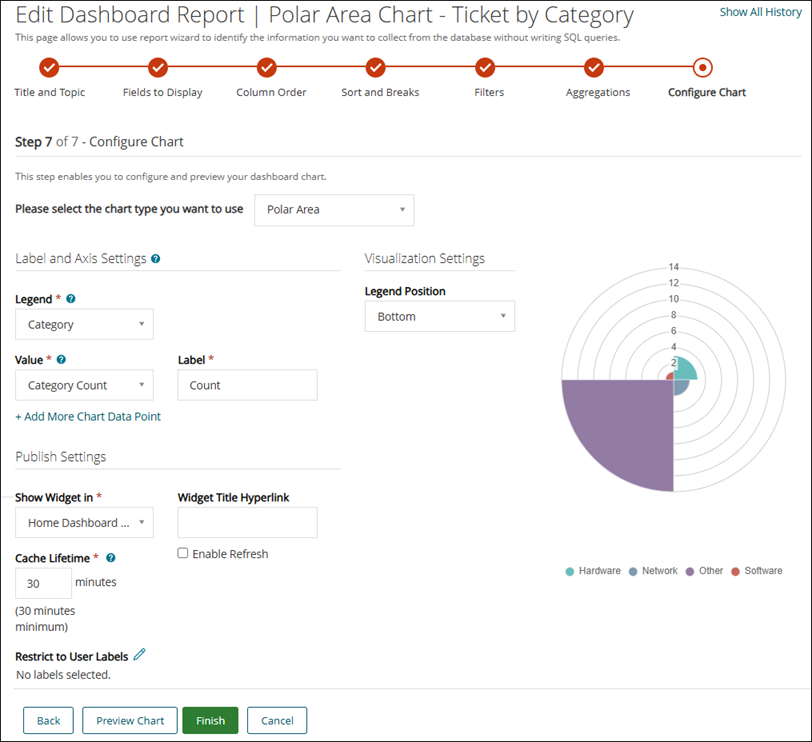
The example below shows how to configure a dashboard report using a Polar Area chart. This chart illustrates the Ticket Count by Category.

Polar Area chart type

World Geography Chart

This chart type plots data across global regions. This chart is useful for global endpoint location visualization or country-wise license usage.

You should select World Geography from the Please select the chart type you want to use drop-down. Configure the fields for the World Geography chart in the following sections:

Section

Fields

Description

Label and Axis Settings

This section allows you to define which report columns are used for chart elements such as axes, legends, and data point values across various chart types. Configure these settings to control how your data is organized and displayed.

Country

This field specifies the countries that will be represented on the chart. Set this to the field containing country names to map the data accurately.

Value

It specifies the data that will be represented as data points in the chart. Each data point corresponds to a specific value or measurement that will be plotted on the chart.

Section

Fields

Description

Visualization Settings

The settings define how the chart is visually presented. These settings help make the chart easier to read and interpret.

Legend Position

Select an option to specify where the chart legend should displayed, such as top, bottom, left, or right of the chart.

3.

Section

Fields

Description

Publish Settings

Defines where and how the widget is displayed on dashboards.

Show Widget in

Select the dashboard category where you wish to make the widget available. All the widgets are available on the Home dashboard

Widget Title Hyperlink

Add a clickable link to the widget title. When users click the title, it opens the specified URL in a new tab.

Cache Lifetime

Set the duration the data will be cached for. The minimum duration is 30 minutes

Restrict to User Labels

Select the Labels to show the widget only to the users assigned to the selected label.

Enable Refresh

It allows the widget to automatically update its data at regular intervals or when manually refreshed. When enabled, a refresh icon appears on the widget, letting you to reload the latest data.

Admin Console Permission Reference

This field is available only to a non-wizard type of report. It specifies the permission category required to view the widget. This field ensures that only users with the appropriate access rights (defined in their role permissions) can view or interact with the widget on the dashboard.

NOTE: This field enforces permission control. If a user does not have access to the selected permission category (for example, Tickets, Devices), the widget will not appear in the Add Widget list. If the widget was previously added to a dashboard and the user's permission is later revoked, the widget will display an error message indicating that the user does not have permission to view it.

Preview Chart

Click it to view how the chart will appear using the selected configuration.

Finish

Click it after you finish the configuration.

The following is an image for World Geography chart for Users by Country.

World Geo Map

US Geography Chart

Similar to World Geography but focused on U.S. states. Useful for region-specific deployment or compliance tracking within the U.S.

You should select US Geography from the Please select the chart type you want to use drop-down. Configure the fields for the US Geography chart in the following sections:

Section

Fields

Description

Label and Axis Settings

This section allows you to define which report columns are used for chart elements such as axes, legends, and data point values across various chart types. Configure these settings to control how your data is organized and displayed.

State

This field specifies the US states that will be represented on the chart. Set this to the field containing US state names to map the data accurately.

Value

It specifies the data that will be represented as data points in the chart. Each data point corresponds to a specific value or measurement that will be plotted on the chart.

Section

Fields

Description

Visualization Settings

The settings define how the chart is visually presented. These settings help make the chart easier to read and interpret.

Legend Position

Select the option to specify where the chart legend should be displayed, such as bottom right, top right, bottom left, or top left of the chart.

3.

Section

Fields

Description

Publish Settings

Defines where and how the widget is displayed on dashboards.

Show Widget in

Select the dashboard category where you wish to make the widget available. All the widgets are available on the Home dashboard

Widget Title Hyperlink

Add a clickable link to the widget title. When users click the title, it opens the specified URL in a new tab.

Cache Lifetime

Set the duration the data will be cached for. The minimum duration is 30 minutes

Restrict to User Labels

Select the Labels to show the widget only to the users assigned to the selected label.

Enable Refresh

It allows the widget to automatically update its data at regular intervals or when manually refreshed. When enabled, a refresh icon appears on the widget, letting you to reload the latest data.

Admin Console Permission Reference

This field is available only to a non-wizard type of report. It specifies the permission category required to view the widget. This field ensures that only users with the appropriate access rights (defined in their role permissions) can view or interact with the widget on the dashboard.

NOTE: This field enforces permission control. If a user does not have access to the selected permission category (for example, Tickets, Devices), the widget will not appear in the Add Widget list. If the widget was previously added to a dashboard and the user's permission is later revoked, the widget will display an error message indicating that the user does not have permission to view it.

Preview Chart

Click it to view how the chart will appear using the selected configuration.

Finish

Click it after you finish the configuration.

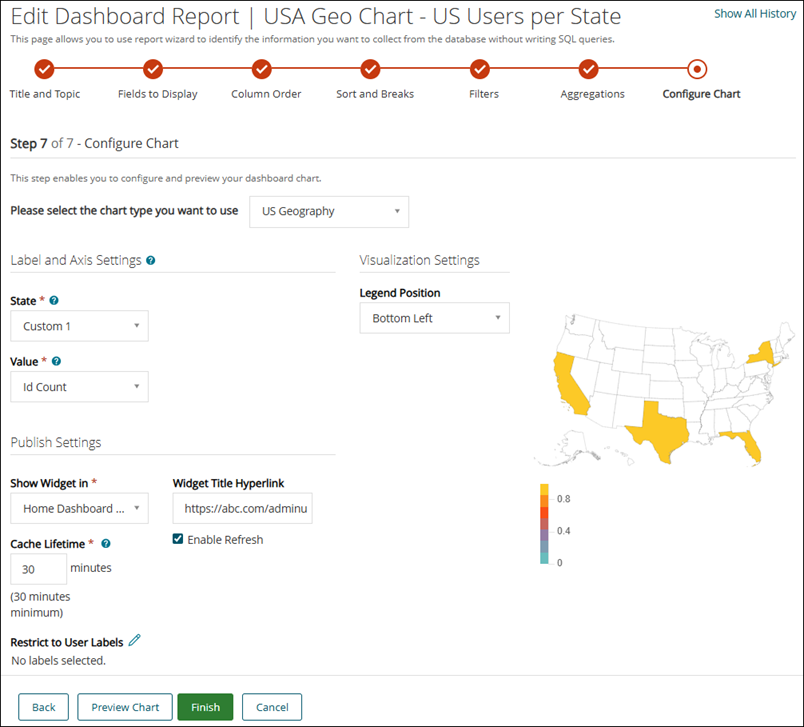
The following is an image for US Geography chart for US users per State.

US Geo Chart

Table Chart

This chart presents structured data in rows and columns. Ideal for viewing details like device inventory, patch statuses, or alert logs.

You should select Table from the Please select the chart type you want to use drop-down. Configure the fields for the Table chart in the following sections:

Section

Fields

Description

Label and Axis Settings

This section allows you to define which report columns are used for chart elements such as axes, legends, and data point values across various chart types. Configure these settings to control how your data is organized and displayed.

Table Header

This field specifies the column headers of the table.

Select the column name from the drop-down list.

Value

It specifies the data that will be represented as data points in the chart. Each data point corresponds to a specific value or measurement that will be plotted on the chart.

Clustered By

This field specifies the grouping or clustering criteria for the chart's data points. Set this to the field that defines how the data should be grouped or categorized for visualization.

If you select None from the drop-down list the Label field populates.

+ Add More Chart Data Point

Click to add more data points.

This field populates when the Cluster By field is set to None.

2.

Section

Fields

Description

Publish Settings

Defines where and how the widget is displayed on dashboards.

Show Widget in

Select the dashboard category where you wish to make the widget available. All the widgets are available on the Home dashboard

Widget Title Hyperlink

Add a clickable link to the widget title. When users click the title, it opens the specified URL in a new tab.

Cache Lifetime

Set the duration the data will be cached for. The minimum duration is 30 minutes

Restrict to User Labels

Select the Labels to show the widget only to the users assigned to the selected label.

Enable Refresh

It allows the widget to automatically update its data at regular intervals or when manually refreshed. When enabled, a refresh icon appears on the widget, letting you to reload the latest data.

Admin Console Permission Reference

This field is available only to a non-wizard type of report. It specifies the permission category required to view the widget. This field ensures that only users with the appropriate access rights (defined in their role permissions) can view or interact with the widget on the dashboard.

NOTE: This field enforces permission control. If a user does not have access to the selected permission category (for example, Tickets, Devices), the widget will not appear in the Add Widget list. If the widget was previously added to a dashboard and the user's permission is later revoked, the widget will display an error message indicating that the user does not have permission to view it.

Preview Chart

Click it to view how the chart will appear using the selected configuration.

Finish

Click it after you finish the configuration.

The example below shows how to configure a dashboard report using a table chart. In this chart, ticket counts are organized by category across the columns (header) and by status down the rows.

Table Chart

Progress Chart

This chart shows progress toward a target, such as number of encrypted devices vs total devices. This is typically used for goal tracking.

Below is a sample for creating a dashboard report using SQL queries.

Once you add the details for creating report with SQL (for more information, refer Create dashboard report using SQL queries), you should select Would you like to use this report for Dashboard. Configure the fields for the Progress chart in the following sections:

Fields

Description

Would you like to use this report for Dashboard?

Select the option if you want to display the report on the dashboard.

Once you select this option, the following fields are displayed.

Please select the chart type you want to use

You should select Progress from the drop-down.

Section

Fields

Description

Label and Axis Settings

This section allows you to define which report columns are used for chart elements such as axes, legends, and data point values across various chart types. Configure these settings to control how your data is organized and displayed.

Value

It defines the current progress or achieved amount to be visualized on the chart.

This is the actual value being measured (for example, number of resolved tickets, completed tasks, or percentage of target met). It determines how much of the progress bar is filled.

Max Value

It specifies the target or maximum possible value for the progress indicator. This value sets the full scale of the progress chart. The percentage of progress is calculated as: (Value ÷ Max Value) × 100

Section

Fields

Description

Visualization Settings

The settings define how the chart is visually presented. These settings help make the chart easier to read and interpret.

Subtitle

Add the text that appears below the chart.

4.

Section

Fields

Description

Publish Settings

Defines where and how the widget is displayed on dashboards.

Show Widget in

Select the dashboard category where you wish to make the widget available. All the widgets are available on the Home dashboard

Widget Title Hyperlink

Add a clickable link to the widget title. When users click the title, it opens the specified URL in a new tab.

Cache Lifetime

Set the duration the data will be cached for. The minimum duration is 30 minutes

Restrict to User Labels

Select the Labels to show the widget only to the users assigned to the selected label.

Enable Refresh

It allows the widget to automatically update its data at regular intervals or when manually refreshed. When enabled, a refresh icon appears on the widget, letting you to reload the latest data.

Admin Console Permission Reference

This field is available only to a non-wizard type of report. It specifies the permission category required to view the widget. This field ensures that only users with the appropriate access rights (defined in their role permissions) can view or interact with the widget on the dashboard.

NOTE: This field enforces permission control. If a user does not have access to the selected permission category (for example, Tickets, Devices), the widget will not appear in the Add Widget list. If the widget was previously added to a dashboard and the user's permission is later revoked, the widget will display an error message indicating that the user does not have permission to view it.

Preview Chart

Click it to view how the chart will appear using the selected configuration.

Finish

Click it after you finish the configuration.

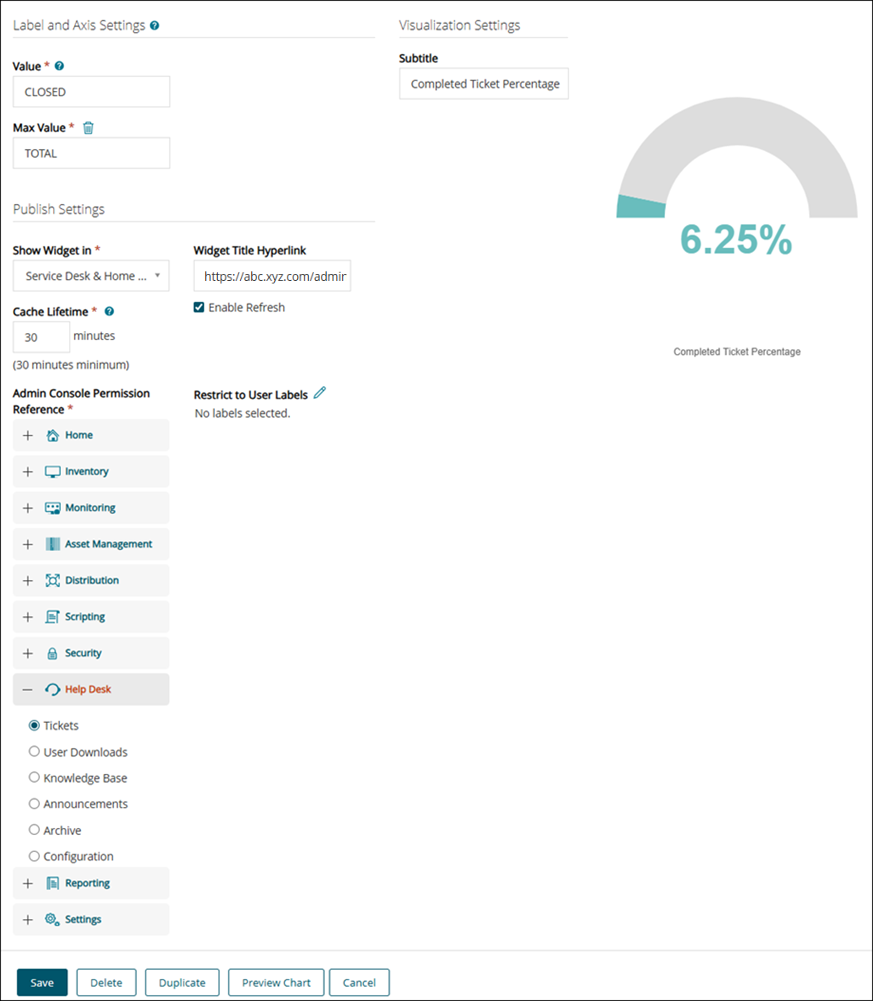
The example below demonstrates how to configure a dashboard report using a progress chart. This chart displays the percentage of completed work by showing the number of closed tickets relative to the total number of tickets.

Progress Chart 2

Gauge Chart

This chart visualizes data on a scale with thresholds (for example, critical to optimal). This is suitable for tracking health indicators or system readiness percentages.

Once you add the details for creating report with SQL (for more information, refer Create dashboard report using SQL queries), you should select Would you like to use this report for Dashboard. Configure the fields for the Gauge chart for the following sections:

Fields

Description

Would you like to use this report for Dashboard?

Select the option if you want to display the report on the dashboard.

Once you select this option, the following fields are displayed.

Please select the chart type you want to use

You should select Gauge from the drop-down.

Section

Fields

Description

Label and Axis Settings

This section allows you to define which report columns are used for chart elements such as axes, legends, and data point values across various chart types. Configure these settings to control how your data is organized and displayed.

Value

It represents the current metric or data point being measured on the gauge. This is the actual value displayed by the gauge needle. It reflects progress, usage, or performance (for example, CPU utilization, sales achieved, or tickets resolved).

Max Value

It defines the upper limit or full scale of the gauge. This sets the maximum range against which the current value is evaluated

Section

Fields

Description

Visualization Settings

The settings define how the chart is visually presented. These settings help make the chart easier to read and interpret.

Subtitle

Add the text that appears below the chart.

Use Monochromatic Effect

Select this to apply a single base color across the gauge, using varying shades to represent intensity.

Color Sorting

It determines how the shades are applied when using the monochromatic effect - Darkest to Lightest or Lightest to Darkest.

Show Gauge Numbers

Select this to display the numerical value and range directly on the gauge for quick reference.

4.

Section

Fields

Description

Publish Settings

Defines where and how the widget is displayed on dashboards.

Show Widget in

Select the dashboard category where you wish to make the widget available. All the widgets are available on the Home dashboard

Widget Title Hyperlink

Add a clickable link to the widget title. When users click the title, it opens the specified URL in a new tab.

Cache Lifetime

Set the duration the data will be cached for. The minimum duration is 30 minutes

Restrict to User Labels

Select the Labels to show the widget only to the users assigned to the selected label.

Enable Refresh

It allows the widget to automatically update its data at regular intervals or when manually refreshed. When enabled, a refresh icon appears on the widget, letting you to reload the latest data.

Admin Console Permission Reference

This field is available only to a non-wizard type of report. It specifies the permission category required to view the widget. This field ensures that only users with the appropriate access rights (defined in their role permissions) can view or interact with the widget on the dashboard.

NOTE: This field enforces permission control. If a user does not have access to the selected permission category (for example, Tickets, Devices), the widget will not appear in the Add Widget list. If the widget was previously added to a dashboard and the user's permission is later revoked, the widget will display an error message indicating that the user does not have permission to view it.

Preview Chart

Click it to view how the chart will appear using the selected configuration.

Finish

Click it after you finish the configuration.

The example below demonstrates how to configure a dashboard report using a gauge chart. This chart highlights the amount of incomplete work by showing the number of open tickets relative to the total number of tickets.

Guage Chart1

Guage Chart

Combo Chart

The Combo Chart is a versatile visualization type that allows you to display multiple data series using a mix of bar and line formats within a single chart. This chart type is especially useful when you want to compare different metrics side by side—such as volume versus trend—while maintaining clarity and context.

Each data series in a Combo chart can be individually configured to appear as either a bar or a line. You can also define multiple Y-axes, apply stacking for bar segments, and customize line behavior using fill and tension settings. These features make the Combo Chart ideal for presenting layered insights in a compact and interactive format.

Once you add the details for creating report with SQL (for more information, refer Create dashboard report using SQL queries), you should select Would you like to use this report for Dashboard. Configure the following fields for the Combo chart:

Fields

Description

Would you like to use this report for Dashboard?

Select the option if you want to display the report on the dashboard.

Once you select this option, the following fields are displayed.

Please select the chart type you want to use

You should select Combo from the drop-down.

Section

Fields

Description

Label and Axis Settings

This section allows you to define which report columns are used for chart elements such as axes, legends, and data point values across various chart types. Configure these settings to control how your data is organized and displayed.

X-Axis

This field specifies the categories or groups that represents the labels for the chart's X-Axis.

Select the entity from the drop-down list.

Clustered By

This field specifies the grouping or clustering criteria for the chart's data points. Set this to the field that defines how the data should be grouped or categorized for visualization.

Y-Axis 1

This field is used to specify the data that will be represented as data points in the chart. Each data point corresponds to a specific value or measurement that will be plotted on the chart.

Label

It defines the text shown on the chart to describe data point and helps to quickly understand what the value represents.

This field populates when the Cluster By field is set to None.

Type

Select the type of bar you want to display on the chart - Line or a Bar.

Y-Axis 2

This is the second field. Each data point corresponds to a specific value or measurement that will be plotted on the chart.

Label

It defines the text shown on the chart to describe data point and helps to quickly understand what the value represents.

This field populates when the Cluster By field is set to None.

Type

Select the type of bar you want to display on the chart - Line or a Bar.

Y-Axis 3

This field is used to specify the data that will be represented as data points in the chart. Each data point corresponds to a specific value or measurement that will be plotted on the chart.

Label

It defines the text shown on the chart to describe data point and helps to quickly understand what the value represents.

This field populates when the Cluster By field is set to None.

Type

Select the type of bar you want to display on the chart - Line or a Bar.

+ Add More Chart Data Point

Click to add more data points to the chart.

This field populates when the Cluster By field is set to None.

Section

Fields

Description

Visualization Settings

The settings define how the chart is visually presented. These settings help make the chart easier to read and interpret.

Legend Position

Select the position from the drop-down. It specifies where the chart legend is displayed, such as top, bottom, left, or right of the chart. Select None to hide the legend.

X-Axis Title

Enter the title to display on X-Axis.

Y-Axis Title

Enter the title to display on Y-Axis.

Stacked

Select this to displays multiple data series on top of each other in a single bar or column, showing the combined total for each category instead of separate segments.

Fill

Select to apply a color fill beneath the line (in line charts).

Line Tension

Select the option from the drop-down to define the curvature of the lines connecting data points in a radar chart.

Graph Orientation

Select an option from the drop-down to set the direction of the chart's base axis- horizontal or vertical. This changes how the chart layout is displayed.

4.

Section

Fields

Description

Publish Settings

Defines where and how the widget is displayed on dashboards.

Show Widget in

Select the dashboard category where you wish to make the widget available. All the widgets are available on the Home dashboard

Widget Title Hyperlink

Add a clickable link to the widget title. When users click the title, it opens the specified URL in a new tab.

Cache Lifetime

Set the duration the data will be cached for. The minimum duration is 30 minutes

Restrict to User Labels

Select the Labels to show the widget only to the users assigned to the selected label.

Enable Refresh

It allows the widget to automatically update its data at regular intervals or when manually refreshed. When enabled, a refresh icon appears on the widget, letting you to reload the latest data.

Admin Console Permission Reference

This field is available only to a non-wizard type of report. It specifies the permission category required to view the widget. This field ensures that only users with the appropriate access rights (defined in their role permissions) can view or interact with the widget on the dashboard.

NOTE: This field enforces permission control. If a user does not have access to the selected permission category (for example, Tickets, Devices), the widget will not appear in the Add Widget list. If the widget was previously added to a dashboard and the user's permission is later revoked, the widget will display an error message indicating that the user does not have permission to view it.

Preview Chart

Click it to view how the chart will appear using the selected configuration.

Finish

Click it after you finish the configuration.

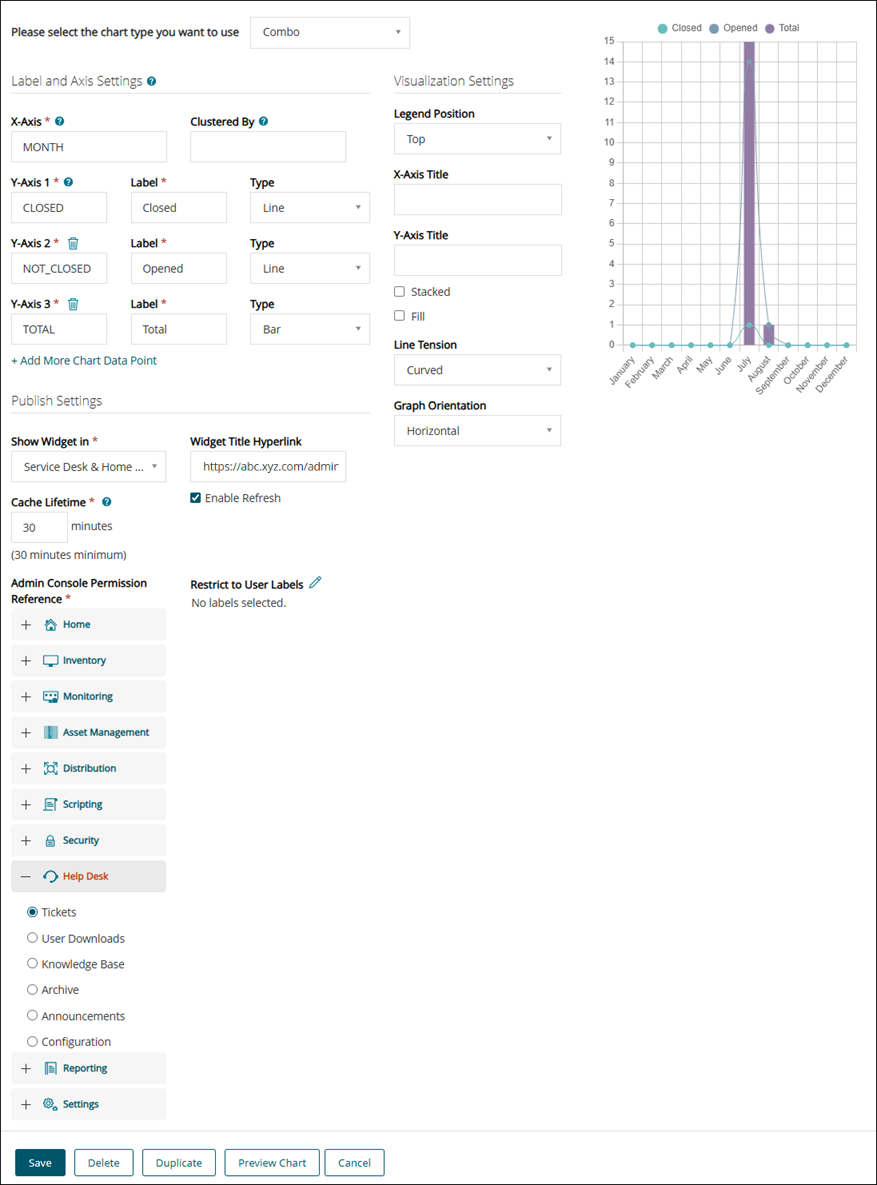
The example below demonstrates how to configure a dashboard report using a combo chart. This chart compares ticket counts by status across each month of the current year. Closed and Open ticket counts are represented by lines, while the Total Ticket Count is represented by bars.

Combe Chart

Combo 2

Doughnut Chart

The Doughnut chart is a circular statistical graphic that is similar to Pie chart but with a hollow center. It is useful for comparing categorical data like operating systems or patch statuses and so on.

You should select Doughnut from the Please select the chart type you want to use drop-down. Configure the fields for the Doughnut chart in the following sections:

Section

Fields

Description

Label and Axis Settings

This section allows you to define which report columns are used for chart elements such as axes, legends, and data point values across various chart types. Configure these settings to control how your data is organized and displayed.

Legend

Select a category or group from the drop-down list to represent each slice of the Doughnut chart.

Value

It specifies the data that determines the size of each slice in the pie chart. Each value represents a measurable quantity that is visually proportioned to reflect its share of the total.

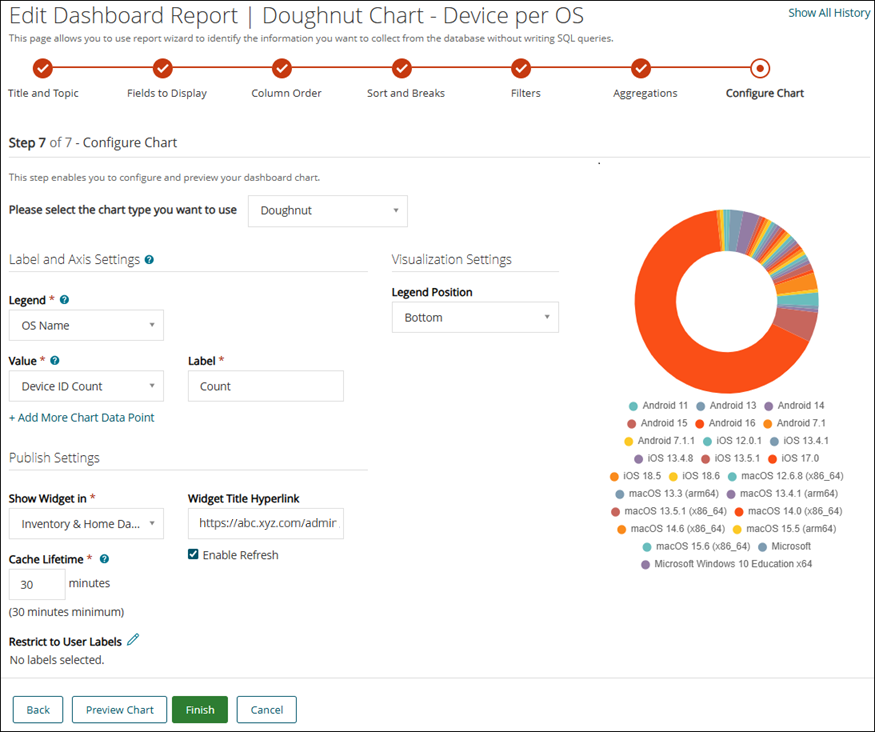
For example, refer the image for Doughnut Chart - it is a Doughnut chart for Device per OS.

Legend: OS Name

Value: Device ID Count

Label

Type the text shown on the chart to describe data point and helps to quickly understand what the value represents.

+ Add More Chart Data Point

Click to add more data points, such as Value and Label.

Section

Fields

Description

Visualization Settings

The settings define how the chart is visually presented. These settings help make the chart easier to read and interpret.

Legend Position

Specifies where the chart legend is displayed, such as top, bottom, left, or right of the chart. Select None to hide the legend.

3.

Section

Fields

Description

Publish Settings

Defines where and how the widget is displayed on dashboards.

Show Widget in

Select the dashboard category where you wish to make the widget available. All the widgets are available on the Home dashboard

Widget Title Hyperlink

Add a clickable link to the widget title. When users click the title, it opens the specified URL in a new tab.

Cache Lifetime

Set the duration the data will be cached for. The minimum duration is 30 minutes

Restrict to User Labels

Select the Labels to show the widget only to the users assigned to the selected label.

Enable Refresh

It allows the widget to automatically update its data at regular intervals or when manually refreshed. When enabled, a refresh icon appears on the widget, letting you to reload the latest data.

Admin Console Permission Reference

This field is available only to a non-wizard type of report. It specifies the permission category required to view the widget. This field ensures that only users with the appropriate access rights (defined in their role permissions) can view or interact with the widget on the dashboard.

NOTE: This field enforces permission control. If a user does not have access to the selected permission category (for example, Tickets, Devices), the widget will not appear in the Add Widget list. If the widget was previously added to a dashboard and the user's permission is later revoked, the widget will display an error message indicating that the user does not have permission to view it.

Preview Chart

Click it to view how the chart will appear using the selected configuration.

Finish

Click it after you finish the configuration.

The example below demonstrates how to configure a dashboard report using a doughnut chart. This chart illustrates the number of devices categorized by operating system.

Doughnut Chart.

Score Chart

The Score chart displays a single metric or Key Performance Indicator (KPI), such as counts of updated devices and so on. This chart offers a focused view on a single value.

You should select Score from the Please select the chart type you want to use drop-down. Configure the fields for the Score chart in the following sections:

Section

Fields

Description

Label and Axis Settings

This section allows you to define which report columns are used for chart elements such as axes, legends, and data point values across various chart types. Configure these settings to control how your data is organized and displayed.

Value

It represents the primary metric displayed on the score chart. This is the numeric value shown prominently to indicate a key performance indicator (KPI), such as total open tickets, total users, or any other measurable data point.

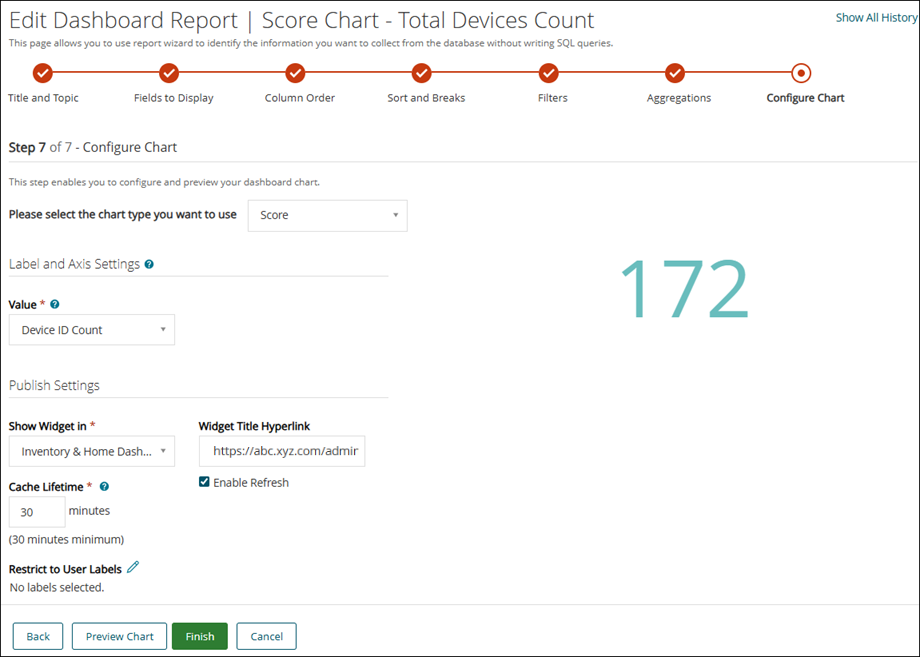
For example, refer the image for Score Chart - it is a Score chart for Total Device Count.

Value: Device ID Count

2.

Section

Fields

Description

Publish Settings

Defines where and how the widget is displayed on dashboards.

Show Widget in

Select the dashboard category where you wish to make the widget available. All the widgets are available on the Home dashboard

Widget Title Hyperlink

Add a clickable link to the widget title. When users click the title, it opens the specified URL in a new tab.

Cache Lifetime

Set the duration the data will be cached for. The minimum duration is 30 minutes

Restrict to User Labels

Select the Labels to show the widget only to the users assigned to the selected label.

Enable Refresh

It allows the widget to automatically update its data at regular intervals or when manually refreshed. When enabled, a refresh icon appears on the widget, letting you to reload the latest data.

Admin Console Permission Reference

This field is available only to a non-wizard type of report. It specifies the permission category required to view the widget. This field ensures that only users with the appropriate access rights (defined in their role permissions) can view or interact with the widget on the dashboard.

NOTE: This field enforces permission control. If a user does not have access to the selected permission category (for example, Tickets, Devices), the widget will not appear in the Add Widget list. If the widget was previously added to a dashboard and the user's permission is later revoked, the widget will display an error message indicating that the user does not have permission to view it.

Preview Chart

Click it to view how the chart will appear using the selected configuration.

Finish

Click it after you finish the configuration.

The example below shows how to configure a dashboard report using a Score chart. This chart illustrates the Score chart for Total devices Count.

Score Chart

Line Chart

A line chart shows trends over time using points connected by lines. It is typically used to visualize time-series data, such as patch deployment trends or ticket volume and so on, making it easy to track changes and patterns across different time periods.

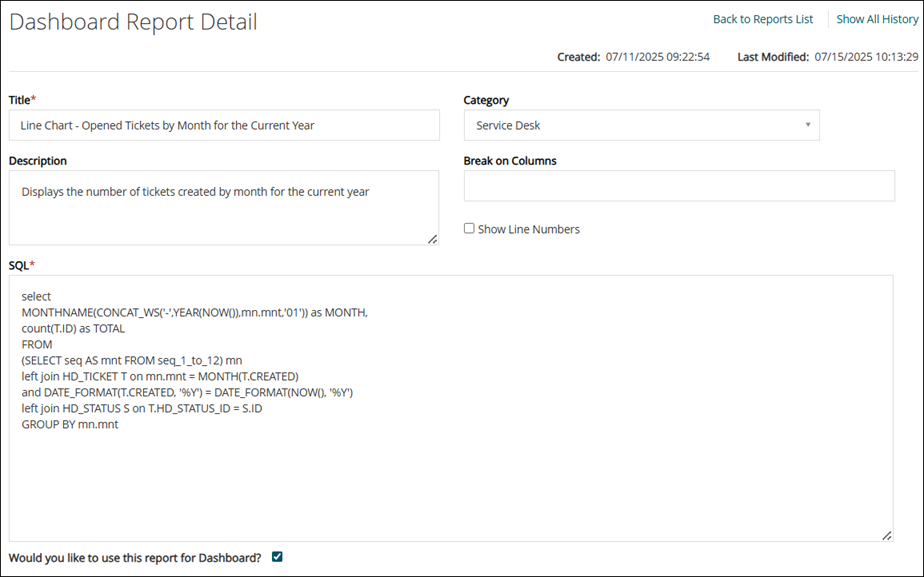
Once you add the details for creating report with SQL (for more information, refer Create dashboard report using SQL queries), you should select Would you like to use this report for Dashboard. Configure the fields for the Line chart in the following sections:

Fields

Description

Would you like to use this report for Dashboard?

Select the option if you want to display the report on the dashboard.

Once you select this option, the following fields are displayed.

Please select the chart type you want to use

You should select Line from the drop-down.

Section

Fields

Description

Label and Axis Settings

This section allows you to define which report columns are used for chart elements such as axes, legends, and data point values across various chart types. Configure these settings to control how your data is organized and displayed.

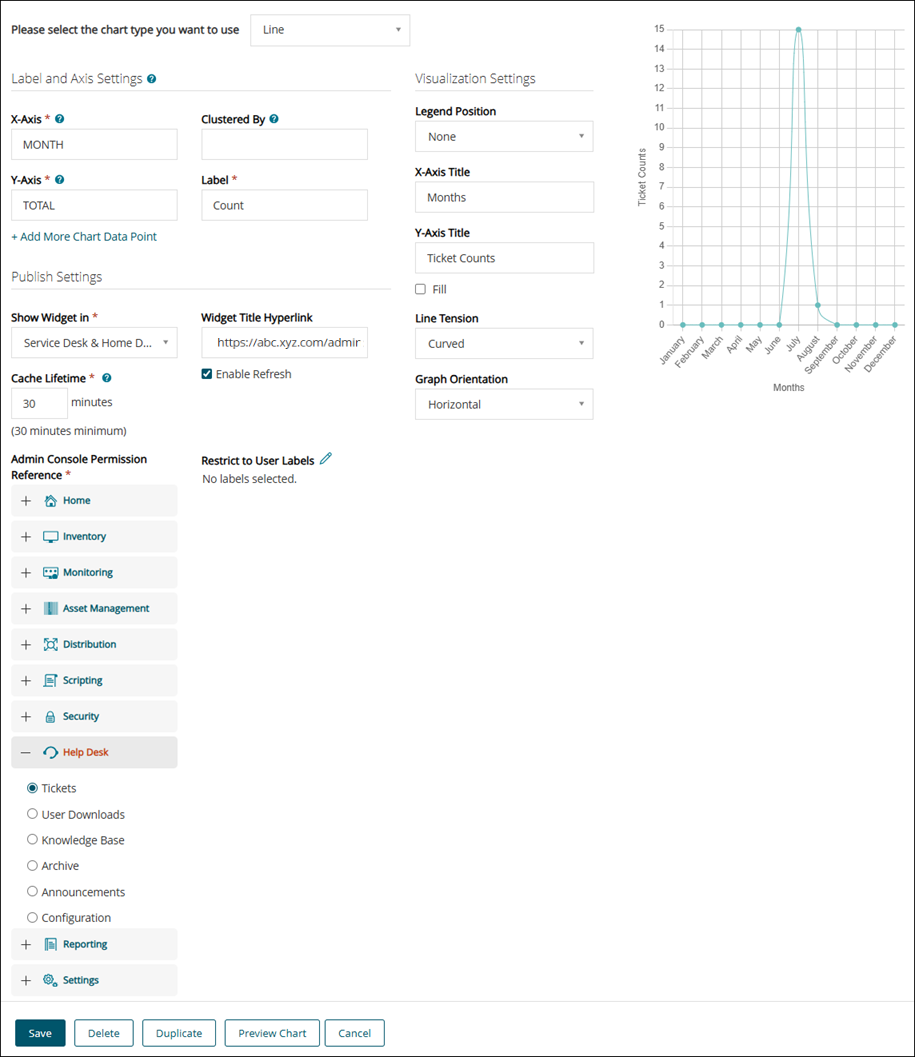
X-Axis

It specifies the categories or groups that represents the labels for the chart's X-Axis (or Y-Axis if chart's orientation is set to vertical).

Y-Axis

It specifies the data that will be represented as data points in the chart. Each data point corresponds to a specific value or measurement that will be plotted on the chart.

Clustered By

The field specifies the grouping or clustering criteria for the chart's data points. Set this to the field that defines how the data should be grouped or categorized for visualization.

Label

It defines the text shown on the chart to describe data point and helps to quickly understand what the value represents.

+ Add More Chart Data Point

Click to add more data points on Y-Axis and add a Label to it.

Section

Fields

Description

Visualization Settings

This section allows you to define which report columns are used for chart elements such as axes, legends, and data point values across various chart types. Configure these settings to control how your data is organized and displayed.

Legend Position

Select the position from the drop-down. It specifies where the chart legend is displayed, such as top, bottom, left, or right of the chart. Select None to hide the legend.

X-Axis Title

Enter the title to display on X-Axis.

Y-Axis Title

Enter the title to display on Y-Axis.

Stacked

Select this to displays multiple data series on top of each other in a single bar or column, showing the combined total for each category instead of separate segments.

Fill

Select to apply a color fill beneath the line (in line charts).

Line Tension

Select the option from the drop-down to define the curvature of the lines connecting data points in a radar chart.

Graph Orientation

Select an option from the drop-down to set the direction of the chart's base axis- horizontal or vertical. This changes how the chart layout is displayed.

4.

Section

Fields

Description

Publish Settings

Defines where and how the widget is displayed on dashboards.

Show Widget in

Select the dashboard category where you wish to make the widget available. All the widgets are available on the Home dashboard

Widget Title Hyperlink

Add a clickable link to the widget title. When users click the title, it opens the specified URL in a new tab.

Cache Lifetime

Set the duration the data will be cached for. The minimum duration is 30 minutes

Restrict to User Labels

Select the Labels to show the widget only to the users assigned to the selected label.

Enable Refresh

It allows the widget to automatically update its data at regular intervals or when manually refreshed. When enabled, a refresh icon appears on the widget, letting you to reload the latest data.

Admin Console Permission Reference

This field is available only to a non-wizard type of report. It specifies the permission category required to view the widget. This field ensures that only users with the appropriate access rights (defined in their role permissions) can view or interact with the widget on the dashboard.

NOTE: This field enforces permission control. If a user does not have access to the selected permission category (for example, Tickets, Devices), the widget will not appear in the Add Widget list. If the widget was previously added to a dashboard and the user's permission is later revoked, the widget will display an error message indicating that the user does not have permission to view it.

Preview Chart

Click it to view how the chart will appear using the selected configuration.

Finish

Click it after you finish the configuration.

The example below demonstrates how to configure a dashboard report using a line chart. This chart compares the number of tickets created each month throughout the current year.

Line Chart1

Line Chart2

Chart Types in Widgets

Each widget can be customized to display various types of charts, based on the data and the preferred visual representation.

In many cases, after creating a widget, you may want to change the chart type based on the visualization needs or user preference. While editing a widget, some chart types can be converted to others, making it easy to change it without creating from scratch.

The table below lists each supported chart type, its description, and the other chart types it can be converted into when editing.

Chart Type

Convertible to other Chart Types

Pie

Doughnut, Line, Bar, Polar Area, Radar, Table

Doughnut

Pie, Line, Bar, Polar Area, Radar, Table

Line

Pie, Doughnut, Bar, Polar Area, Radar, Table

Bar

Pie, Doughnut, Line, Polar Area, Radar, Table

Combo

Pie, Doughnut, Line, Bar, Polar Area, Radar, Table

Polar Area

Pie, Doughnut, Line, Bar, Radar, Table

Radar

Pie, Doughnut, Line, Bar, Polar Area, Table

World Geography

Pie, Doughnut, Line, Bar, Polar Area

US Geography

Pie, Doughnut, Line, Bar, Polar Area

Score

Score

Progress

Gauge

Table

Pie, Doughnut, Line, Bar, Polar Area, Radar

Gauge

Progress

Chart Usage Guidelines

Here are some guidelines when using the following chart types:

Use Line or Bar charts to analyze time-based trends such as patch deployments or script execution history.
Pie and Doughnut charts are ideal for showing categorical distribution, such as OS breakdown or ticket categories.
Table view is best when precise data and filtering are needed, such as listing vulnerable devices or script results.
Score, Gauge, and Progress charts are used to highlight a single metric or indicate how close the system is to a defined goal.
Radar and Polar Area charts can compare metrics like compliance ratings across multiple policies or departments.
World and US Geography charts help visualize endpoint distribution geographically for global and regional tracking.
Dashboard Widgets with Multi-Instance Support

The widgets, once added to a dashboard, are removed from the Add Widget list to prevent duplication. However, some widgets can be added multiple times to a dashboard. If the widget is added to dashboard, you can still view it in the Add Widget list. You can add them again with different parameters (for example, grouping by different fields such as owner or priority).

The following is the list of widgets that can be added repeatedly:

Widgets

Description

Active Tickets

Shows the current active service desk tickets by owner, category, priority, queue, or range.

Overdue Tickets

Shows the overdue service desk tickets by owner, category, priority, queue, or range.

Overdue Tickets Today

Shows today's overdue service desk tickets by owner, category, priority, or queue.

Closed Tickets

Shows closed service desk tickets by owner, category, priority, queue, or range.

Tickets Due Today

Shows the service desk tickets due today by owner, category, priority, or queue.

Reopened Tickets

Shows reopened tickets by owner, category, priority, queue, or range.

Average Ticket Resolution Time

Shows average resolution time by owner, category, priority, queue, or month.

Compliance By Machine

Shows patch compliance by machine.

Patch Failed

Shows patches failed.

Compliance By Patch

Shows patch compliance by patch.

Patches Deployed

Shows patches deployed.

Patches Released

Shows patches released.

Chart Types in Widgets

Configuring Chart Types for a Report

Configuring the chart type is a key step in building a report widget. The KACE System Management Appliance offers a variety of chart types such as Bar, Line, Pie, Gauge and so on, each suited to different visualization needs. The application supports multiple chart types, and based on the selected chart type, the relevant fields in the Label and Axis Settings and Visualization Settings sections are dynamically populated. This topic helps you to understand how to configure chart types and customize their settings for optimal dashboard presentation.

The different chart types are as follows:

Chart Type

Description

Bar

Displays data as rectangular bars on an X-Y axis. Useful for comparing counts or values across categories such as department-wise device distribution.

Pie

Displays data as slices of a circle. Ideal for showing part-to-whole relationships, such as distribution of device types or ticket statuses.

Doughnut

Similar to Pie, but with a hollow center. Useful for comparing categorical data like operating systems or patch statuses.

Line

Shows trends over time using points connected by lines. Typically used for visualizing time-series data like patch deployment trends or ticket volume.

Combo

Combines Line and Bar charts in one. Helps compare multiple datasets, such as number of patches installed vs. number of failed installs.

Polar Area

Displays data in circular segments with varying radii. Effective for equal-category comparisons, such as application usage across endpoint groups.

Radar

Uses a radial grid to plot multiple metrics. Best suited for visualizing performance across several criteria, such as device compliance score metrics.

World Geography

Plots data across global regions. Useful for global endpoint location visualization or country-wise license usage.

US Geography

Similar to World Geography but focused on U.S. states. Useful for region-specific deployment or compliance tracking within the U.S.

Score

Displays a single metric or Key Performance Indicator (KPI), such as counts of updated devices. Offers a focused view on a single value.

Progress

Shows progress toward a target, such as number of encrypted devices vs. total devices. Typically used for goal tracking.

Table

Presents structured data in rows and columns. Ideal for viewing details like device inventory, patch statuses, or alert logs.

Gauge

Visualizes data on a scale with thresholds (for example, critical to optimal). Suitable for tracking health indicators or system readiness percentages.

Important Points:

Chart Type Details

The section below lists each supported chart type, the relevant fields and their description.

Bar Chart

This chart displays data as rectangular bars on an X and Y axis. It is useful for comparing counts or values across categories such as Tickets by Category. You should select Bar from the Please select the chart type you want to use drop-down.

Configure the fields for the Bar chart in the following sections:

Section

Fields

Description

Label and Axis Settings

This section allows you to define which report columns are used for chart elements such as axes, legends, and data point values across various chart types. Configure these settings to control how your data is organized and displayed.

X-Axis

This field specifies the categories or groups that represents the labels for the chart's X-Axis.

Select the entity from the drop-down list.

Y-Axis

This field is used to specify the data that will be represented as data points in the chart. Each data point corresponds to a specific value or measurement that will be plotted on the chart.

Select the entity from the drop-down list.

Clustered By

This field specifies the grouping or clustering criteria for the chart's data points. Set this to the field that defines how the data should be grouped or categorized for visualization.

For Example: Refer the image for Bar chart.

X-Axis: Ticket Category(Other, Hardware, Network, Software),

Y-Axis: Ticket Count,

Cluster By: Status

Label

It defines the text shown on the chart to describe data point and helps to quickly understand what the value represents.

This field populates when the Clustered By field is set to None.

+ Add More Chart Data Point

Click to add more data points to the chart.

This field populates when the Cluster By field is set to None.

Section

Fields

Description

Visualization Settings

The settings define how the chart is visually presented. These settings help make the chart easier to read and interpret.

Legend Position

Select the position from the drop-down. It specifies where the chart legend is displayed, such as top, bottom, left, or right of the chart. Select None to hide the legend.

X-Axis Title

Enter the title to display on X-Axis.

Y-Axis Title

Enter the title to display on Y-Axis.

Stacked

Select this to displays multiple data series on top of each other in a single bar or column, showing the combined total for each category instead of separate segments.

Graph Orientation

Select an option from the drop-down to set the direction of the chart's base axis- horizontal or vertical. This changes how the chart layout is displayed.

3.

Section

Fields

Description

Publish Settings

Defines where and how the widget is displayed on dashboards.

Show Widget in

Select the dashboard category where you wish to make the widget available. All the widgets are available on the Home dashboard

Widget Title Hyperlink

Add a clickable link to the widget title. When users click the title, it opens the specified URL in a new tab.

Cache Lifetime

Set the duration the data will be cached for. The minimum duration is 30 minutes

Restrict to User Labels

Select the Labels to show the widget only to the users assigned to the selected label.

Enable Refresh

It allows the widget to automatically update its data at regular intervals or when manually refreshed. When enabled, a refresh icon appears on the widget, letting you to reload the latest data.

Admin Console Permission Reference

This field is available only to a non-wizard type of report. It specifies the permission category required to view the widget. This field ensures that only users with the appropriate access rights (defined in their role permissions) can view or interact with the widget on the dashboard.

NOTE: This field enforces permission control. If a user does not have access to the selected permission category (for example, Tickets, Devices), the widget will not appear in the Add Widget list. If the widget was previously added to a dashboard and the user's permission is later revoked, the widget will display an error message indicating that the user does not have permission to view it.

Preview Chart

Click it to view how the chart will appear using the selected configuration.

Finish

Click it after you finish the configuration.

The example below shows how to configure a dashboard report using a bar chart. In this chart, ticket counts are displayed by category, with bars stacked by status to show the breakdown within each category.

Bar Chart

Pie Chart

Pie charts displays data as slices of a circle with each slice showing a proportion of the total. It is useful for showing part-to-whole relationships.

You should select Pie from the Please select the chart type you want to use drop-down. Configure the fields for the Pie chart in the following sections:

Section

Fields

Description

Label and Axis Settings

This section allows you to define which report columns are used for chart elements such as axes, legends, and data point values across various chart types. Configure these settings to control how your data is organized and displayed.

Legend

Select a category or group from the drop-down list to represent each slice of the pie chart.

Value

It specifies the data that determines the size of each slice in the pie chart. Each value represents a measurable quantity that is visually proportioned to reflect its share of the total.

For example, refer the image for Pie Chart - it is a Pie chart for Patches per Severity.

Legend: Severity (Critcal, Important, Low, Moderate, Recommended)

Value: Severity Count

Label

Type the text shown on the chart to describe data point and helps to quickly understand what the value represents.

+ Add More Chart Data Point

Click to add more data points on X-Axis.

This field populates when the Cluster By field is set to None.

Section

Fields

Description

Visualization Settings

The settings define how the chart is visually presented. These settings help make the chart easier to read and interpret.

Legend Position

Specifies where the chart legend is displayed, such as top, bottom, left, or right of the chart. Select None to hide the legend

3.

Section

Fields

Description

Publish Settings

Defines where and how the widget is displayed on dashboards.

Show Widget in

Select the dashboard category where you wish to make the widget available. All the widgets are available on the Home dashboard

Widget Title Hyperlink

Add a clickable link to the widget title. When users click the title, it opens the specified URL in a new tab.

Cache Lifetime

Set the duration the data will be cached for. The minimum duration is 30 minutes

Restrict to User Labels

Select the Labels to show the widget only to the users assigned to the selected label.

Enable Refresh

It allows the widget to automatically update its data at regular intervals or when manually refreshed. When enabled, a refresh icon appears on the widget, letting you to reload the latest data.

Admin Console Permission Reference

This field is available only to a non-wizard type of report. It specifies the permission category required to view the widget. This field ensures that only users with the appropriate access rights (defined in their role permissions) can view or interact with the widget on the dashboard.

NOTE: This field enforces permission control. If a user does not have access to the selected permission category (for example, Tickets, Devices), the widget will not appear in the Add Widget list. If the widget was previously added to a dashboard and the user's permission is later revoked, the widget will display an error message indicating that the user does not have permission to view it.

Preview Chart

Click it to view how the chart will appear using the selected configuration.

Finish

Click it after you finish the configuration.

The example below shows how to configure a dashboard report using a pie chart. This chart illustrates the number of patches categorized by severity level.

Pie Chart

Radar Chart

The chart uses a radial grid to plot multiple metrics. This chart is best suited for visualizing performance across several criteria, such as device compliance score metrics. The Radar chart works best if we are evaluating multiple data points (three or more) on a two-dimensional plane.

You should select Radar from the Please select the chart type you want to use drop-down. Configure the fields for the Radar chart in the following sections:

Section

Fields

Description

Label and Axis Settings

This section allows you to define which report columns are used for chart elements such as axes, legends, and data point values across various chart types. Configure these settings to control how your data is organized and displayed.

Axis

Select a category or group from the drop-down list to represent segment of the chart.

This field specifies the categories that will be displayed along the radial axes of the chart.

Value

It specifies the data that will be represented as data points in the chart. Each data point corresponds to a specific value or measurement that will be plotted on the chart.

Clustered By

This field specifies the grouping or clustering criteria for the chart's data points. Set this to the field that defines how the data should be grouped or categorized for visualization.

For Example: Refer the image for Radar chart.

Axis: Category, Value: Ticket ID Count, Cluster By: Status

If you select None from the drop-down list the Label field populates.

Label

Type the text shown on the chart to describe data point and helps to quickly understand what the value represents.

+ Add More Chart Data Point

Click to add more data points.

This field populates when the Cluster By field is set to None.

Section

Fields

Description

Visualization Settings

The settings define how the chart is visually presented. These settings help make the chart easier to read and interpret.

Legend Position

Select an option to specify where the chart legend should displayed, such as top, bottom, left, or right of the chart. Select None to hide the legend.

Fill

Select the field to fill the area under the line or within the radar shape with color.

Line Tension

Select the option from the drop-down to define the curvature of the lines connecting data points in a radar chart.

3.

Section

Fields

Description

Publish Settings

Defines where and how the widget is displayed on dashboards.

Show Widget in

Select the dashboard category where you wish to make the widget available. All the widgets are available on the Home dashboard

Widget Title Hyperlink

Add a clickable link to the widget title. When users click the title, it opens the specified URL in a new tab.

Cache Lifetime

Set the duration the data will be cached for. The minimum duration is 30 minutes

Restrict to User Labels

Select the Labels to show the widget only to the users assigned to the selected label.

Enable Refresh

It allows the widget to automatically update its data at regular intervals or when manually refreshed. When enabled, a refresh icon appears on the widget, letting you to reload the latest data.

Admin Console Permission Reference

This field is available only to a non-wizard type of report. It specifies the permission category required to view the widget. This field ensures that only users with the appropriate access rights (defined in their role permissions) can view or interact with the widget on the dashboard.

NOTE: This field enforces permission control. If a user does not have access to the selected permission category (for example, Tickets, Devices), the widget will not appear in the Add Widget list. If the widget was previously added to a dashboard and the user's permission is later revoked, the widget will display an error message indicating that the user does not have permission to view it.

Preview Chart

Click it to view how the chart will appear using the selected configuration.

Finish

Click it after you finish the configuration.

The example below shows how to configure a dashboard report using a Radar chart. This chart illustrates the Ticket Count by Category.

Radar Chart

Polar Area Chart

This chart displays data in circular segments with varying radii. This chart is effective for equal-category comparisons, such as application usage across endpoint groups.

You should select Polar Area from the Please select the chart type you want to use drop-down. Configure the fields for the Polar Area chart in the following sections:

Section

Fields

Description

Label and Axis Settings

This section allows you to define which report columns are used for chart elements such as axes, legends, and data point values across various chart types. Configure these settings to control how your data is organized and displayed.

Legend

Select a category or group from the drop-down list to represent segment of the chart.

Value

It specifies the data that will be represented as data points in the chart. Each data point corresponds to a specific value or measurement that will be plotted on the chart.

Clustered By

This field specifies the grouping or clustering criteria for the chart's data points. Set this to the field that defines how the data should be grouped or categorized for visualization.

If you select None from the drop-down list the Label field populates.

Label

Type the text shown on the chart to describe data point and helps to quickly understand what the value represents.

+ Add More Chart Data Point

Click to add more data points.

This field populates when the Cluster By field is set to None.

Section

Fields

Description

Visualization Settings

The settings define how the chart is visually presented. These settings help make the chart easier to read and interpret.

Legend Position

Select an option to specify where the chart legend should displayed, such as top, bottom, left, or right of the chart. Select None to hide the legend.

3.

Section

Fields

Description

Publish Settings

Defines where and how the widget is displayed on dashboards.

Show Widget in

Select the dashboard category where you wish to make the widget available. All the widgets are available on the Home dashboard

Widget Title Hyperlink

Add a clickable link to the widget title. When users click the title, it opens the specified URL in a new tab.

Cache Lifetime

Set the duration the data will be cached for. The minimum duration is 30 minutes

Restrict to User Labels

Select the Labels to show the widget only to the users assigned to the selected label.

Enable Refresh

It allows the widget to automatically update its data at regular intervals or when manually refreshed. When enabled, a refresh icon appears on the widget, letting you to reload the latest data.

Admin Console Permission Reference

This field is available only to a non-wizard type of report. It specifies the permission category required to view the widget. This field ensures that only users with the appropriate access rights (defined in their role permissions) can view or interact with the widget on the dashboard.

NOTE: This field enforces permission control. If a user does not have access to the selected permission category (for example, Tickets, Devices), the widget will not appear in the Add Widget list. If the widget was previously added to a dashboard and the user's permission is later revoked, the widget will display an error message indicating that the user does not have permission to view it.

Preview Chart

Click it to view how the chart will appear using the selected configuration.

Finish

Click it after you finish the configuration.

The example below shows how to configure a dashboard report using a Polar Area chart. This chart illustrates the Ticket Count by Category.

Polar Area chart type

World Geography Chart

This chart type plots data across global regions. This chart is useful for global endpoint location visualization or country-wise license usage.

You should select World Geography from the Please select the chart type you want to use drop-down. Configure the fields for the World Geography chart in the following sections:

Section

Fields

Description

Label and Axis Settings

This section allows you to define which report columns are used for chart elements such as axes, legends, and data point values across various chart types. Configure these settings to control how your data is organized and displayed.

Country

This field specifies the countries that will be represented on the chart. Set this to the field containing country names to map the data accurately.

Value

It specifies the data that will be represented as data points in the chart. Each data point corresponds to a specific value or measurement that will be plotted on the chart.

Section

Fields

Description

Visualization Settings

The settings define how the chart is visually presented. These settings help make the chart easier to read and interpret.

Legend Position

Select an option to specify where the chart legend should displayed, such as top, bottom, left, or right of the chart.

3.

Section

Fields

Description

Publish Settings

Defines where and how the widget is displayed on dashboards.

Show Widget in

Select the dashboard category where you wish to make the widget available. All the widgets are available on the Home dashboard

Widget Title Hyperlink

Add a clickable link to the widget title. When users click the title, it opens the specified URL in a new tab.

Cache Lifetime

Set the duration the data will be cached for. The minimum duration is 30 minutes

Restrict to User Labels

Select the Labels to show the widget only to the users assigned to the selected label.

Enable Refresh

It allows the widget to automatically update its data at regular intervals or when manually refreshed. When enabled, a refresh icon appears on the widget, letting you to reload the latest data.

Admin Console Permission Reference

This field is available only to a non-wizard type of report. It specifies the permission category required to view the widget. This field ensures that only users with the appropriate access rights (defined in their role permissions) can view or interact with the widget on the dashboard.

NOTE: This field enforces permission control. If a user does not have access to the selected permission category (for example, Tickets, Devices), the widget will not appear in the Add Widget list. If the widget was previously added to a dashboard and the user's permission is later revoked, the widget will display an error message indicating that the user does not have permission to view it.

Preview Chart

Click it to view how the chart will appear using the selected configuration.

Finish

Click it after you finish the configuration.

The following is an image for World Geography chart for Users by Country.

World Geo Map

US Geography Chart

Similar to World Geography but focused on U.S. states. Useful for region-specific deployment or compliance tracking within the U.S.

You should select US Geography from the Please select the chart type you want to use drop-down. Configure the fields for the US Geography chart in the following sections:

Section

Fields

Description

Label and Axis Settings

This section allows you to define which report columns are used for chart elements such as axes, legends, and data point values across various chart types. Configure these settings to control how your data is organized and displayed.

State

This field specifies the US states that will be represented on the chart. Set this to the field containing US state names to map the data accurately.

Value

It specifies the data that will be represented as data points in the chart. Each data point corresponds to a specific value or measurement that will be plotted on the chart.

Section

Fields

Description

Visualization Settings

The settings define how the chart is visually presented. These settings help make the chart easier to read and interpret.

Legend Position

Select the option to specify where the chart legend should be displayed, such as bottom right, top right, bottom left, or top left of the chart.

3.

Section

Fields

Description

Publish Settings

Defines where and how the widget is displayed on dashboards.

Show Widget in

Select the dashboard category where you wish to make the widget available. All the widgets are available on the Home dashboard

Widget Title Hyperlink

Add a clickable link to the widget title. When users click the title, it opens the specified URL in a new tab.

Cache Lifetime

Set the duration the data will be cached for. The minimum duration is 30 minutes

Restrict to User Labels

Select the Labels to show the widget only to the users assigned to the selected label.

Enable Refresh

It allows the widget to automatically update its data at regular intervals or when manually refreshed. When enabled, a refresh icon appears on the widget, letting you to reload the latest data.

Admin Console Permission Reference

This field is available only to a non-wizard type of report. It specifies the permission category required to view the widget. This field ensures that only users with the appropriate access rights (defined in their role permissions) can view or interact with the widget on the dashboard.

NOTE: This field enforces permission control. If a user does not have access to the selected permission category (for example, Tickets, Devices), the widget will not appear in the Add Widget list. If the widget was previously added to a dashboard and the user's permission is later revoked, the widget will display an error message indicating that the user does not have permission to view it.

Preview Chart

Click it to view how the chart will appear using the selected configuration.

Finish

Click it after you finish the configuration.

The following is an image for US Geography chart for US users per State.

US Geo Chart

Table Chart

This chart presents structured data in rows and columns. Ideal for viewing details like device inventory, patch statuses, or alert logs.

You should select Table from the Please select the chart type you want to use drop-down. Configure the fields for the Table chart in the following sections:

Section

Fields

Description

Label and Axis Settings

This section allows you to define which report columns are used for chart elements such as axes, legends, and data point values across various chart types. Configure these settings to control how your data is organized and displayed.

Table Header

This field specifies the column headers of the table.

Select the column name from the drop-down list.

Value

It specifies the data that will be represented as data points in the chart. Each data point corresponds to a specific value or measurement that will be plotted on the chart.

Clustered By

This field specifies the grouping or clustering criteria for the chart's data points. Set this to the field that defines how the data should be grouped or categorized for visualization.

If you select None from the drop-down list the Label field populates.

+ Add More Chart Data Point

Click to add more data points.

This field populates when the Cluster By field is set to None.

2.

Section

Fields

Description

Publish Settings

Defines where and how the widget is displayed on dashboards.

Show Widget in

Select the dashboard category where you wish to make the widget available. All the widgets are available on the Home dashboard

Widget Title Hyperlink

Add a clickable link to the widget title. When users click the title, it opens the specified URL in a new tab.

Cache Lifetime

Set the duration the data will be cached for. The minimum duration is 30 minutes

Restrict to User Labels

Select the Labels to show the widget only to the users assigned to the selected label.

Enable Refresh

It allows the widget to automatically update its data at regular intervals or when manually refreshed. When enabled, a refresh icon appears on the widget, letting you to reload the latest data.

Admin Console Permission Reference

This field is available only to a non-wizard type of report. It specifies the permission category required to view the widget. This field ensures that only users with the appropriate access rights (defined in their role permissions) can view or interact with the widget on the dashboard.

NOTE: This field enforces permission control. If a user does not have access to the selected permission category (for example, Tickets, Devices), the widget will not appear in the Add Widget list. If the widget was previously added to a dashboard and the user's permission is later revoked, the widget will display an error message indicating that the user does not have permission to view it.

Preview Chart

Click it to view how the chart will appear using the selected configuration.

Finish

Click it after you finish the configuration.

The example below shows how to configure a dashboard report using a table chart. In this chart, ticket counts are organized by category across the columns (header) and by status down the rows.

Table Chart

Progress Chart

This chart shows progress toward a target, such as number of encrypted devices vs total devices. This is typically used for goal tracking.

Below is a sample for creating a dashboard report using SQL queries.

Once you add the details for creating report with SQL (for more information, refer Create dashboard report using SQL queries), you should select Would you like to use this report for Dashboard. Configure the fields for the Progress chart in the following sections:

Fields

Description

Would you like to use this report for Dashboard?

Select the option if you want to display the report on the dashboard.

Once you select this option, the following fields are displayed.

Please select the chart type you want to use

You should select Progress from the drop-down.

Section

Fields

Description

Label and Axis Settings

This section allows you to define which report columns are used for chart elements such as axes, legends, and data point values across various chart types. Configure these settings to control how your data is organized and displayed.

Value

It defines the current progress or achieved amount to be visualized on the chart.

This is the actual value being measured (for example, number of resolved tickets, completed tasks, or percentage of target met). It determines how much of the progress bar is filled.

Max Value

It specifies the target or maximum possible value for the progress indicator. This value sets the full scale of the progress chart. The percentage of progress is calculated as: (Value ÷ Max Value) × 100

Section

Fields

Description

Visualization Settings

The settings define how the chart is visually presented. These settings help make the chart easier to read and interpret.

Subtitle

Add the text that appears below the chart.

4.

Section

Fields

Description

Publish Settings

Defines where and how the widget is displayed on dashboards.

Show Widget in

Select the dashboard category where you wish to make the widget available. All the widgets are available on the Home dashboard

Widget Title Hyperlink

Add a clickable link to the widget title. When users click the title, it opens the specified URL in a new tab.

Cache Lifetime

Set the duration the data will be cached for. The minimum duration is 30 minutes

Restrict to User Labels

Select the Labels to show the widget only to the users assigned to the selected label.

Enable Refresh

It allows the widget to automatically update its data at regular intervals or when manually refreshed. When enabled, a refresh icon appears on the widget, letting you to reload the latest data.

Admin Console Permission Reference

This field is available only to a non-wizard type of report. It specifies the permission category required to view the widget. This field ensures that only users with the appropriate access rights (defined in their role permissions) can view or interact with the widget on the dashboard.

NOTE: This field enforces permission control. If a user does not have access to the selected permission category (for example, Tickets, Devices), the widget will not appear in the Add Widget list. If the widget was previously added to a dashboard and the user's permission is later revoked, the widget will display an error message indicating that the user does not have permission to view it.

Preview Chart

Click it to view how the chart will appear using the selected configuration.

Finish

Click it after you finish the configuration.

The example below demonstrates how to configure a dashboard report using a progress chart. This chart displays the percentage of completed work by showing the number of closed tickets relative to the total number of tickets.

Progress Chart 2

Gauge Chart

This chart visualizes data on a scale with thresholds (for example, critical to optimal). This is suitable for tracking health indicators or system readiness percentages.

Once you add the details for creating report with SQL (for more information, refer Create dashboard report using SQL queries), you should select Would you like to use this report for Dashboard. Configure the fields for the Gauge chart for the following sections:

Fields

Description

Would you like to use this report for Dashboard?

Select the option if you want to display the report on the dashboard.

Once you select this option, the following fields are displayed.

Please select the chart type you want to use

You should select Gauge from the drop-down.

Section

Fields

Description

Label and Axis Settings

This section allows you to define which report columns are used for chart elements such as axes, legends, and data point values across various chart types. Configure these settings to control how your data is organized and displayed.

Value

It represents the current metric or data point being measured on the gauge. This is the actual value displayed by the gauge needle. It reflects progress, usage, or performance (for example, CPU utilization, sales achieved, or tickets resolved).

Max Value

It defines the upper limit or full scale of the gauge. This sets the maximum range against which the current value is evaluated

Section

Fields

Description

Visualization Settings

The settings define how the chart is visually presented. These settings help make the chart easier to read and interpret.

Subtitle

Add the text that appears below the chart.

Use Monochromatic Effect

Select this to apply a single base color across the gauge, using varying shades to represent intensity.

Color Sorting

It determines how the shades are applied when using the monochromatic effect - Darkest to Lightest or Lightest to Darkest.

Show Gauge Numbers

Select this to display the numerical value and range directly on the gauge for quick reference.

4.

Section

Fields

Description

Publish Settings

Defines where and how the widget is displayed on dashboards.

Show Widget in

Select the dashboard category where you wish to make the widget available. All the widgets are available on the Home dashboard

Widget Title Hyperlink

Add a clickable link to the widget title. When users click the title, it opens the specified URL in a new tab.

Cache Lifetime

Set the duration the data will be cached for. The minimum duration is 30 minutes

Restrict to User Labels

Select the Labels to show the widget only to the users assigned to the selected label.

Enable Refresh

It allows the widget to automatically update its data at regular intervals or when manually refreshed. When enabled, a refresh icon appears on the widget, letting you to reload the latest data.

Admin Console Permission Reference

This field is available only to a non-wizard type of report. It specifies the permission category required to view the widget. This field ensures that only users with the appropriate access rights (defined in their role permissions) can view or interact with the widget on the dashboard.

NOTE: This field enforces permission control. If a user does not have access to the selected permission category (for example, Tickets, Devices), the widget will not appear in the Add Widget list. If the widget was previously added to a dashboard and the user's permission is later revoked, the widget will display an error message indicating that the user does not have permission to view it.

Preview Chart

Click it to view how the chart will appear using the selected configuration.

Finish

Click it after you finish the configuration.

The example below demonstrates how to configure a dashboard report using a gauge chart. This chart highlights the amount of incomplete work by showing the number of open tickets relative to the total number of tickets.

Guage Chart1

Guage Chart

Combo Chart

The Combo Chart is a versatile visualization type that allows you to display multiple data series using a mix of bar and line formats within a single chart. This chart type is especially useful when you want to compare different metrics side by side—such as volume versus trend—while maintaining clarity and context.

Each data series in a Combo chart can be individually configured to appear as either a bar or a line. You can also define multiple Y-axes, apply stacking for bar segments, and customize line behavior using fill and tension settings. These features make the Combo Chart ideal for presenting layered insights in a compact and interactive format.

Once you add the details for creating report with SQL (for more information, refer Create dashboard report using SQL queries), you should select Would you like to use this report for Dashboard. Configure the following fields for the Combo chart:

Fields

Description

Would you like to use this report for Dashboard?

Select the option if you want to display the report on the dashboard.

Once you select this option, the following fields are displayed.

Please select the chart type you want to use

You should select Combo from the drop-down.

Section

Fields

Description

Label and Axis Settings

This section allows you to define which report columns are used for chart elements such as axes, legends, and data point values across various chart types. Configure these settings to control how your data is organized and displayed.

X-Axis

This field specifies the categories or groups that represents the labels for the chart's X-Axis.

Select the entity from the drop-down list.

Clustered By

This field specifies the grouping or clustering criteria for the chart's data points. Set this to the field that defines how the data should be grouped or categorized for visualization.

Y-Axis 1

This field is used to specify the data that will be represented as data points in the chart. Each data point corresponds to a specific value or measurement that will be plotted on the chart.

Label

It defines the text shown on the chart to describe data point and helps to quickly understand what the value represents.

This field populates when the Cluster By field is set to None.

Type

Select the type of bar you want to display on the chart - Line or a Bar.

Y-Axis 2

This is the second field. Each data point corresponds to a specific value or measurement that will be plotted on the chart.

Label

It defines the text shown on the chart to describe data point and helps to quickly understand what the value represents.

This field populates when the Cluster By field is set to None.

Type

Select the type of bar you want to display on the chart - Line or a Bar.

Y-Axis 3

This field is used to specify the data that will be represented as data points in the chart. Each data point corresponds to a specific value or measurement that will be plotted on the chart.

Label

It defines the text shown on the chart to describe data point and helps to quickly understand what the value represents.

This field populates when the Cluster By field is set to None.

Type

Select the type of bar you want to display on the chart - Line or a Bar.

+ Add More Chart Data Point

Click to add more data points to the chart.

This field populates when the Cluster By field is set to None.

Section

Fields

Description

Visualization Settings

The settings define how the chart is visually presented. These settings help make the chart easier to read and interpret.

Legend Position

Select the position from the drop-down. It specifies where the chart legend is displayed, such as top, bottom, left, or right of the chart. Select None to hide the legend.

X-Axis Title

Enter the title to display on X-Axis.

Y-Axis Title

Enter the title to display on Y-Axis.

Stacked

Select this to displays multiple data series on top of each other in a single bar or column, showing the combined total for each category instead of separate segments.

Fill

Select to apply a color fill beneath the line (in line charts).

Line Tension

Select the option from the drop-down to define the curvature of the lines connecting data points in a radar chart.

Graph Orientation

Select an option from the drop-down to set the direction of the chart's base axis- horizontal or vertical. This changes how the chart layout is displayed.

4.

Section

Fields

Description

Publish Settings

Defines where and how the widget is displayed on dashboards.

Show Widget in

Select the dashboard category where you wish to make the widget available. All the widgets are available on the Home dashboard

Widget Title Hyperlink

Add a clickable link to the widget title. When users click the title, it opens the specified URL in a new tab.

Cache Lifetime

Set the duration the data will be cached for. The minimum duration is 30 minutes

Restrict to User Labels

Select the Labels to show the widget only to the users assigned to the selected label.

Enable Refresh

It allows the widget to automatically update its data at regular intervals or when manually refreshed. When enabled, a refresh icon appears on the widget, letting you to reload the latest data.

Admin Console Permission Reference

This field is available only to a non-wizard type of report. It specifies the permission category required to view the widget. This field ensures that only users with the appropriate access rights (defined in their role permissions) can view or interact with the widget on the dashboard.

NOTE: This field enforces permission control. If a user does not have access to the selected permission category (for example, Tickets, Devices), the widget will not appear in the Add Widget list. If the widget was previously added to a dashboard and the user's permission is later revoked, the widget will display an error message indicating that the user does not have permission to view it.

Preview Chart

Click it to view how the chart will appear using the selected configuration.

Finish

Click it after you finish the configuration.

The example below demonstrates how to configure a dashboard report using a combo chart. This chart compares ticket counts by status across each month of the current year. Closed and Open ticket counts are represented by lines, while the Total Ticket Count is represented by bars.

Combe Chart

Combo 2

Doughnut Chart

The Doughnut chart is a circular statistical graphic that is similar to Pie chart but with a hollow center. It is useful for comparing categorical data like operating systems or patch statuses and so on.

You should select Doughnut from the Please select the chart type you want to use drop-down. Configure the fields for the Doughnut chart in the following sections:

Section

Fields

Description

Label and Axis Settings

This section allows you to define which report columns are used for chart elements such as axes, legends, and data point values across various chart types. Configure these settings to control how your data is organized and displayed.

Legend

Select a category or group from the drop-down list to represent each slice of the Doughnut chart.

Value

It specifies the data that determines the size of each slice in the pie chart. Each value represents a measurable quantity that is visually proportioned to reflect its share of the total.

For example, refer the image for Doughnut Chart - it is a Doughnut chart for Device per OS.

Legend: OS Name

Value: Device ID Count

Label

Type the text shown on the chart to describe data point and helps to quickly understand what the value represents.

+ Add More Chart Data Point

Click to add more data points, such as Value and Label.

Section

Fields

Description

Visualization Settings

The settings define how the chart is visually presented. These settings help make the chart easier to read and interpret.

Legend Position

Specifies where the chart legend is displayed, such as top, bottom, left, or right of the chart. Select None to hide the legend.

3.

Section

Fields

Description

Publish Settings

Defines where and how the widget is displayed on dashboards.

Show Widget in

Select the dashboard category where you wish to make the widget available. All the widgets are available on the Home dashboard

Widget Title Hyperlink

Add a clickable link to the widget title. When users click the title, it opens the specified URL in a new tab.

Cache Lifetime

Set the duration the data will be cached for. The minimum duration is 30 minutes

Restrict to User Labels

Select the Labels to show the widget only to the users assigned to the selected label.

Enable Refresh

It allows the widget to automatically update its data at regular intervals or when manually refreshed. When enabled, a refresh icon appears on the widget, letting you to reload the latest data.

Admin Console Permission Reference

This field is available only to a non-wizard type of report. It specifies the permission category required to view the widget. This field ensures that only users with the appropriate access rights (defined in their role permissions) can view or interact with the widget on the dashboard.

NOTE: This field enforces permission control. If a user does not have access to the selected permission category (for example, Tickets, Devices), the widget will not appear in the Add Widget list. If the widget was previously added to a dashboard and the user's permission is later revoked, the widget will display an error message indicating that the user does not have permission to view it.

Preview Chart

Click it to view how the chart will appear using the selected configuration.

Finish

Click it after you finish the configuration.

The example below demonstrates how to configure a dashboard report using a doughnut chart. This chart illustrates the number of devices categorized by operating system.

Doughnut Chart.

Score Chart

The Score chart displays a single metric or Key Performance Indicator (KPI), such as counts of updated devices and so on. This chart offers a focused view on a single value.

You should select Score from the Please select the chart type you want to use drop-down. Configure the fields for the Score chart in the following sections:

Section

Fields

Description

Label and Axis Settings

This section allows you to define which report columns are used for chart elements such as axes, legends, and data point values across various chart types. Configure these settings to control how your data is organized and displayed.

Value

It represents the primary metric displayed on the score chart. This is the numeric value shown prominently to indicate a key performance indicator (KPI), such as total open tickets, total users, or any other measurable data point.

For example, refer the image for Score Chart - it is a Score chart for Total Device Count.

Value: Device ID Count

2.

Section

Fields

Description

Publish Settings

Defines where and how the widget is displayed on dashboards.

Show Widget in

Select the dashboard category where you wish to make the widget available. All the widgets are available on the Home dashboard

Widget Title Hyperlink

Add a clickable link to the widget title. When users click the title, it opens the specified URL in a new tab.

Cache Lifetime

Set the duration the data will be cached for. The minimum duration is 30 minutes

Restrict to User Labels

Select the Labels to show the widget only to the users assigned to the selected label.

Enable Refresh

It allows the widget to automatically update its data at regular intervals or when manually refreshed. When enabled, a refresh icon appears on the widget, letting you to reload the latest data.

Admin Console Permission Reference

This field is available only to a non-wizard type of report. It specifies the permission category required to view the widget. This field ensures that only users with the appropriate access rights (defined in their role permissions) can view or interact with the widget on the dashboard.

NOTE: This field enforces permission control. If a user does not have access to the selected permission category (for example, Tickets, Devices), the widget will not appear in the Add Widget list. If the widget was previously added to a dashboard and the user's permission is later revoked, the widget will display an error message indicating that the user does not have permission to view it.

Preview Chart

Click it to view how the chart will appear using the selected configuration.

Finish

Click it after you finish the configuration.

The example below shows how to configure a dashboard report using a Score chart. This chart illustrates the Score chart for Total devices Count.

Score Chart

Line Chart

A line chart shows trends over time using points connected by lines. It is typically used to visualize time-series data, such as patch deployment trends or ticket volume and so on, making it easy to track changes and patterns across different time periods.

Once you add the details for creating report with SQL (for more information, refer Create dashboard report using SQL queries), you should select Would you like to use this report for Dashboard. Configure the fields for the Line chart in the following sections:

Fields

Description

Would you like to use this report for Dashboard?

Select the option if you want to display the report on the dashboard.

Once you select this option, the following fields are displayed.

Please select the chart type you want to use

You should select Line from the drop-down.

Section

Fields

Description

Label and Axis Settings

This section allows you to define which report columns are used for chart elements such as axes, legends, and data point values across various chart types. Configure these settings to control how your data is organized and displayed.

X-Axis

It specifies the categories or groups that represents the labels for the chart's X-Axis (or Y-Axis if chart's orientation is set to vertical).

Y-Axis

It specifies the data that will be represented as data points in the chart. Each data point corresponds to a specific value or measurement that will be plotted on the chart.

Clustered By

The field specifies the grouping or clustering criteria for the chart's data points. Set this to the field that defines how the data should be grouped or categorized for visualization.

Label

It defines the text shown on the chart to describe data point and helps to quickly understand what the value represents.

+ Add More Chart Data Point

Click to add more data points on Y-Axis and add a Label to it.

Section

Fields

Description

Visualization Settings

This section allows you to define which report columns are used for chart elements such as axes, legends, and data point values across various chart types. Configure these settings to control how your data is organized and displayed.

Legend Position

Select the position from the drop-down. It specifies where the chart legend is displayed, such as top, bottom, left, or right of the chart. Select None to hide the legend.

X-Axis Title

Enter the title to display on X-Axis.

Y-Axis Title

Enter the title to display on Y-Axis.

Stacked

Select this to displays multiple data series on top of each other in a single bar or column, showing the combined total for each category instead of separate segments.

Fill

Select to apply a color fill beneath the line (in line charts).

Line Tension

Select the option from the drop-down to define the curvature of the lines connecting data points in a radar chart.

Graph Orientation

Select an option from the drop-down to set the direction of the chart's base axis- horizontal or vertical. This changes how the chart layout is displayed.

4.

Section

Fields

Description

Publish Settings

Defines where and how the widget is displayed on dashboards.

Show Widget in

Select the dashboard category where you wish to make the widget available. All the widgets are available on the Home dashboard

Widget Title Hyperlink

Add a clickable link to the widget title. When users click the title, it opens the specified URL in a new tab.

Cache Lifetime

Set the duration the data will be cached for. The minimum duration is 30 minutes

Restrict to User Labels

Select the Labels to show the widget only to the users assigned to the selected label.

Enable Refresh

It allows the widget to automatically update its data at regular intervals or when manually refreshed. When enabled, a refresh icon appears on the widget, letting you to reload the latest data.

Admin Console Permission Reference

This field is available only to a non-wizard type of report. It specifies the permission category required to view the widget. This field ensures that only users with the appropriate access rights (defined in their role permissions) can view or interact with the widget on the dashboard.

NOTE: This field enforces permission control. If a user does not have access to the selected permission category (for example, Tickets, Devices), the widget will not appear in the Add Widget list. If the widget was previously added to a dashboard and the user's permission is later revoked, the widget will display an error message indicating that the user does not have permission to view it.

Preview Chart

Click it to view how the chart will appear using the selected configuration.

Finish

Click it after you finish the configuration.

The example below demonstrates how to configure a dashboard report using a line chart. This chart compares the number of tickets created each month throughout the current year.

Line Chart1

Line Chart2

Chart Types in Widgets

Each widget can be customized to display various types of charts, based on the data and the preferred visual representation.

In many cases, after creating a widget, you may want to change the chart type based on the visualization needs or user preference. While editing a widget, some chart types can be converted to others, making it easy to change it without creating from scratch.

The table below lists each supported chart type, its description, and the other chart types it can be converted into when editing.

Chart Type

Convertible to other Chart Types

Pie

Doughnut, Line, Bar, Polar Area, Radar, Table

Doughnut

Pie, Line, Bar, Polar Area, Radar, Table

Line

Pie, Doughnut, Bar, Polar Area, Radar, Table

Bar

Pie, Doughnut, Line, Polar Area, Radar, Table

Combo

Pie, Doughnut, Line, Bar, Polar Area, Radar, Table

Polar Area

Pie, Doughnut, Line, Bar, Radar, Table

Radar

Pie, Doughnut, Line, Bar, Polar Area, Table

World Geography

Pie, Doughnut, Line, Bar, Polar Area

US Geography

Pie, Doughnut, Line, Bar, Polar Area

Score

Score

Progress

Gauge

Table

Pie, Doughnut, Line, Bar, Polar Area, Radar

Gauge

Progress

Chart Usage Guidelines

Here are some guidelines when using the following chart types:

Use Line or Bar charts to analyze time-based trends such as patch deployments or script execution history.
Pie and Doughnut charts are ideal for showing categorical distribution, such as OS breakdown or ticket categories.
Table view is best when precise data and filtering are needed, such as listing vulnerable devices or script results.
Score, Gauge, and Progress charts are used to highlight a single metric or indicate how close the system is to a defined goal.
Radar and Polar Area charts can compare metrics like compliance ratings across multiple policies or departments.
World and US Geography charts help visualize endpoint distribution geographically for global and regional tracking.
Dashboard Widgets with Multi-Instance Support

The widgets, once added to a dashboard, are removed from the Add Widget list to prevent duplication. However, some widgets can be added multiple times to a dashboard. If the widget is added to dashboard, you can still view it in the Add Widget list. You can add them again with different parameters (for example, grouping by different fields such as owner or priority).

The following is the list of widgets that can be added repeatedly:

Widgets

Description

Active Tickets

Shows the current active service desk tickets by owner, category, priority, queue, or range.

Overdue Tickets

Shows the overdue service desk tickets by owner, category, priority, queue, or range.

Overdue Tickets Today

Shows today's overdue service desk tickets by owner, category, priority, or queue.

Closed Tickets

Shows closed service desk tickets by owner, category, priority, queue, or range.

Tickets Due Today

Shows the service desk tickets due today by owner, category, priority, or queue.

Reopened Tickets

Shows reopened tickets by owner, category, priority, queue, or range.

Average Ticket Resolution Time

Shows average resolution time by owner, category, priority, queue, or month.

Compliance By Machine

Shows patch compliance by machine.

Patch Failed

Shows patches failed.

Compliance By Patch

Shows patch compliance by patch.

Patches Deployed

Shows patches deployed.

Patches Released

Shows patches released.

Dashboard Widgets with Multi-Instance Support

Configuring Chart Types for a Report

Configuring the chart type is a key step in building a report widget. The KACE System Management Appliance offers a variety of chart types such as Bar, Line, Pie, Gauge and so on, each suited to different visualization needs. The application supports multiple chart types, and based on the selected chart type, the relevant fields in the Label and Axis Settings and Visualization Settings sections are dynamically populated. This topic helps you to understand how to configure chart types and customize their settings for optimal dashboard presentation.

The different chart types are as follows:

Chart Type

Description

Bar

Displays data as rectangular bars on an X-Y axis. Useful for comparing counts or values across categories such as department-wise device distribution.

Pie

Displays data as slices of a circle. Ideal for showing part-to-whole relationships, such as distribution of device types or ticket statuses.

Doughnut

Similar to Pie, but with a hollow center. Useful for comparing categorical data like operating systems or patch statuses.

Line

Shows trends over time using points connected by lines. Typically used for visualizing time-series data like patch deployment trends or ticket volume.

Combo

Combines Line and Bar charts in one. Helps compare multiple datasets, such as number of patches installed vs. number of failed installs.

Polar Area

Displays data in circular segments with varying radii. Effective for equal-category comparisons, such as application usage across endpoint groups.

Radar

Uses a radial grid to plot multiple metrics. Best suited for visualizing performance across several criteria, such as device compliance score metrics.

World Geography

Plots data across global regions. Useful for global endpoint location visualization or country-wise license usage.

US Geography

Similar to World Geography but focused on U.S. states. Useful for region-specific deployment or compliance tracking within the U.S.

Score

Displays a single metric or Key Performance Indicator (KPI), such as counts of updated devices. Offers a focused view on a single value.

Progress

Shows progress toward a target, such as number of encrypted devices vs. total devices. Typically used for goal tracking.

Table

Presents structured data in rows and columns. Ideal for viewing details like device inventory, patch statuses, or alert logs.

Gauge

Visualizes data on a scale with thresholds (for example, critical to optimal). Suitable for tracking health indicators or system readiness percentages.

Important Points:

Chart Type Details

The section below lists each supported chart type, the relevant fields and their description.

Bar Chart

This chart displays data as rectangular bars on an X and Y axis. It is useful for comparing counts or values across categories such as Tickets by Category. You should select Bar from the Please select the chart type you want to use drop-down.

Configure the fields for the Bar chart in the following sections:

Section

Fields

Description

Label and Axis Settings

This section allows you to define which report columns are used for chart elements such as axes, legends, and data point values across various chart types. Configure these settings to control how your data is organized and displayed.

X-Axis

This field specifies the categories or groups that represents the labels for the chart's X-Axis.

Select the entity from the drop-down list.

Y-Axis

This field is used to specify the data that will be represented as data points in the chart. Each data point corresponds to a specific value or measurement that will be plotted on the chart.

Select the entity from the drop-down list.

Clustered By

This field specifies the grouping or clustering criteria for the chart's data points. Set this to the field that defines how the data should be grouped or categorized for visualization.

For Example: Refer the image for Bar chart.

X-Axis: Ticket Category(Other, Hardware, Network, Software),

Y-Axis: Ticket Count,

Cluster By: Status

Label

It defines the text shown on the chart to describe data point and helps to quickly understand what the value represents.

This field populates when the Clustered By field is set to None.

+ Add More Chart Data Point

Click to add more data points to the chart.

This field populates when the Cluster By field is set to None.

Section

Fields

Description

Visualization Settings

The settings define how the chart is visually presented. These settings help make the chart easier to read and interpret.

Legend Position

Select the position from the drop-down. It specifies where the chart legend is displayed, such as top, bottom, left, or right of the chart. Select None to hide the legend.

X-Axis Title

Enter the title to display on X-Axis.

Y-Axis Title

Enter the title to display on Y-Axis.

Stacked

Select this to displays multiple data series on top of each other in a single bar or column, showing the combined total for each category instead of separate segments.

Graph Orientation

Select an option from the drop-down to set the direction of the chart's base axis- horizontal or vertical. This changes how the chart layout is displayed.

3.

Section

Fields

Description

Publish Settings

Defines where and how the widget is displayed on dashboards.

Show Widget in

Select the dashboard category where you wish to make the widget available. All the widgets are available on the Home dashboard

Widget Title Hyperlink

Add a clickable link to the widget title. When users click the title, it opens the specified URL in a new tab.

Cache Lifetime

Set the duration the data will be cached for. The minimum duration is 30 minutes

Restrict to User Labels

Select the Labels to show the widget only to the users assigned to the selected label.

Enable Refresh

It allows the widget to automatically update its data at regular intervals or when manually refreshed. When enabled, a refresh icon appears on the widget, letting you to reload the latest data.

Admin Console Permission Reference

This field is available only to a non-wizard type of report. It specifies the permission category required to view the widget. This field ensures that only users with the appropriate access rights (defined in their role permissions) can view or interact with the widget on the dashboard.

NOTE: This field enforces permission control. If a user does not have access to the selected permission category (for example, Tickets, Devices), the widget will not appear in the Add Widget list. If the widget was previously added to a dashboard and the user's permission is later revoked, the widget will display an error message indicating that the user does not have permission to view it.

Preview Chart

Click it to view how the chart will appear using the selected configuration.

Finish

Click it after you finish the configuration.

The example below shows how to configure a dashboard report using a bar chart. In this chart, ticket counts are displayed by category, with bars stacked by status to show the breakdown within each category.

Bar Chart

Pie Chart

Pie charts displays data as slices of a circle with each slice showing a proportion of the total. It is useful for showing part-to-whole relationships.

You should select Pie from the Please select the chart type you want to use drop-down. Configure the fields for the Pie chart in the following sections:

Section

Fields

Description

Label and Axis Settings

This section allows you to define which report columns are used for chart elements such as axes, legends, and data point values across various chart types. Configure these settings to control how your data is organized and displayed.

Legend

Select a category or group from the drop-down list to represent each slice of the pie chart.

Value

It specifies the data that determines the size of each slice in the pie chart. Each value represents a measurable quantity that is visually proportioned to reflect its share of the total.

For example, refer the image for Pie Chart - it is a Pie chart for Patches per Severity.

Legend: Severity (Critcal, Important, Low, Moderate, Recommended)

Value: Severity Count

Label

Type the text shown on the chart to describe data point and helps to quickly understand what the value represents.

+ Add More Chart Data Point

Click to add more data points on X-Axis.

This field populates when the Cluster By field is set to None.

Section

Fields

Description

Visualization Settings

The settings define how the chart is visually presented. These settings help make the chart easier to read and interpret.

Legend Position

Specifies where the chart legend is displayed, such as top, bottom, left, or right of the chart. Select None to hide the legend

3.

Section

Fields

Description

Publish Settings

Defines where and how the widget is displayed on dashboards.

Show Widget in

Select the dashboard category where you wish to make the widget available. All the widgets are available on the Home dashboard

Widget Title Hyperlink

Add a clickable link to the widget title. When users click the title, it opens the specified URL in a new tab.

Cache Lifetime

Set the duration the data will be cached for. The minimum duration is 30 minutes

Restrict to User Labels

Select the Labels to show the widget only to the users assigned to the selected label.

Enable Refresh

It allows the widget to automatically update its data at regular intervals or when manually refreshed. When enabled, a refresh icon appears on the widget, letting you to reload the latest data.

Admin Console Permission Reference

This field is available only to a non-wizard type of report. It specifies the permission category required to view the widget. This field ensures that only users with the appropriate access rights (defined in their role permissions) can view or interact with the widget on the dashboard.

NOTE: This field enforces permission control. If a user does not have access to the selected permission category (for example, Tickets, Devices), the widget will not appear in the Add Widget list. If the widget was previously added to a dashboard and the user's permission is later revoked, the widget will display an error message indicating that the user does not have permission to view it.

Preview Chart

Click it to view how the chart will appear using the selected configuration.

Finish

Click it after you finish the configuration.

The example below shows how to configure a dashboard report using a pie chart. This chart illustrates the number of patches categorized by severity level.

Pie Chart

Radar Chart

The chart uses a radial grid to plot multiple metrics. This chart is best suited for visualizing performance across several criteria, such as device compliance score metrics. The Radar chart works best if we are evaluating multiple data points (three or more) on a two-dimensional plane.

You should select Radar from the Please select the chart type you want to use drop-down. Configure the fields for the Radar chart in the following sections:

Section

Fields

Description

Label and Axis Settings

This section allows you to define which report columns are used for chart elements such as axes, legends, and data point values across various chart types. Configure these settings to control how your data is organized and displayed.

Axis

Select a category or group from the drop-down list to represent segment of the chart.

This field specifies the categories that will be displayed along the radial axes of the chart.

Value

It specifies the data that will be represented as data points in the chart. Each data point corresponds to a specific value or measurement that will be plotted on the chart.

Clustered By

This field specifies the grouping or clustering criteria for the chart's data points. Set this to the field that defines how the data should be grouped or categorized for visualization.

For Example: Refer the image for Radar chart.

Axis: Category, Value: Ticket ID Count, Cluster By: Status

If you select None from the drop-down list the Label field populates.

Label

Type the text shown on the chart to describe data point and helps to quickly understand what the value represents.

+ Add More Chart Data Point

Click to add more data points.

This field populates when the Cluster By field is set to None.

Section

Fields

Description

Visualization Settings

The settings define how the chart is visually presented. These settings help make the chart easier to read and interpret.

Legend Position

Select an option to specify where the chart legend should displayed, such as top, bottom, left, or right of the chart. Select None to hide the legend.

Fill

Select the field to fill the area under the line or within the radar shape with color.

Line Tension

Select the option from the drop-down to define the curvature of the lines connecting data points in a radar chart.

3.

Section

Fields

Description

Publish Settings

Defines where and how the widget is displayed on dashboards.

Show Widget in

Select the dashboard category where you wish to make the widget available. All the widgets are available on the Home dashboard

Widget Title Hyperlink

Add a clickable link to the widget title. When users click the title, it opens the specified URL in a new tab.

Cache Lifetime

Set the duration the data will be cached for. The minimum duration is 30 minutes

Restrict to User Labels

Select the Labels to show the widget only to the users assigned to the selected label.

Enable Refresh

It allows the widget to automatically update its data at regular intervals or when manually refreshed. When enabled, a refresh icon appears on the widget, letting you to reload the latest data.

Admin Console Permission Reference

This field is available only to a non-wizard type of report. It specifies the permission category required to view the widget. This field ensures that only users with the appropriate access rights (defined in their role permissions) can view or interact with the widget on the dashboard.

NOTE: This field enforces permission control. If a user does not have access to the selected permission category (for example, Tickets, Devices), the widget will not appear in the Add Widget list. If the widget was previously added to a dashboard and the user's permission is later revoked, the widget will display an error message indicating that the user does not have permission to view it.

Preview Chart

Click it to view how the chart will appear using the selected configuration.

Finish

Click it after you finish the configuration.

The example below shows how to configure a dashboard report using a Radar chart. This chart illustrates the Ticket Count by Category.

Radar Chart

Polar Area Chart

This chart displays data in circular segments with varying radii. This chart is effective for equal-category comparisons, such as application usage across endpoint groups.

You should select Polar Area from the Please select the chart type you want to use drop-down. Configure the fields for the Polar Area chart in the following sections:

Section

Fields

Description

Label and Axis Settings

This section allows you to define which report columns are used for chart elements such as axes, legends, and data point values across various chart types. Configure these settings to control how your data is organized and displayed.

Legend

Select a category or group from the drop-down list to represent segment of the chart.

Value

It specifies the data that will be represented as data points in the chart. Each data point corresponds to a specific value or measurement that will be plotted on the chart.

Clustered By

This field specifies the grouping or clustering criteria for the chart's data points. Set this to the field that defines how the data should be grouped or categorized for visualization.

If you select None from the drop-down list the Label field populates.

Label

Type the text shown on the chart to describe data point and helps to quickly understand what the value represents.

+ Add More Chart Data Point

Click to add more data points.

This field populates when the Cluster By field is set to None.

Section

Fields

Description

Visualization Settings

The settings define how the chart is visually presented. These settings help make the chart easier to read and interpret.

Legend Position

Select an option to specify where the chart legend should displayed, such as top, bottom, left, or right of the chart. Select None to hide the legend.

3.

Section

Fields

Description

Publish Settings

Defines where and how the widget is displayed on dashboards.

Show Widget in

Select the dashboard category where you wish to make the widget available. All the widgets are available on the Home dashboard

Widget Title Hyperlink

Add a clickable link to the widget title. When users click the title, it opens the specified URL in a new tab.

Cache Lifetime

Set the duration the data will be cached for. The minimum duration is 30 minutes

Restrict to User Labels

Select the Labels to show the widget only to the users assigned to the selected label.

Enable Refresh

It allows the widget to automatically update its data at regular intervals or when manually refreshed. When enabled, a refresh icon appears on the widget, letting you to reload the latest data.

Admin Console Permission Reference

This field is available only to a non-wizard type of report. It specifies the permission category required to view the widget. This field ensures that only users with the appropriate access rights (defined in their role permissions) can view or interact with the widget on the dashboard.

NOTE: This field enforces permission control. If a user does not have access to the selected permission category (for example, Tickets, Devices), the widget will not appear in the Add Widget list. If the widget was previously added to a dashboard and the user's permission is later revoked, the widget will display an error message indicating that the user does not have permission to view it.

Preview Chart

Click it to view how the chart will appear using the selected configuration.

Finish

Click it after you finish the configuration.

The example below shows how to configure a dashboard report using a Polar Area chart. This chart illustrates the Ticket Count by Category.

Polar Area chart type

World Geography Chart

This chart type plots data across global regions. This chart is useful for global endpoint location visualization or country-wise license usage.

You should select World Geography from the Please select the chart type you want to use drop-down. Configure the fields for the World Geography chart in the following sections:

Section

Fields

Description

Label and Axis Settings

This section allows you to define which report columns are used for chart elements such as axes, legends, and data point values across various chart types. Configure these settings to control how your data is organized and displayed.

Country

This field specifies the countries that will be represented on the chart. Set this to the field containing country names to map the data accurately.

Value

It specifies the data that will be represented as data points in the chart. Each data point corresponds to a specific value or measurement that will be plotted on the chart.

Section

Fields

Description

Visualization Settings

The settings define how the chart is visually presented. These settings help make the chart easier to read and interpret.

Legend Position

Select an option to specify where the chart legend should displayed, such as top, bottom, left, or right of the chart.

3.

Section

Fields

Description

Publish Settings

Defines where and how the widget is displayed on dashboards.

Show Widget in

Select the dashboard category where you wish to make the widget available. All the widgets are available on the Home dashboard

Widget Title Hyperlink

Add a clickable link to the widget title. When users click the title, it opens the specified URL in a new tab.

Cache Lifetime

Set the duration the data will be cached for. The minimum duration is 30 minutes

Restrict to User Labels

Select the Labels to show the widget only to the users assigned to the selected label.

Enable Refresh

It allows the widget to automatically update its data at regular intervals or when manually refreshed. When enabled, a refresh icon appears on the widget, letting you to reload the latest data.

Admin Console Permission Reference

This field is available only to a non-wizard type of report. It specifies the permission category required to view the widget. This field ensures that only users with the appropriate access rights (defined in their role permissions) can view or interact with the widget on the dashboard.

NOTE: This field enforces permission control. If a user does not have access to the selected permission category (for example, Tickets, Devices), the widget will not appear in the Add Widget list. If the widget was previously added to a dashboard and the user's permission is later revoked, the widget will display an error message indicating that the user does not have permission to view it.

Preview Chart

Click it to view how the chart will appear using the selected configuration.

Finish

Click it after you finish the configuration.

The following is an image for World Geography chart for Users by Country.

World Geo Map

US Geography Chart

Similar to World Geography but focused on U.S. states. Useful for region-specific deployment or compliance tracking within the U.S.

You should select US Geography from the Please select the chart type you want to use drop-down. Configure the fields for the US Geography chart in the following sections:

Section

Fields

Description

Label and Axis Settings

This section allows you to define which report columns are used for chart elements such as axes, legends, and data point values across various chart types. Configure these settings to control how your data is organized and displayed.

State

This field specifies the US states that will be represented on the chart. Set this to the field containing US state names to map the data accurately.

Value

It specifies the data that will be represented as data points in the chart. Each data point corresponds to a specific value or measurement that will be plotted on the chart.

Section

Fields

Description

Visualization Settings

The settings define how the chart is visually presented. These settings help make the chart easier to read and interpret.

Legend Position

Select the option to specify where the chart legend should be displayed, such as bottom right, top right, bottom left, or top left of the chart.

3.

Section

Fields

Description

Publish Settings

Defines where and how the widget is displayed on dashboards.

Show Widget in

Select the dashboard category where you wish to make the widget available. All the widgets are available on the Home dashboard

Widget Title Hyperlink

Add a clickable link to the widget title. When users click the title, it opens the specified URL in a new tab.

Cache Lifetime

Set the duration the data will be cached for. The minimum duration is 30 minutes

Restrict to User Labels

Select the Labels to show the widget only to the users assigned to the selected label.

Enable Refresh

It allows the widget to automatically update its data at regular intervals or when manually refreshed. When enabled, a refresh icon appears on the widget, letting you to reload the latest data.

Admin Console Permission Reference

This field is available only to a non-wizard type of report. It specifies the permission category required to view the widget. This field ensures that only users with the appropriate access rights (defined in their role permissions) can view or interact with the widget on the dashboard.

NOTE: This field enforces permission control. If a user does not have access to the selected permission category (for example, Tickets, Devices), the widget will not appear in the Add Widget list. If the widget was previously added to a dashboard and the user's permission is later revoked, the widget will display an error message indicating that the user does not have permission to view it.

Preview Chart

Click it to view how the chart will appear using the selected configuration.

Finish

Click it after you finish the configuration.

The following is an image for US Geography chart for US users per State.

US Geo Chart

Table Chart

This chart presents structured data in rows and columns. Ideal for viewing details like device inventory, patch statuses, or alert logs.

You should select Table from the Please select the chart type you want to use drop-down. Configure the fields for the Table chart in the following sections:

Section

Fields

Description

Label and Axis Settings

This section allows you to define which report columns are used for chart elements such as axes, legends, and data point values across various chart types. Configure these settings to control how your data is organized and displayed.

Table Header

This field specifies the column headers of the table.

Select the column name from the drop-down list.

Value

It specifies the data that will be represented as data points in the chart. Each data point corresponds to a specific value or measurement that will be plotted on the chart.

Clustered By

This field specifies the grouping or clustering criteria for the chart's data points. Set this to the field that defines how the data should be grouped or categorized for visualization.

If you select None from the drop-down list the Label field populates.

+ Add More Chart Data Point

Click to add more data points.

This field populates when the Cluster By field is set to None.

2.

Section

Fields

Description

Publish Settings

Defines where and how the widget is displayed on dashboards.

Show Widget in

Select the dashboard category where you wish to make the widget available. All the widgets are available on the Home dashboard

Widget Title Hyperlink

Add a clickable link to the widget title. When users click the title, it opens the specified URL in a new tab.

Cache Lifetime

Set the duration the data will be cached for. The minimum duration is 30 minutes

Restrict to User Labels

Select the Labels to show the widget only to the users assigned to the selected label.

Enable Refresh

It allows the widget to automatically update its data at regular intervals or when manually refreshed. When enabled, a refresh icon appears on the widget, letting you to reload the latest data.

Admin Console Permission Reference

This field is available only to a non-wizard type of report. It specifies the permission category required to view the widget. This field ensures that only users with the appropriate access rights (defined in their role permissions) can view or interact with the widget on the dashboard.

NOTE: This field enforces permission control. If a user does not have access to the selected permission category (for example, Tickets, Devices), the widget will not appear in the Add Widget list. If the widget was previously added to a dashboard and the user's permission is later revoked, the widget will display an error message indicating that the user does not have permission to view it.

Preview Chart

Click it to view how the chart will appear using the selected configuration.

Finish

Click it after you finish the configuration.

The example below shows how to configure a dashboard report using a table chart. In this chart, ticket counts are organized by category across the columns (header) and by status down the rows.

Table Chart

Progress Chart

This chart shows progress toward a target, such as number of encrypted devices vs total devices. This is typically used for goal tracking.

Below is a sample for creating a dashboard report using SQL queries.

Once you add the details for creating report with SQL (for more information, refer Create dashboard report using SQL queries), you should select Would you like to use this report for Dashboard. Configure the fields for the Progress chart in the following sections:

Fields

Description

Would you like to use this report for Dashboard?

Select the option if you want to display the report on the dashboard.

Once you select this option, the following fields are displayed.

Please select the chart type you want to use

You should select Progress from the drop-down.

Section

Fields

Description

Label and Axis Settings

This section allows you to define which report columns are used for chart elements such as axes, legends, and data point values across various chart types. Configure these settings to control how your data is organized and displayed.

Value

It defines the current progress or achieved amount to be visualized on the chart.

This is the actual value being measured (for example, number of resolved tickets, completed tasks, or percentage of target met). It determines how much of the progress bar is filled.

Max Value

It specifies the target or maximum possible value for the progress indicator. This value sets the full scale of the progress chart. The percentage of progress is calculated as: (Value ÷ Max Value) × 100

Section

Fields

Description

Visualization Settings

The settings define how the chart is visually presented. These settings help make the chart easier to read and interpret.

Subtitle

Add the text that appears below the chart.

4.

Section

Fields

Description

Publish Settings

Defines where and how the widget is displayed on dashboards.

Show Widget in

Select the dashboard category where you wish to make the widget available. All the widgets are available on the Home dashboard

Widget Title Hyperlink

Add a clickable link to the widget title. When users click the title, it opens the specified URL in a new tab.

Cache Lifetime

Set the duration the data will be cached for. The minimum duration is 30 minutes

Restrict to User Labels

Select the Labels to show the widget only to the users assigned to the selected label.

Enable Refresh

It allows the widget to automatically update its data at regular intervals or when manually refreshed. When enabled, a refresh icon appears on the widget, letting you to reload the latest data.

Admin Console Permission Reference

This field is available only to a non-wizard type of report. It specifies the permission category required to view the widget. This field ensures that only users with the appropriate access rights (defined in their role permissions) can view or interact with the widget on the dashboard.

NOTE: This field enforces permission control. If a user does not have access to the selected permission category (for example, Tickets, Devices), the widget will not appear in the Add Widget list. If the widget was previously added to a dashboard and the user's permission is later revoked, the widget will display an error message indicating that the user does not have permission to view it.

Preview Chart

Click it to view how the chart will appear using the selected configuration.

Finish

Click it after you finish the configuration.

The example below demonstrates how to configure a dashboard report using a progress chart. This chart displays the percentage of completed work by showing the number of closed tickets relative to the total number of tickets.

Progress Chart 2

Gauge Chart

This chart visualizes data on a scale with thresholds (for example, critical to optimal). This is suitable for tracking health indicators or system readiness percentages.

Once you add the details for creating report with SQL (for more information, refer Create dashboard report using SQL queries), you should select Would you like to use this report for Dashboard. Configure the fields for the Gauge chart for the following sections:

Fields

Description

Would you like to use this report for Dashboard?

Select the option if you want to display the report on the dashboard.

Once you select this option, the following fields are displayed.

Please select the chart type you want to use

You should select Gauge from the drop-down.

Section

Fields

Description

Label and Axis Settings

This section allows you to define which report columns are used for chart elements such as axes, legends, and data point values across various chart types. Configure these settings to control how your data is organized and displayed.

Value

It represents the current metric or data point being measured on the gauge. This is the actual value displayed by the gauge needle. It reflects progress, usage, or performance (for example, CPU utilization, sales achieved, or tickets resolved).

Max Value

It defines the upper limit or full scale of the gauge. This sets the maximum range against which the current value is evaluated

Section

Fields

Description

Visualization Settings

The settings define how the chart is visually presented. These settings help make the chart easier to read and interpret.

Subtitle

Add the text that appears below the chart.

Use Monochromatic Effect

Select this to apply a single base color across the gauge, using varying shades to represent intensity.

Color Sorting

It determines how the shades are applied when using the monochromatic effect - Darkest to Lightest or Lightest to Darkest.

Show Gauge Numbers

Select this to display the numerical value and range directly on the gauge for quick reference.

4.

Section

Fields

Description

Publish Settings

Defines where and how the widget is displayed on dashboards.

Show Widget in

Select the dashboard category where you wish to make the widget available. All the widgets are available on the Home dashboard

Widget Title Hyperlink

Add a clickable link to the widget title. When users click the title, it opens the specified URL in a new tab.

Cache Lifetime

Set the duration the data will be cached for. The minimum duration is 30 minutes

Restrict to User Labels

Select the Labels to show the widget only to the users assigned to the selected label.

Enable Refresh

It allows the widget to automatically update its data at regular intervals or when manually refreshed. When enabled, a refresh icon appears on the widget, letting you to reload the latest data.

Admin Console Permission Reference

This field is available only to a non-wizard type of report. It specifies the permission category required to view the widget. This field ensures that only users with the appropriate access rights (defined in their role permissions) can view or interact with the widget on the dashboard.

NOTE: This field enforces permission control. If a user does not have access to the selected permission category (for example, Tickets, Devices), the widget will not appear in the Add Widget list. If the widget was previously added to a dashboard and the user's permission is later revoked, the widget will display an error message indicating that the user does not have permission to view it.

Preview Chart

Click it to view how the chart will appear using the selected configuration.

Finish

Click it after you finish the configuration.

The example below demonstrates how to configure a dashboard report using a gauge chart. This chart highlights the amount of incomplete work by showing the number of open tickets relative to the total number of tickets.

Guage Chart1

Guage Chart

Combo Chart

The Combo Chart is a versatile visualization type that allows you to display multiple data series using a mix of bar and line formats within a single chart. This chart type is especially useful when you want to compare different metrics side by side—such as volume versus trend—while maintaining clarity and context.

Each data series in a Combo chart can be individually configured to appear as either a bar or a line. You can also define multiple Y-axes, apply stacking for bar segments, and customize line behavior using fill and tension settings. These features make the Combo Chart ideal for presenting layered insights in a compact and interactive format.

Once you add the details for creating report with SQL (for more information, refer Create dashboard report using SQL queries), you should select Would you like to use this report for Dashboard. Configure the following fields for the Combo chart:

Fields

Description

Would you like to use this report for Dashboard?

Select the option if you want to display the report on the dashboard.

Once you select this option, the following fields are displayed.

Please select the chart type you want to use

You should select Combo from the drop-down.

Section

Fields

Description

Label and Axis Settings

This section allows you to define which report columns are used for chart elements such as axes, legends, and data point values across various chart types. Configure these settings to control how your data is organized and displayed.

X-Axis

This field specifies the categories or groups that represents the labels for the chart's X-Axis.

Select the entity from the drop-down list.

Clustered By

This field specifies the grouping or clustering criteria for the chart's data points. Set this to the field that defines how the data should be grouped or categorized for visualization.

Y-Axis 1

This field is used to specify the data that will be represented as data points in the chart. Each data point corresponds to a specific value or measurement that will be plotted on the chart.

Label

It defines the text shown on the chart to describe data point and helps to quickly understand what the value represents.

This field populates when the Cluster By field is set to None.

Type

Select the type of bar you want to display on the chart - Line or a Bar.

Y-Axis 2

This is the second field. Each data point corresponds to a specific value or measurement that will be plotted on the chart.

Label

It defines the text shown on the chart to describe data point and helps to quickly understand what the value represents.

This field populates when the Cluster By field is set to None.

Type

Select the type of bar you want to display on the chart - Line or a Bar.

Y-Axis 3

This field is used to specify the data that will be represented as data points in the chart. Each data point corresponds to a specific value or measurement that will be plotted on the chart.

Label

It defines the text shown on the chart to describe data point and helps to quickly understand what the value represents.

This field populates when the Cluster By field is set to None.

Type

Select the type of bar you want to display on the chart - Line or a Bar.

+ Add More Chart Data Point

Click to add more data points to the chart.

This field populates when the Cluster By field is set to None.

Section

Fields

Description

Visualization Settings

The settings define how the chart is visually presented. These settings help make the chart easier to read and interpret.

Legend Position

Select the position from the drop-down. It specifies where the chart legend is displayed, such as top, bottom, left, or right of the chart. Select None to hide the legend.

X-Axis Title

Enter the title to display on X-Axis.

Y-Axis Title

Enter the title to display on Y-Axis.

Stacked

Select this to displays multiple data series on top of each other in a single bar or column, showing the combined total for each category instead of separate segments.

Fill

Select to apply a color fill beneath the line (in line charts).

Line Tension

Select the option from the drop-down to define the curvature of the lines connecting data points in a radar chart.

Graph Orientation

Select an option from the drop-down to set the direction of the chart's base axis- horizontal or vertical. This changes how the chart layout is displayed.

4.

Section

Fields

Description

Publish Settings

Defines where and how the widget is displayed on dashboards.

Show Widget in

Select the dashboard category where you wish to make the widget available. All the widgets are available on the Home dashboard

Widget Title Hyperlink

Add a clickable link to the widget title. When users click the title, it opens the specified URL in a new tab.

Cache Lifetime

Set the duration the data will be cached for. The minimum duration is 30 minutes

Restrict to User Labels

Select the Labels to show the widget only to the users assigned to the selected label.

Enable Refresh

It allows the widget to automatically update its data at regular intervals or when manually refreshed. When enabled, a refresh icon appears on the widget, letting you to reload the latest data.

Admin Console Permission Reference

This field is available only to a non-wizard type of report. It specifies the permission category required to view the widget. This field ensures that only users with the appropriate access rights (defined in their role permissions) can view or interact with the widget on the dashboard.

NOTE: This field enforces permission control. If a user does not have access to the selected permission category (for example, Tickets, Devices), the widget will not appear in the Add Widget list. If the widget was previously added to a dashboard and the user's permission is later revoked, the widget will display an error message indicating that the user does not have permission to view it.

Preview Chart

Click it to view how the chart will appear using the selected configuration.

Finish

Click it after you finish the configuration.

The example below demonstrates how to configure a dashboard report using a combo chart. This chart compares ticket counts by status across each month of the current year. Closed and Open ticket counts are represented by lines, while the Total Ticket Count is represented by bars.

Combe Chart

Combo 2

Doughnut Chart

The Doughnut chart is a circular statistical graphic that is similar to Pie chart but with a hollow center. It is useful for comparing categorical data like operating systems or patch statuses and so on.

You should select Doughnut from the Please select the chart type you want to use drop-down. Configure the fields for the Doughnut chart in the following sections:

Section

Fields

Description

Label and Axis Settings

This section allows you to define which report columns are used for chart elements such as axes, legends, and data point values across various chart types. Configure these settings to control how your data is organized and displayed.

Legend

Select a category or group from the drop-down list to represent each slice of the Doughnut chart.

Value

It specifies the data that determines the size of each slice in the pie chart. Each value represents a measurable quantity that is visually proportioned to reflect its share of the total.

For example, refer the image for Doughnut Chart - it is a Doughnut chart for Device per OS.

Legend: OS Name

Value: Device ID Count

Label

Type the text shown on the chart to describe data point and helps to quickly understand what the value represents.

+ Add More Chart Data Point

Click to add more data points, such as Value and Label.

Section

Fields

Description

Visualization Settings

The settings define how the chart is visually presented. These settings help make the chart easier to read and interpret.

Legend Position

Specifies where the chart legend is displayed, such as top, bottom, left, or right of the chart. Select None to hide the legend.

3.

Section

Fields

Description

Publish Settings

Defines where and how the widget is displayed on dashboards.

Show Widget in

Select the dashboard category where you wish to make the widget available. All the widgets are available on the Home dashboard

Widget Title Hyperlink

Add a clickable link to the widget title. When users click the title, it opens the specified URL in a new tab.

Cache Lifetime

Set the duration the data will be cached for. The minimum duration is 30 minutes

Restrict to User Labels

Select the Labels to show the widget only to the users assigned to the selected label.

Enable Refresh

It allows the widget to automatically update its data at regular intervals or when manually refreshed. When enabled, a refresh icon appears on the widget, letting you to reload the latest data.

Admin Console Permission Reference

This field is available only to a non-wizard type of report. It specifies the permission category required to view the widget. This field ensures that only users with the appropriate access rights (defined in their role permissions) can view or interact with the widget on the dashboard.

NOTE: This field enforces permission control. If a user does not have access to the selected permission category (for example, Tickets, Devices), the widget will not appear in the Add Widget list. If the widget was previously added to a dashboard and the user's permission is later revoked, the widget will display an error message indicating that the user does not have permission to view it.

Preview Chart

Click it to view how the chart will appear using the selected configuration.

Finish

Click it after you finish the configuration.

The example below demonstrates how to configure a dashboard report using a doughnut chart. This chart illustrates the number of devices categorized by operating system.

Doughnut Chart.

Score Chart

The Score chart displays a single metric or Key Performance Indicator (KPI), such as counts of updated devices and so on. This chart offers a focused view on a single value.

You should select Score from the Please select the chart type you want to use drop-down. Configure the fields for the Score chart in the following sections:

Section

Fields

Description

Label and Axis Settings

This section allows you to define which report columns are used for chart elements such as axes, legends, and data point values across various chart types. Configure these settings to control how your data is organized and displayed.

Value

It represents the primary metric displayed on the score chart. This is the numeric value shown prominently to indicate a key performance indicator (KPI), such as total open tickets, total users, or any other measurable data point.

For example, refer the image for Score Chart - it is a Score chart for Total Device Count.

Value: Device ID Count

2.

Section

Fields

Description

Publish Settings

Defines where and how the widget is displayed on dashboards.

Show Widget in

Select the dashboard category where you wish to make the widget available. All the widgets are available on the Home dashboard

Widget Title Hyperlink

Add a clickable link to the widget title. When users click the title, it opens the specified URL in a new tab.

Cache Lifetime

Set the duration the data will be cached for. The minimum duration is 30 minutes

Restrict to User Labels

Select the Labels to show the widget only to the users assigned to the selected label.

Enable Refresh

It allows the widget to automatically update its data at regular intervals or when manually refreshed. When enabled, a refresh icon appears on the widget, letting you to reload the latest data.

Admin Console Permission Reference

This field is available only to a non-wizard type of report. It specifies the permission category required to view the widget. This field ensures that only users with the appropriate access rights (defined in their role permissions) can view or interact with the widget on the dashboard.

NOTE: This field enforces permission control. If a user does not have access to the selected permission category (for example, Tickets, Devices), the widget will not appear in the Add Widget list. If the widget was previously added to a dashboard and the user's permission is later revoked, the widget will display an error message indicating that the user does not have permission to view it.

Preview Chart

Click it to view how the chart will appear using the selected configuration.

Finish

Click it after you finish the configuration.

The example below shows how to configure a dashboard report using a Score chart. This chart illustrates the Score chart for Total devices Count.

Score Chart

Line Chart

A line chart shows trends over time using points connected by lines. It is typically used to visualize time-series data, such as patch deployment trends or ticket volume and so on, making it easy to track changes and patterns across different time periods.

Once you add the details for creating report with SQL (for more information, refer Create dashboard report using SQL queries), you should select Would you like to use this report for Dashboard. Configure the fields for the Line chart in the following sections:

Fields

Description

Would you like to use this report for Dashboard?

Select the option if you want to display the report on the dashboard.

Once you select this option, the following fields are displayed.

Please select the chart type you want to use

You should select Line from the drop-down.

Section

Fields

Description

Label and Axis Settings

This section allows you to define which report columns are used for chart elements such as axes, legends, and data point values across various chart types. Configure these settings to control how your data is organized and displayed.

X-Axis

It specifies the categories or groups that represents the labels for the chart's X-Axis (or Y-Axis if chart's orientation is set to vertical).

Y-Axis

It specifies the data that will be represented as data points in the chart. Each data point corresponds to a specific value or measurement that will be plotted on the chart.

Clustered By

The field specifies the grouping or clustering criteria for the chart's data points. Set this to the field that defines how the data should be grouped or categorized for visualization.

Label

It defines the text shown on the chart to describe data point and helps to quickly understand what the value represents.

+ Add More Chart Data Point

Click to add more data points on Y-Axis and add a Label to it.

Section

Fields

Description

Visualization Settings

This section allows you to define which report columns are used for chart elements such as axes, legends, and data point values across various chart types. Configure these settings to control how your data is organized and displayed.

Legend Position

Select the position from the drop-down. It specifies where the chart legend is displayed, such as top, bottom, left, or right of the chart. Select None to hide the legend.

X-Axis Title

Enter the title to display on X-Axis.

Y-Axis Title

Enter the title to display on Y-Axis.

Stacked

Select this to displays multiple data series on top of each other in a single bar or column, showing the combined total for each category instead of separate segments.

Fill

Select to apply a color fill beneath the line (in line charts).

Line Tension

Select the option from the drop-down to define the curvature of the lines connecting data points in a radar chart.

Graph Orientation

Select an option from the drop-down to set the direction of the chart's base axis- horizontal or vertical. This changes how the chart layout is displayed.

4.

Section

Fields

Description

Publish Settings

Defines where and how the widget is displayed on dashboards.

Show Widget in

Select the dashboard category where you wish to make the widget available. All the widgets are available on the Home dashboard

Widget Title Hyperlink

Add a clickable link to the widget title. When users click the title, it opens the specified URL in a new tab.

Cache Lifetime

Set the duration the data will be cached for. The minimum duration is 30 minutes

Restrict to User Labels

Select the Labels to show the widget only to the users assigned to the selected label.

Enable Refresh

It allows the widget to automatically update its data at regular intervals or when manually refreshed. When enabled, a refresh icon appears on the widget, letting you to reload the latest data.

Admin Console Permission Reference

This field is available only to a non-wizard type of report. It specifies the permission category required to view the widget. This field ensures that only users with the appropriate access rights (defined in their role permissions) can view or interact with the widget on the dashboard.

NOTE: This field enforces permission control. If a user does not have access to the selected permission category (for example, Tickets, Devices), the widget will not appear in the Add Widget list. If the widget was previously added to a dashboard and the user's permission is later revoked, the widget will display an error message indicating that the user does not have permission to view it.

Preview Chart

Click it to view how the chart will appear using the selected configuration.

Finish

Click it after you finish the configuration.

The example below demonstrates how to configure a dashboard report using a line chart. This chart compares the number of tickets created each month throughout the current year.

Line Chart1

Line Chart2

Chart Types in Widgets

Each widget can be customized to display various types of charts, based on the data and the preferred visual representation.

In many cases, after creating a widget, you may want to change the chart type based on the visualization needs or user preference. While editing a widget, some chart types can be converted to others, making it easy to change it without creating from scratch.

The table below lists each supported chart type, its description, and the other chart types it can be converted into when editing.

Chart Type

Convertible to other Chart Types

Pie

Doughnut, Line, Bar, Polar Area, Radar, Table

Doughnut

Pie, Line, Bar, Polar Area, Radar, Table

Line

Pie, Doughnut, Bar, Polar Area, Radar, Table

Bar

Pie, Doughnut, Line, Polar Area, Radar, Table

Combo

Pie, Doughnut, Line, Bar, Polar Area, Radar, Table

Polar Area

Pie, Doughnut, Line, Bar, Radar, Table

Radar

Pie, Doughnut, Line, Bar, Polar Area, Table

World Geography

Pie, Doughnut, Line, Bar, Polar Area

US Geography

Pie, Doughnut, Line, Bar, Polar Area

Score

Score

Progress

Gauge

Table

Pie, Doughnut, Line, Bar, Polar Area, Radar

Gauge

Progress

Chart Usage Guidelines

Here are some guidelines when using the following chart types:

Use Line or Bar charts to analyze time-based trends such as patch deployments or script execution history.
Pie and Doughnut charts are ideal for showing categorical distribution, such as OS breakdown or ticket categories.
Table view is best when precise data and filtering are needed, such as listing vulnerable devices or script results.
Score, Gauge, and Progress charts are used to highlight a single metric or indicate how close the system is to a defined goal.
Radar and Polar Area charts can compare metrics like compliance ratings across multiple policies or departments.
World and US Geography charts help visualize endpoint distribution geographically for global and regional tracking.
Dashboard Widgets with Multi-Instance Support

The widgets, once added to a dashboard, are removed from the Add Widget list to prevent duplication. However, some widgets can be added multiple times to a dashboard. If the widget is added to dashboard, you can still view it in the Add Widget list. You can add them again with different parameters (for example, grouping by different fields such as owner or priority).

The following is the list of widgets that can be added repeatedly:

Widgets

Description

Active Tickets

Shows the current active service desk tickets by owner, category, priority, queue, or range.

Overdue Tickets

Shows the overdue service desk tickets by owner, category, priority, queue, or range.

Overdue Tickets Today

Shows today's overdue service desk tickets by owner, category, priority, or queue.

Closed Tickets

Shows closed service desk tickets by owner, category, priority, queue, or range.

Tickets Due Today

Shows the service desk tickets due today by owner, category, priority, or queue.

Reopened Tickets

Shows reopened tickets by owner, category, priority, queue, or range.

Average Ticket Resolution Time

Shows average resolution time by owner, category, priority, queue, or month.

Compliance By Machine

Shows patch compliance by machine.

Patch Failed

Shows patches failed.

Compliance By Patch

Shows patch compliance by patch.

Patches Deployed

Shows patches deployed.

Patches Released

Shows patches released.

Duplicate reports

Duplicate reports

You can duplicate any report, including standard reports that are shipped with the appliance. If you are creating a report that is similar to an existing report, duplicating the existing report can be faster than creating a report from scratch.

1.
Go to the Reports list by doing one of the following:

Log in to the appliance System Administration Console, https://appliance_hostname/system, or select System from the drop-down list in the top-right corner of the page. Then click Reporting.

System-level reports include consolidated reports that aggregate information from all organizations, as well as standard reports for various appliance components.

If your appliance does not have the Organization component enabled, or if you want to access an organization-level report, log in to the appliance Administrator Console, https://appliance_hostname/admin. Or, if the Show organization menu in admin header option is enabled in the appliance General Settings, select an organization in the drop-down list in the top-right corner of the page next to the login information. Then click Reporting.

Organization-level reports include standard reports for various appliance components. If the Organization component is enabled on your appliance, these reports provide information specific to the selected organization.

The Reports list appears.
Depending on the type of report, either the Report Detail page or the first page in the report wizard appears.
Verwandte Dokumente

The document was helpful.

Bewertung auswählen

I easily found the information I needed.

Bewertung auswählen