The Advanced instrumentation settings for a Java EE agent control which classes are instrumented.The InstrumentedClasses setting customizes the classes that are instrumented. In almost all cases, tune instrumentation using the UserClasses or CustomComponents. Changing any of these settings can have performance implications. For more information, see Changing user classes settings and Changing custom component settings .
The InstrumentedClasses setting is normally used to exclude a class when instrumentation causes failures or application problems.
|
• |
Excluding a class ensures that it is excluded from all instrumentation. |
|
• |
Including a class causes the class to be examined and, if it implements important application server functionality, it may be instrumented appropriately. |
|
1 |
Click the Advanced tab of the Edit dialog box. |
|
2 |
Click  Edit beside InstrumentedClasses. Edit beside InstrumentedClasses. |
|
1 |
On the navigation panel, under Dashboards, click Application Servers > Administration. |
|
3 |
On the Java Administration dashboard, click the Agent Configurations tab. |
|
4 |
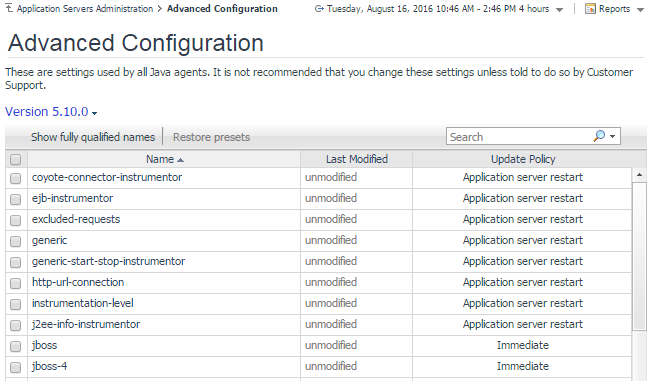
On the Agent Configurations tab, click Advanced configuration. |
|
5 |
Select the version of the Java EE agent that you want to manage from the Version list (for example, 5.10.0). |
|
6 |
Optional — To view the entire path to the file, click Show fully qualified names. |
The integration agent can be activated or deactivated.
|
1 |
On the navigation panel, under Dashboards, click Application Servers > Administration. |
|
3 |
On the Java view, click the Installations tab. |
|
5 |



