Chat now with support
Chat mit Support

Foglight for Java EE Technologies 5.9.11 - Installation Guide

Installing and Configuring Foglight for Java EE Technologies Integrating with JBoss Integrating with Apache Tomcat Integrating with WebLogic Domain Startup Scripts Integrating with WebSphere Integrating with WebSphere Liberty Integrating with Oracle AS Integrating with Spring Boot for Embedded Tomcat Creating a Generic Installation for Manual Java EE Agent Integration Managing Java EE Agent Installations, Integrations, and Configurations Managing Java EE Agent Configurations Managing Java EE Installation Java EE Integration Configuration FAQ and Troubleshooting Manually Integrating Application Server Appendix A: Java EE Application Methods AppendixB: Managing Permissions for the Java EE Integration Agent

Customizing instrumented classes

The Advanced instrumentation settings for a Java EE agent control which classes are instrumented.The InstrumentedClasses setting customizes the classes that are instrumented. In almost all cases, tune instrumentation using the UserClasses or CustomComponents. Changing any of these settings can have performance implications. For more information, see Changing user classes settings and Changing custom component settings .

The InstrumentedClasses setting is normally used to exclude a class when instrumentation causes failures or application problems.

Excluding a class ensures that it is excluded from all instrumentation.
Including a class causes the class to be examined and, if it implements important application server functionality, it may be instrumented appropriately.
1
Click the Advanced tab of the Edit dialog box.
2
Click Edit beside InstrumentedClasses.

Managing other Java EE agent configuration files

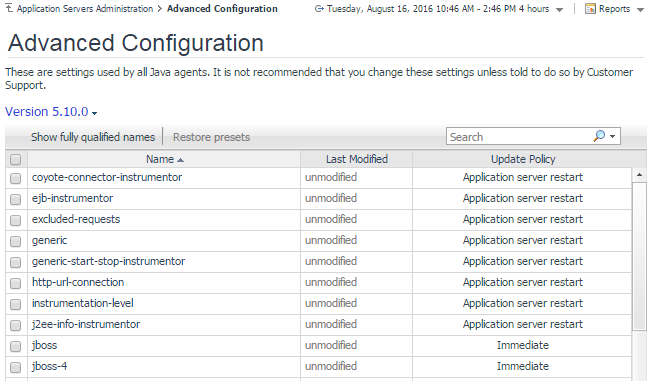
The Advanced Configuration view lists all available version-specific agent configuration files. Sometimes, you may need to manually edit these files. It is strongly recommended that you do not change any of these files unless you have been told to do so by Customer Support.

1
On the navigation panel, under Dashboards, click Application Servers > Administration.
4


Managing Java EE Installation

The Java EE Integration Agent manages the Java EE agent installations and integrations with application servers. The Installations tab of the Java Administration dashboard provides an overview of all configured installations, including their versions, installation directories, upgrade status, and Java EE Integration Agent name and availability.

From here, you can activate or deactivate the Java EE Integration Agent, open the log file for the agent, delete an installation, or view the installation properties. You can also check whether an installation is eligible for upgrade and, if so, perform an in-place upgrade.

Activating and deactivating the Java EE Integration Agent

The Java EE Integration Agent manages the integration of Java EE agents with application servers. The Java EE agents are the monitoring agents that collect the data. The integration agent also manages the integration script files, communication with the Nexus, and logging.

The integration agent can be activated or deactivated.

1
On the navigation panel, under Dashboards, click Application Servers > Administration.
3
5
In the menu that opens, click either Activate or Deactivate, as applicable.
Verwandte Dokumente

The document was helpful.

Bewertung auswählen

I easily found the information I needed.

Bewertung auswählen