The Custom Components setting extends the default set of J2EE components to be included when recording a session at the Component Detail instrumentation level.
The method signature can be specified but it must be specified using the internal JVM format. For more information, see the Oracle Java SE Documentation: http://docs.oracle.com/javase/specs/#7035.
|
1 |
|
a |
Click  Add component. Add component. |
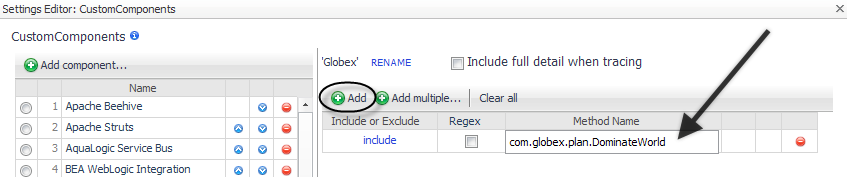
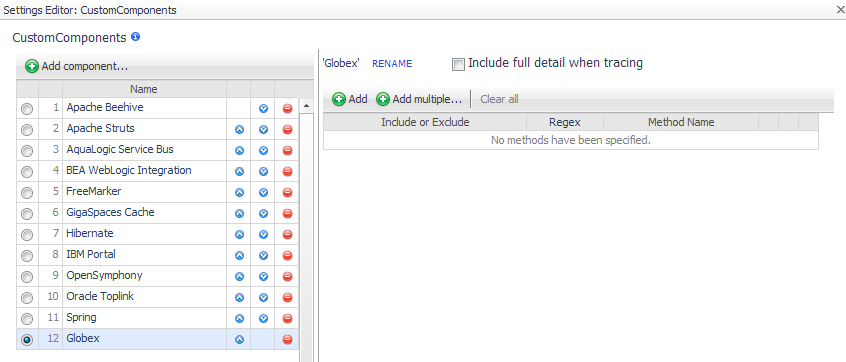 Add to add a single method at a time.
 Add multiple to open a text box where you can type several methods.
|
4 |
If you manually edit the instrumentation.config file, use the following syntax to specify custom component instrumentation.
|
1 |
Edit CustomComponents. Specify the name of each component in a method list, either by entering the name or by forming a regular expression that matches the name or pattern. Enter the include element before each item in the list. For example: |
|
2 |
After editing the instrumentation.config settings, ensure that it is read by restarting the instrumented application servers. |
Use the Custom Component Callbacks setting to specify the classes or interfaces that the custom components use to call customer written code. The default instrumentation settings include some custom component callbacks for Apache Struts and Spring.
For more information, see Appendix: Java EE Application Methods.
|
1 |
Add to add a single class at a time.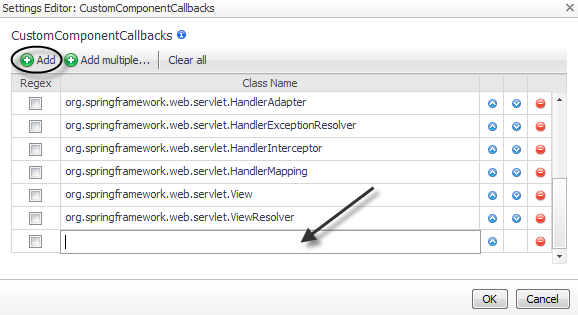 Add multiple to open a text box where you can type several classes.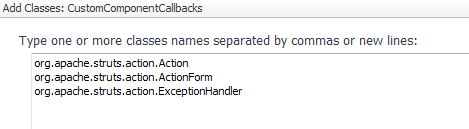
|
4 |
If you manually edit the instrumentation.config file, use the following syntax to specify custom component callback instrumentation.
Use the LongRunningUserMethods setting to customize the collection of performance data from methods that run over a long period of time. By default, the Java EE agent waits for a method to finish running before treating the collected data as complete. However, for methods such as the run() method of a background thread or other methods that run over a long period of time, it may be preferable to treat the data as complete at specific points in the code. This makes the data available in small pieces as the method runs instead of as one large piece when the long running method completes. Changing any of these settings can have performance implications.
The Java EE agent pauses at waypoint methods (LongRunningUserMethodWaypoints) to treat the data as complete before continuing. For best performance, use a minimal set of waypoint methods.
|
1 |
Click the Long Running Methods tab of the Edit dialog box. |
|
2 |
Add to add a single method at a time. Add multiple to open a text box where you can type several methods.
|
1 |
On the Long Running Methods tab of the Edit dialog box, click Edit  beside LongRunningUserMethodWaypoints. beside LongRunningUserMethodWaypoints. |
|
2 |
Add to add a single waypoint at a time.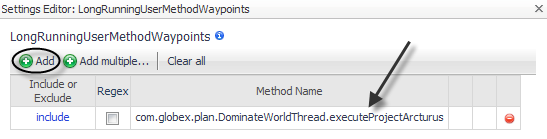
|
4 |
If you manually edit the instrumentation.config file, use the following syntax to specify long running user methods and waypoints instrumentation.
LongRunningUserMethods = MethodList(
include "com.globex.plan.DominateWorldThread.run"
);
In this case, the method "com.globex.plan.DominateWorldThread.run" treats the data as complete each time the method executeProjectArcturus() is called from run(). The Java EE agent pauses at waypoint methods to treat the data as complete before continuing. A minimal set of waypoint methods allows for the best possible performance.



