
|
• |
On the VMware Environment dashboard, on the Monitoring tab, in the Virtual Environment Overview, select the Virtual Centers tile. |
| |||
| |||
| |||
| |||
|


|
• |
On the VMware Environment dashboard, open the Monitoring tab. |

|
1 |
On the VMware Environment dashboard, on the Monitoring tab, in the Virtual Environment Overview, select the Virtual Machines tile. |
|
2 |
|
• |
| |||
| |||
| |||
Figure 367. Alarm dialog box
 |
| |||
| |||
| |||
| |||
| |||
| |||
| |||
| |||
| |||
| |||
| |||
| |||
| |||
| |||
| |||
| |||
| |||
| |||
|
| |||
| |||
| |||
| |||
| |||
| |||
| |||
Figure 368. Alarms dialog box
 | |||
Figure 369. Clusters Inventory dwell
 | |||
Figure 370. Datacenters Inventory dwell
 | |||
Figure 371. Datastores Inventory dwell
 | |||
Figure 372. ESX Hosts Inventory dwell
 | |||
Figure 373. Resource Pools Inventory dwell
 | |||
Figure 374. Virtual Centers Inventory dwell
 | |||
Figure 375. Virtual Machines Inventory dwell
 |
| |||
| |||
| |||
| |||
| |||
| |||
| |||
| |||
| |||
| |||
| |||
| |||
| |||
Figure 376. CPU Load dialog box
 | |||
Figure 377. CPU Utilization dialog box
 | |||
Figure 378. Disk I/O dialog box
 | |||
Figure 379. Disk Utilization dialog box
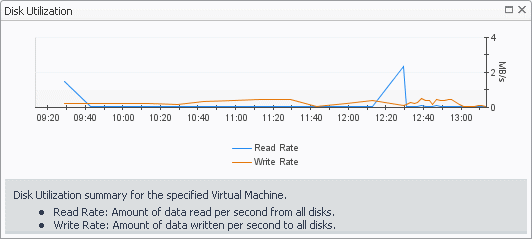 | |||
Figure 380. Memory Utilization dialog box
 | |||
Figure 381. Network I/O dialog box
 | |||
Figure 382. Network Utilization dialog box
 |

|
1 |
On the VMware Environment dashboard, on the Monitoring tab, in the Virtual Environment Overview, select the Virtual Machines tile. |
|
2 |
|
• |
| |||
| |||
| |||
Figure 384. Alarm dialog box
|
| |||
| |||
Figure 385. Top Virtual Machines-CPU Used Hz dialog box
 |
| |||
| |||
Figure 386. Top Virtual Machines - Disk Transfer Rate dialog box
 | |||
| |||
| |||
Figure 387. Top Virtual Machines - Memory Consumed dialog box
 | |||
| |||
| |||
 | |||
|


 , and in the popup that appears, click a tile that you want to hide.