
|
1 |
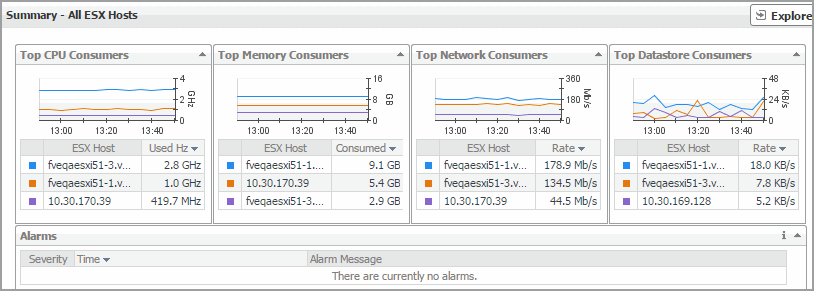
On the VMware Environment dashboard, on the Monitoring tab, in the Virtual Environment Overview, select the ESX Hosts tile. |
|
2 |
|
• |
| |||
| |||
| |||
Figure 295. Alarm dialog box
 |
| |||
| |||
| |||
| |||
| |||
| |||
Figure 296. Alarms dialog box
 | |||
Figure 297. Datacenters Inventory dwell
 | |||
Figure 298. Datastores Inventory dwell
 | |||
Figure 299. ESX Hosts Inventory dwell
 | |||
Figure 300. Resource Pools Inventory dwell
 | |||
Figure 301. Virtual Centers Inventory dwell
 | |||
Figure 302. Virtual Machines Inventory dwell
 |
| |||
| |||
| |||
| |||
| |||
| |||
| |||
| |||
| |||
| |||
| |||
| |||
Figure 303. CPU Load dialog box
 | |||
Figure 304. CPU Utilization dialog box
 | |||
Figure 305. Disk I/O dialog box
 | |||
Figure 306. Disk Utilization dialog box
 | |||
Figure 307. Memory Utilization dialog box
 | |||
Figure 308. Network I/O dialog box
 | |||
Figure 309. Network Utilization dialog box
 |
|
1 |
On the VMware Environment dashboard, on the Monitoring tab, in the Virtual Environment Overview, select the ESX Hosts tile. |
|
2 |
|
• |
| |||
| |||
| |||
| |||
Figure 311. Alarm Created dialog box
 | |||
|
| |||
| |||
Figure 312. Top ESX Hosts - CPU Used Hz dialog box
 |
| |||
| |||
Figure 313. Top ESX Hosts - Datastore Transfer Rate dialog box
 | |||
| |||
| |||
Figure 314. Top ESX Hosts - Memory Consumed dialog box
 | |||
| |||
| |||
Figure 315. Top ESX Hosts - Network Transfer Rate dialog box
 | |||
|

|
• |
On the VMware Environment dashboard, on the Monitoring tab, in the Quick-View, select the ESX Hosts tile. |
| |||
| |||
| |||
| |||
|

|
• |

