
|
1 |
On the VMware Environment dashboard, on the Monitoring tab, in the Virtual Environment Overview, select the Resource Pools tile. |
|
2 |
|
• |
| |||
| |||
| |||
| |||
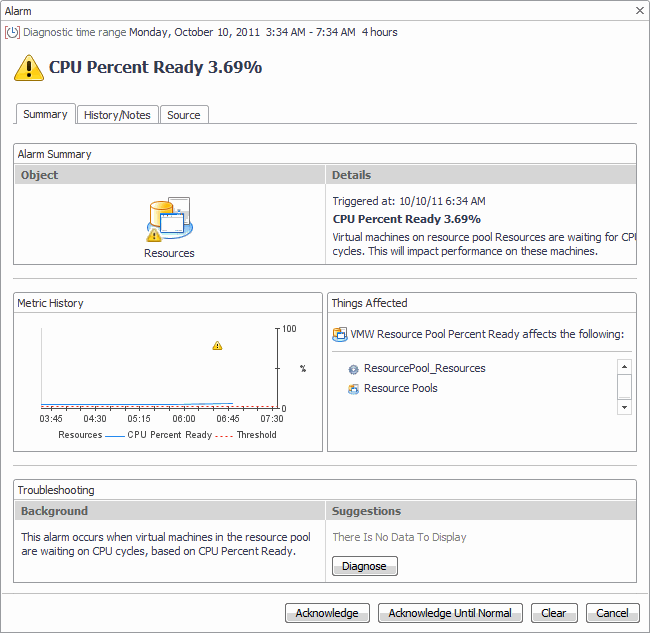
Figure 337. Alarm Created dialog box
 | |||
|
| |||
| |||
Figure 338. Top Resource Pools-CPU Used Hz dialog box
 |
| |||
| |||
 | |||
| |||
| |||
 | |||
| |||
| |||
Figure 339. Top Resource Pools - Network Transfer Rate dialog box
 | |||
|

|
• |
On the VMware Environment dashboard, on the Monitoring tab, in the Quick-View, select the Resource Pools tile. |
| |||
| |||
| |||
| |||
|

|
1 |
On the VMware Environment dashboard, on the Monitoring tab, in the Virtual Environment Overview, select the Servers tile. |
|
2 |
|
• |
| |||
| |||
| |||
Figure 342. Alarm dialog box
 |
| |||
| |||
| |||
| |||
| |||
| |||
| |||
Figure 343. Alarms dialog box
 | |||
Figure 344. Clusters Inventory dwell
 | |||
Figure 345. Datacenters Inventory dwell
 | |||
Figure 346. Datastores Inventory dwell
 | |||
Figure 347. ESX Hosts Inventory dwell
 | |||
Figure 348. Resource Pools Inventory dwell
 | |||
Figure 349. Virtual Centers Inventory dwell
 | |||
Figure 350. Virtual Machines Inventory dwell
 |
| |||
| |||
| |||
| |||
| |||
| |||
| |||
| |||
| |||
| |||
| |||
| |||
| |||
Figure 351. CPU Load dialog box
 | |||
Figure 352. CPU Utilization dialog box
 | |||
Figure 353. Disk I/O dialog box
 | |||
Figure 354. Disk Utilization dialog box
 | |||
Figure 355. Memory Utilization dialog box
 | |||
Figure 356. Network I/O dialog box
 | |||
Figure 357. Network Utilization dialog box
 |

|
1 |
On the VMware Environment dashboard, on the Monitoring tab, in the Virtual Environment Overview, select the Virtual Centers tile. |
|
2 |
|
• |
| |||
| |||
| |||
| |||
Figure 359. Alarm dialog box
 |
| |||
| |||
Figure 360. Top Virtual Centers -CPU Used Hz dialog box
 | |||
| |||
| |||
Figure 361. Top Virtual Centers - Disk Transfer Rate dialog box
 | |||
| |||
| |||
 | |||
| |||
| |||
Figure 362. Top Virtual Centers - Network Transfer Rate dialog box
 | |||
|

