Chat now with support
Chat with Support

Foglight for NMS Integration 5.6.4.6 - User and Reference Guide

Summary views

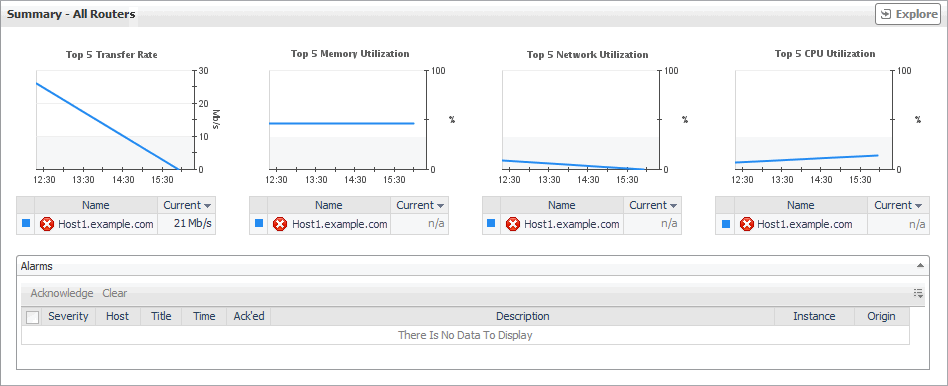
The Summary - All Switches, Summary - All Routers, or Summary - All Firewalls views display the resource consumption and any alarms generated against all of the monitored switches, routers, and firewalls, organized into several simple views.
Figure 55. Summary - All Firewalls view
1
On the Infrastructure Environment dashboard, select the Network, Firewall, Switch, or Router service, and then click the Firewall, Switch, or Router tile.
2
In the Quick View, in the Switch, Router, or Firewall view (see page 55 for more information), ensure that All Switches, All Routers, or All Firewalls is selected.
The Summary - All Switches, Summary - All Routers, or Summary - All Firewalls view appears on the right.
Table 35. Alarms
Ack’ed. Indicates if the alarm is acknowledged.
Description. The alarm description.
Host. The name of the device against which the alarm is generated.
Sev. An icon indicating the alarm severity: Warning , Critical , or Fatal .
Time. The time when the alarm was generated.
Title. The alarm message.
Any alarm. Displays the Alarm dialog box, showing detailed information about the alarm. For more information about alarms, see the Foglight User Help.
Figure 56. Alarm dialog box
Current. The current percentage of the available CPU resources used by the switch or router.
Name. The name of the switch or router and an icon indicating the alarm state of the device: Normal , Warning , Critical , or Fatal .
Top CPU Utilization %. Graph lines indicating the percentage of the available CPU resources used by the switch or router during the selected time period for each of the top five consumers. Hovering over a graph line displays a tooltip indicating the CPU utilization of the device represented by that line, at the point in time measured by the X axis.
Top CPU Utilization %. Displays the Metric Analyzer showing the selected graph line in a larger view. For more information about the Metric Analyzer, see the Foglight User Help.
Current. The current percentage of the available memory resources used by the switch or router.
Name. The name of the switch or router and an icon indicating the alarm state of the device: Normal , Warning , Critical , or Fatal .
Top Memory Utilization %. Graph lines indicating the percentage of the memory resources used by the switch or router during the selected time period for each of the top five consumers. Hovering over a graph line displays a tooltip indicating the memory utilization of the device represented by that line, at the point in time measured by the X axis.
Figure 57. Tooltip
Top Memory Utilization %. Displays the Metric Analyzer showing the selected graph line in a larger view. For more information about the Metric Analyzer, see the Foglight User Help.
Current. The current percentage of the available network resources used by the switch or router.
Name. The name of the switch or router and an icon indicating the alarm state of the device: Normal , Warning , Critical , or Fatal .
Top Network Utilization %. Graph lines indicating the percentage of the network resources used by the switch or router during the selected time period for each of the top five consumers. Hovering over a graph line displays a tooltip indicating the network utilization of the device represented by that line, at the point in time measured by the X axis.
Figure 58. Tooltip
Top Network Utilization %. Displays the Metric Analyzer showing the selected graph line in a larger view. For more information about the Metric Analyzer, see the Foglight User Help.
Current. The current transfer rate of the switch or router.
Name. The name of the switch or router and an icon indicating the alarm state of the device: Normal , Warning , Critical , or Fatal .
Top Transfer Rate. Graph lines indicating the data transfer rate used by the switch or router during the selected time period for each of the top five consumers. Hovering over a graph line displays a tooltip indicating the network utilization of the device represented by that line, at the point in time measured by the X axis.
Figure 59. Tooltip
Top Transfer Rate. Displays the Metric Analyzer showing the selected graph line in a larger view. For more information about the Metric Analyzer, see the Foglight User Help.

Switches, Routers, and Firewalls views

The Switches, Routers, and Firewalls views each display a list of the existing switches and routers, and indicate their alarm state.
Figure 60. Switches, Routers, and Firewalls views
Selecting the All Switches, All Routers, or All Firewalls entry displays overall resource utilization for all devices of the selected type (switches or routers), and identifies the devices that consume the highest amount of system resources in the Summary views appearing on the right. Selecting an individual switch or router displays device-specific metrics in the NMS Switch, NMS Router and NMS Firewall views on the right.
On the Infrastructure Environment dashboard, select the Network, Firewall, Switch, or Router service, and then click the Firewall, Switch, or Router tile.
The Firewalls, Switches, or Routers view appears in the Quick View on the left.
Alarm severity. The state of the most recent alarm raised against the associated switch or router.
All Switches, All Routers, or All Firewalls. A parent node for the server object instances that appear in this view.
Switch, Router, and Firewall. The device name.
All Switches, All Routers, and All Firewalls. Shows one of the Summary views in the Quick View.
Switch, Router, and Firewall. Shows one of the NMS Switch, NMS Router and NMS Firewall views in the Quick View.

Service Operations Console and Dependency Mapping Views

Device Details Summary tab

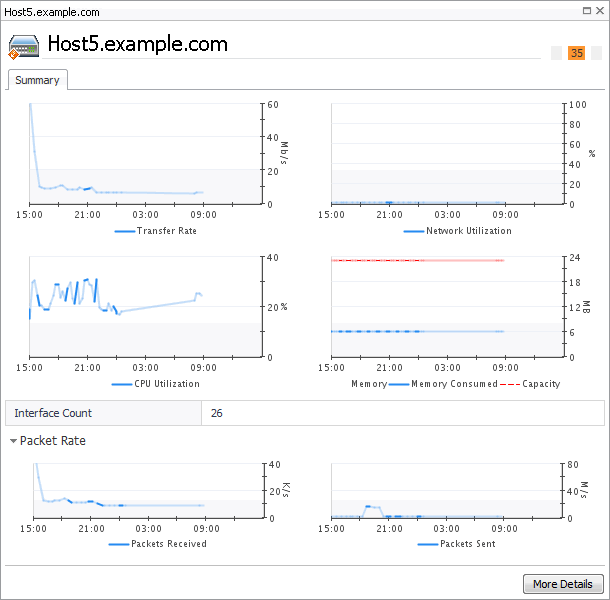
The Summary tab in the device dialog box shows a series of charts displaying the monitoring statistics of the selected device. This can give you a better idea of how the selected device is performing and gives indicators about potential performance problems, if they exist. For example, a high network or CPU utilization often suggests high device loads that require further investigation.
Figure 61. Summary tab
2
On the Network Devices tab, click a device.
The device dialog box appears with the Summary tab open.
CPU Utilization. The percentage of time the device CPU spends executing both system and user code over the selected time range.
Interface Count. The total number of network interfaces on the selected device.
Memory, Capacity. The total amount of memory available to the selected device.
Memory, Memory Consumed. The amount of memory consumed by the selected device over the selected time range.
Packets Received.The rate at which the selected device receives data packets, measured as a number of data packets per second, over the selected time range.
Packets Sent. The rate at which the selected device sends data packets, measured as a number of data packets per second, over the selected time range.
Transfer Rate. The rate at which the selected device sends and receives data, measured as an amount of transmitted data per second, over the selected time range.
Related Documents

The document was helpful.

Select Rating

I easily found the information I needed.

Select Rating