Chat now with support
Chat with Support

Foglight for NMS Integration 5.6.4.6 - User and Reference Guide

Infrastructure Environment Views

FAQts tab

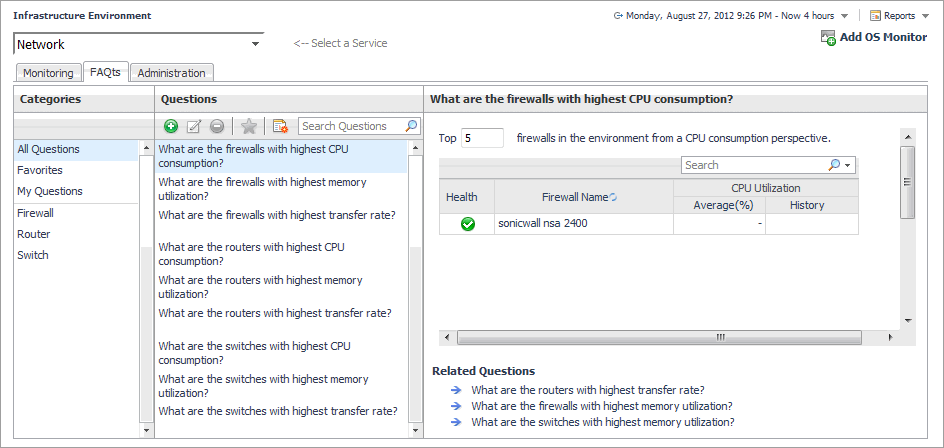
The FAQts tab contains some common frequently asked questions related to different objects in your infrastructure. Questions related to network devices appear on the FAQts tab, under Switch and Router Categories, or alternatively in the FAQts mini-viewer, located in the bottom-left corner of the Quick View. To check the answer to a question, simply click a question in the Switch or Router category, and find the answer on the right.
Figure 42. FAQts tab
1
On the Infrastructure Environment dashboard, select the Network, Firewall, Switch, or Router service, and then click the Firewall, Switch, or Router tile.
2
In the Quick View, open the FAQts tab.

NMS Switch, NMS Router and NMS Firewall views

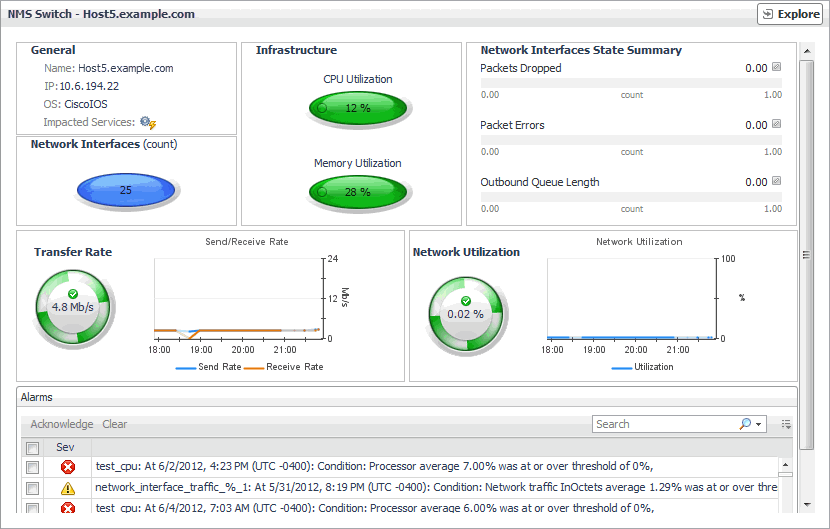
The NMS Switch, NMS Router, and NMS Firewall views display the device resource consumption, any alarms generated against the selected device, and any related services. The information is broken down into several simple views. The same set of embedded views appears on all of these views.
Figure 44. NMS Switch view
1
On the Infrastructure Environment dashboard, select the Network, Firewall, Switch, or Router service, and then click the Firewall, Switch, or Router tile.
2
In the Quick View, in the Switch, Router, or Firewall view (see page 55 for more information), select the Switch, Router, or Firewall node.
The NMS Switch, NMS Router, or NMS Firewall view appears on the right.
Table 28. Alarms
Ack’ed. Indicates if the alarm is acknowledged.
Description. The alarm description.
Sev. An icon indicating the alarm severity: Warning , Critical , or Fatal .
Title. The alarm message.
Any alarm. Displays the Alarm dialog box, showing detailed information about the alarm. For more information about alarms, see the Foglight User Help.
Figure 45. Alarm dialog box
Table 29. General
Name. The device name.
IP. The IP address of the device.
OS. The OS running on the device.
Services. A link to the list of services associated with the selected device. Clicking this link displays the Impacted Services dialog box, showing the alarm counts for each monitored component. For complete information about services, see the Foglight User Help.
Figure 46. Impacted Services dialog box
Table 30. Infrastructure
CPU Utilization. The percentage of time the device CPU spends executing both system and user code.
Memory Utilization. The current memory utilization of the monitored device.
Outbound Queue Length. The number of data packets waiting to be transmitted.
Packet Errors. The number of data packets that contained errors.
Packets Dropped. The number of data packets that the device cannot transmit due to errors.
Network Utilization (graph line). A graph line indicating the percentage of the available network resources used by the selected switch or router to transmit data over the selected time range. Hovering over a graph line displays a tooltip indicating the network utilization percentage of the device represented by that line, at the point in time measured by the X axis.
Figure 47. Tooltip
Network Utilization (spinner). The current percentage of the available network resources used by the selected switch or router to transmit data. Hovering over the graph line displays a graph showing the network utilization percentage over the selected time range.
Table 34. Transfer Rate
Receive Rate. The rate at which this device sends data over the selected time range. Hovering over the graph line displays a tooltip indicating the receive rate of the device represented by that line, at the point in time measured by the X axis.
Figure 49. Tooltip
Send Rate. The rate at which this device sends data over the selected time range. Hovering over the graph line displays a tooltip indicating the send rate of the device represented by that line, at the point in time measured by the X axis.
Figure 50. Tooltip
Transfer Rate. The current rate at which data is transferred through the device. Hovering over the graph line displays a graph showing the transfer rate over the selected time range.

Quick View

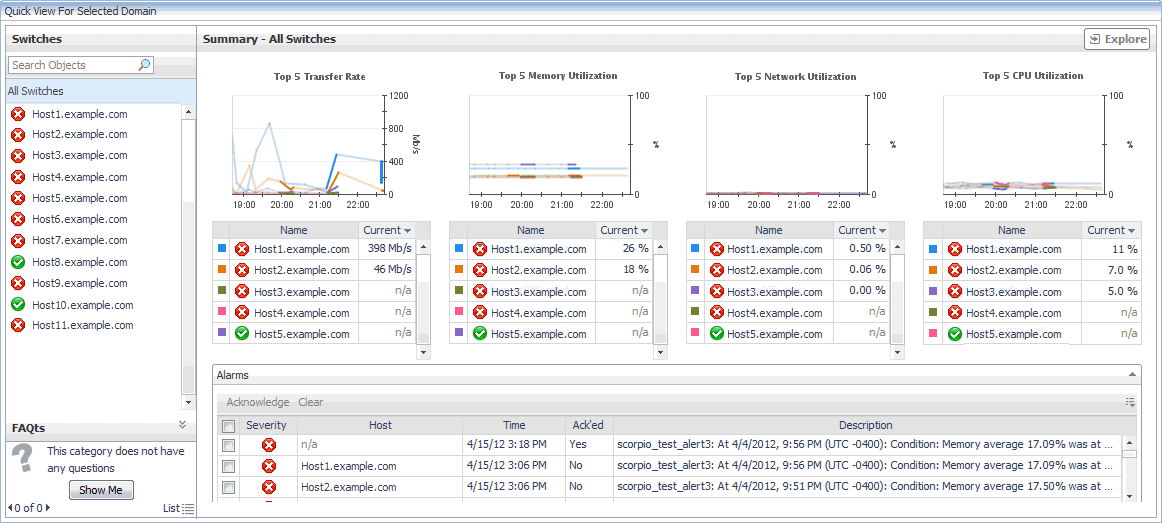
The Quick View is a container view. It contains a combination of switch, router, and firewall views, depending on the tile selection above the view, and the selection of all or individual devices on the left. The following views can appear in this container view:
FAQts view. This view is defined and included in the Cartridge for Infrastructure. For complete information about this view, see the Foglight for Infrastructure User and Reference Guide.
Figure 52. Quick View
1
On the Infrastructure Environment dashboard, select the Network, Firewall, Switch, or Router service, and then click the Firewall, Switch, or Router tile.
2
The Quick View refreshes, showing the summary information about the selected device type.
Related Documents

The document was helpful.

Select Rating

I easily found the information I needed.

Select Rating