Chat now with support
Chat with Support

Foglight for NMS Integration 5.6.4.6 - User and Reference Guide

Monitoring tab

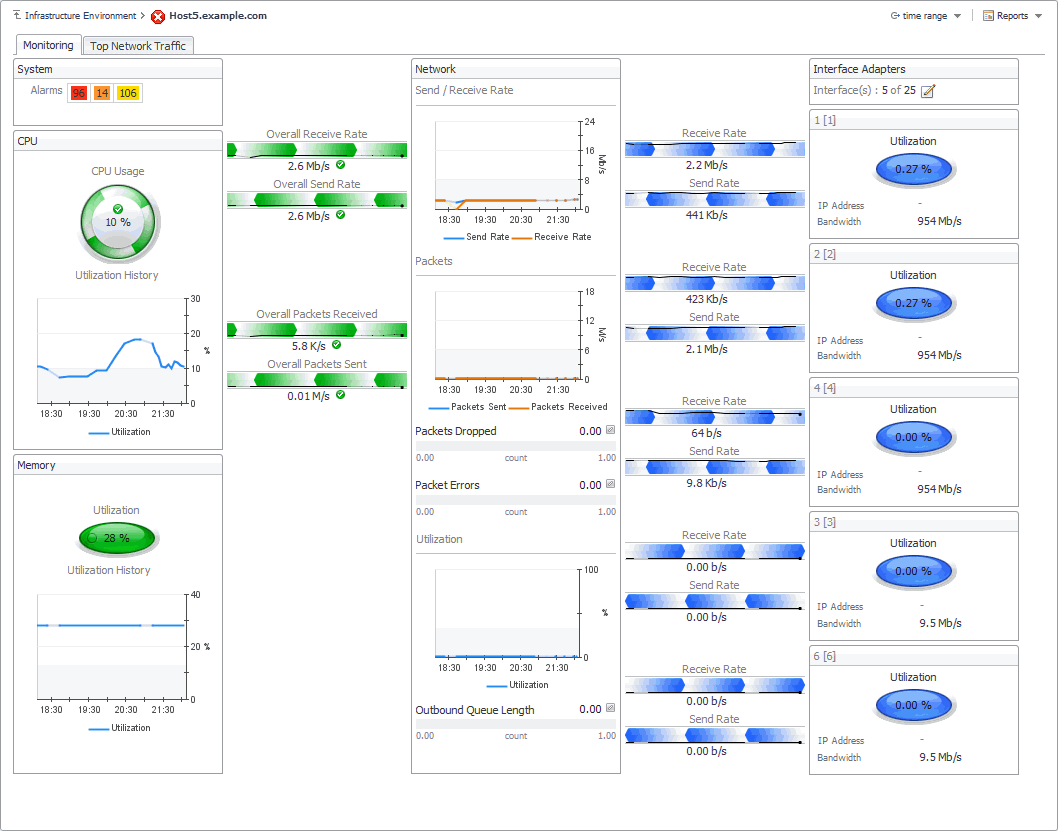
The Monitoring tab displays CPU and memory metrics along with a series of views connected with graphical flows, illustrating how quickly the data is moving through the device. Use this tab when you want to investigate device monitoring statistics in real time.
Figure 28. Monitoring tab
1
On the Infrastructure Environment dashboard, select the Network, Firewall, Switch, or Router service, and then click the Firewall, Switch, or Router tile.
2
In the Quick View, in the Firewalls, Switches, or Routers view, ensure that All Switches, All Routers, or All Firewalls are selected.
3
In the Summary - All Switches, Summary - All Routers, or Summary - All Firewalls view, select a device.
4
In the Quick View, in the top-right corner, click Explore.
Table 1. CPU
CPU Usage. The current percentage of time the CPU spends executing both system and user code.
Utilization. The percentage of time the device CPU spends executing both system and user code over the selected time range. Clicking this metric in the graph shows a dwell displaying this graph in a larger view.
Table 2. Data Flows
Overall Packets Received. The current rate at which the monitored device receives data packets, measured as a number of data packets per second.
Overall Packets Sent. The current rate at which the monitored device sends data packets, measured as a number of data packets per second.
Overall Receive Rate. The current rate at which the monitored device receives data packets, measured as the amount of data received every second.
Overall Send Rate. The current rate at which the monitored device sends data packets, measured as the amount of data sent every second.
Receive Rate. The current rate at which each individual interface adapter appearing on the Monitored tab receives data packets, measured as the amount of data received every second.
Send Rate. The current rate at which each individual interface adapter monitored device appearing on the Monitored tab sends data packets, measured as the amount of data sent every second.
Overall Packets Received, Overall Packets Sent, Overall Receive Rate, or Overall Send Rate. For more information, see Network Details view.
Bandwidth. The maximum data transfer rate of the network interface.
IP Address. The IP address of the network interface.
Utilization. The network utilization incurred by the network interface, as a percentage of the total network utilization.
Interface. The number of network interfaces displayed on the Monitoring tab. Click Edit to select up to five network interfaces.
Figure 30. Select interfaces to display dialog box
The Select interfaces to display dialog box lists the available network interfaces and allows you to select them, as required. You also have an option to select the top five interfaces with the highest network utilization. For each interface, the list shows its name, IP address, MAC address, network utilization, and bandwidth.
Table 5. Memory
Utilization, current. The current memory utilization of the monitored device.
Utilization, in graph. The memory utilization of the monitored device over the selected time range. Clicking this metric in the graph shows a dwell displaying this graph in a larger view.
Table 6. Network
Displays the network data related to the monitored device, organized into several simple charts and counters: Send/Receive Rate, Packets, Packets Dropped, Packet Errors, Utilization, and Outbound Queue Length.
Outbound Queue Length. The number of data packets in the outbound queue that are waiting to be transmitted.
Packet Errors. The number of data packets that contained errors.
Packets Dropped. The number of data packets that the device cannot transmit due to errors.
Packets Received. The number of inbound data packets that the device transmits with success over the selected time range. This metric appears on the Packets chart. Clicking this metric in the graph shows a dwell displaying this graph in a larger view.
Figure 32. Packets dwell
Packets Sent. The number of outbound data packets that the device transmits with success over the selected time range. This metric appears on the Packets chart. Clicking this metric in the graph shows a dwell displaying this graph in a larger view.
Figure 33. Packets dwell
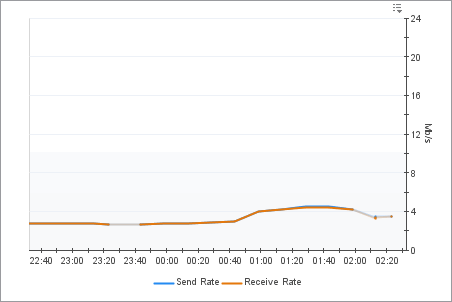
Receive Rate. The rate at which the device receives incoming data over the selected time range. This metric appears on the Send/Receive Rate chart. Clicking this metric in the graph shows a dwell displaying this graph in a larger view.
Figure 34. Send/Receive Rate dwell
Send Rate. The rate at which the device sends outgoing data over the selected time range. This metric appears on the Send/Receive Rate chart. Clicking this metric in the graph shows a dwell displaying this graph in a larger view.
Figure 35. Send/Receive Rate dwell
Utilization. The network utilization incurred by the monitored device, as a percentage of the total network utilization. This metric appears on the Utilization chart. Clicking this metric in the graph shows a dwell displaying this graph in a larger view.
Figure 36. Utilization dwell
Table 7. System
Alarms. The counts of Fatal, Critical, and Warning alarms. Click a number to display the Outstanding Alarm(s) dialog box that contains the alarm list. For more information about alarms in Foglight, see the Foglight User Help.
Figure 37. Outstanding Alarm(s) dialog box

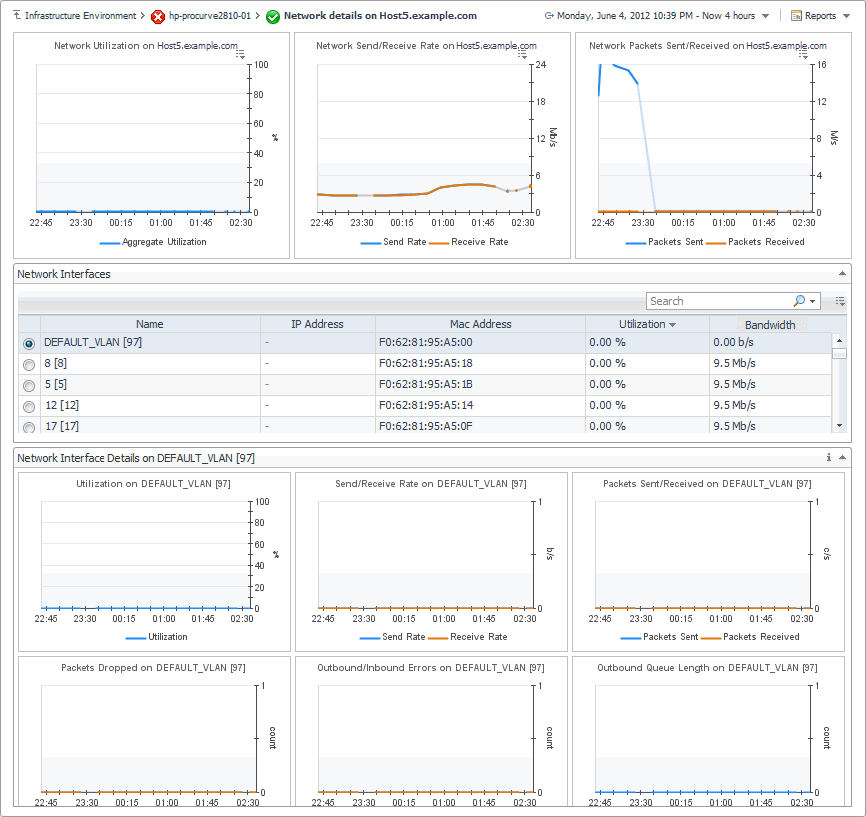
Network Details view

The Network Details view shows historical network utilization along with data and data packet send and receive rates, and lists all network interfaces on the selected device. The information is broken down into several simple views.
Figure 38. Network Details view
1
On the Infrastructure Environment dashboard, select the Network, Firewall, Switch, or Router service, and then click the Switch or Router tile.
2
In the Quick View, in the Switch or Router view (see page 55 for more information), ensure that All Switches, All Routers, or All Firewalls is selected.
3
In the Summary - All Switches, Summary - All Routers, or Summary - All Firewalls view, select a device.
4
In the Quick View, in the top-right corner, click Explore.
The Network Details view appears.
Displays network data related to the monitored device, organized into six simple charts: Utilization, Send/Receive Rate, Packets Sent/Received, Packets Dropped, Outbound/Inbound Errors, and Outbound Queue Length.
Inbound Errors. The number of inbound data packets that contain errors, over the selected time range. This metric appears on the Outbound/Inbound Errors chart.
Inbound Packets. The number of data packets that the interface cannot receive due to errors, over the selected time range. This metric appears on the Packets Dropped chart.
Outbound Errors. The number of outbound data packets that contain errors, over the selected time range. This metric appears on the Outbound/Inbound Errors chart.
Outbound Packets. The number of data packets that the interface cannot send due to errors, over the selected time range. This metric appears on the Packets Dropped chart.
Outbound Queue Length. The number of data packets in the outbound queue that are waiting to be transmitted, over the selected time range. This metric appears on the Outbound Queue Length chart.
Packets Received. The number of inbound data packets that the interface transmits with success, over the selected time range. This metric appears on the Packets Sent/Received chart.
Packets Sent. The number of outbound data packets that the interface transmits with success, over the selected time range. This metric appears on the Packets Sent/Received chart.
Receive Rate. The rate at which the interface receives incoming data, over the selected time range. This metric appears on the Send/Receive Rate chart.
Send Rate. The rate at which the interface sends outgoing data over the selected time range. This metric appears on the Send/Receive Rate chart.
Utilization. The network utilization incurred by the interface, as a percentage of the device total network utilization, over the selected time range. This metric appears on the Utilization chart.
Bandwidth. The maximum data transfer rate of the network interface.
IP Address. The IP address of the network interface.
MAC Address. The MAC address of the network interface.
Name. The network interface name.
Utilization. The network utilization incurred by the network interface, as a percentage of the total network utilization for the device.
Packets Received. The number of inbound data packets that the device transmits with success, over the selected time range.
Packets Sent. The number of outbound data packets that the device transmits with success, over the selected time range.
Receive Rate. The rate at which the device receives incoming data over the selected time range. This metric appears on the Send/Receive Rate chart.
Send Rate. The rate at which the device sends outgoing data over the selected time range. This metric appears on the Send/Receive Rate chart.
Aggregate Utilization. The network utilization incurred by the device over the selected time range.

Network Interface Details view

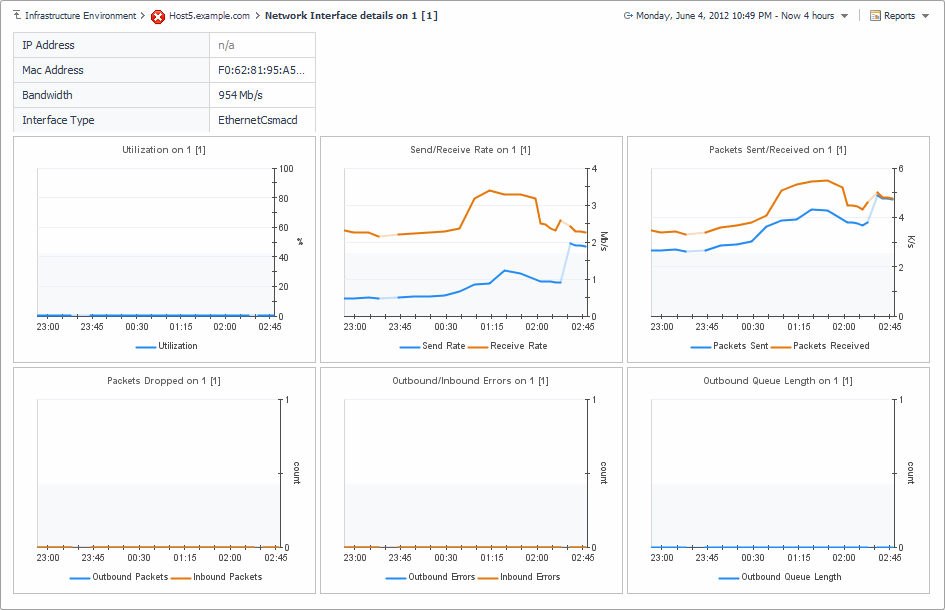
The Network Interface Details view shows network utilization along with data and data packet send and receive rates for the selected device. The information is broken down into several simple views.
1
On the Infrastructure Environment dashboard, select the Network, Firewall, Switch, or Router service, and then click the Switch, Router, or Firewall tile.
2
In the Quick View, in the Switch, Router, or Firewall view (see page 55 for more information), ensure that All Switches, All Routers, or All Firewalls is selected.
3
In the Summary - All Switches, Summary - All Routers, or Summary - All Firewalls view, select a device.
4
In the Quick View, in the top-right corner, click Explore.
5
Click any of the interface-specific Receive Rate or Send Rate flows to display additional details about the selected network interface.
The Network Interface Details view appears.
Table 14. Configuration
Bandwidth. The maximum data transfer rate of the network interface.
IP Address. The IP address of the network interface.
MAC Address. The MAC address of the network interface.
Name. The network interface name.
Inbound Errors. The number of inbound data packets that contain errors, over the selected time range.
Outbound Errors. The number of outbound data packets that contain errors, over the selected time range.
Outbound Queue Length. The number of data packets in the outbound queue that are waiting to be transmitted, over the selected time range.
Table 17. Packets Dropped
Inbound Packets. The number of data packets that the interface cannot receive due to errors, over the selected time range.
Outbound Packets. The number of data packets that the interface cannot send due to errors, over the selected time range.
Packets Received. The number of inbound data packets that the interface transmits with success, over the selected time range.
Packets Sent. The number of outbound data packets that the interface transmits with success, over the selected time range.
Receive Rate. The rate at which the interface receives incoming data, over the selected time range.
Send Rate. The rate at which the interface sends outgoing data, over the selected time range.
Table 20. Utilization
Utilization. The network utilization incurred by the device as a percentage of the total device network utilization, over the selected time range.

Top Network Traffic tab

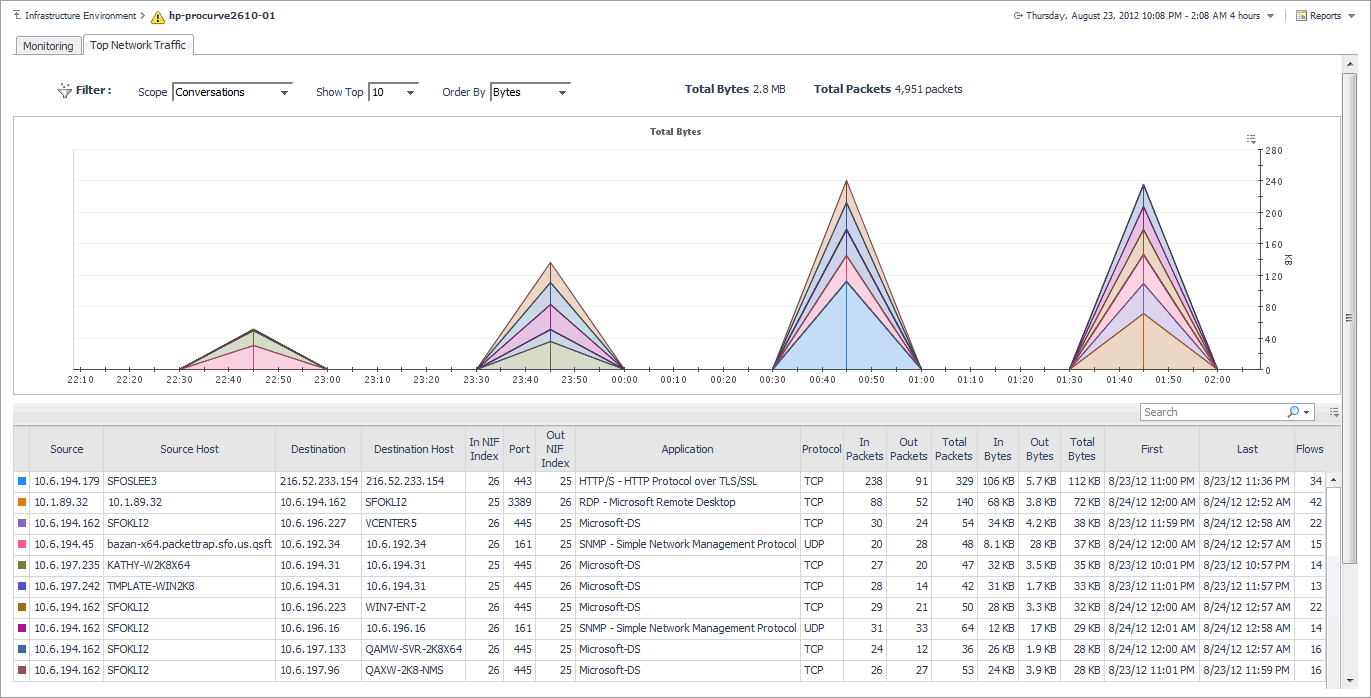
The Top Network Traffic tab displays the data flows performed over the selected time range for different groups of traffic flows: the application, conversation, domain, endpoint, and protocol data flows.
Figure 39. Network Traffic tab
1
On the Infrastructure Environment dashboard, select the Network, Firewall, Switch, or Router service, and then click the Switch, Router, or Firewall tile.
2
In the Quick View, in the Switch, Router, or Firewall view (see page 55 for more information), ensure that All Switches, All Routers, or All Firewalls is selected.
3
In the Summary - All Switches, Summary - All Routers, or Summary - All Firewalls view, select a device.
4
In the Quick View, in the top-right corner, click Explore.
5
Open the Top Network Traffic tab.
Applications. The amount of data processed over the network by each individual application, represented either as the amount of data in KB, or the number of data packets, over the selected time range.
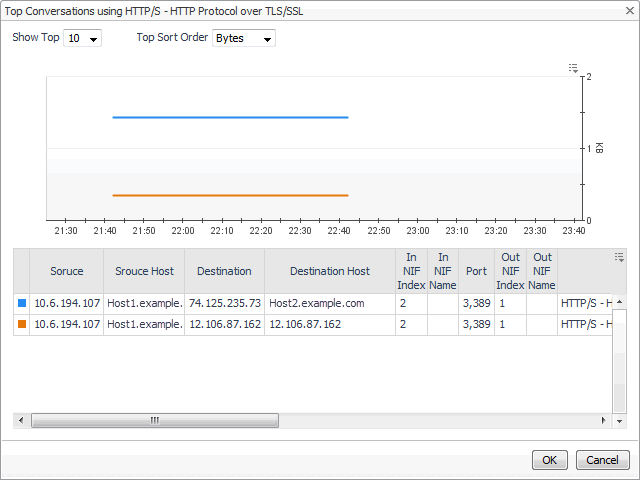
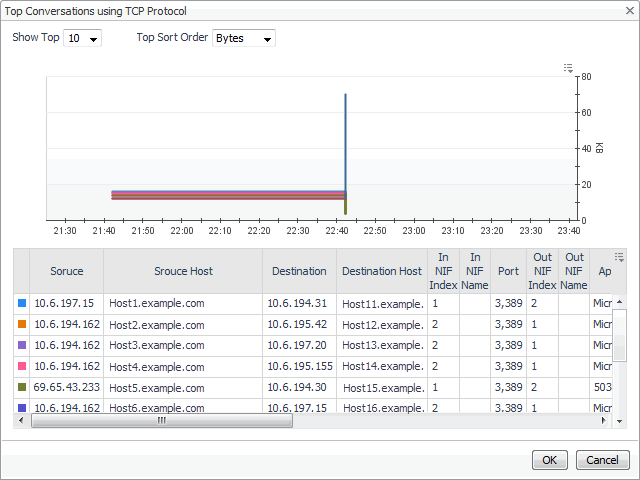
Conversations. The amount of data processed over the network by each individual conversation, represented either as the amount of data in KB, or the number of data packets, over the selected time range.
Domains. The amount of data processed over the network by each individual domain, represented either as the amount of data in KB, or the number of data packets, over the selected time range.
Endpoints. The amount of data processed over the network by each individual endpoint, represented either as the amount of data in KB, or the number of data packets, over the selected time range.
Interfaces. The amount of data processed over the network by each individual interface, represented either as the amount of data in KB, or the number of data packets, over the selected time range.
Protocols. The amount of data processed over the network by each individual protocol, represented either as the amount of data in KB, or the number of data packets, over the selected time range.
Scope. The type of elements whose traffic flow appears in the graph: Applications, Conversations, Domains, Endpoints, Protocols, or Interfaces.
Show Top. The number of elements with the highest rate of network traffic flow that appears in the graph. Possible values include: 10, 12, and 50.
Top Sort Order. The unit used to represent the data flow: Bytes or Packets.
Total Bytes. The total amount of data in bytes transferred trough the network.
Application. The name of the application.
Conversations. Shows the number of conversations generated by the application.
In Bytes. The amount of data in bytes the application received so far.
In Packets. The number of data packets the application received so far.
Out Bytes. The amount of data in bytes the application sent out so far.
Out Packets. The number of data packets the application sent out so far.
Port. The port the application uses for communication.
Protocol. The name of the protocol the application uses for communication.
Total Bytes. The total incoming and outgoing amount of data in bytes associated with the application.
Total Packets. The total incoming and outgoing number of data packets associated with the application.
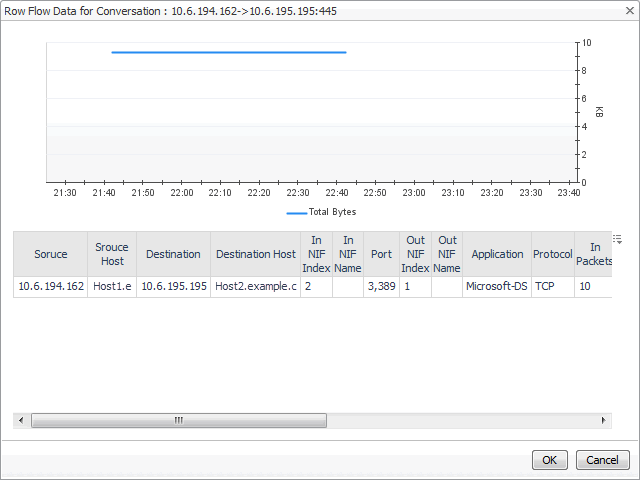
Any row. Displays a dialog box showing the conversations with the highest data traffic associated with the selected application. The information appears in the Network Traffic Flow Graph and Network Traffic Flow Table: Conversations view.
Application. The name of the application generating the conversation.
Destination. The destination IP address.
Destination Host. The destination host name.
First. The time when the first traffic occurred.
Flows. The number of data flows associated with the conversation.
In Bytes. The amount of data in bytes the conversation received so far.
In NIF Index. The incoming network interface index.
In NIF Name. The incoming network interface name. This column is hidden by default.
In Packets. The number of data packets the conversation received so far.
Last. The time when the last traffic occurred.
Out Bytes. The amount of data in bytes the conversation sent out so far.
Out NIF Index. The outgoing network interface index.
Out NIF Name. The outgoing network interface name. This column is hidden by default.
Out Packets. The number of data packets the conversation sent out so far.
Port. The port the conversation uses for communication.
Protocol. The name of the protocol the conversation uses for communication.
Source. The source IP address.
Source Host. The source host name.
Total Bytes. The total incoming and outgoing amount of data in bytes associated with the conversation.
Total Packets. The total incoming and outgoing number of data packets associated with the conversation.
Any row. Displays a dialog box showing the conversations with the highest data traffic associated with the selected application. The information appears in the Network Traffic Flow Graph and Network Traffic Flow Table: Conversations view.
Conversations. The number of conversations associated with the domain.
Domain. The domain name.
In Bytes. The amount of data in bytes the domain received so far.
In Packets. The number of data packets the domain received so far.
Out Bytes. The amount of data in bytes the domain sent out so far.
Out Packets. The number of data packets the domain sent out so far.
Total Bytes. The total incoming and outgoing amount of data in bytes associated with the application.
Total Packets. The total incoming and outgoing number of data packets associated with the application.
Conversations. The number of conversations associated with the endpoint.
Host name. The host name of the endpoint.
In Bytes. The amount of data in bytes the endpoint received so far.
In Packets. The number of data packets the endpoint received so far.
Out Bytes. The amount of data in bytes the endpoint sent out so far.
Out Packets. The number of data packets the endpoint sent out so far.
Total Bytes. The total incoming and outgoing amount of data in bytes associated with the endpoint.
Total Packets. The total incoming and outgoing number of data packets associated with the endpoint.
Conversations. The number of conversations associated with the interface.
In Bytes. The amount of data in bytes the interface received so far.
In Packets. The number of data packets the interface received so far.
NIF Index. The network interface index.
NIF Name. The network interface name.
Out Bytes. The amount of data in bytes the interface sent out so far.
Out Packets. The number of data packets the interface sent out so far.
Total Bytes. The total incoming and outgoing amount of data in bytes associated with the interface.
Total Packets. The total incoming and outgoing number of data packets associated with the interface.
Conversations. The number of conversations associated with the protocol.
In Bytes. The amount of data in bytes the protocol received so far.
In Packets. The number of data packets the protocol received so far.
Out Bytes. The amount of data in bytes the protocol sent out so far.
Out Packets. The number of data packets the protocol sent out so far.
Protocol. The name of the protocol.
Total Bytes. The total incoming and outgoing amount of data in bytes associated with the protocol.
Total Packets. The total incoming and outgoing number of data packets associated with the protocol.
Any row. Displays a dialog box showing the conversations with the highest data traffic associated with the selected protocol. The information appears in the Network Traffic Flow Graph and Network Traffic Flow Table: Conversations view.
Related Documents

The document was helpful.

Select Rating

I easily found the information I needed.

Select Rating