|
• |
|
• |
|
• |
The Service(s) Impacted tab is removed and its functionality (that is, display the parent services for a selected service) becomes unavailable. |
|
• |
The Service Dependencies and Advanced Service Visualization tabs are removed. The new Dependencies tab replaces their functionality (that is, display the static dependency relationship between services). |
|
IMPORTANT: By installing Foglight for Application Operations, all configurations made in the Service Dependencies tab are removed. All configurations made in the Advanced Service Visualization tab are preserved. Advanced tier visualization objects previously created in Foglight are retained by the cartridge and can be converted into manual dependencies, to be rolled into the new dependency monitoring. This conversion is done one time only, when enabling the Foglight for Application Operations cartridge file. In the case of a federated environment, the one-way conversion must be applied to the Federation Master and the Federated Children. If the cartridge is installed only on the Federation Master, and users continue to update the advanced tier visualization objects on the Federated Children, these changes are synchronized. |
|
• |
A new Dependencies tab is added. Use the tab to monitor the dependencies of objects inside or outside a selected service, for different rollup levels. See Dependencies tab. |
|
IMPORTANT: To benefit from the enhanced capabilities provided in the new Dependencies tab, you must first configure the dependency agents to collect dependency information about your system, or define manual dependencies. If you need to restore these three default tabs, contact Dell Support. |
|
• |
A new Transactions tab is added. It displays a set of tiles representing transactional performance data collected from end user monitoring domains, for example: Foglight APM for Real User Experience, Foglight Experience Monitor (FxM), Foglight Experience Viewer (FxV), and Foglight Transaction Recorder (FTR), Foglight for Java EE Technologies, and Foglight for Microsoft .NET. For more information, see the Foglight for Application Operations User Guide. |

|
• |


|
• |
|
• |
Select a service from the list of services already defined in your system (use the Select a service drop-down list). |
|
• |
Select the rollup level to show for the selected service (use the Show drop-down list). |
|
• |
Display any objects that are outside the selected service (use the Show dependencies outside of <service_name> check box). |
|
• |
Return to the Service Operations Console dashboard by clicking Service Operations Console in the breadcrumb trail. |
|
• |
Select the Show dependencies outside of <service_name> check box in the upper-right corner of the tab. |


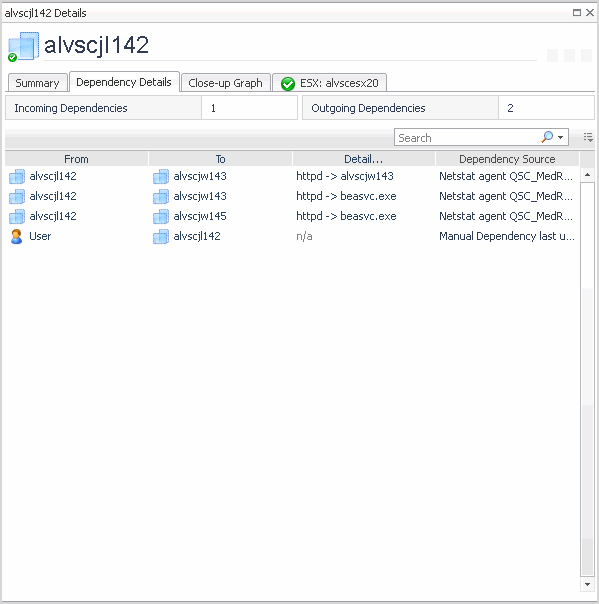
|
The host or object which is directly dependent on the item in the To column (that is, the dependency client). | |
|
The host or object which is directly depended upon by the item in the From column (that is, the dependency server). | |
|
Short text summary of the dependency (for example, httpd.exe->mysql.exe), or the comment of the creator of the manual dependency.
Click the details link to open the Dependency Detail dialog box. For more information, see Dependency detail. | |


