The Disks tab can be found on the following dashboards:
|
• |
The Disks tab displays the physical disks associated with the selected entity.
|
• |
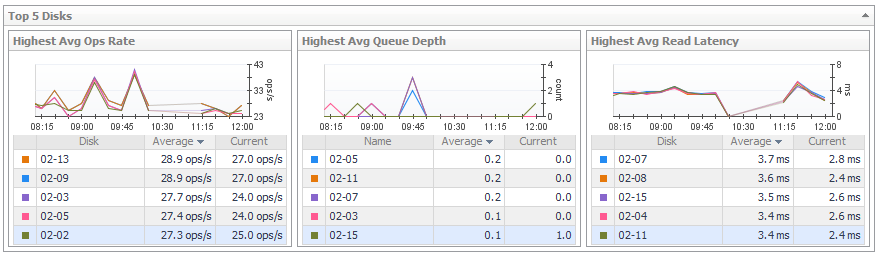
Top 5 Disks. Displays the top five disks with the highest average value for Ops Rate and the performance metrics most useful for this array or filer. |
|
• |
Disk Status Filter. Click to show only disks with the selected status in the Disk Details table. |
|
• |
Disk Details. For each disk, identifies its status, physical state, parent pool or aggregate, and Disk Size, and then displays current values for Ops Rate, % Busy, Average Queue Depth, Data Rate, and Latency. Click a  Sparkline to plot metric values over the time period. Sparkline to plot metric values over the time period. |
|
• |
Alarm Summary. Displays alarms on disks. |
This section describes the following topics:
|
1 |
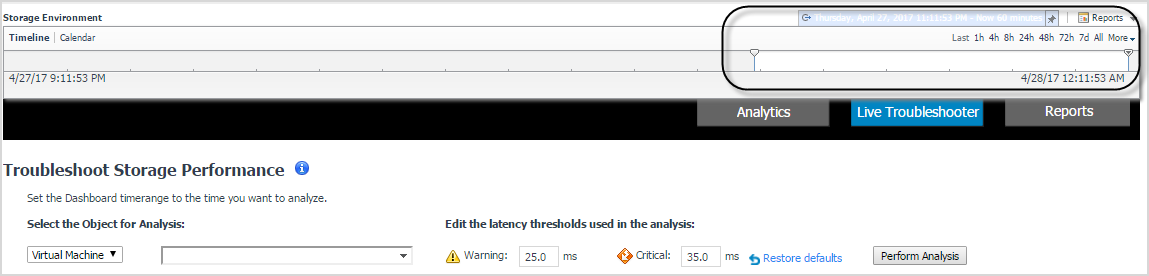
On the navigation panel, under Dashboards, click the Insights tab, and then click Live Troubleshooter. |
|
4 |
|
5 |
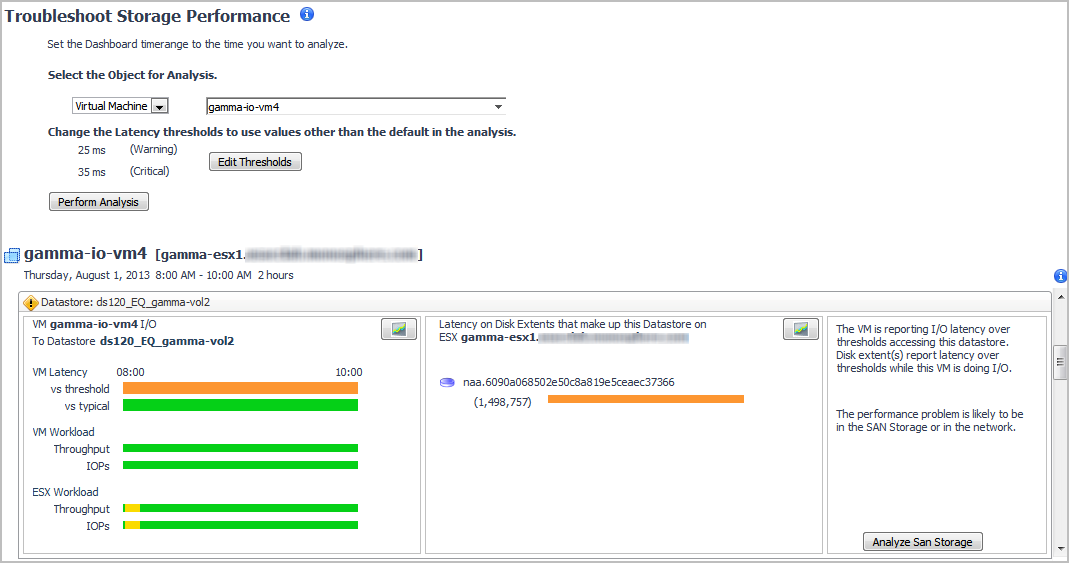
Click Perform Analysis. |
|
• |
If a Normal  icon appears in all title bars, the performance issue is not storage-related. This investigation is complete. icon appears in all title bars, the performance issue is not storage-related. This investigation is complete. |
|
• |
If the Attention  icon appears in one or more title bars, continue your investigation following the workflow described in Analyzing Storage Issues. icon appears in one or more title bars, continue your investigation following the workflow described in Analyzing Storage Issues. |
If the view for a datastore or RDM disk extent shows the Attention
Each datastore/RDM view has three summary panels (from left to right):
A virtual machine may be connected to multiple datastores and RDM disk extents, each of which may report varying degrees of problems. When a virtual machine has more than one datastore/RDM view, start by scanning the timeline bars in the VM I/O to Datastore/RDM panel to identify a datastore/RDM with consistently slow I/O performance or significant changes from typical performance.
|
1 |
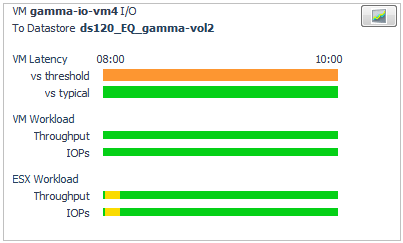
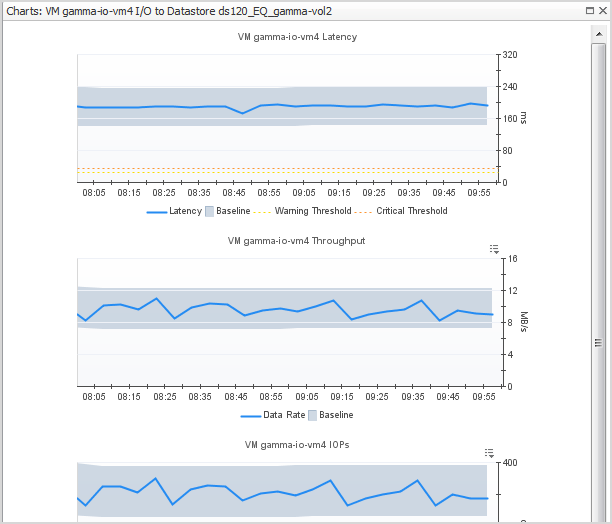
In a view showing the Attention icon, scan the VM I/O to Datastore/RDM summary (first panel). Look for timeline bars that primarily show colors such as yellow, orange, or pink, that is, any color other than green (which represents acceptable activity). |
|
2 |
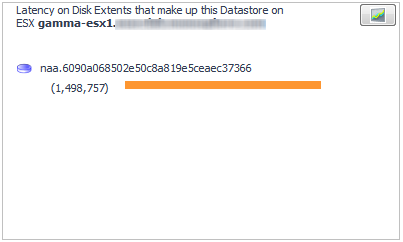
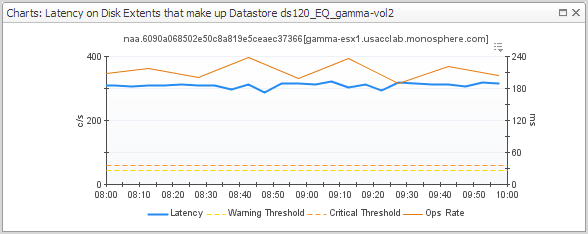
Now look at the Latency for Disk Extents summary (middle panel) to identify the disk extents that are contributing to the problem. |
|
a |
|
c |
|
5 |
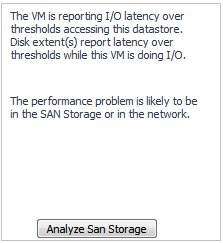
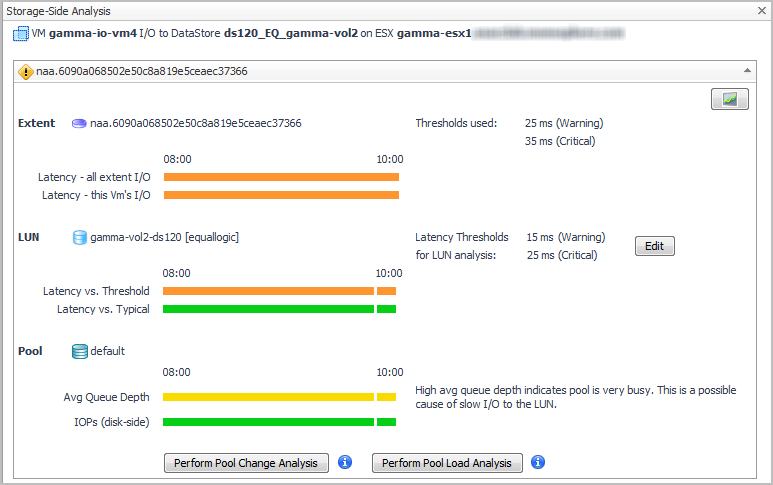
In the Diagnosis panel, click Analyze SAN Storage. |
|
• |



 icon.
icon.