|
• |
Perform Pool Change Analysis. The Pool Change analyzer identifies the LUNs primarily responsible for increased I/O. It compares LUN activity in the problem time range with LUN activity during the same time range in the past. Changes are reported in terms of average operations rate and change amount. |
|
• |
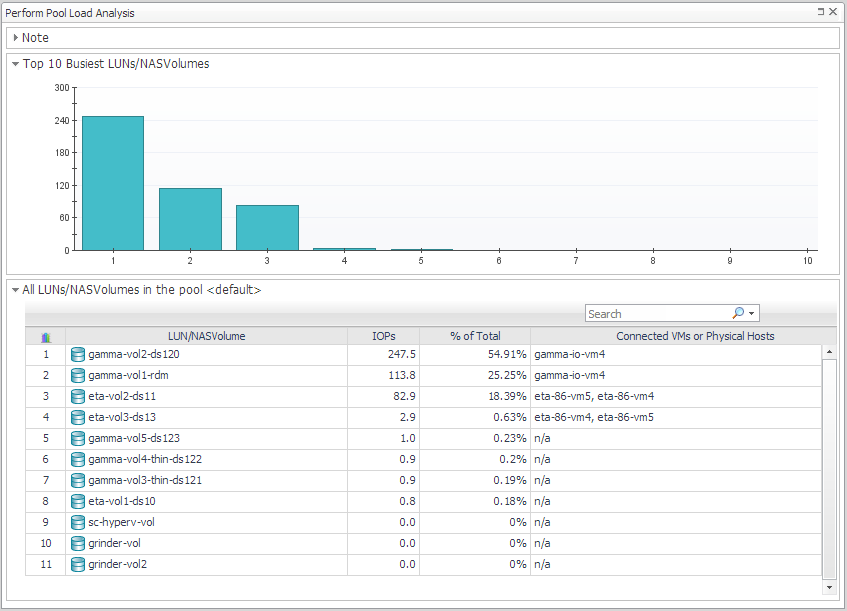
Perform Pool Load Analysis. The Pool Load analyzer identifies the busiest LUNs and ranks them based on their activity during the same time range over the last 30 days (not the current time frame). Activity is measured in operations per second. |
|
1 |
From the Server-Side Analysis window or the Pool Explorer window, click Perform Pool Change Analysis. |

|
TIP: You can change the comparison time range by clicking Change and selecting a new date and time range. |
|
3 |
Click Perform Pool Load Analysis. |
|
1 |
In the Storage Troubleshooting dashboard, click Edit Thresholds. |
|
2 |
|
3 |
Click Apply. |
|
NOTE: This section is intended for users with the role Storage Administrator. Some tasks also require the Foglight for Storage Management role of Administrator (as noted) to manage agents and rules. |
|
• |
Modifying Data Collection Schedules (Administrator role required) |
|
• |
Managing Foglight for Storage Management Rules (Administrator role required) |
If you are looking for information about configuring Foglight for Storage Management agents and agent masters, reviewing agent alarms, creating support bundles, or backing up data, see the Foglight for Storage Management Installation Guide.


