Submitting forms on the support site are temporary unavailable for schedule maintenance. If you need immediate assistance please contact technical support. We apologize for the inconvenience.
RMI setting in the Agent Administration panel cannot be changed for Azure database agents.
원인
The RMI port settings only can be modified in "On Demand Data Settings" dashboard, but Azure SQL Cartridge do not support this dashboard.
해결 방안
WORKAROUND
A workaround has been provided for this issue.
Obtain the agent name from Administration | Agents | Agent Status dashboard, use this value in the groovy script provided below as the parameter agentName
Obtain the the FglAM name from Administration | Agents | Agent Managers dashboard, use this value in the groovy script provided below as the parameter rmiHost
Add the RMI port number into the groovy script provided below as the value of parameter rmiPort
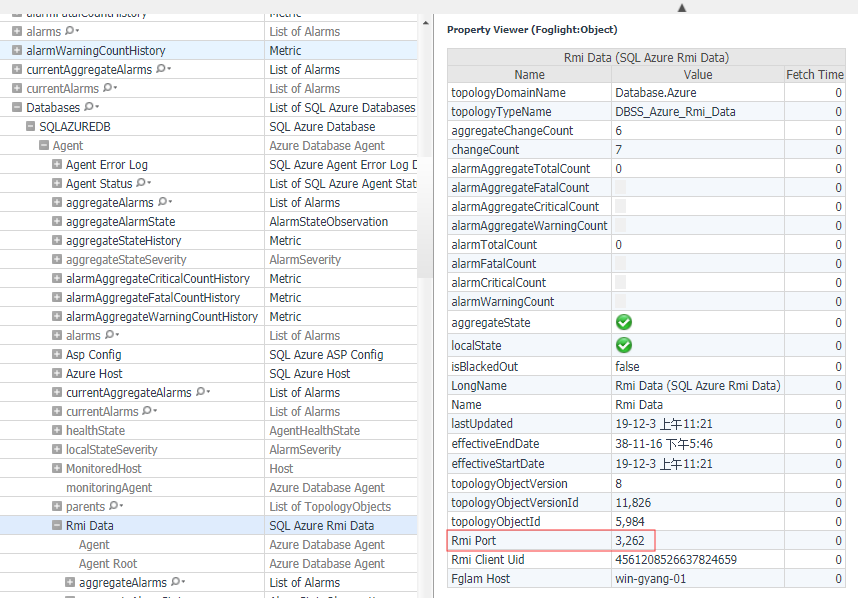
Check the current RMI port in Adminstration | Data dashboard the path like Databases/Azure/Azure Databases/SALES/Agent/Rmi Data, and switch to Property Viewer(Foglight:Object). the name `SALES` is the monitored database name.
Run the Update Azure SQL Cartridge RMI port - Version2.groovy (see the attachments below and requires being logged into Supportlink) in Administration | Tooling | Script Console dashboard using the cartridge type DB_Azure.
Select the Log Messages tab to see the output from the script
Check the new RMI port in the data dashboard, as detailed in step 4 (above)
Refresh and check the Activity | Blocking(Current) and Activity | Sessions dashboards.
Note: Testing may find that connections to the rmiHost port may fail initially. Note: No restarts of Foglight components are required.